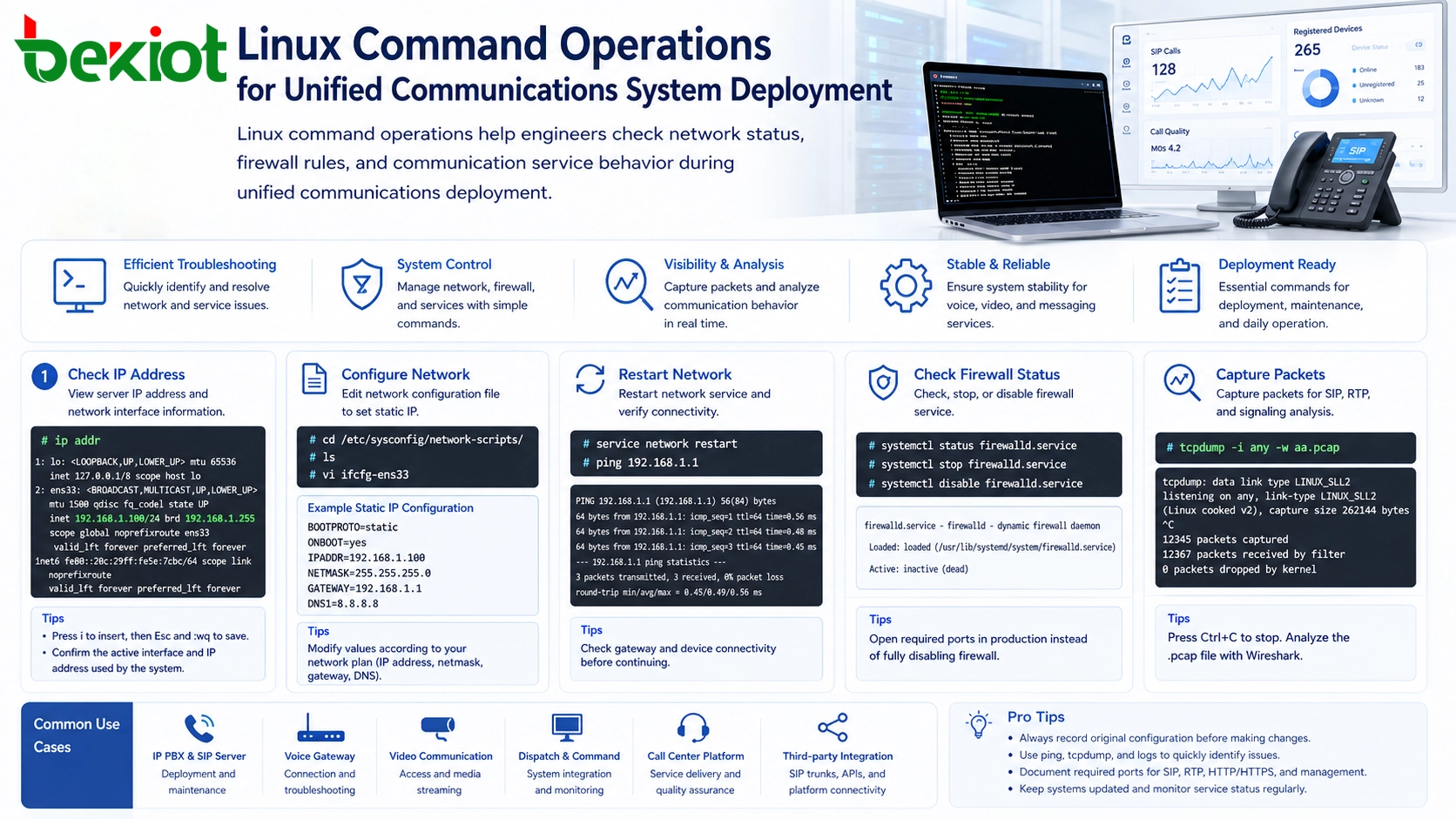
Most unified communications systems run on Linux-based server environments. Open-source communication platforms such as Asterisk and FreeSWITCH are commonly deployed on Linux, and many project environments still use CentOS or CentOS-like server systems. For engineers working with SIP communication, voice gateways, dispatch platforms, video communication, IP PBX systems, and call center services, understanding basic Linux commands can significantly improve deployment efficiency and troubleshooting accuracy.
In a real unified communications project, many problems are not caused by the communication application itself. They may come from incorrect IP configuration, unreachable routes, blocked firewall ports, unstable network links, or signaling packets that fail to reach the correct service. A practical Linux operation workflow helps implementation teams quickly check the server environment, adjust network parameters, verify service connectivity, and collect evidence for further analysis.
Why Server-Level Operations Matter
Unified communications platforms usually depend on stable IP networking, open service ports, and reliable media transmission. SIP signaling, RTP voice streams, video media, web management interfaces, database services, and gateway connections all need correct network and system configuration. If the server IP address is wrong, if the gateway is unavailable, or if the firewall blocks key ports, users may experience registration failure, one-way audio, failed calls, missing video, or unstable conferencing.
A graphical management portal can handle many routine settings, but it cannot replace system-level inspection. Linux commands allow engineers to see the real server status directly. They can confirm the current IP address, enter the network configuration directory, edit interface parameters, restart network services, check firewall status, and capture packets for SIP or media analysis.
This is especially useful during project delivery. Engineers can quickly judge whether a problem belongs to the application layer, network layer, firewall layer, or device interconnection layer. It also helps the field team cooperate with R&D engineers by providing clear configuration details and packet capture files instead of vague problem descriptions.
Checking the Server IP Address
The first basic task in a communication project is to confirm the IP address of the server. Unified communications systems often need to communicate with SIP phones, gateways, trunks, dispatch consoles, recording servers, management clients, and third-party platforms. If the IP address is incorrect or the wrong network interface is used, devices may fail to register or connect.
The following command can be used to view the current IP address and network interface information:
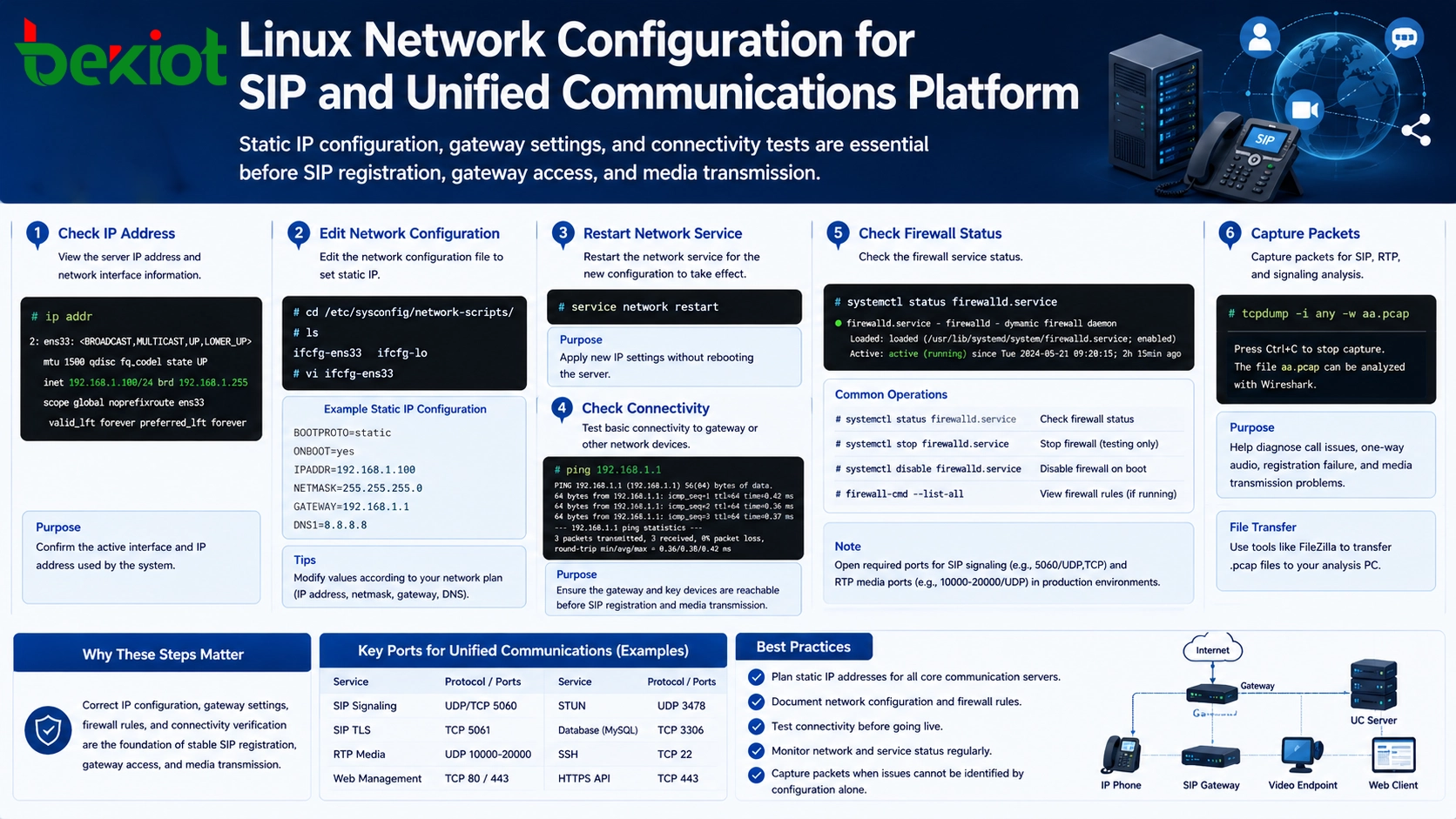
# ip addr
This command displays network interface names, IP addresses, subnet information, and link status. In a deployment environment, engineers should check whether the server has received the expected IP address, whether the correct network card is active, and whether the address belongs to the planned communication network segment.
For unified communications systems, IP confirmation is not only a network step. It directly affects SIP registration addresses, media negotiation, trunk configuration, device access, and platform interconnection.
Editing Network Configuration Files
When a static IP address is required, the engineer may need to edit the network configuration file. In many CentOS-style environments, network configuration files are stored in the following directory:
# cd /etc/sysconfig/network-scripts/
After entering the directory, the engineer can list the available files:
# ls
The network card configuration file may look like ifcfg-ens33, ifcfg-eth0, or another similar name depending on the server environment. The correct file should be edited according to the actual network interface name.
# vi ifcfg-ens33
In the vi editor, press i to enter insert mode and modify the network parameters. A typical static IP configuration may include the following items:
BOOTPROTO=static
ONBOOT=yes
IPADDR=XXX.XXX.XXX.XXX
NETMASK=XXX.XXX.XXX.XXX
GATEWAY=XXX.XXX.XXX.XXX
DNS1=XXX.XXX.XXX.XXX
After editing, press Esc, then type :wq to save and exit. These parameters should be filled in according to the real project network plan, including IP address, subnet mask, gateway, and DNS server.
In communication projects, static IP planning is usually recommended for core servers, SIP platforms, dispatch systems, media gateways, recording servers, and integration nodes. A changing server IP address can easily break device registration, trunk routes, API callbacks, and platform interconnection.
Restarting the Network Service
After modifying network configuration, the network service must be restarted for the new configuration to take effect. In CentOS-style systems, the following command is commonly used:
# service network restart
After the restart, engineers should verify whether the new IP address has taken effect and whether the server can reach other network devices. The ping command is a simple way to test basic connectivity:
# ping 192.168.1.1
The destination address should be changed according to the actual gateway, SIP server, gateway device, dispatch terminal, or platform address. If the server cannot ping the gateway or key service devices, the problem should be resolved before testing SIP calls, video access, or platform integration.
Network restart and connectivity checks are simple but important. Many communication problems are caused by wrong gateway settings, incorrect subnet masks, wrong network interfaces, or disconnected physical links.
Checking and Managing Firewall Status
Firewall configuration is one of the most common causes of communication failure. SIP platforms, RTP media streams, web management pages, video services, and gateway connections all require specific ports to be reachable. If the firewall blocks these ports, users may encounter failed registration, failed calling, one-way audio, no video, or unstable media transmission.
The following command checks the firewall service status:
# systemctl status firewalld.service
If the result shows active (running), the firewall is currently enabled. During testing or troubleshooting, engineers may temporarily stop the firewall to determine whether blocked ports are causing the problem.
# systemctl stop firewalld.service
After stopping the firewall, check the status again:
# systemctl status firewalld.service
If the result shows inactive (dead), the firewall has been stopped. To disable the firewall from starting automatically after reboot, use:
# systemctl disable firewalld.service
For production environments, firewall handling should be planned carefully. Completely disabling the firewall may be useful for temporary testing, but a better long-term approach is to open the required service ports according to the security policy. Unified communications systems often involve SIP signaling, RTP media ports, HTTPS management, database access, recording services, and API interfaces, so port planning should be documented clearly.
Using Packet Capture for Signaling Analysis
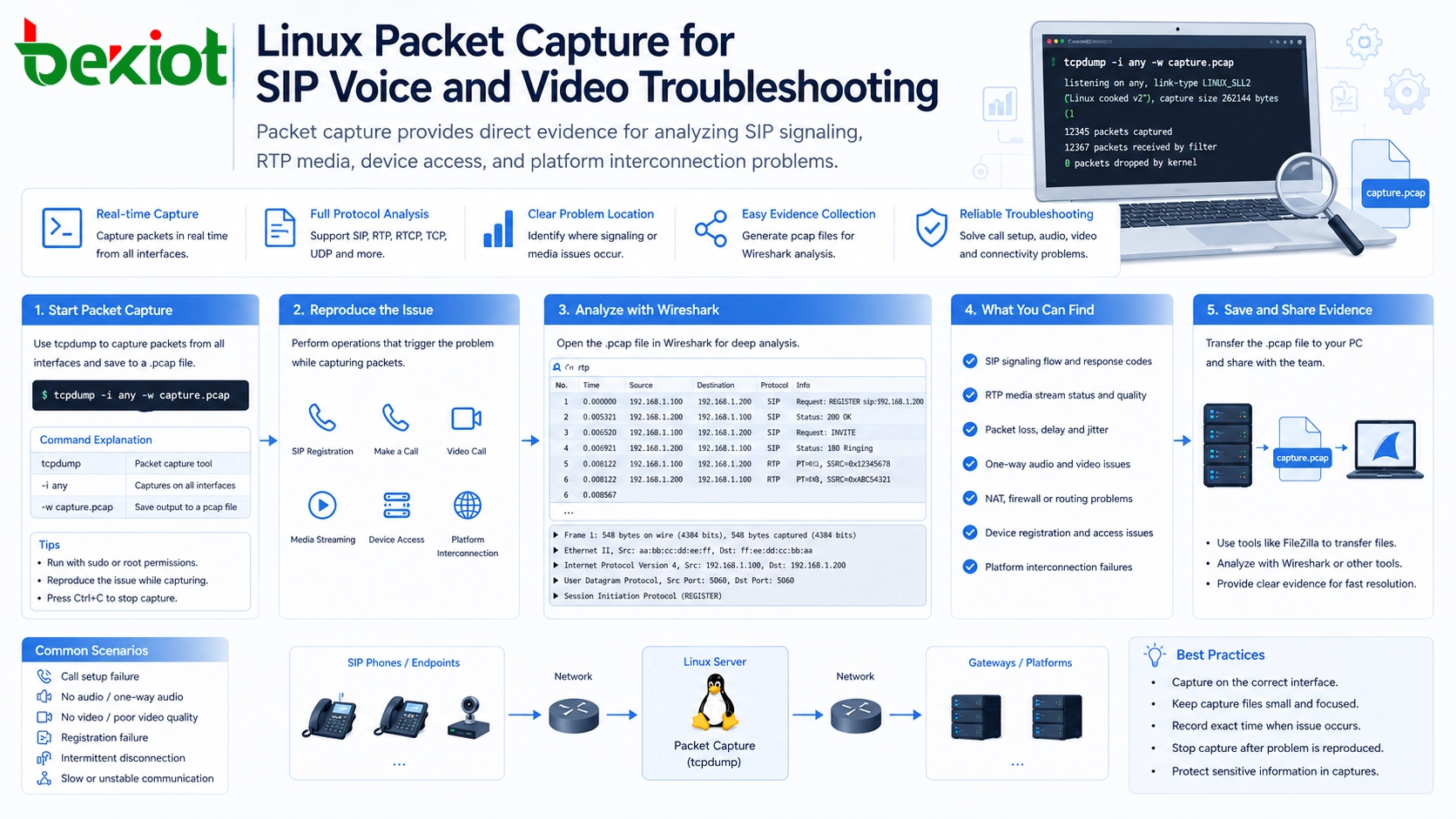
Packet capture is one of the most important troubleshooting methods in unified communications projects. When calls fail, video cannot be opened, devices cannot register, or voice becomes one-way, packet capture can show whether signaling and media packets are actually reaching the server.
Linux servers commonly use tcpdump to capture IP packets. The following command captures packets from all interfaces and saves the result as a .pcap file:
# tcpdump -i any -w aa.pcap
In this command, aa.pcap is the name of the generated packet capture file. The file name can be changed, but the .pcap extension should be kept for later analysis. After the capture starts, engineers can reproduce the issue by making calls, registering devices, opening video streams, or testing platform interconnection.
When the problem has been reproduced, press Ctrl + C to stop the packet capture. The generated .pcap file can then be transferred to a computer by tools such as FileZilla and analyzed using Wireshark or similar packet analysis software.
Packet capture helps identify where the problem occurs. For example, engineers can check whether SIP messages are sent and received, whether RTP media ports are negotiated correctly, whether the remote device responds, and whether packet loss or routing problems exist in the network path.
How These Commands Support Project Delivery
In a unified communications deployment, Linux commands should not be treated as isolated technical tricks. They form a practical field workflow. Engineers first confirm the server IP address, then verify network configuration, restart services when needed, test connectivity, check firewall status, and finally capture packets if the problem cannot be judged from configuration alone.
This workflow can be used in many communication scenarios, including IP PBX deployment, SIP trunk access, voice gateway configuration, dispatch system implementation, video communication integration, call center platform delivery, and interconnection with third-party business systems.
The value of these commands is efficiency. They help the project team quickly narrow the fault range. If the IP configuration is wrong, application debugging will not solve the problem. If the firewall blocks media ports, changing SIP accounts will not fix one-way audio. If packets never reach the server, the issue may be routing, NAT, gateway policy, or network access control rather than the communication platform itself.
Building an Operational Checklist
For long-term maintenance, organizations should turn these commands into a standard checklist. Before going online, the team should confirm the server IP address, gateway, DNS, network reachability, firewall policy, required ports, service startup status, and packet capture method. During troubleshooting, the same checklist can help engineers avoid missing basic problems.
Use
ip addrto confirm server IP and active interfaces.Check network configuration files before modifying static IP settings.
Restart the network service after changing IP parameters.
Use
pingto confirm basic connectivity with gateways and devices.Use
systemctl status firewalld.serviceto check firewall status.Use
tcpdumpto collect packet evidence for SIP, RTP, and video troubleshooting.Save packet captures as
.pcapfiles for Wireshark analysis.
Security and Operation Considerations
While these commands are useful, they should be used with proper permission control. Network configuration changes can interrupt service. Firewall changes can affect system security. Packet capture files may contain IP addresses, signaling information, and communication metadata. Therefore, only authorized engineers should perform these operations in production environments.
Before modifying a live system, it is better to record the original configuration. When stopping the firewall for testing, the test window should be controlled and the final security policy should be restored or properly adjusted. When collecting packet captures, the files should be stored and transferred securely.
A reliable unified communications solution needs both application-level design and system-level operation. Linux command skills help bridge the gap between communication software, server infrastructure, network environment, and field troubleshooting.
Conclusion
Unified communications systems depend heavily on Linux server environments, especially when platforms such as Asterisk, FreeSWITCH, SIP gateways, media services, and dispatch systems are involved. Basic Linux commands can greatly improve project implementation and troubleshooting efficiency.
Commands such as ip addr, vi, service network restart, ping, systemctl status firewalld.service, and tcpdump help engineers inspect the network, modify IP parameters, manage firewall status, and capture packets for deeper analysis.
For SIP, voice, video, call center, and dispatch projects, these Linux operations should be part of a standard deployment and maintenance process. They help reduce guesswork, shorten troubleshooting time, and provide clear evidence for solving communication problems.
FAQ
Do field engineers need advanced Linux knowledge for communication projects?
Advanced Linux administration is not always required, but engineers should understand basic commands for IP checking, file editing, network restart, firewall inspection, and packet capture. These skills are often enough to solve common deployment and troubleshooting problems.
Should the firewall always be turned off in a unified communications system?
No. Turning off the firewall can help during testing, but production systems should use a planned security policy. Required SIP, RTP, web, API, and management ports should be opened according to the actual system design.
Why is packet capture useful when call configuration looks correct?
Configuration may look correct while packets are still blocked, routed incorrectly, rewritten by NAT, or rejected by another device. Packet capture shows the real signaling and media behavior on the network, making it easier to locate the fault.
Can these commands be used for both voice and video troubleshooting?
Yes. The same Linux inspection process can be used for SIP voice, RTP media, video streams, gateway access, conference systems, and platform interconnection. The difference is mainly in which ports and protocols need to be analyzed.
What should be prepared before changing server network settings?
Engineers should record the original IP address, subnet mask, gateway, DNS, interface name, and remote access method. This helps prevent accidental loss of connection and makes rollback easier if the new configuration is incorrect.