Message Waiting Indicator, commonly abbreviated as MWI, is a telephony feature that notifies users when they have a new voicemail or unheard message. The indication may appear as a flashing lamp on a desk phone, an icon on a screen, a notification in a softphone, a special dial tone, an email alert, or a message counter in a unified communications app.
MWI is widely used in PBX systems, IP PBX platforms, SIP phone systems, hosted VoIP services, hotel phone systems, enterprise voicemail platforms, contact centers, healthcare communication systems, and office phone networks. Its purpose is simple but important: users should know that a message is waiting without needing to manually check voicemail all the time.
Why Voicemail Needs a Visible Reminder
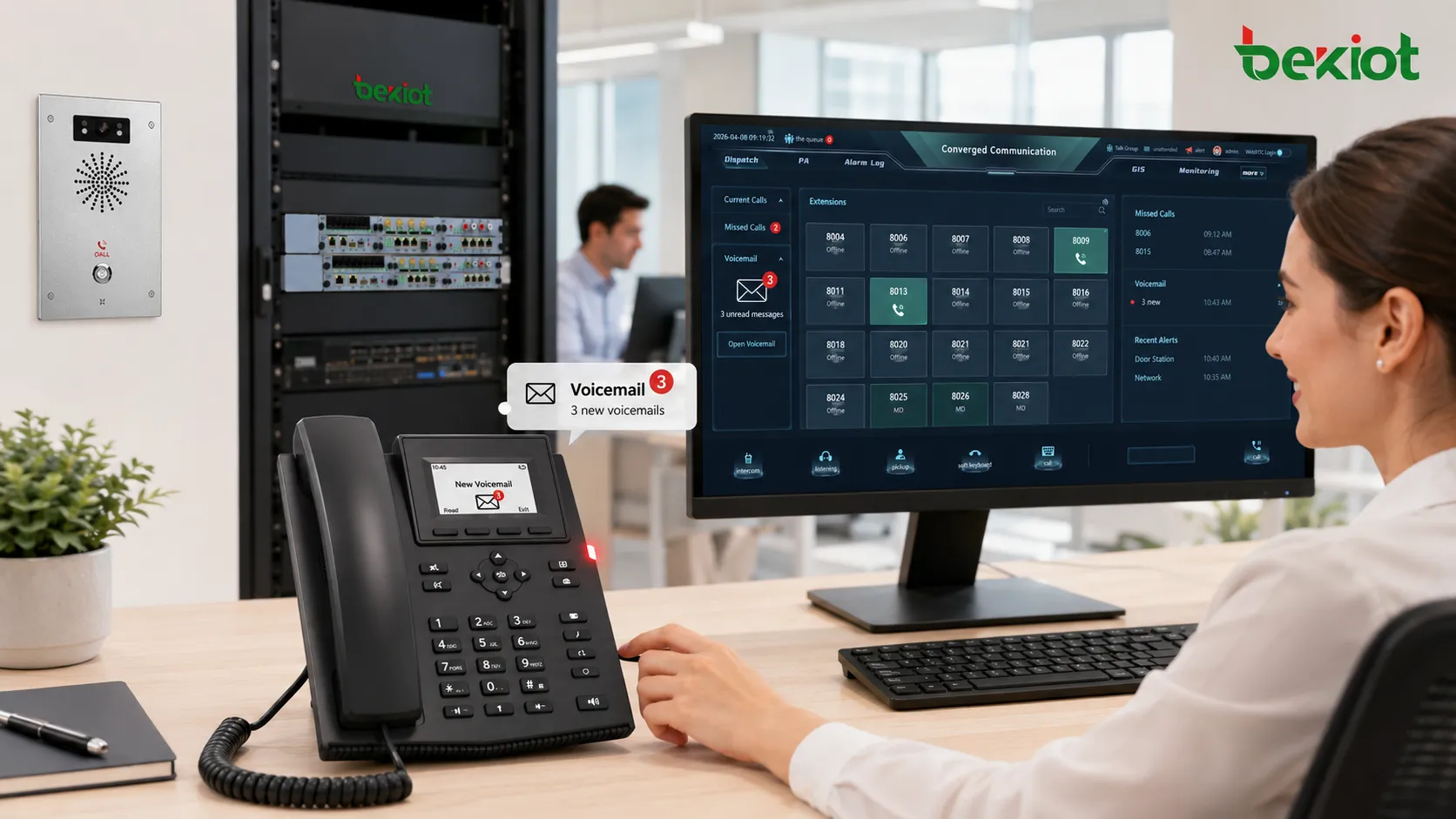
Voicemail is useful only when users know a message has arrived. Without a reminder, important customer calls, internal requests, service alerts, appointment messages, or after-hours inquiries may remain unheard. MWI solves this by turning voicemail status into a visible or audible signal on the user’s phone or communication client.
In older office systems, the most familiar sign was a red flashing lamp on a desk phone. In modern SIP and cloud phone systems, the same function may appear as a screen icon, voicemail badge, push notification, desktop pop-up, or synchronized status across multiple devices.
The value is not only convenience. MWI improves response speed, reduces missed follow-ups, helps reception teams manage shared mailboxes, and supports professional call handling. For teams that depend on callbacks, service tickets, reservations, or patient messages, voicemail indication can directly affect operational efficiency.
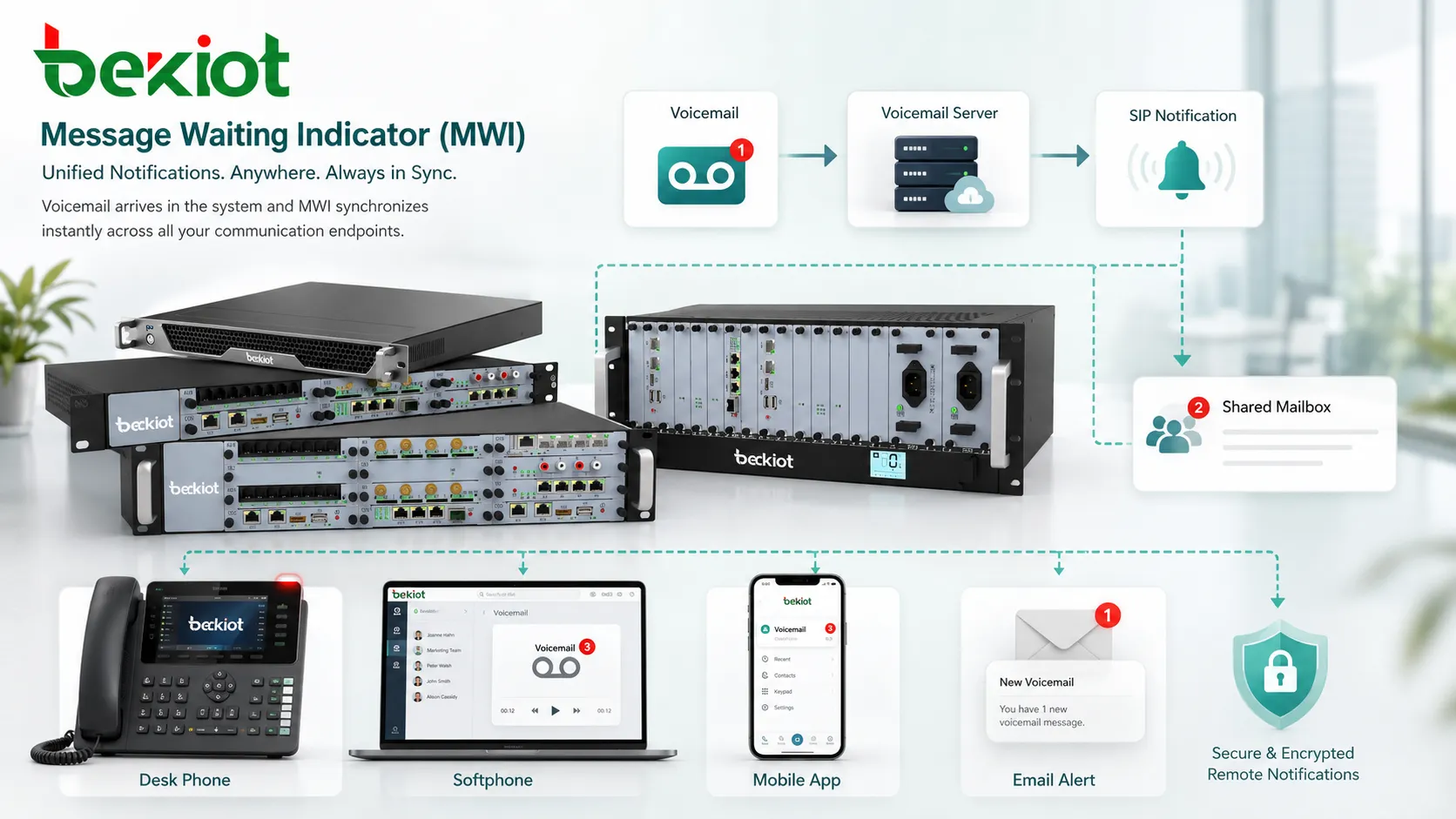
The Call Flow Behind the Notification
Caller Leaves a Message
The process begins when a caller reaches voicemail. This may happen because the user does not answer, the extension is busy, the phone is offline, the call is forwarded, or the call is routed to a mailbox after business hours.
The voicemail platform records the caller’s message and stores it in the assigned mailbox. The mailbox may belong to a single user, a department, a queue, a hotel guest room, a shared support line, or a service group.
Mailbox Status Changes
After the message is saved, the voicemail system updates the mailbox status. It may change from “no new message” to “new message waiting,” or it may increase the unread message count.
This status change becomes the trigger for MWI. The voicemail system must then notify the PBX, SIP server, phone system, or endpoint that a new message is available.
Phone System Sends the Alert
The phone system sends an indication to the user’s phone or client. In SIP environments, this is often handled through subscription and notification behavior. The endpoint subscribes to message waiting status, and the server sends updates when the mailbox state changes.
In traditional PBX systems, MWI may use proprietary signaling, voltage control, lamp control, special dial tone, or centralized phone system messages. The technical method depends on the platform.
User Checks Voicemail
The user sees the lamp, icon, notification, or tone and accesses voicemail. This may be done by pressing a voicemail key, dialing a feature code, opening a softphone mailbox, clicking a notification, or using a mobile app.
After the user listens to the message, deletes it, saves it, or marks it as heard, the mailbox status changes again. The system then updates MWI so the lamp turns off, the icon disappears, or the unread count decreases.
MWI is the bridge between message storage and user action. It tells the user that voicemail exists and reminds them to respond.
Common Indication Methods
Flashing Lamp
A flashing message lamp is one of the most common forms of MWI on desk phones. It gives users a quick visual cue that a voicemail is waiting. This is especially useful in offices where users may not constantly look at the phone screen.
The lamp may remain active until all new messages are listened to or marked as read. Some systems also show different behavior for urgent messages, shared mailboxes, or multiple accounts.
Screen Icon or Message Count
Modern IP phones often display a voicemail icon, envelope symbol, text prompt, or numeric count. This gives more detail than a simple lamp because users may see how many messages are waiting.
Screen-based indication is useful when phones have multiple lines or accounts. The display can show which account, extension, or mailbox has new messages.
Stutter Dial Tone
Some phone systems use a special dial tone to indicate waiting voicemail. When the user lifts the handset, the tone sounds different from normal dial tone, reminding the user to check messages.
This is useful for analog phones or systems where a physical message lamp is not available. However, users may not notice the alert until they pick up the phone.
Softphone and App Notifications
Softphones and unified communications apps may show voicemail badges, push notifications, desktop alerts, email messages, or mobile notifications. This extends MWI beyond the desk phone.
For hybrid work and remote teams, app-based indication is important because users may not always be near a physical phone.
Email and Unified Messaging Alerts
Some systems send voicemail alerts by email, sometimes with audio attachments or links to the message portal. This is often called voicemail-to-email or unified messaging.
Email alerts should be configured carefully. Organizations should consider privacy, retention, attachment security, mailbox storage, and whether users are allowed to forward voicemail recordings.
How MWI Works in SIP Systems
In SIP-based telephony, MWI is commonly handled through the SIP event package for message-summary status. The phone subscribes to voicemail status, and the server sends notifications when the mailbox state changes. The notification may tell the endpoint whether messages are waiting and may include the number of new and old messages.
The user does not usually see this signaling process. From the user’s point of view, the phone simply turns on a lamp or displays a voicemail icon. Behind the scenes, the phone, PBX, and voicemail server must agree on account identity, mailbox mapping, subscription permissions, and message state.
If any part is misconfigured, MWI may fail. A user may have voicemail, but the phone lamp does not turn on. Or the lamp may remain on after messages are cleared. Troubleshooting usually requires checking SIP subscriptions, mailbox ID, voicemail server status, phone firmware, and PBX configuration.
| MWI Element | Main Function | Common Issue |
|---|---|---|
| Mailbox | Stores new, saved, deleted, or heard voicemail messages. | Wrong mailbox mapping can send status to the wrong phone. |
| PBX or SIP Server | Controls subscriptions, notifications, routing, and voicemail integration. | MWI may fail if subscription or notification settings are disabled. |
| Endpoint | Displays the lamp, icon, message count, or notification. | Old firmware or wrong account settings may prevent display updates. |
| Voicemail System | Updates message state and triggers MWI changes. | Delayed status updates may keep the indicator on or off incorrectly. |
| User Action | Listens, deletes, saves, or marks messages as heard. | Saved but unheard messages may continue to show as waiting. |
Features That Improve Voicemail Handling
Unread Message Count
A simple lamp tells the user that at least one message exists. A message count gives more context. Users can see whether there is one missed voicemail or several new messages waiting.
This is helpful for service desks, reception groups, hotel front desks, clinics, and support teams where voicemail volume may be high during busy or after-hours periods.
Shared Mailbox Indication
Some teams use shared mailboxes for departments such as support, billing, reception, emergency service, reservations, or maintenance. MWI can notify multiple phones that a shared mailbox has new messages.
Shared mailbox indication should be planned carefully. If one user listens to the message, the system should update the status for other users so the same voicemail is not handled repeatedly.
Multiple Account Support
Many IP phones can register more than one SIP account. MWI should identify which account or mailbox has messages. Otherwise, users may know that voicemail exists but not know which line needs attention.
This is important for receptionists, operators, supervisors, and multi-role users who handle several numbers or departments from one phone.
Urgent Message Handling
Some voicemail platforms allow callers or users to mark messages as urgent. The MWI behavior may then show a different lamp pattern, icon, priority label, or notification type.
Urgent message handling helps users prioritize callbacks. However, it should not be overused, or users may stop treating urgent messages as special.
Remote Notification
MWI can extend to remote users through softphones, mobile apps, email, or web portals. This helps employees respond even when they are not in the office.
Remote notification should be secure, especially if voicemail contains customer data, medical information, financial details, or internal business messages.
Where It Is Used in Business Communication
Office Phone Systems
In office environments, MWI helps employees notice missed voicemail quickly. It is commonly used on desk phones, executive phones, reception phones, conference room phones, and shared department phones.
For general business users, the most important requirement is reliability. If the indicator is inaccurate, users may ignore it or waste time checking empty mailboxes.
Contact Centers and Service Teams
Contact centers may use voicemail for after-hours calls, overflow queues, callback requests, abandoned call recovery, and department-specific messages. MWI helps supervisors or agents know when messages need follow-up.
In these environments, voicemail should be connected with service workflows. A waiting message may need to create a ticket, trigger a callback task, or appear in a queue dashboard.
Hotels and Guest Room Systems
Hotels often use MWI to notify guests or staff about messages. A guest room phone may light up when the front desk leaves a message. Back-office teams may also receive voicemail indications for reservations, housekeeping, or management lines.
Hotel systems should clear indicators reliably after messages are retrieved. A lamp that stays on after checkout can create confusion for the next guest.
Healthcare and Clinics
Clinics, laboratories, pharmacies, and healthcare offices use voicemail for appointment calls, patient messages, internal coordination, and after-hours instructions. MWI helps staff identify waiting messages that may require timely response.
Healthcare deployments should review privacy and retention policies. Voicemail may contain sensitive information, so alerts, email forwarding, and shared access should be managed carefully.
Remote and Hybrid Work
Remote workers may rely on softphone badges, mobile app notifications, or voicemail-to-email alerts. MWI helps maintain the same responsiveness that users expect from office desk phones.
For hybrid environments, synchronization matters. If a user listens to a voicemail on a mobile app, the desk phone indicator should also update to avoid duplicate checking.
Configuration Areas to Review
Mailbox Mapping
Each phone account must be mapped to the correct voicemail box. If the account and mailbox do not match, the phone may not receive the right indicator, or it may display another user’s voicemail status.
Mailbox mapping is especially important when extensions are renamed, reassigned, migrated, or shared across devices.
Subscription Settings
In SIP systems, the phone may need to subscribe to message status. The PBX or server must allow the subscription and send notifications. If subscriptions are blocked or unsupported, MWI may not work even if voicemail works.
Administrators should check phone settings, PBX account configuration, and SIP traces when indicators do not update.
Voicemail Access Code
The voicemail key should dial the correct access code, mailbox number, or portal. Users may see the indicator but fail to retrieve messages if the voicemail button is configured incorrectly.
This is a common issue after PBX migration, extension renumbering, or phone template changes.
Notification Timing
Some systems update MWI immediately, while others update after a short delay. Delayed updates may be acceptable, but long delays can confuse users.
If indicators update slowly, check voicemail server load, network latency, SIP notification behavior, and whether the phone is sleeping or disconnected.
Multi-Device Synchronization
One user may have a desk phone, softphone, mobile app, and web client. The system should update message status across all devices after voicemail is heard or deleted.
Without synchronization, one device may continue showing a waiting message even after another device has cleared it.
Most MWI problems are not caused by the lamp itself. They usually come from mailbox mapping, subscription settings, voicemail access codes, or delayed status synchronization.
Common Problems and Troubleshooting
Indicator Does Not Turn On
If voicemail exists but the indicator does not activate, check whether the phone is subscribed to the correct mailbox, whether the PBX sends MWI notifications, and whether the voicemail system has marked the message as new.
Also confirm that the phone account is registered and that the device firmware supports the required MWI behavior.
Indicator Stays On After Messages Are Heard
This may happen if messages are saved as unread, if the voicemail system did not update status, if the phone missed the clearing notification, or if another message remains in the mailbox.
Refreshing the phone registration, checking mailbox state, and reviewing SIP notification logs can help locate the problem.
Wrong Phone Shows the Alert
If the wrong phone receives MWI, the mailbox mapping or account association may be incorrect. This can happen after extension reassignment, phone replacement, hotel room reset errors, or template copying.
Check the extension number, mailbox ID, SIP account, and provisioning template.
Voicemail Button Dials the Wrong Place
The MWI lamp may work, but the voicemail key may be configured with the wrong access number or feature code. Users then see the alert but cannot easily retrieve messages.
Update the voicemail access key and test from the actual phone, not only from the PBX portal.
Softphone and Desk Phone Do Not Match
If a softphone clears voicemail but the desk phone still shows a message, synchronization may be delayed or broken. Multi-device environments require consistent mailbox status updates across all registered clients.
Check whether all clients use the same mailbox and whether the server sends notifications to each device.
Best Practices for Deployment
Start with a clear voicemail plan. Decide whether each user has a personal mailbox, whether departments use shared mailboxes, and whether some calls should go to group voicemail instead of individual voicemail.
Use consistent provisioning. Phone templates should include the correct voicemail access code, MWI subscription settings, account mapping, and display behavior. Manual configuration on many phones can create inconsistencies.
Test from the user’s point of view. Leave a voicemail, confirm the lamp or icon turns on, retrieve the message, confirm the indicator clears, and test the voicemail button. Repeat the test for shared mailboxes and multi-device users.
Document special cases. Hotel rooms, shared phones, reception desks, call queues, and executive assistant setups may need different MWI behavior from ordinary user extensions.
Security and Privacy Considerations
Voicemail may contain sensitive information. MWI itself usually shows only that a message exists, but related features such as voicemail-to-email, mobile alerts, and message previews may expose more content. Organizations should define what information appears in notifications.
Mailbox access should require authentication. PINs, passwords, or app credentials should be managed properly, especially for remote access. Default voicemail PINs should be changed before production use.
Shared mailboxes should have clear ownership. If multiple users can access the same messages, the organization should define who is responsible for follow-up, deletion, retention, and escalation.
Maintenance and Long-Term Reliability
MWI settings should be reviewed after PBX upgrades, SIP trunk changes, phone firmware updates, voicemail server migration, extension renumbering, and device replacement. Small configuration differences can break message indication even when calling still works.
Administrators should also review inactive mailboxes. Old mailboxes with active indicators can create confusion, consume storage, and generate unnecessary support tickets.
For hotels, shared workstations, and rotating users, reset procedures are important. A room phone or shared desk phone should not show a previous user’s voicemail status after reassignment.
FAQ
Can MWI work without a voicemail lamp?
Yes. It can appear as a screen icon, message counter, app badge, email alert, special dial tone, or notification in a communication platform.
Why does the voicemail key work but the lamp does not?
The voicemail access key and MWI status notification are separate settings. The key may dial voicemail correctly even if the phone is not subscribed to message waiting updates.
Can one phone show message status for multiple mailboxes?
Some IP phones and PBX systems support multiple accounts or monitored mailboxes, but the behavior depends on device capability and server configuration.
Does deleting a voicemail always clear the indicator immediately?
Not always. Some systems clear it after all new messages are heard or deleted, while others may delay the update until the server sends a new status notification.
What should be checked after replacing a phone?
Check SIP account registration, mailbox mapping, voicemail access key, MWI subscription settings, firmware version, provisioning template, and whether the indicator turns on and off correctly during a test.