Desktop deployment is the process of preparing and delivering computer work environments to users in a controlled, repeatable, and manageable way. It may include operating system installation, application setup, device configuration, security policy enforcement, user profile migration, driver installation, endpoint management, software updates, and post-deployment support.
In modern IT environments, the term does not only refer to placing a physical computer on a desk. It can also include laptops, thin clients, virtual desktops, cloud workspaces, remote workstations, shared terminals, and role-based endpoint images. The goal is to give each user a ready-to-use, secure, and standardized working environment with minimal manual setup.
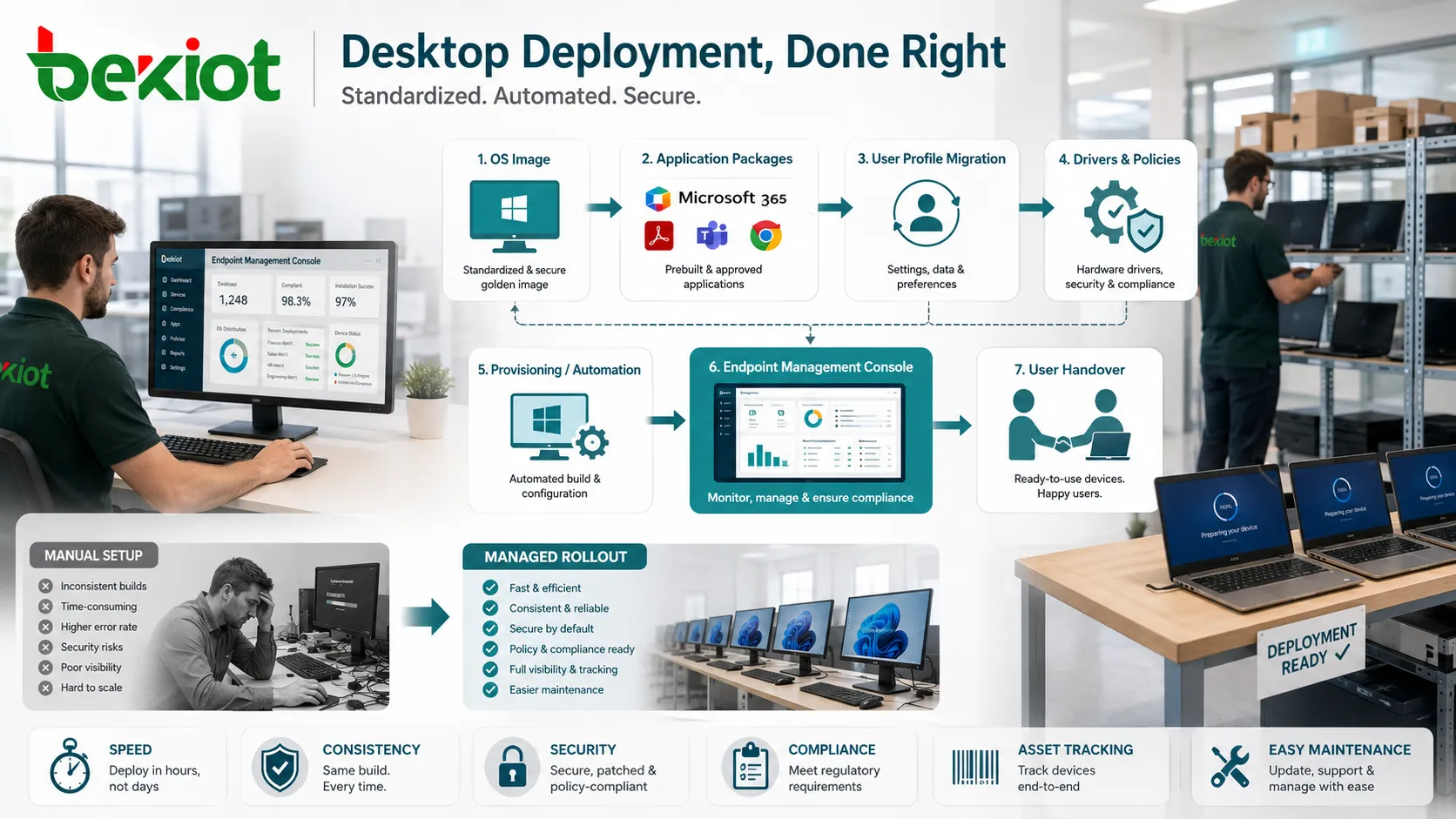
From Manual Setup to Managed Work Environment
In a small office, a technician may configure each computer by hand. They install the operating system, add applications, set passwords, connect printers, join the device to the network, and adjust user settings. This approach may work for a few devices, but it becomes slow and inconsistent when the organization has many users, departments, sites, or compliance requirements.
A managed rollout changes the model. Instead of building each workstation from scratch, IT teams use templates, images, policies, scripts, provisioning tools, device management platforms, and automation workflows. This reduces repetitive work and helps keep computers consistent across the organization.
The result is not only faster delivery. Standardization also improves security, troubleshooting, software compliance, asset tracking, and long-term maintenance.
What Usually Gets Delivered
Operating System Baseline
The operating system baseline defines the standard platform used by the organization. It may include system version, language, regional settings, security hardening, local user restrictions, disk encryption, update channels, and device naming rules.
A consistent baseline makes support easier. When all workstations start from a known configuration, technicians can diagnose problems faster and apply updates more predictably.
Business Applications
Applications may be installed according to user role, department, device type, or location. A finance user may need accounting software, while a designer may need graphics tools, and a call center agent may need CRM, softphone, and headset software.
Application packaging is important because different programs have different installers, dependencies, licenses, plug-ins, and update behaviors. Poor packaging can create failed installations or inconsistent user experience.
Security Controls
Security settings are usually applied during the rollout. These may include antivirus or EDR agents, firewall policy, disk encryption, secure boot, password policy, multi-factor authentication, browser restrictions, USB control, application allowlisting, and patch management.
By applying security early, the device becomes protected before users begin storing company data or connecting to internal resources.
User Data and Profiles
When replacing an old computer, user data and profile settings may need migration. This may include desktop files, browser bookmarks, email profiles, application settings, certificates, printer preferences, and mapped drives.
Profile migration should be planned carefully. Moving unnecessary clutter can slow down the new device, while missing important data can affect user productivity.
Deployment Models
Image-Based Rollout
Image-based rollout uses a prepared system image that contains the operating system, base settings, and often common applications. The image is applied to multiple devices to create a consistent starting point.
This model is useful when hardware is standardized and devices need to be prepared quickly. However, images must be maintained as software versions, drivers, and security requirements change.
Provisioning-Based Setup
Provisioning-based setup starts with a clean or factory operating system and applies policies, applications, and configuration through management tools. This approach is common in cloud-managed device environments.
It can reduce image maintenance and support remote deployment, but it depends on reliable management connectivity, identity integration, and well-tested application packages.
Virtual Desktop Delivery
Virtual desktops run on centralized infrastructure or cloud platforms. Users access their workspace through a client device, thin client, browser, or remote display protocol.
This model is useful when data should remain in the data center or cloud, when users need access from multiple locations, or when device hardware must be simplified.
Hybrid Endpoint Strategy
Many organizations use a mixed approach. Office users may receive managed laptops, shared work areas may use thin clients, contractors may use virtual desktops, and specialized teams may receive high-performance workstations.
A hybrid strategy is often more realistic than forcing one model on every user group. The key is to define clear policies for each endpoint type.
Features That Make the Process Efficient
Automation
Automation reduces manual steps such as installing software, joining domains, applying policies, creating local settings, mapping drives, installing printers, and registering devices. Scripts and management platforms can perform these tasks consistently.
Automation also reduces human error. A technician may forget a setting during a busy rollout, while a tested deployment workflow applies the same sequence every time.
Role-Based Configuration
Different users need different tools. Role-based configuration assigns software, permissions, shortcuts, security rules, and access settings according to job function.
This improves usability and limits unnecessary software installation. It also supports least-privilege design because users receive only the access they need.
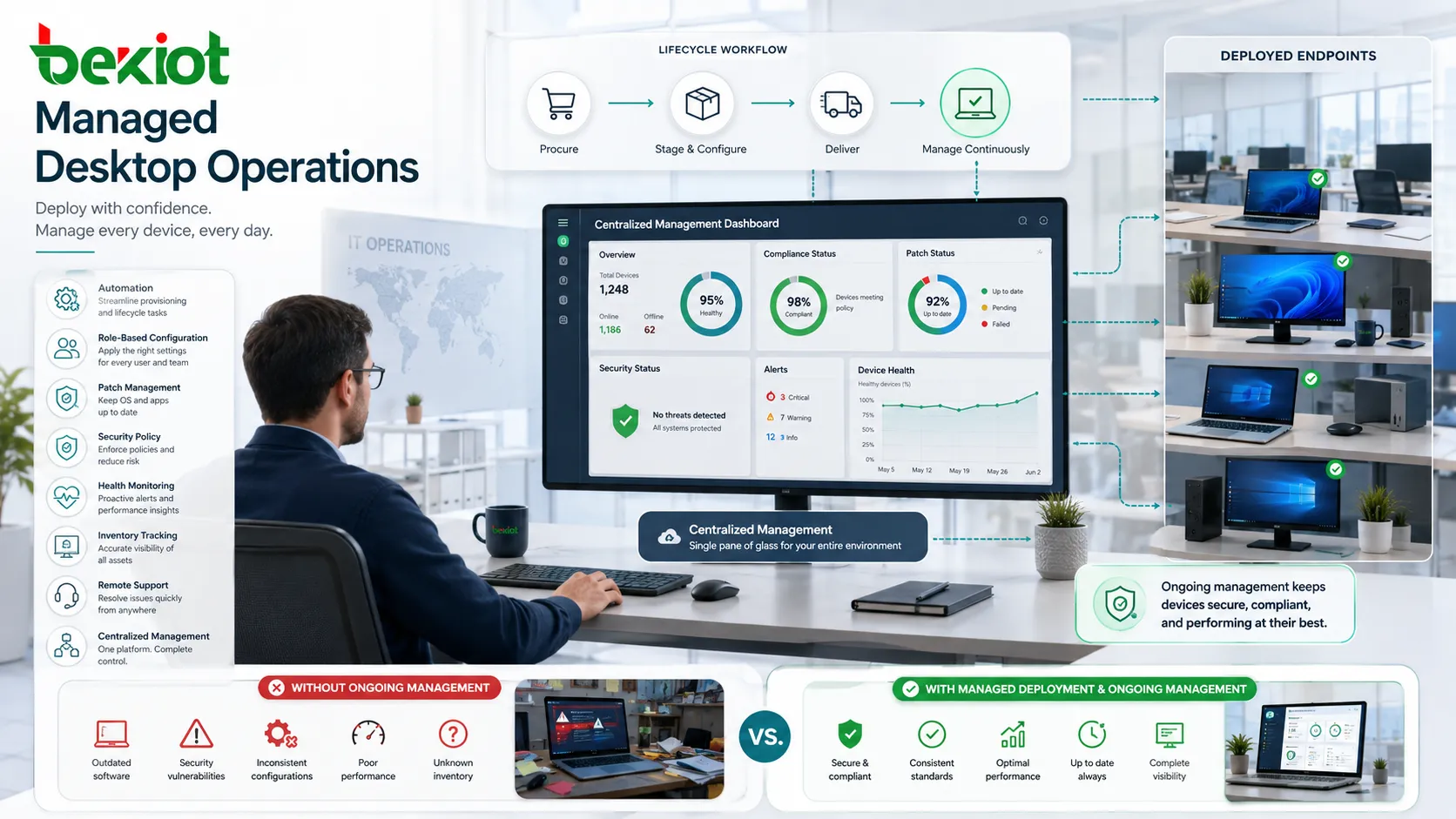
Centralized Management
After delivery, devices must continue to be managed. Centralized tools help IT teams push updates, enforce policy, monitor health, apply patches, track inventory, and support remote troubleshooting.
Without ongoing management, a successful rollout can slowly become inconsistent as users install software, skip updates, change settings, or move between networks.
Self-Service Options
Some environments allow users to install approved applications from a self-service portal. This reduces help desk workload while keeping software distribution controlled.
Self-service is useful when users need optional tools but should not have unrestricted administrator rights.
Rollback and Recovery
Deployment workflows should include recovery options. If an installation fails, a device should be restorable to a known state. This may involve system restore, re-imaging, recovery partitions, cloud reset, profile backup, or replacement device procedures.
Rollback planning is important during large rollouts, where a small configuration error can affect many users quickly.
Business Benefits
The first benefit is faster onboarding. New employees can receive ready-to-use computers with required applications, access policies, and security controls already applied. This reduces waiting time and improves the first-day experience.
The second benefit is operational consistency. Devices with the same baseline are easier to support, monitor, update, and secure. Consistency also helps IT teams identify whether a problem is device-specific or caused by a broader configuration issue.
The third benefit is stronger security. Standardized deployment can enforce encryption, endpoint protection, identity settings, restricted permissions, and patch policy from the beginning of device use.
The fourth benefit is lifecycle control. IT teams can plan procurement, refresh cycles, retirement, reallocation, and asset tracking more effectively when devices are deployed through a documented process.
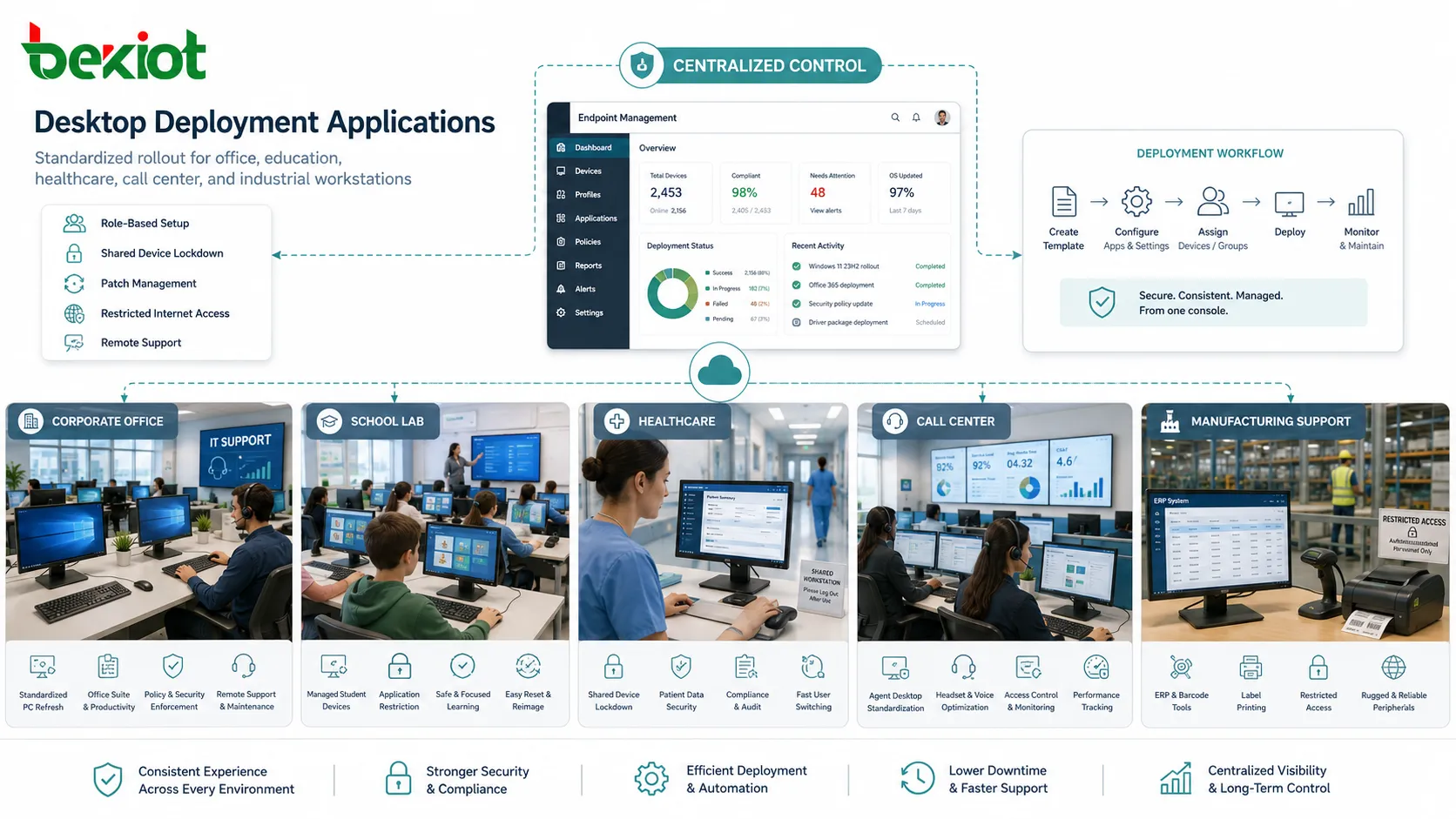
Applications in Different Organizations
Corporate Office Rollouts
Companies use structured rollout processes when opening new offices, refreshing old computers, migrating operating systems, onboarding employees, or standardizing department workstations.
For office users, the main priorities are speed, application readiness, data migration, security compliance, and minimal disruption to daily work.
Education and Training Rooms
Schools, universities, labs, and training centers often need many identical workstations. A standardized deployment process allows IT teams to prepare classrooms, computer labs, testing rooms, and shared terminals efficiently.
These environments may also require quick reset after each session, content filtering, software licensing control, and user profile cleanup.
Healthcare Workstations
Hospitals and clinics may use managed workstations for nurses, doctors, reception areas, diagnostic rooms, pharmacy counters, and shared clinical terminals. These devices must support privacy, fast login, reliable access, and strict security rules.
Deployment planning should include user switching, session timeout, application compatibility, access control, and audit requirements.
Call Centers and Service Desks
Call centers need consistent desktops for agents. Required tools may include CRM, softphone software, headset drivers, browser settings, knowledge base access, reporting tools, and screen recording applications.
A standard build reduces support issues and helps maintain consistent service quality across many agents.
Manufacturing and Industrial Offices
Production offices, maintenance desks, warehouse stations, and control-adjacent workstations may need special software, barcode tools, ERP access, label printers, rugged peripherals, or restricted internet access.
These environments may also require stronger device lockdown because workstations are shared or used near operational equipment.
Planning the Rollout
A successful project begins with inventory. IT teams should know the number of devices, hardware models, operating system versions, user groups, required applications, existing data, network locations, and special peripherals.
The next step is segmentation. Not every user needs the same build. Executives, engineers, finance teams, field workers, call center agents, designers, and shared-terminal users may require different configurations.
Pilot testing is essential. A small group should test the build before broad rollout. The pilot can reveal driver issues, application conflicts, slow login, printer problems, VPN failures, missing permissions, or user experience concerns.
Communication also matters. Users should know when their devices will be replaced, what data will be migrated, what they need to prepare, and whom to contact if something is missing after the rollout.
Common Technical Challenges
Driver and Hardware Variations
Different hardware models may require different drivers, firmware, BIOS settings, docking station support, graphics settings, or network adapters. A build that works on one laptop model may fail on another.
Hardware standardization reduces complexity, but many organizations still need deployment logic that can handle multiple models.
Application Conflicts
Some applications conflict with each other or require specific versions of runtime components, browsers, plug-ins, fonts, or drivers. These dependencies should be tested before mass deployment.
Application conflicts are often discovered too late when packaging is rushed or user departments are not included in testing.
User Data Gaps
Users often store work files in unexpected locations. If migration rules only copy standard folders, important local files may be missed.
Clear user communication and pre-migration scanning can reduce the risk of data loss.
Network Bottlenecks
Large rollouts can consume significant bandwidth when many devices download images, applications, patches, or cloud profiles at the same time.
Local caching, staged rollout schedules, distribution points, and bandwidth control can prevent deployment traffic from affecting business operations.
Permission Problems
After deployment, users may discover that they cannot access shared drives, printers, cloud apps, databases, or line-of-business systems. These problems often come from incomplete group membership or role mapping.
Access validation should be part of the handover checklist.
Security Considerations
Devices should be protected before they are assigned to users. Disk encryption, secure boot, endpoint protection, firewall settings, patch baseline, password policy, and management enrollment should be confirmed during rollout.
Local administrator rights should be controlled carefully. Giving every user full control may reduce support requests in the short term but increases malware, misconfiguration, and compliance risk.
Remote users need additional planning. VPN clients, certificate enrollment, cloud identity, device compliance checks, and remote wipe capability may be required before the device leaves the office.
Retired devices should be wiped securely. Asset disposal, redeployment, or recycling must include data removal and license handling.
Maintenance After Delivery
Deployment does not end when the user receives the device. IT teams need ongoing patching, software updates, security monitoring, hardware support, inventory updates, license management, and user support.
Configuration drift should be monitored. Over time, devices may deviate from the standard baseline because of user changes, failed updates, temporary fixes, or unauthorized software.
Regular review helps keep the environment healthy. IT teams can compare devices against compliance rules, remove unused applications, update outdated drivers, and prepare for future operating system upgrades.
The value of desktop deployment comes from repeatability: the right device, with the right software, security, access, and support model, delivered in a predictable way.
FAQ
How long does a typical workstation rollout take?
The time depends on device count, automation level, application complexity, data migration size, network speed, and user scheduling. A well-automated build can be much faster than manual setup.
Should old user profiles be migrated completely?
Not always. Migrating everything can bring old problems into the new device. It is often better to migrate business data and essential settings while leaving outdated clutter behind.
Can remote employees receive fully configured devices?
Yes. Devices can be pre-provisioned, shipped to users, and completed through cloud management, identity login, VPN setup, and remote support tools.
What should be tested before a large rollout?
Test login, core applications, printers, VPN, shared drives, browser access, security tools, peripheral devices, updates, data migration, and user permissions.
What causes the most failures after handover?
Common causes include missing applications, driver problems, incomplete permissions, failed profile migration, outdated documentation, and lack of communication with users before replacement.