Desktop form factor refers to the physical design and layout of desktop computers, including tower PCs, small form factor systems, mini PCs, all-in-one desktops, workstation towers, compact business PCs, and specialized office terminals. Each design has different space, airflow, expandability, cooling, cable routing, and service-access characteristics.
Daily maintenance is not only about cleaning the outside of the computer. It involves keeping the system cool, stable, secure, organized, electrically safe, and easy to troubleshoot. A well-maintained desktop environment reduces unexpected shutdowns, hardware aging, noise, performance drops, data loss, and support workload.
Start with the Physical Workspace
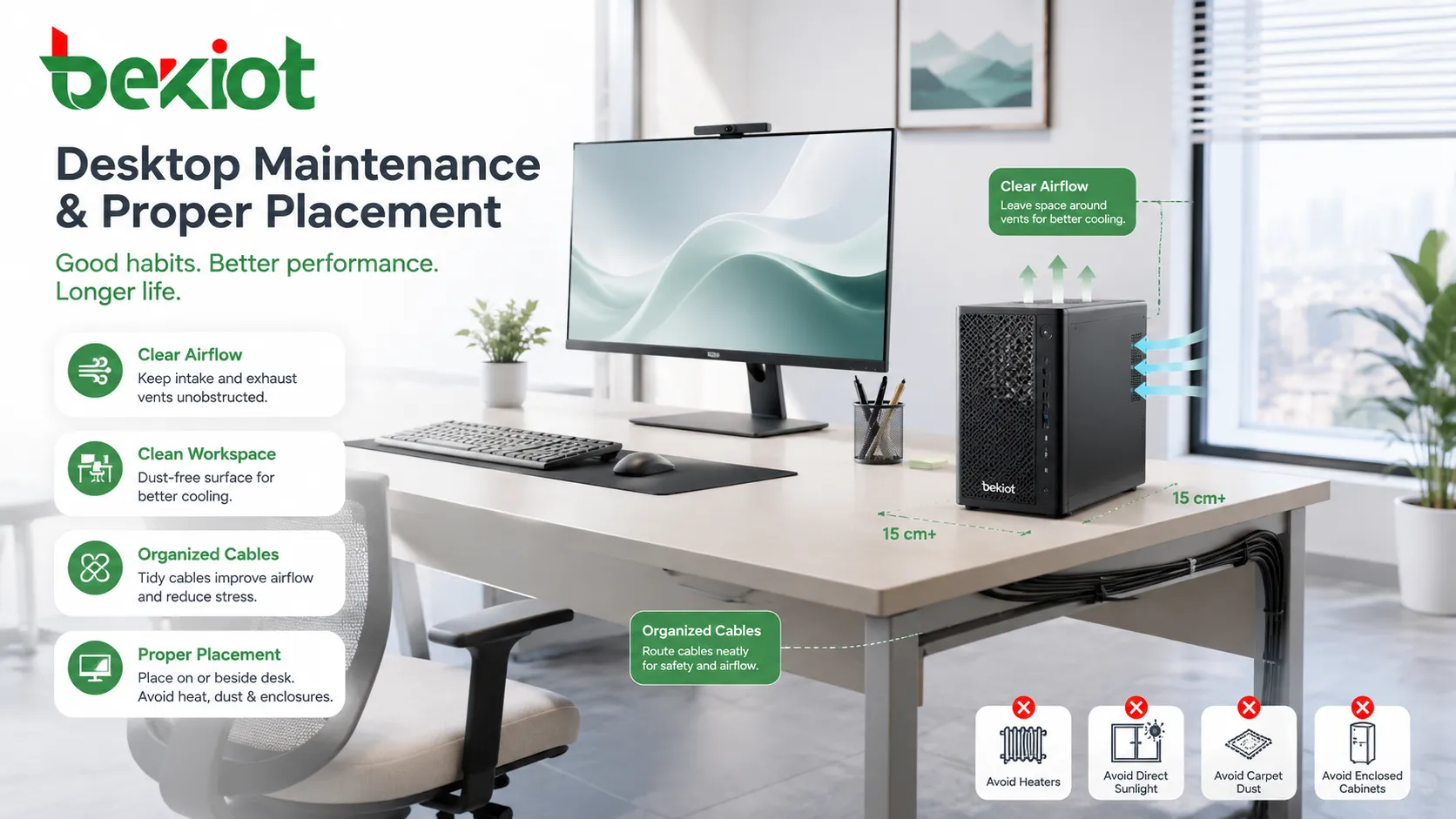
The area around the computer has a direct effect on reliability. A desktop placed under a dusty desk, near a heater, inside a closed cabinet, beside a window, or on a carpeted floor may face higher dust intake, blocked airflow, static risk, and thermal stress.
The computer should have enough clearance around air intake and exhaust areas. Users should avoid stacking paper, bags, books, power adapters, cables, or decorative items against vents. Even a high-quality system can become unstable if airflow is blocked.
For compact systems, placement is even more important. Small enclosures often have tighter internal space and smaller fans, so they are less tolerant of heat buildup and dust accumulation.
Airflow and Temperature Control
Keep Vents Clear
Every desktop system depends on air movement. Tower cases usually pull air from the front or side and exhaust it through the rear or top. Mini PCs may use side vents, rear vents, or bottom intake openings. All-in-one systems often hide ventilation slots along the back or edges.
Users should check that vents are not covered by documents, monitor stands, walls, curtains, or desk panels. Blocked vents can increase fan speed, create noise, reduce CPU performance, and shorten component life.
Watch for Thermal Warning Signs
Thermal problems often appear gradually. Common signs include fan noise increasing over time, sudden shutdowns, slow performance during heavy tasks, hot case surfaces, display freezing, or system alerts from monitoring software.
If these signs appear, cleaning, fan inspection, thermal paste review, workload analysis, or hardware service may be required. Ignoring heat problems can damage components or make the device unreliable.
Avoid Poor Enclosure Placement
Some office desks include enclosed CPU compartments. These may look tidy, but they can trap warm air. If a desktop must be placed inside furniture, the compartment should have ventilation openings and enough space for heat to escape.
High-performance workstations, design PCs, engineering systems, and devices with discrete graphics cards should not be installed in tight enclosed spaces without proper airflow planning.
Dust Control and Cleaning Habits
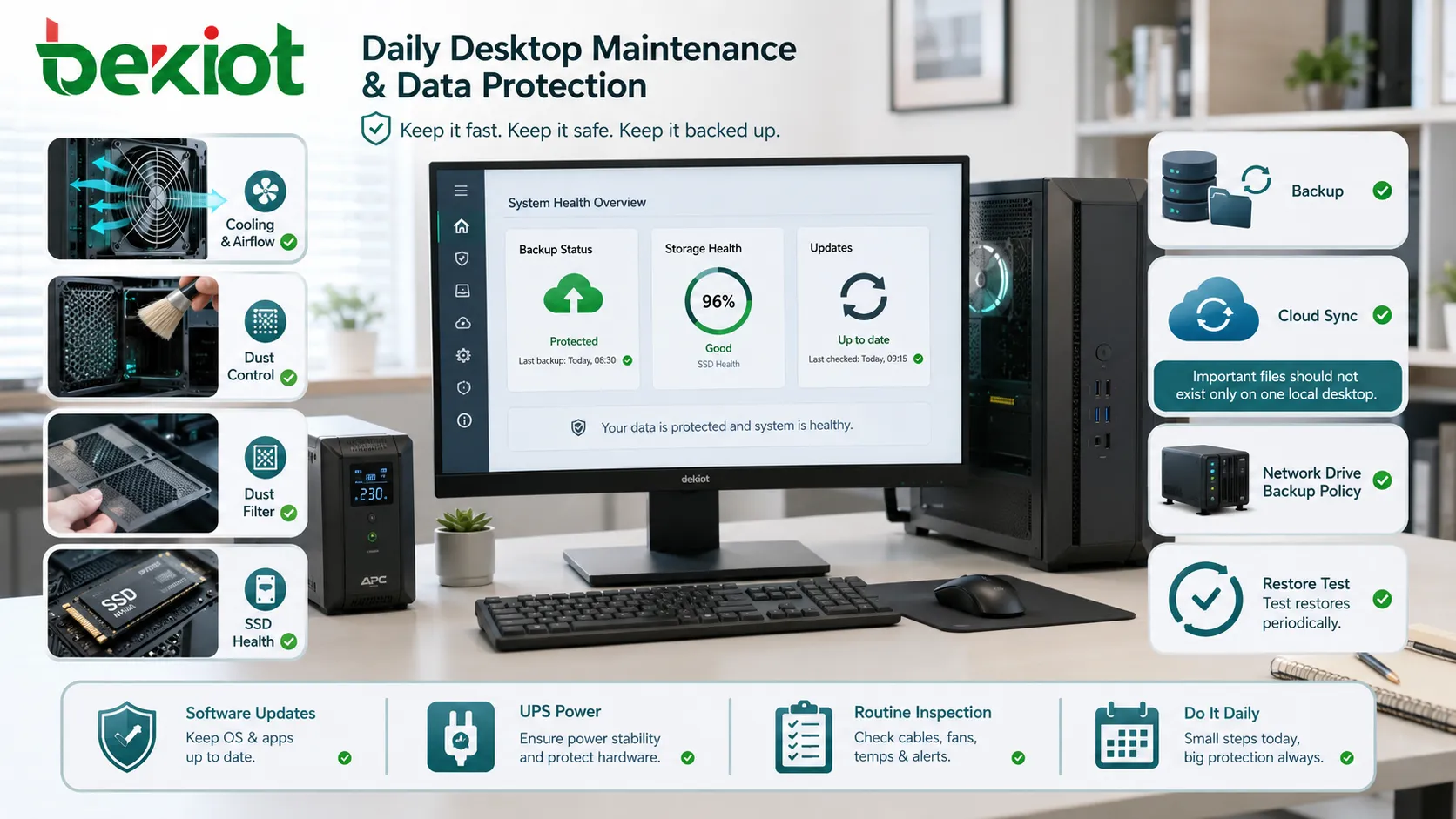
Dust is one of the most common long-term risks for desktop computers. It collects on fans, heatsinks, filters, ports, power supplies, and internal boards. Over time, dust blocks airflow and acts like an insulating layer that traps heat.
Exterior cleaning should be done regularly with a soft cloth. Air vents can be cleaned gently to prevent buildup. For internal cleaning, the device should be powered off, unplugged, and handled according to safe maintenance procedures. Compressed air may be used carefully, but fans should not be allowed to spin excessively during cleaning.
Office environments with paper dust, carpet fibers, warehouse particles, production dust, or high foot traffic may need more frequent cleaning than ordinary workstations.
Cable Management and Port Protection
Reduce Cable Stress
Power cords, display cables, USB cables, network cables, headset cables, and peripheral wires should be arranged to avoid tension, sharp bends, and accidental pulling. A stressed cable can damage the connector or create intermittent faults.
Cable clips, under-desk trays, labeled ties, and proper cable length help keep the workstation neat while reducing damage risk.
Protect Frequently Used Ports
Front USB ports, headset jacks, card readers, and docking connections are often used daily. Repeated rough plugging can loosen connectors or damage internal boards.
Users should avoid forcing connectors into ports. If a plug does not fit smoothly, the port type or orientation should be checked before continuing.
Label Important Connections
For office support teams, labels reduce confusion. Network cables, monitor cables, power adapters, docking cables, and specialized peripherals should be labeled when the workstation has multiple similar connections.
Clear labeling is especially useful for shared desks, training rooms, call centers, service counters, laboratories, and industrial office stations.
Power Stability and Electrical Safety
Desktop computers should use stable power sources. Loose sockets, overloaded power strips, unstable extension cords, and poor grounding can cause shutdowns, data loss, device damage, or safety hazards.
For business-critical desktops, a UPS can protect against short outages, voltage drops, and sudden shutdowns. Surge protection may help reduce damage from transient overvoltage, but it should not be confused with battery backup.
Users should avoid connecting high-power appliances such as heaters, kettles, large printers, compressors, or cleaning machines to the same weak power strip as desktop computers. Large loads can cause voltage fluctuation and unexpected restarts.
Storage Health and Data Safety
Monitor Drive Condition
Storage devices age over time. HDDs may develop mechanical problems, while SSDs have write endurance limits. Early warning signs include slow boot, file errors, clicking sounds, frequent freezes, failed updates, or drive health warnings.
Routine monitoring can detect problems before total failure. For managed environments, IT teams may use endpoint management tools to track disk health and alert users before data is lost.
Keep Enough Free Space
A nearly full system drive can reduce performance and cause update failures. Operating systems, applications, temporary files, logs, caches, and user downloads all consume storage gradually.
Regular cleanup of unnecessary files, old installers, duplicate downloads, and unused applications helps maintain system responsiveness.
Use Backup Discipline
Daily maintenance should include data protection habits. Important files should not exist only on one local desktop. Cloud sync, network drives, backup software, or endpoint backup policies can reduce the risk of permanent data loss.
Backup should be tested periodically. A backup that cannot be restored is not a reliable protection method.
Software Health and Performance Care
Hardware maintenance is only half of the task. A desktop can have clean vents and stable power but still become slow or risky because of software problems.
Operating system updates, security patches, driver updates, application updates, antivirus definitions, browser updates, and firmware updates should be managed consistently. Delayed updates may leave the system exposed to security risks or compatibility issues.
At the same time, updates should be controlled. Random driver updates, untested BIOS changes, or user-installed utilities can create instability. Business environments should use tested update policies rather than uncontrolled manual changes.
User Behavior That Affects Reliability
Shutdown and Restart Habits
Many users leave systems running for weeks. While modern computers can operate continuously, periodic restart helps apply updates, clear stuck processes, refresh drivers, and recover system resources.
Users should avoid forced shutdowns unless the system is truly unresponsive. Repeated power cuts can damage file systems, interrupt updates, and create boot problems.
Avoid Unauthorized Software
Unapproved software can introduce malware, browser hijackers, performance issues, licensing problems, and support complications. Users should install software only through approved channels.
For shared or business-critical desktops, restricted user permissions and application control policies can reduce this risk.
Handle Peripherals Carefully
Printers, scanners, headsets, external drives, card readers, cameras, and USB adapters can create driver conflicts or power load issues. Users should disconnect devices properly and avoid repeatedly swapping unknown USB devices.
Unknown storage devices are also a cybersecurity risk. Organizations should define clear USB usage policies.
Different Care Needs by Case Size
Tower Systems
Tower desktops usually provide better airflow and expansion space. They are easier to service, but they also attract dust if placed on floors or near carpets. Their internal fans, graphics cards, storage bays, and power supplies should be inspected periodically.
Because tower systems may support high-performance components, they are often used for engineering, design, video, analysis, or heavy office workloads. Thermal and power planning matter more in these cases.
Small Form Factor PCs
Small form factor systems save desk space but have tighter airflow and limited upgrade room. Dust buildup, blocked vents, and poor placement can affect them more quickly than larger towers.
Maintenance should focus on ventilation clearance, fan noise, external power adapter condition, and avoiding heat-trapping locations.
Mini PCs
Mini PCs are compact and easy to mount behind monitors or under desks. However, their small thermal design means they should not be placed near heat sources or covered by cable bundles.
Because some mini PCs use laptop-class components, storage and memory upgrades may be limited. Regular backup and health monitoring are important.
All-in-One Desktops
All-in-one systems combine the display and computer in one enclosure. They save space and reduce cables, but they may be harder to repair or upgrade. Heat management and screen care are important.
Users should avoid blocking rear ventilation and should clean the screen with appropriate materials rather than harsh chemicals.
Preventive Inspection Routine
A simple weekly inspection can prevent many common failures. Check whether vents are clear, fan noise has changed, cables are loose, storage space is low, updates are pending, or any error messages appear during startup.
Monthly checks may include dust inspection, backup verification, system health review, software inventory, disk health scan, antivirus status, and power strip condition.
For managed IT environments, endpoint monitoring tools can automate much of this work. For small offices, a written checklist is still useful because it creates routine and accountability.
The best maintenance strategy is preventive: keep the system cool, clean, updated, protected, backed up, and easy to inspect before a small issue becomes downtime.
Common Mistakes to Avoid
Placing the Unit Directly on Carpet
Carpet can block bottom vents, increase dust intake, and create static risk. If the computer must be under a desk, it should sit on a stable platform with clear airflow.
Cleaning with Too Much Liquid
Excess liquid can enter ports, keyboards, screens, and ventilation areas. Cleaning should use appropriate materials and minimal moisture.
Ignoring Fan Noise
A fan that becomes louder over time may indicate dust buildup, worn bearings, high temperature, or abnormal workload. It should not be dismissed as normal aging.
Using Random Power Adapters
Compact desktops and mini PCs often rely on external adapters. Using an incorrect adapter can cause instability or damage. Voltage, current, connector type, and polarity must match.
Skipping Backup Before Service
Before replacing storage, reinstalling the operating system, upgrading firmware, or repairing hardware, important data should be backed up. Service work always carries some risk.
FAQ
How often should a desktop PC be cleaned internally?
The interval depends on dust level, placement, airflow, and operating hours. Office systems may need periodic inspection, while dusty warehouses or floor-level systems may require more frequent cleaning.
Is it better to leave a desktop on all the time?
It depends on usage and management policy. Continuous operation may be acceptable for managed workstations, but periodic restart helps apply updates and refresh system resources.
Why does a compact PC become hot faster than a tower?
Compact designs have smaller internal space and limited airflow. They can work reliably, but they are more sensitive to blocked vents, high ambient temperature, and dust.
Can daily maintenance improve computer performance?
Yes. Removing dust, keeping storage space available, applying updates, reducing unnecessary startup programs, and maintaining cooling can help preserve stable performance.
What should be checked before moving a desktop to another desk?
Check power availability, network access, monitor compatibility, cable length, ventilation clearance, user data backup, peripheral connections, and whether asset records need updating.