
IntroductionOverviewAfter the recording function is enabled on the phone, you ca
After the recording function is enabled on the phone, you can connect a USB drive with larger storage capacity (up to 128 GB supported) to configure automatic recording.
Applicable models: Android phones and phones with a USB port, such as the X4U series
Applicable firmware: all versions for the supported models
① Two X7A phones, connected to a switch and able to obtain IP addresses automatically.
② One configuration PC, also connected to the switch, with network connectivity to the phones.
Insert the USB drive into the Android phone. Android phones support USB drives up to 128 GB, while XU series phones support up to 32 GB.
In the phone web interface, go to Applications - Recording Management, enable recording, and select Local as the recording mode. If you need to play the recorded files on a computer, set the audio codec to PCMU or PCMA. The page is shown below: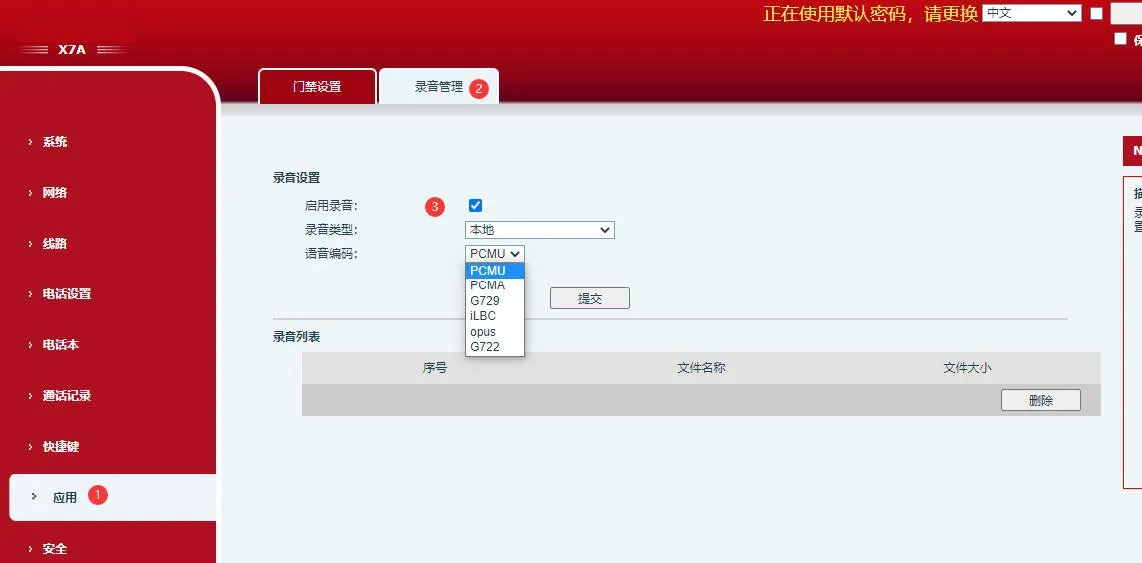
In Line - Action Plan, add an action plan. Set the number to x., set the multicast codec to PCMU or PCMA, set the type to Early, and set the action to Record. The page is shown below: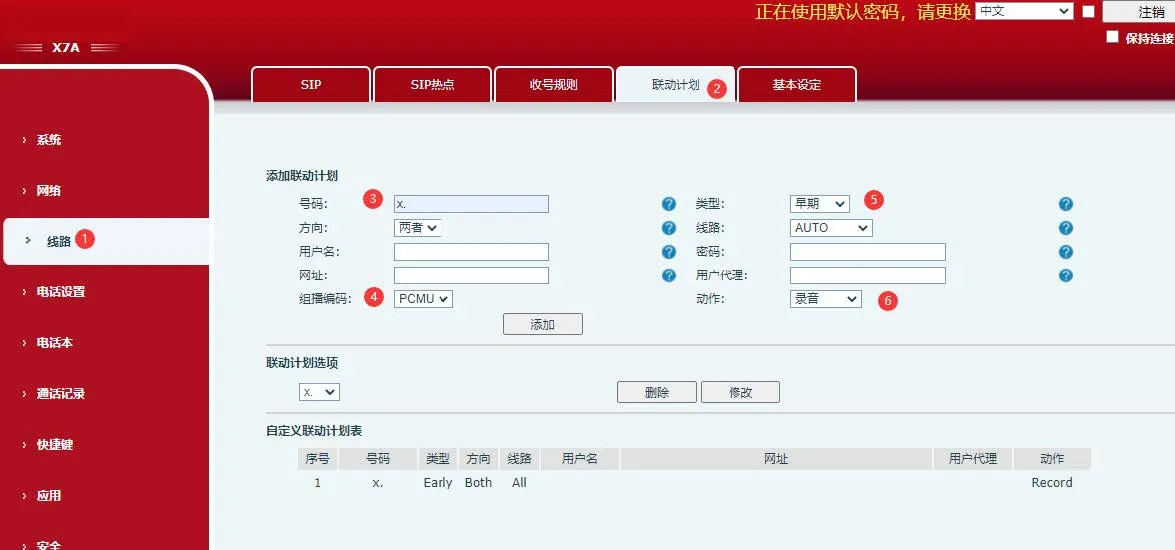
After the configuration is completed successfully, the phone will automatically start recording when a call is established. The recording icon will be displayed in red, as shown below: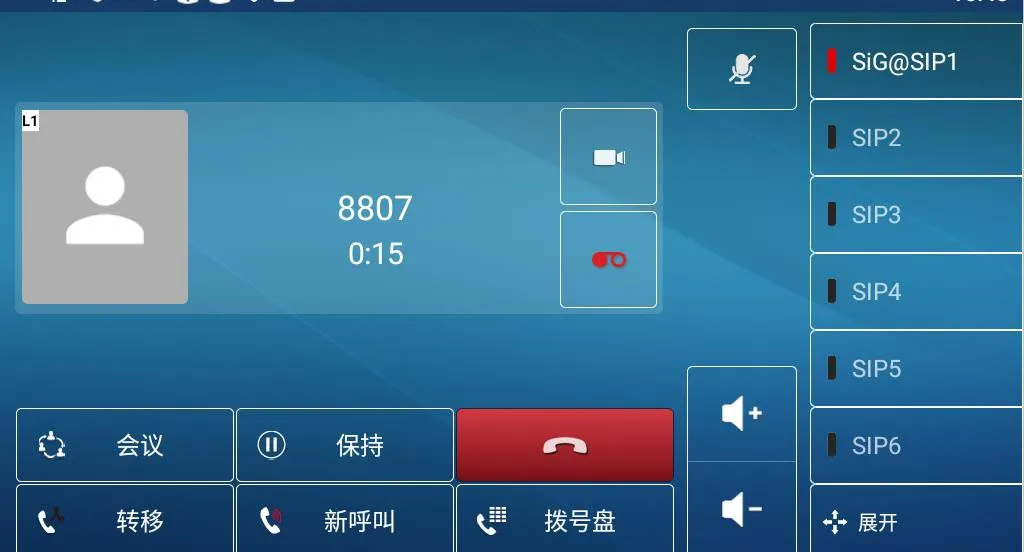
Android phones:
1) To access the recording files while the USB drive is inserted, go to Menu - File Manager - USB. The recording files can be found in the root directory of the USB drive.
2) To access the recording files when the USB drive is not inserted, go to Menu - File Manager - Internal Memory - Records, as shown below: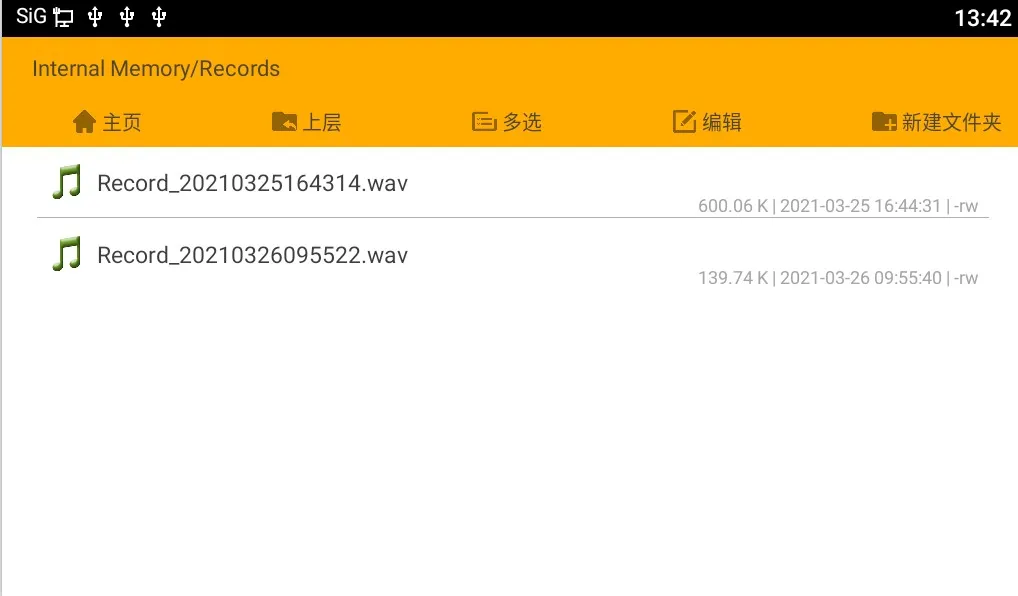
X4U series phones: go to Menu - Applications - USB - Browse Audio, as shown below: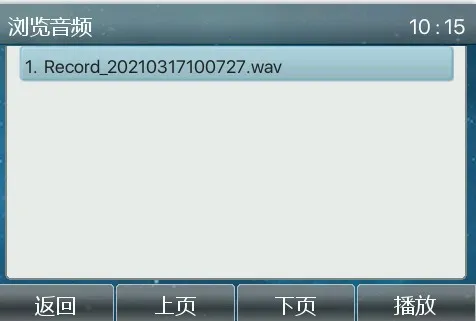
Notes:
The F600S supports recording to both a USB drive and an SD card. The recording rules are as follows:
(1) If no external SD card or USB drive is inserted, the recording files are saved to the phone’s internal storage by default.
(2) If only an external SD card is inserted, the generated recording files are saved in the root directory of the external SD card.
(3) If only a USB drive is inserted, the generated recording files are saved in the root directory of the USB drive.
(4) If both an external SD card and a USB drive are inserted, the USB drive has higher priority than the external SD card by default, and the recording files will be stored on the higher-priority external storage device.
(5) If both a USB drive and an external SD card are inserted and one of them is removed, the remaining external storage device becomes active. For example, if the USB drive is removed, the recording files will be stored on the external SD card.
