touchpoint

In addition to terminal devices, all personnel, places, and things connected to the network should also be considered.

View Details

resource

Understand best practices, explore innovative solutions, and establish connections with other partners throughout the Baker community.

×

touchpoint

touchpoint

In addition to terminal devices, all personnel, places, and things connected to the network should also be considered.

Learn more

resource

resource

Understand best practices, explore innovative solutions, and establish connections with other partners throughout the Baker community.

Contact Us
Tutorial for Checking Software and Hardware Versions on the Phone

Introduction

Overview

This guide explains how to check the current software and hardware version of the phone.

Applicable Models

This applies to all models of our phones.

Required Devices and Tools

① One phone, connected to a switch and able to obtain an IP address.
② One configuration PC, also connected to the switch, with network connectivity to the phone.
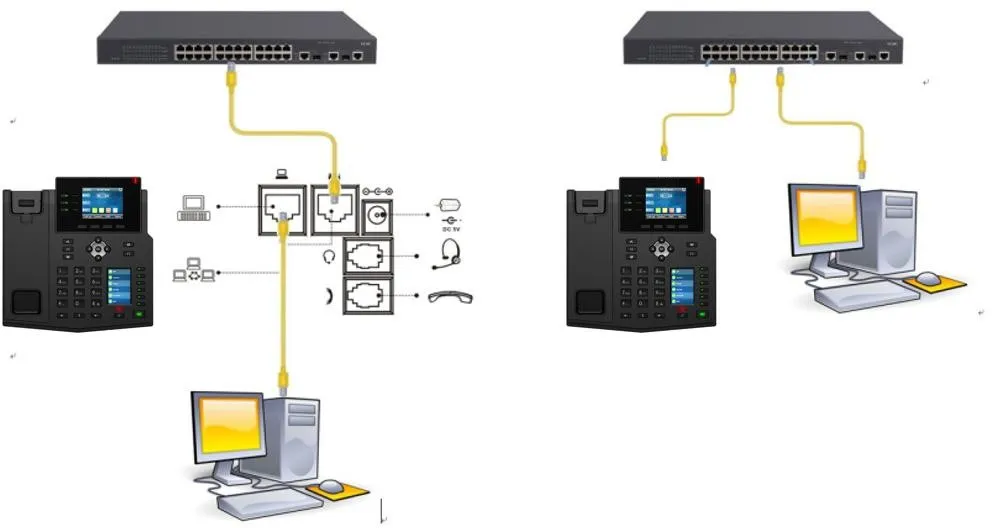
Phone and PC Connection Diagram

Phone and PC connection diagram

Check the Current Software or Hardware Version

Method 1: Check Through the Web Interface

1. Check the phone IP address.
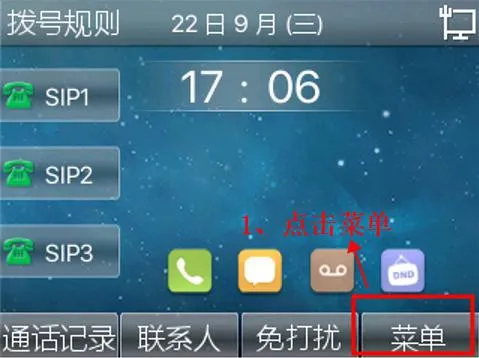
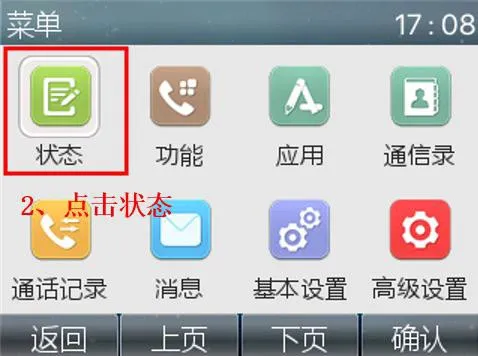
Tap “Menu” --- “Status” to view the phone IP address.
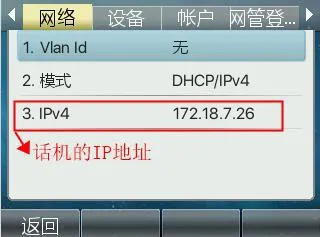
View device IP address

2. Log in to the phone web interface.
Open a browser on the PC and enter the phone IP address in the “address bar”.
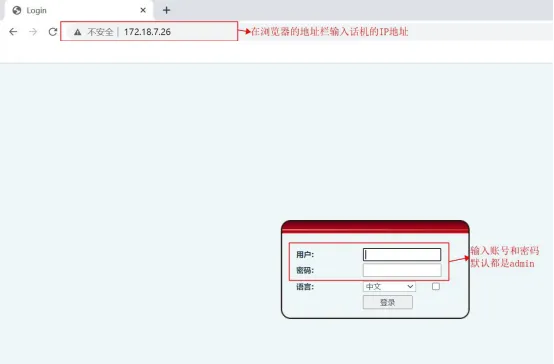
Enter phone IP address in browser
After logging in to the phone web interface, go to “System” -- “Information”. You can then view the version details in the System Information section.
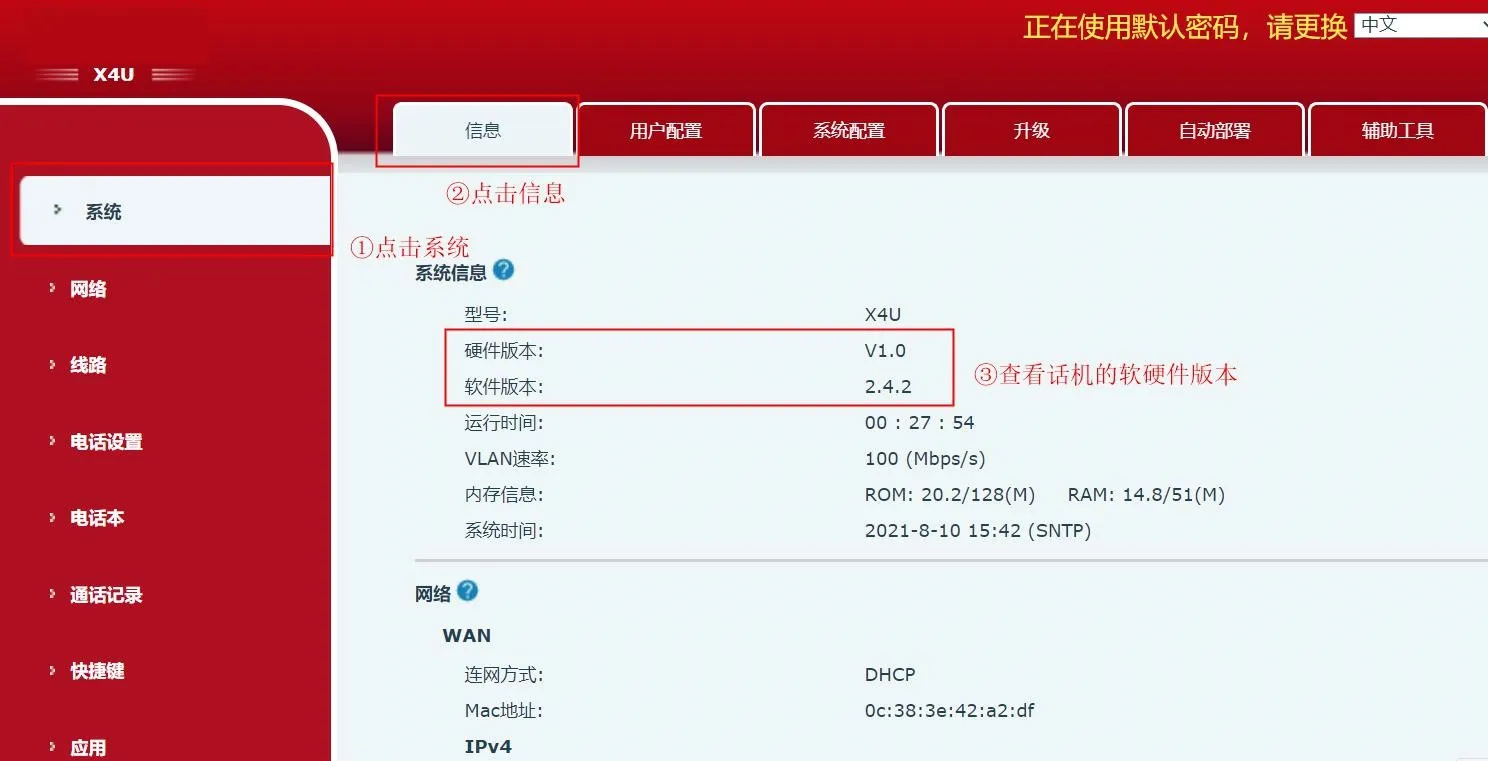
Check current software or hardware version

Method 2: Check Directly on the Phone

1. Tap Menu.
Check current software version on the phone
2. Tap Status.

View device status

catalogue
Professional industrial communication manufacturer, providing high reliability communication guarantee!
Cooperation Consultation
customer service Phone