touchpoint

In addition to terminal devices, all personnel, places, and things connected to the network should also be considered.

View Details

resource

Understand best practices, explore innovative solutions, and establish connections with other partners throughout the Baker community.

×

touchpoint

touchpoint

In addition to terminal devices, all personnel, places, and things connected to the network should also be considered.

Learn more

resource

resource

Understand best practices, explore innovative solutions, and establish connections with other partners throughout the Baker community.

Contact Us
Steps for setting the display of SIP line extension numbers or custom display content on the desktop

Introduction

Overview

The phone can display the extension number of the default SIP line on the home screen. Users can also customize the display content to show other text instead of the local extension number.

Applicable Models

All of our phone models support this feature (X5U is used in this article as an example).

Prerequisites

① One phone, connected to the switch and able to obtain an IP address.
② One computer for configuration, connected to the same switch as the phone to ensure network communication between the computer and the phone.
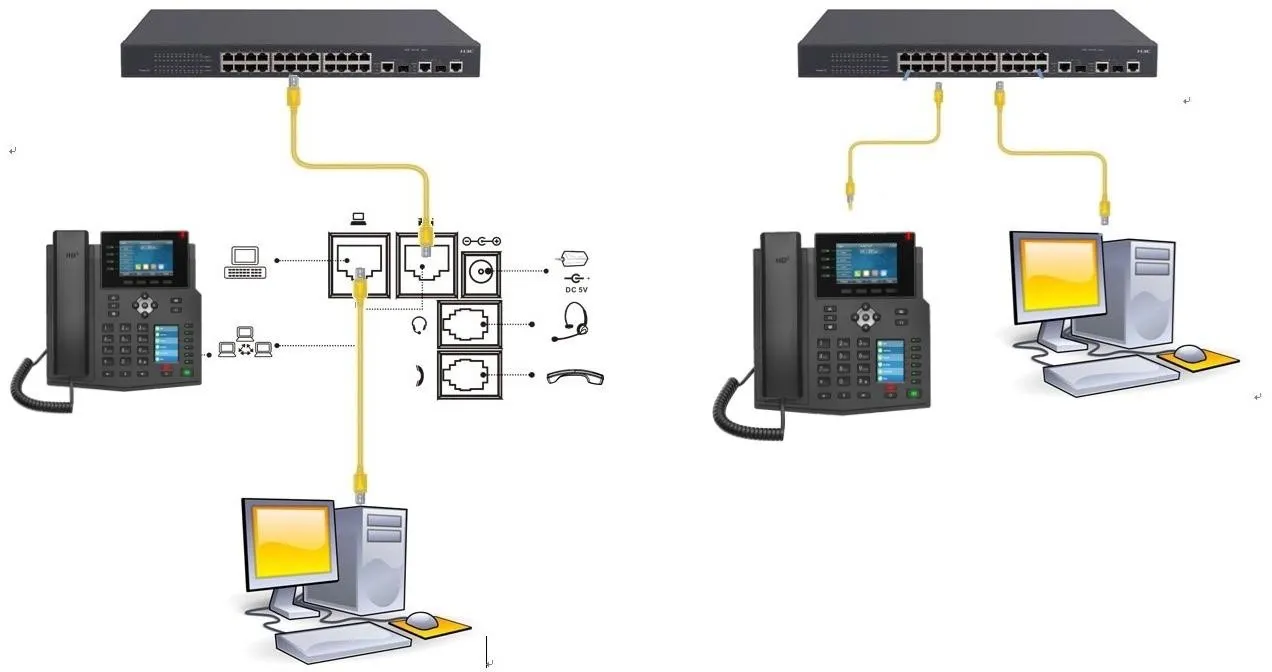
Phone and Computer Connection Diagram

Phone and computer connection diagram

Display the Extension Number of the Default SIP Line

Log in to the Phone Web Interface

On the phone’s LCD screen, tap “Menu” — “Status” to check the phone’s IP address.
Open a browser on the computer, enter the phone’s IP address in the address bar, and log in to the phone web interface.

Set the Default Line

After logging in to the phone web interface, go to “Phone Settings” - “Function Settings” - “Basic Settings”, then find the “Enable Default Line” option and check it, as shown in Figure 1 below.
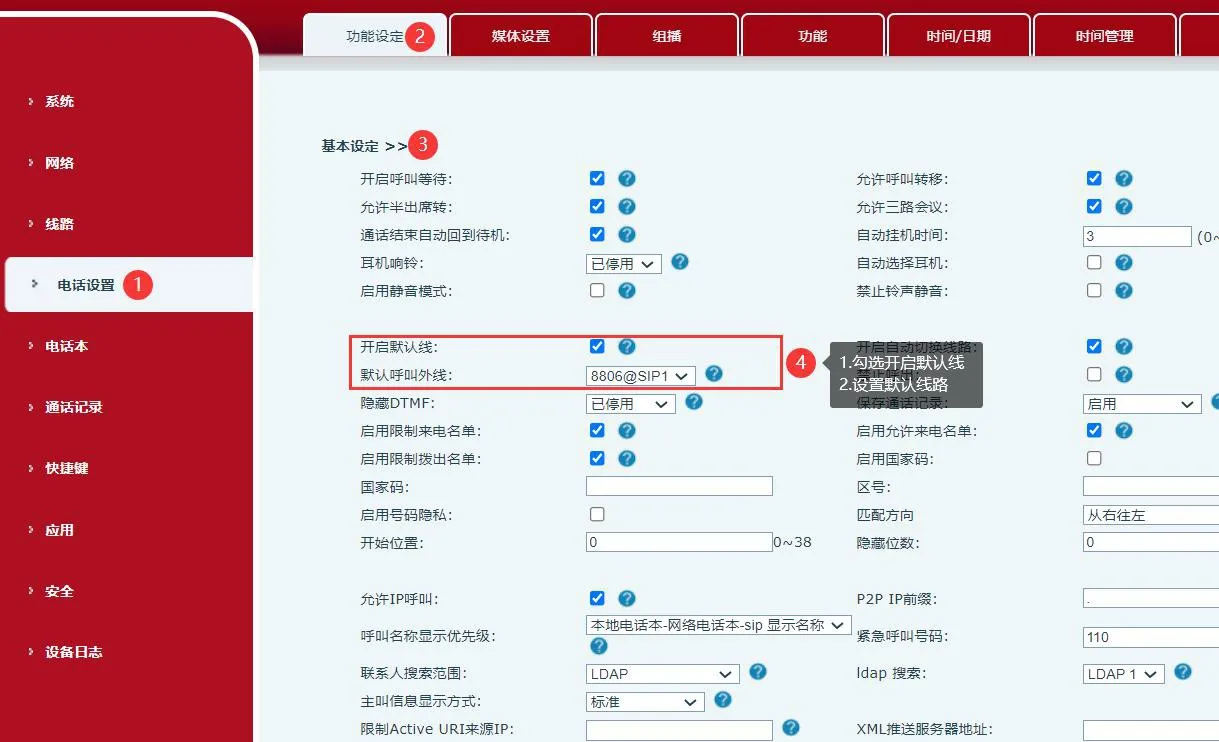
Enable default line
                                                                                                                                          Figure 1

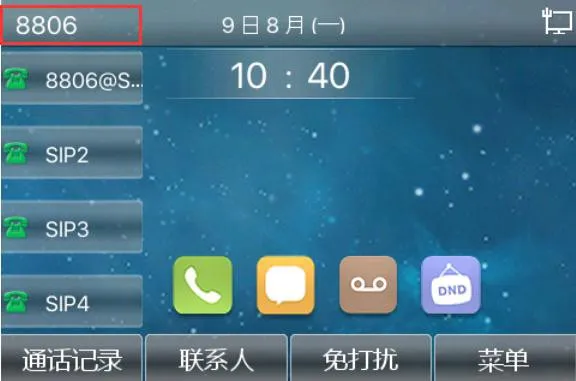
    Phone Screen Display (Figure 2)

Default line display effect
                                                                                   Figure 2

Custom Display Content

 Set the Display Content

After logging in to the phone web interface, go to “Phone Settings” - “Advanced”, find “Welcome Message”, enter the custom text you want to display, and then click Submit. Refer to Figure 3 below.
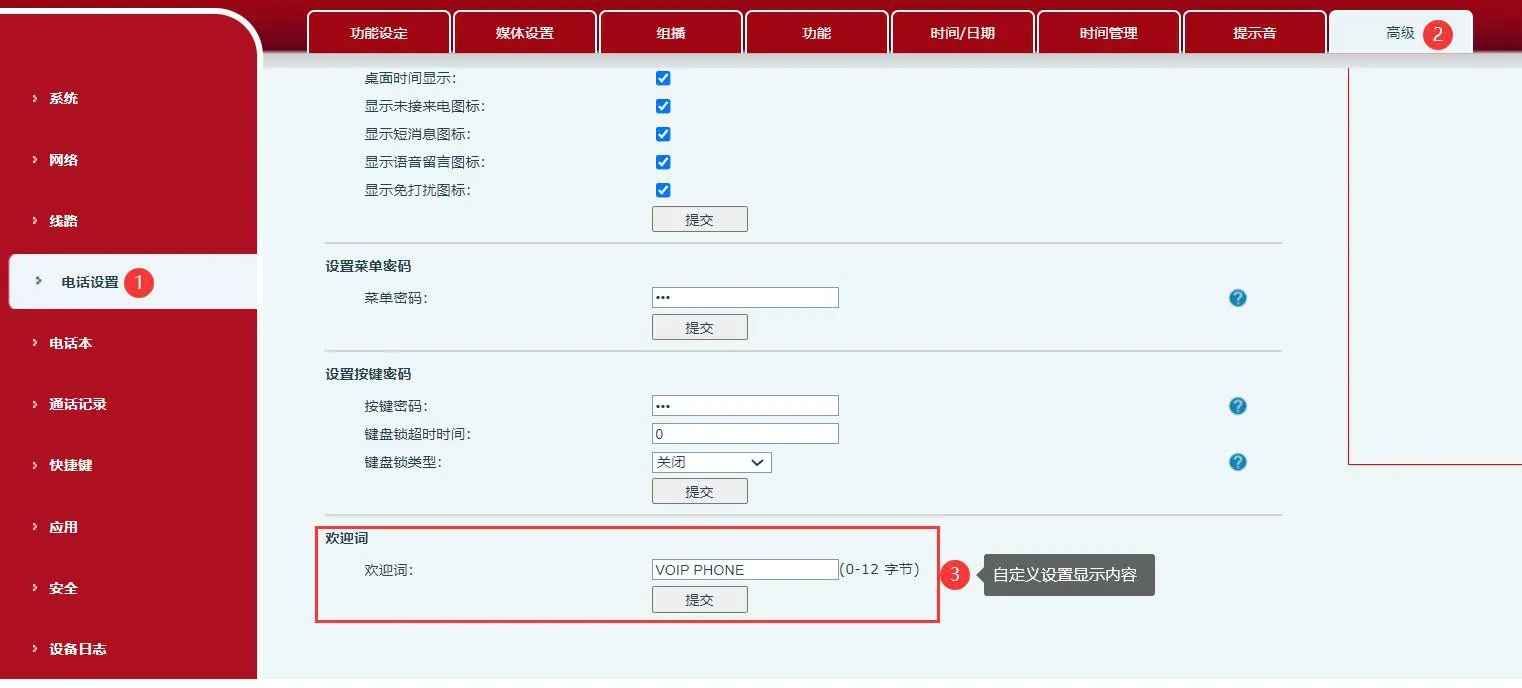
Set custom display content
                                                                                                                                            Figure 3

Disable the Default Line

After logging in to the phone web interface, go to “Phone Settings” - “Function Settings” - “Basic Settings”, then find the “Enable Default Line” option and uncheck it, as shown in Figure 4 below.
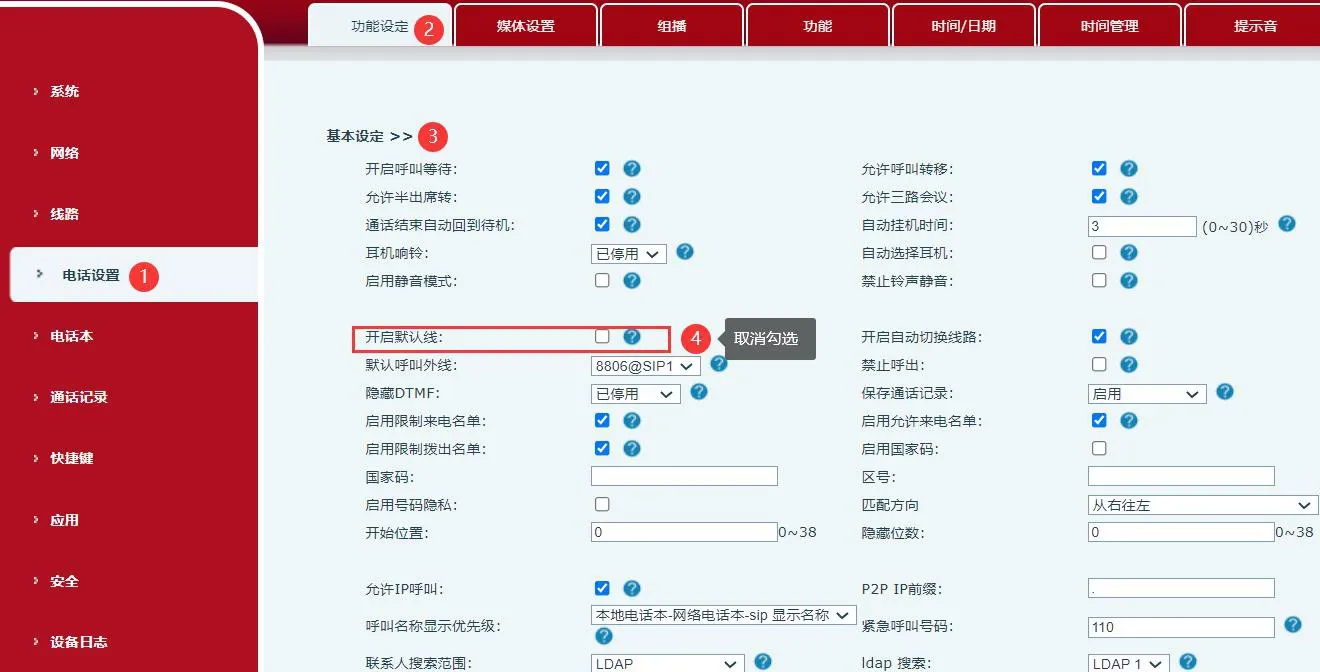
Disable default line
                                                                                                                                              Figure 4

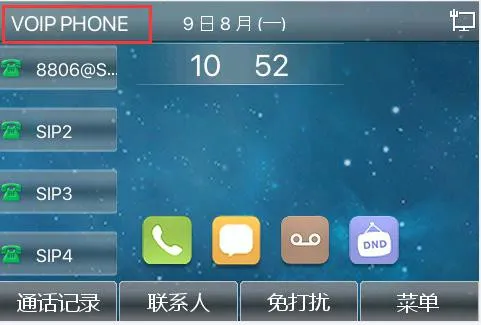
Phone Screen Display (Figure 5)

Screen display after disabling the default line
                                                  Figure 5

catalogue
Professional industrial communication manufacturer, providing high reliability communication guarantee!
Cooperation Consultation
customer service Phone