touchpoint

In addition to terminal devices, all personnel, places, and things connected to the network should also be considered.

View Details

resource

Understand best practices, explore innovative solutions, and establish connections with other partners throughout the Baker community.

×

touchpoint

touchpoint

In addition to terminal devices, all personnel, places, and things connected to the network should also be considered.

Learn more

resource

resource

Understand best practices, explore innovative solutions, and establish connections with other partners throughout the Baker community.

Contact Us
SIP Video Door Phone Snapshot Function Introduction

Introduction

Overview

This document describes the snapshot function of SIP video door phones and intercoms. The snapshot function captures camera images when the device is triggered by events, then uploads images to a specified server. Supported servers: HTTP/HTTPS, FTP, TFTP. Supported triggers: call, ring, answer, unlock, etc.

Applicable Models

Video Door Phones: Bi30, Bi31S, Bi32V, Bi33V
Video Intercoms: BK-DAB-PA2 + PA KIT Camera, BK-DAB-PA2S + PA2 KIT Camera, BHP-SOS10, BHP-SOS10V, BHP-SOS16, BHP-SOS16V, BHP-SOS18

How Snapshot Works

The snapshot function captures images under predefined triggers and uploads them to a server for storage. It includes two core parts:

  1. Snapshot Triggers: Make call, incoming ring, call answer, input trigger (intercom), output trigger (intercom), door unlock (door phone)
  2. Image Upload: Supports HTTPS, HTTP, FTP, TFTP servers
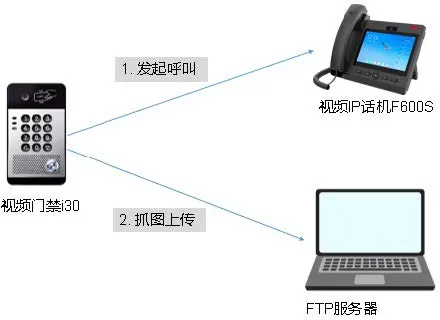
Snapshot Flow Chart

Application Scenarios

Suitable for scenes that need to save event images, such as e-bike entering elevator monitoring.

Prerequisites

  1. Prepare 1 Bi30 video door phone + 1 BF600S video phone, connected to a switch with valid IP addresses
  2. Prepare a configuration PC with server software installed, connected to the same LAN as devices

Connection Diagram

Take Bi30 video door phone as an example:
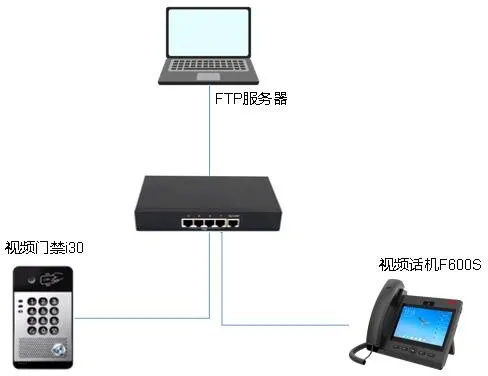
Device Connection Diagram

Operation Guide

To use the snapshot function, you need to set up a server and configure the door phone. This guide uses Bi30 + WFTPD (FTP server) as an example.

Server Preparation (WFTPD)

Download WFTPD (no installation required).

  1. Open software → click Security – User/Rights
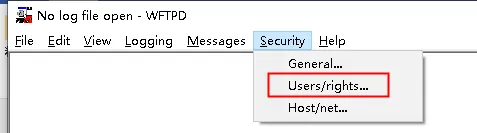
Open Software

  1. Click New User → enter username (e.g., 123) → OK
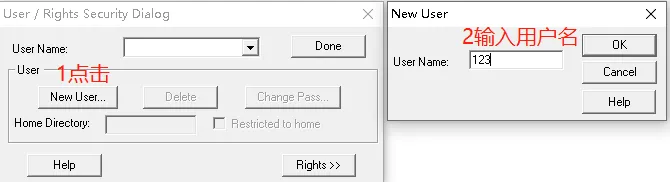
Create New User

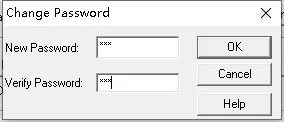
  1. Enter password (e.g., 123) → OK

Enter Password

  1. Set FTP root directory (e.g., E:\temp\WFTPD) → paste into Home Directory
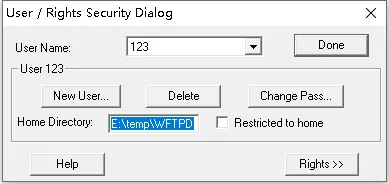
Set FTP Root Directory

Device Configuration

Log into the device WEB interface to set snapshot triggers and upload URL.
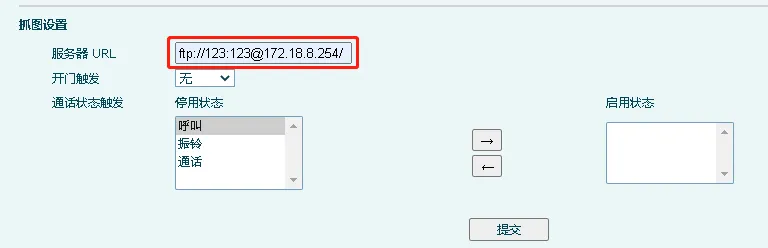
Set Snapshot Trigger and Upload URL

URL Format Example:
ftp://123:123@172.18.8.254/
- ftp: protocol type
- 123:123: username:password
- 172.18.8.254: server IP
- /: save to root directory; use /snap/ for subfolder

Set Trigger Conditions (Door Phone):
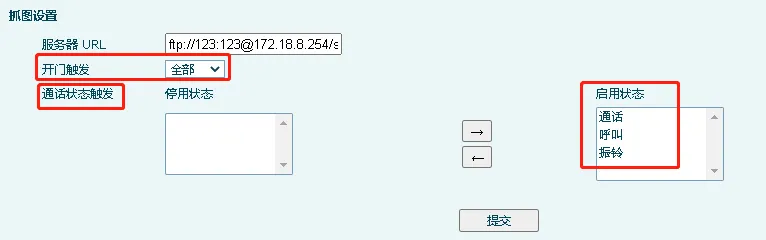
Door Phone Trigger Settings

Any enabled trigger will capture and upload an image (e.g., door unlock).

Snapshot File Naming: Event + Time stamp
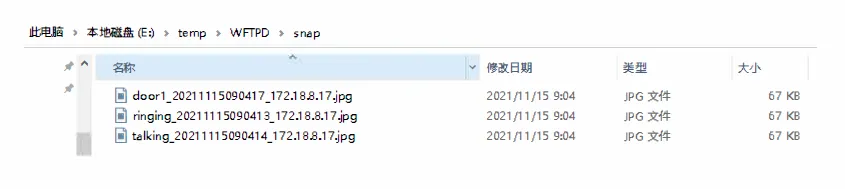
Snapshot Naming Format

Troubleshooting: Snapshot Not Working

If no images are saved on the server, check the following:

  1. Network: Ensure the device can reach the server
  2. Server Configuration: Verify username/password and write permission; test upload with other tools
  3. Other Issues: Contact technical support
catalogue
Professional industrial communication manufacturer, providing high reliability communication guarantee!
Cooperation Consultation
customer service Phone
We use cookie to improve your online experience. By continuing to browse this website, you agree to our use of cookie.

Cookies

This Cookie Policy explains how we use cookies and similar technologies when you access or use our website and related services. Please read this Policy together with our Terms and Conditions and Privacy Policy so that you understand how we collect, use, and protect information.

By continuing to access or use our Services, you acknowledge that cookies and similar technologies may be used as described in this Policy, subject to applicable law and your available choices.

Updates to This Cookie Policy

We may revise this Cookie Policy from time to time to reflect changes in legal requirements, technology, or our business practices. When we make updates, the revised version will be posted on this page and will become effective from the date of publication unless otherwise required by law.

Where required, we will provide additional notice or request your consent before applying material changes that affect your rights or choices.

What Are Cookies?

Cookies are small text files placed on your device when you visit a website or interact with certain online content. They help websites recognize your browser or device, remember your preferences, support essential functionality, and improve the overall user experience.

In this Cookie Policy, the term “cookies” also includes similar technologies such as pixels, tags, web beacons, and other tracking tools that perform comparable functions.

Why We Use Cookies

We use cookies to help our website function properly, remember user preferences, enhance website performance, understand how visitors interact with our pages, and support security, analytics, and marketing activities where permitted by law.

We use cookies to keep our website functional, secure, efficient, and more relevant to your browsing experience.

Categories of Cookies We Use

Strictly Necessary Cookies

These cookies are essential for the operation of the website and cannot be disabled in our systems where they are required to provide the service you request. They are typically set in response to actions such as setting privacy preferences, signing in, or submitting forms.

Without these cookies, certain parts of the website may not function correctly.

Functional Cookies

Functional cookies enable enhanced features and personalization, such as remembering your preferences, language settings, or previously selected options. These cookies may be set by us or by third-party providers whose services are integrated into our website.

If you disable these cookies, some services or features may not work as intended.

Performance and Analytics Cookies

These cookies help us understand how visitors use our website by collecting information such as traffic sources, page visits, navigation behavior, and general interaction patterns. In many cases, this information is aggregated and does not directly identify individual users.

We use this information to improve website performance, usability, and content relevance.

Targeting and Advertising Cookies

These cookies may be placed by our advertising or marketing partners to help deliver more relevant ads and measure the effectiveness of campaigns. They may use information about your browsing activity across different websites and services to build a profile of your interests.

These cookies generally do not store directly identifying personal information, but they may identify your browser or device.

First-Party and Third-Party Cookies

Some cookies are set directly by our website and are referred to as first-party cookies. Other cookies are set by third-party services, such as analytics providers, embedded content providers, or advertising partners, and are referred to as third-party cookies.

Third-party providers may use their own cookies in accordance with their own privacy and cookie policies.

Information Collected Through Cookies

Depending on the type of cookie used, the information collected may include browser type, device type, IP address, referring website, pages viewed, time spent on pages, clickstream behavior, and general usage patterns.

This information helps us maintain the website, improve performance, enhance security, and provide a better user experience.

Your Cookie Choices

You can control or disable cookies through your browser settings and, where available, through our cookie consent or preference management tools. Depending on your location, you may also have the right to accept or reject certain categories of cookies, especially those used for analytics, personalization, or advertising purposes.

Please note that blocking or deleting certain cookies may affect the availability, functionality, or performance of some parts of the website.

Restricting cookies may limit certain features and reduce the quality of your experience on the website.

Cookies in Mobile Applications

Where our mobile applications use cookie-like technologies, they are generally limited to those required for core functionality, security, and service delivery. Disabling these essential technologies may affect the normal operation of the application.

We do not use essential mobile application cookies to store unnecessary personal information.

How to Manage Cookies

Most web browsers allow you to manage cookies through browser settings. You can usually choose to block, delete, or receive alerts before cookies are stored. Because browser controls vary, please refer to your browser provider’s support documentation for details on how to manage cookie settings.

Contact Us

If you have any questions about this Cookie Policy or our use of cookies and similar technologies, please contact us at support@becke.cc .