IntroductionOverviewWiFi is a technology that allows electronic devices to conne
WiFi is a technology that allows electronic devices to connect to a wireless local area network (WLAN), typically using the 2.4 GHz UHF or 5 GHz SHF ISM radio bands. This document is intended for users who need to use the WiFi function.
This applies to our devices that support WiFi. (This article uses the X5U as an example.)
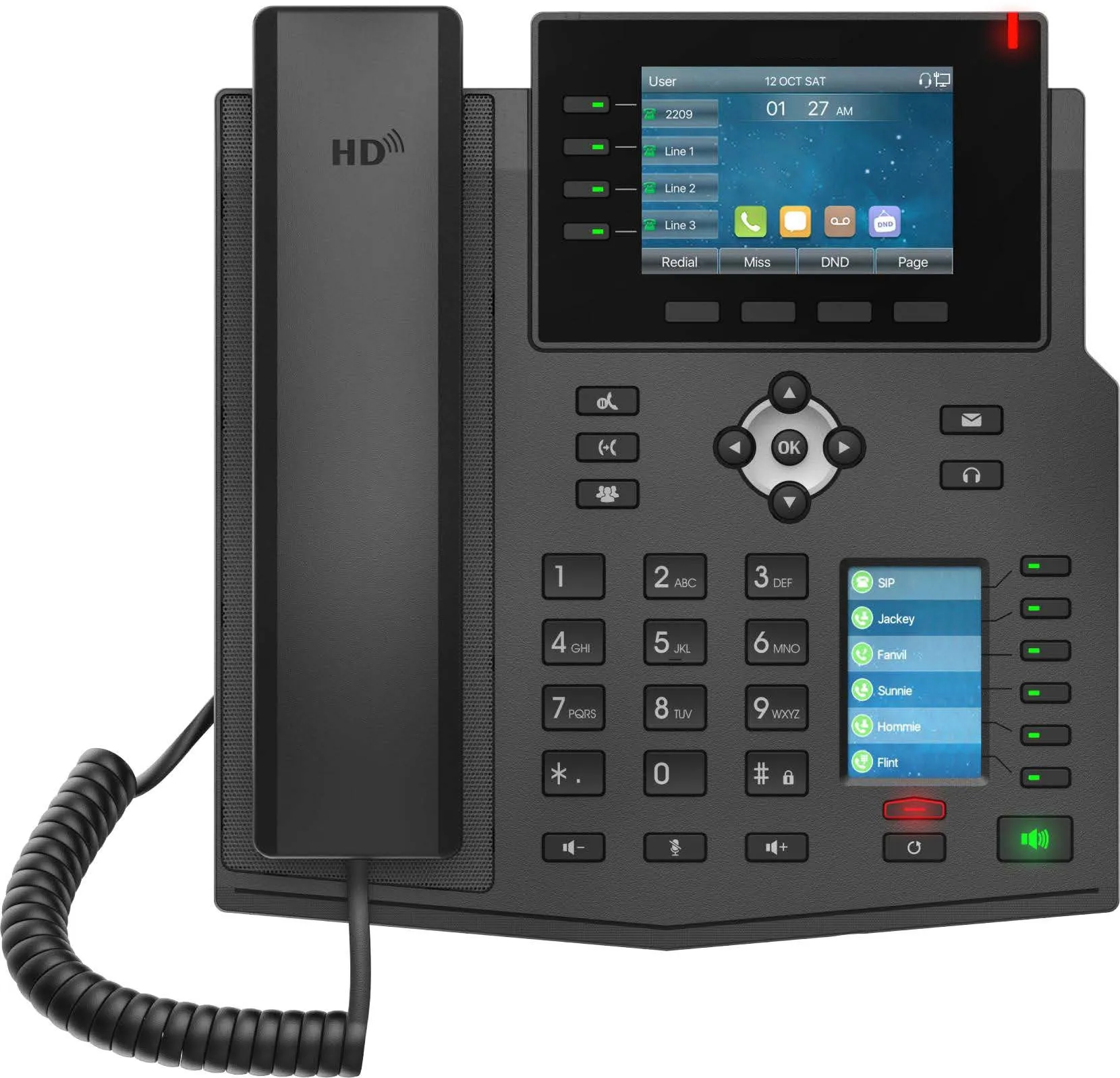
One X5U phone.
Before using WiFi, you need to insert a WiFi adapter. The phone supports plug-in and removal detection for the WiFi adapter. After the adapter is inserted, a pop-up message will appear on the phone screen, indicating that the wireless adapter has been added and prompting you to scan for networks (click OK to start scanning). When the adapter is removed, the phone will also display a prompt indicating that the wireless adapter has been removed.
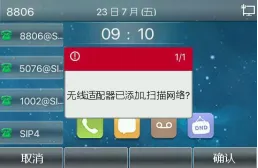
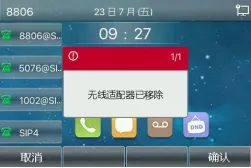
Picture 1 Picture2
On the idle screen of the phone, tap “Menu” - “Basic Settings” - “Wireless Network”. After enabling “Wireless Network”, you will see the following four configuration items, as shown below.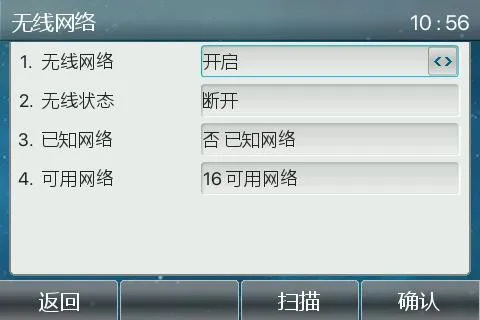
Wireless Network: Used to enable or disable WiFi.
Wireless Status: Shows the current WiFi status. You can select it and press “Enter” to view detailed information, including the assigned IP address after connection.
Known Networks: After entering this menu, the phone displays WiFi networks that have been connected before. It works as a connection history, and you can reconnect to or delete saved networks.
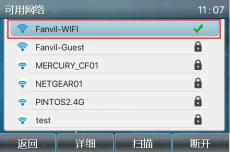
Available Networks: After selecting this item, you can press the “Scan” key to scan for available WiFi networks. Press “Enter” to view the scanned WiFi names and connect to one of them.
Select “Available Networks” and click “Enter” to view the scanned WiFi networks. Select the target WiFi, enter the password, and then click “Connect” to complete the connection, as shown below.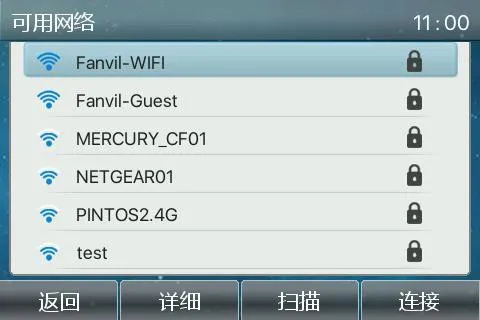
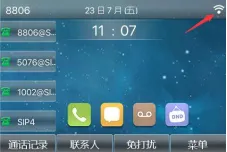
After the connection is established successfully, the phone will show the connected wireless status. You can also check the connection details, including the assigned IP address, under “Wireless Status”.