
Learn how to deploy and use an XML remote phonebook on IP phones through FTP or TFTP, including XML file structure, server setup, phone configuration, and contact download management.
The XML Remote phonebook is a network-based phonebook stored in XML format. To use this feature, upload the XML phonebook file to your server, then configure the corresponding server URL on the phone’s remote phonebook web page. Once the settings are applied, the phone can download and use the XML phonebook file directly.
The URL format for an XML Remote phonebook on an FTP server is:
ftp://Server_IP/XML_File_Name or ftp://Server_IP/Folder_Name/XML_File_Name
The URL format for an XML Remote phonebook on a TFTP server is:
tftp://Server_IP/XML_File_Name
A single-level remote phonebook displays all contacts in one directory without any category structure. The XML header and closing tags are fixed and must not be renamed or changed.
Example: the following XML file is a complete remote phonebook file. Multiple contacts can be added in sequence, including information such as contact name and phone number.
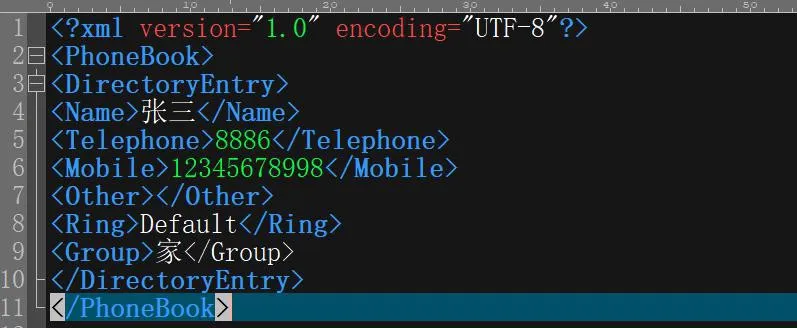
Explanation:
1. is the XML declaration. It is required, and the phone supports UTF-8 encoding.
2.
3.
A multi-level remote phonebook allows contacts to be organized into departments or categories, with further subcategories under each directory. This structure requires multiple XML files.
How to create the first-level XML file:
For example, name it Index.xml.
Content:
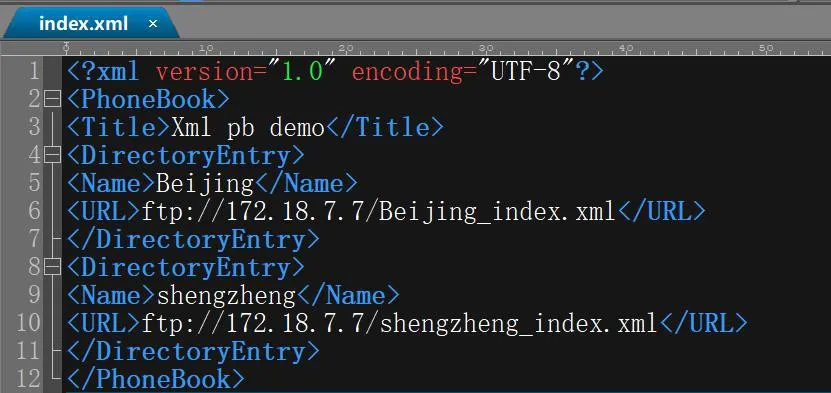
Explanation:
1.
2.
Name: defines the displayed name of the next-level directory, such as Beijing.
URL: defines the protocol, server IP, and XML file name for the next-level directory. In this example, the next-level files are Beijing_index.xml and Shengzheng_index.xml.
How to create the second-level XML file:
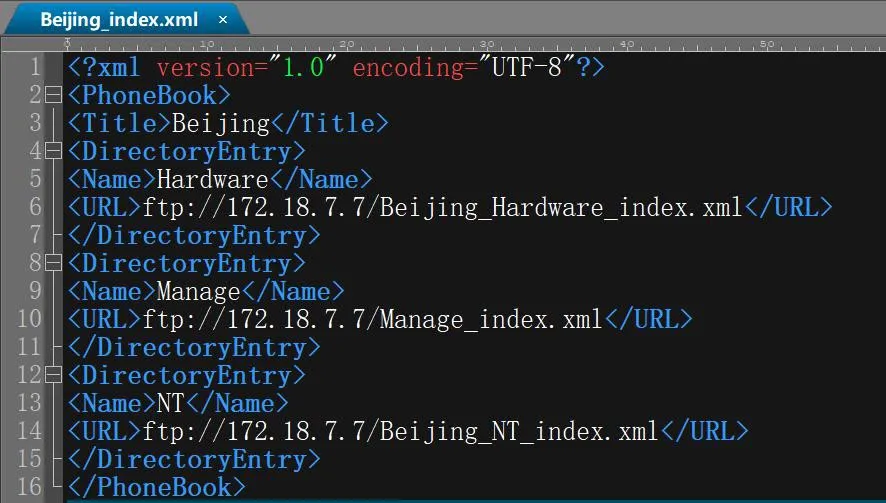
The second-level XML file can continue the classification structure in the same way as the first-level file. If only two levels are needed, you can skip directly to the third-level contact file format.
Example: Beijing_index.xml
How to create the third-level XML file:
Example: Beijing_Hardware_index.xml
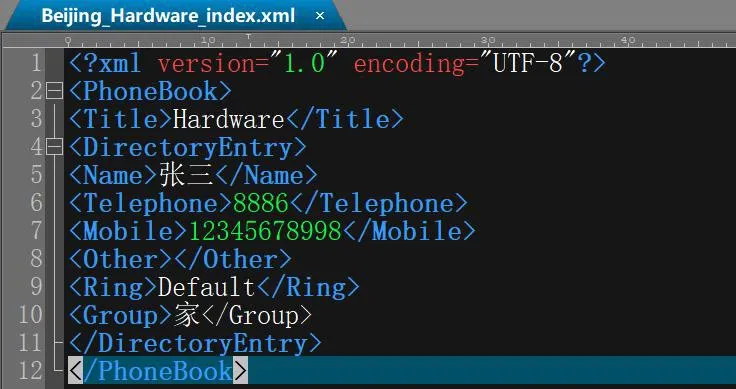
Explanation: this file contains the actual contact entries, and its format follows the same structure as the single-level remote phonebook.
Use FTP server software: 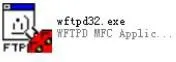
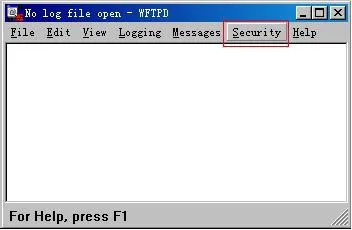
Open the software, then click Security — User/Rights to enter the configuration page shown below:
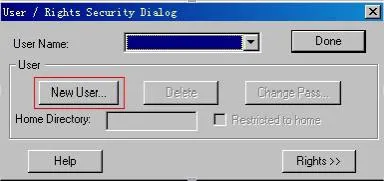
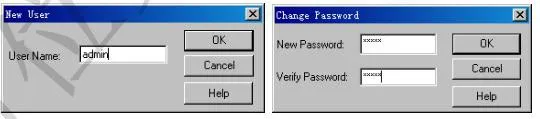
Select New User to create a username and password, as shown below:
Then, in Home Directory, specify the folder where the remote phonebook XML files are stored.
For example, if the XML files are stored in the remote_right folder under the E: drive FTP directory, configure it as shown below:
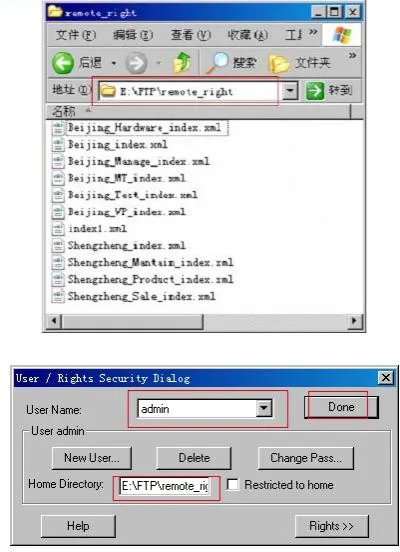
After completing the path settings, click Done to finish the FTP server configuration.
Use TFTP server software: 
After launching the TFTP software, the interface appears as shown below:
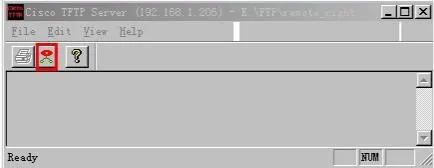
Click the option button highlighted in the red box in the image above to open the following settings page:
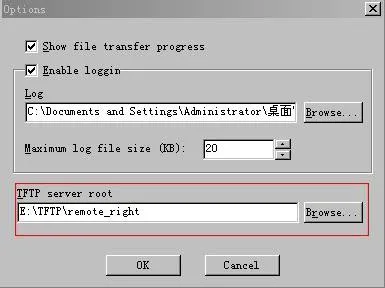
In the TFTP server root field, click Browse and select the folder where the remote phonebook XML files are stored. For example, choose the remote_right folder under the E: drive TFTP directory.
Open the phone web interface and go to the remote phonebook page:Phone Book — Cloud Phonebook — Cloud Phonebook Management, as shown below:
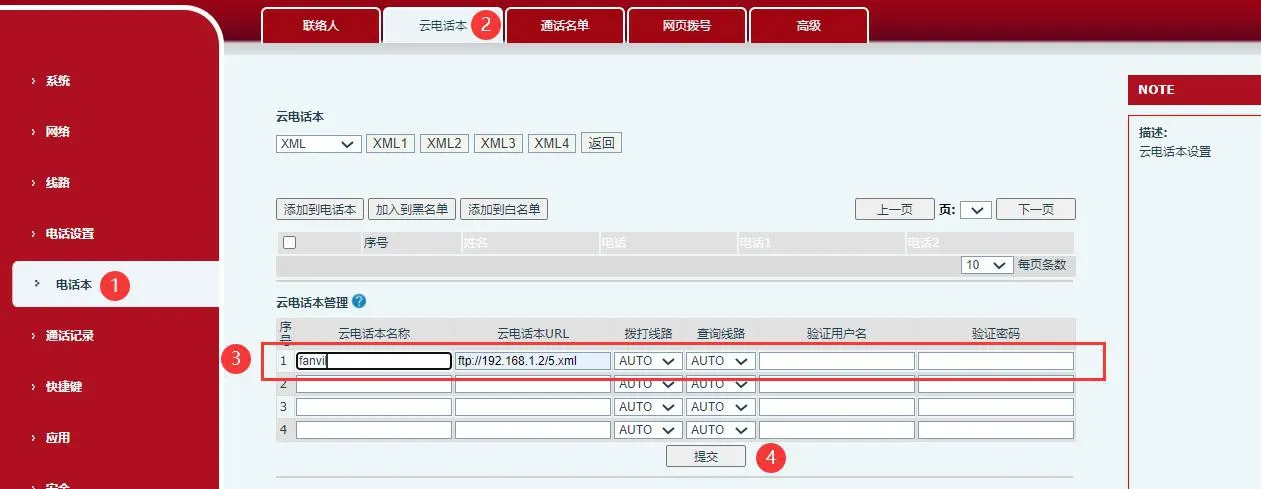
Configure the following settings:
1. Phonebook Name: enter any name you prefer, such as Family, Classmates, or Colleagues.
2. Server Address: enter the correct address based on the server type in use.
If using an FTP server, enter:ftp://FTP_Server_IP_Address/XML_File_Name
Example: ftp://192.168.1.206/index1.xml
If using a TFTP server, enter:tftp://TFTP_Server_IP_Address/XML_File_Name
Example: tftp://192.168.1.206/index1.xml
3. Outgoing Line: choose which line will be used for dialing. If the default option is selected, calls are typically placed through Line 1.
4. Username and Password: required for FTP server access and must match the credentials created on the FTP server. These fields are not required for TFTP.
After saving the configuration, go to Contacts — Cloud Phonebook on the phone. The phone can then download the remote phonebook from the configured server and display the contact list locally. Users can perform actions such as direct dialing, retrieving numbers, searching contacts, sending messages, adding entries to local contacts, or adding entries to the blacklist.
*Note 1: Make sure the URL uses the correct protocol prefix. Use FTP for FTP servers, TFTP for TFTP servers, or the appropriate name for any other supported protocol.
*Note 2: When using the remote phonebook feature, the server must remain active, and the username and password must be entered correctly.
