IP Phone Call Completion Feature & Configuration Guide. Covers function overview, applicable models (BX3S, BX4), config file settings, web/LCD setup, and test scenarios for busy/rejected calls. BX5S/BX6 not supported.
Call Completion is a feature that prompts the local phone with options to redial, manually call back, or cancel when the called party is busy or rejects the call.
This document applies to models including BX3S and BX4. The BX5S and BX6 series do NOT support the Call Complete feature currently.
This document is intended for internal company testers who need to quickly understand and verify the Call Completion feature.
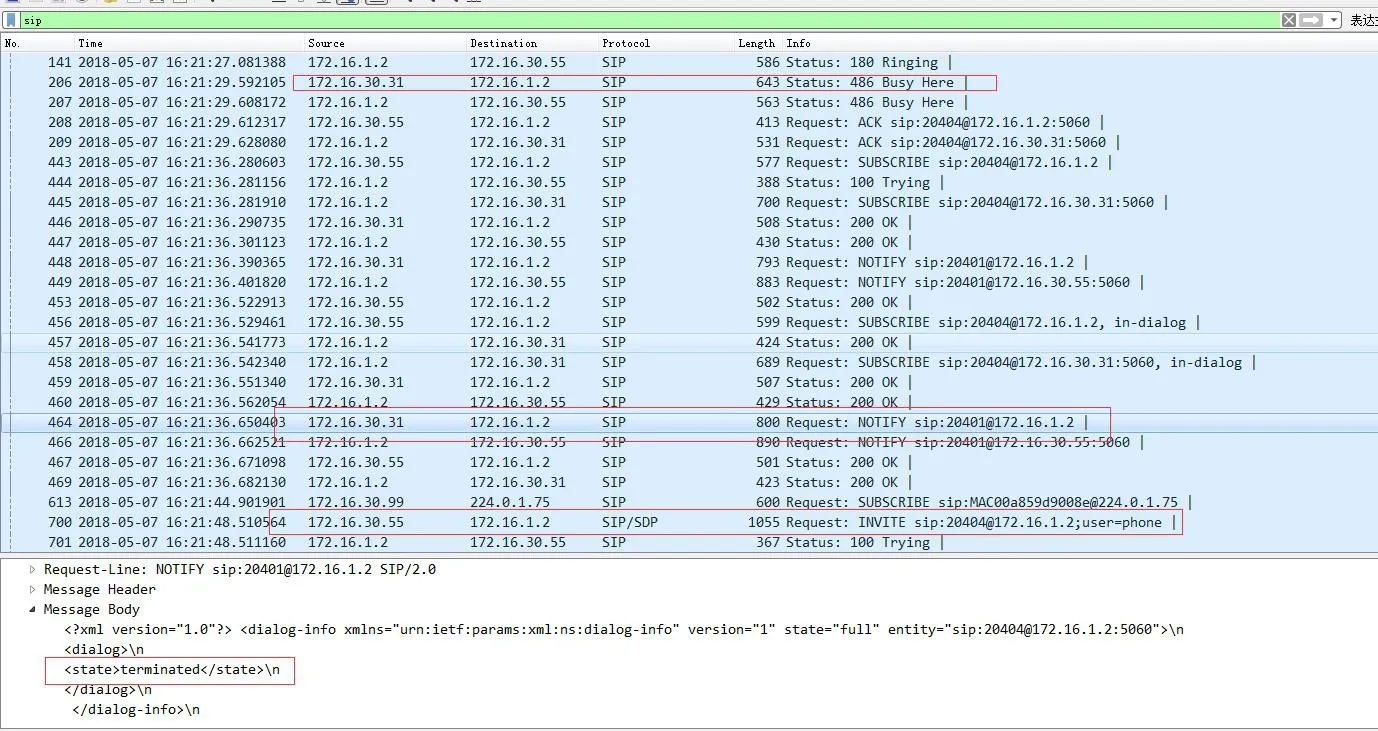
When the Call Completion feature is enabled with automatic signaling redial activated, the phone will display prompts Call Completion Waiting xxx and Call Completion Calling xxx if the called party is busy or rejects the call (reject code: 486). The phone monitors the called party's idle status via SIP signaling (notify: terminated), allowing users to manually call back or cancel the request.
When Call Completion is disabled, the phone will NOT display the Call Completion Waiting xxx and Call Completion Calling xxx pop-ups.
1. Call Completion is located in the
Note: BX5S and BX6 series do not support the Call Complete feature; the configuration file contains the setting P1 Call Complete: 0.
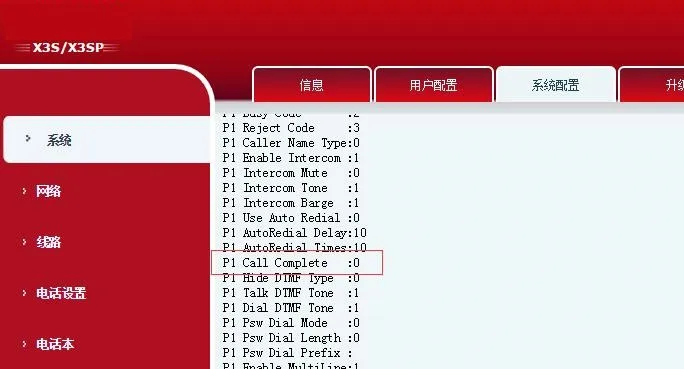
| Parameter Name | Parameter Description |
| P1 Call Complete | Enables or disables the Call Complete feature. Value 1: When the called party changes from busy to idle, the phone prompts for manual callback or cancellation. Value 0: Disables the feature. (Default: 0 for BX3/BX4; BX5/BX6 do not support this feature) |
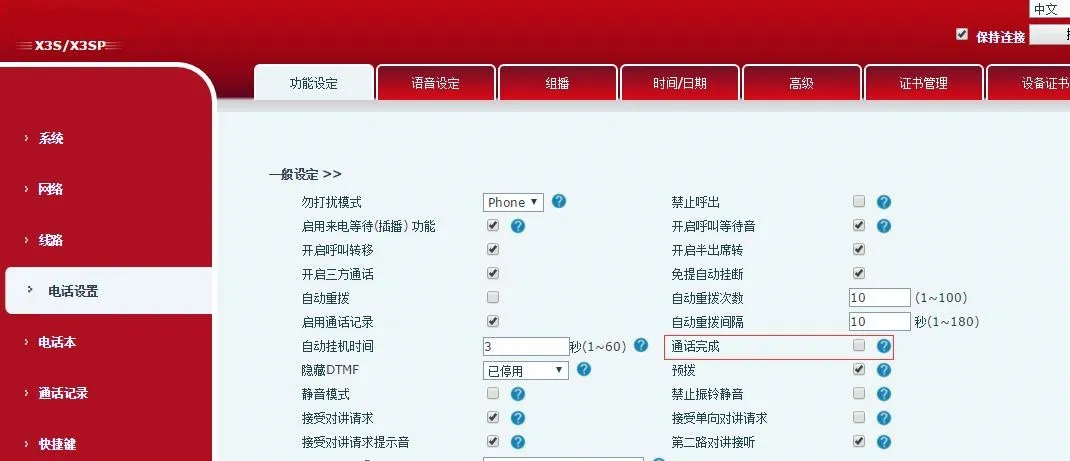
2. Web Interface Path: Phone Settings - Features - General Settings. Toggle the Call Completion checkbox to enable or disable the feature.
3. LCD Interface Path: Menu - Features - Call Completion
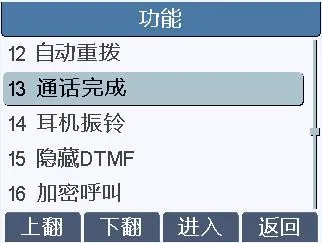
Press Enter to access the settings, then select On or Off to enable or disable the feature.
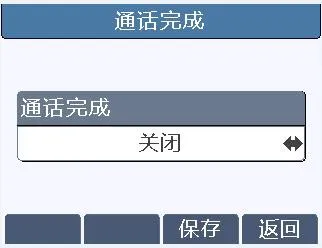
1. Enable Call Completion on the test phone (via Web - Phone Settings - Features - General Settings or LCD - Menu - Features - Call Completion). Disable Call Waiting on the target phone B.
2. Phone B is in a call with Phone C. The test phone calls Phone B in hands-free, handset, or headset mode. The test phone displays the Call Completion Waiting xxx pop-up (xxx = Phone B's number), as shown below:
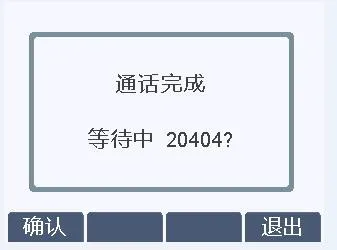
3. Operations for the Call Completion Waiting xxx pop-up:
(1) Press Cancel: The phone exits the waiting screen and returns to idle. No callback prompt will appear when Phone B becomes idle.
(2) Press OK: The phone exits the waiting screen and returns to idle. Approximately 30 seconds after Phone B becomes idle, the test phone displays the Call Completion Calling xxx pop-up:
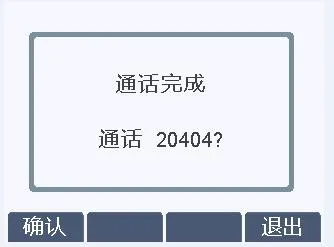
Press Cancel: No call is placed, return to idle.
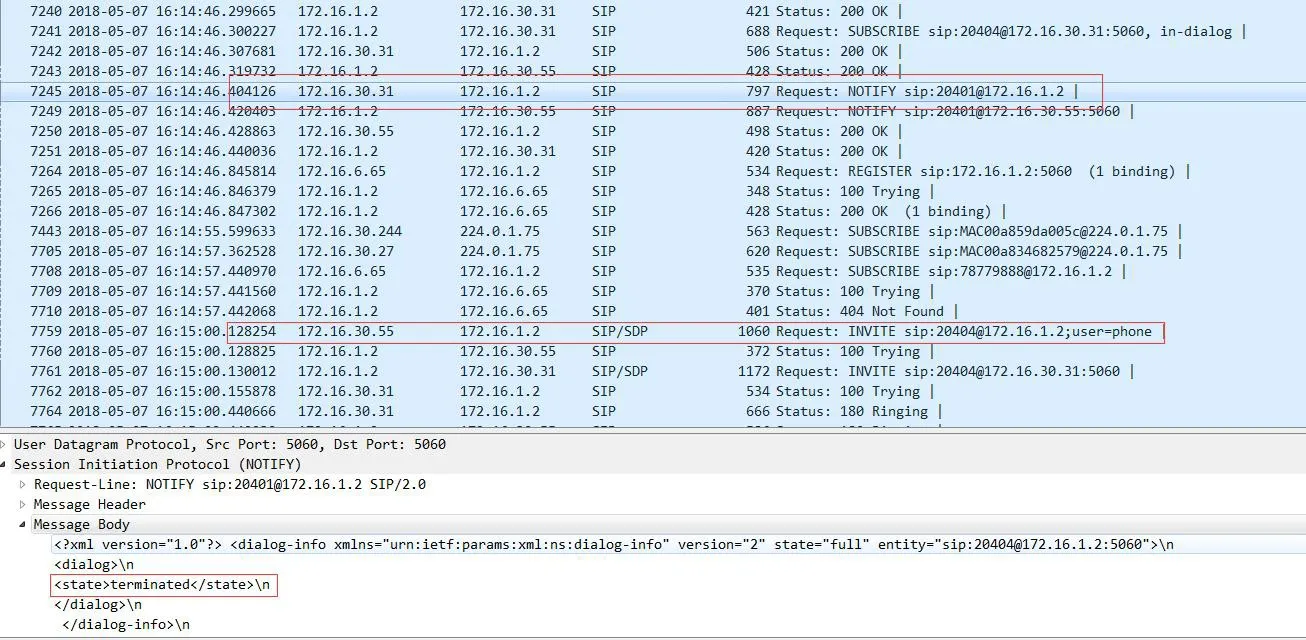
Press OK: SIP packet capture shows the peer sends Notify (terminated). The test phone will redial Phone B to establish a normal call.
1. Enable Call Completion on the test phone. Set the Reject Response Code to 486 (Busy Here) on the target phone B.
2. The test phone calls Phone B in hands-free, handset, or headset mode. Phone B rejects the call. The test phone displays the Call Completion Waiting xxx pop-up (xxx = Phone B's number), as shown below:
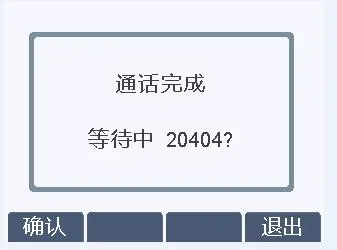
3. Operations for the Call Completion Waiting xxx pop-up:
(1) Press Cancel: The phone exits the waiting screen and returns to idle. No callback prompt will appear when Phone B becomes idle.
(2) Press OK: Two scenarios apply:
a) If Phone B was on an active call: After rejection, the test phone returns to idle. It will show the Call Completion Calling xxx pop-up ~30 seconds after Phone B hangs up.
b) If Phone B was idle: After immediate rejection and return to idle, the test phone quickly displays the Call Completion Calling xxx pop-up:
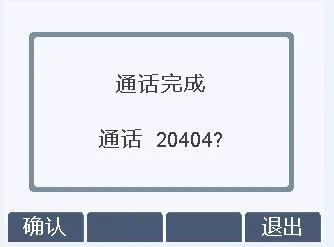
Press Cancel: No call is placed, return to idle.
Press OK: SIP packet capture shows the peer sends Notify (terminated). The test phone will redial Phone B to establish a normal call.