
IntroductionOverviewThis document mainly introduces the video preview function a
This document mainly introduces the video preview function available on indoor stations and video phones.
Both indoor stations and video phones support video preview. This feature allows the receiving side to view the caller’s video before the call is answered. It is commonly used in door access scenarios, where a video phone can confirm who is calling before deciding whether to answer. This function helps users determine whether the caller is a visitor or an unknown person pressing the intercom randomly, and then decide whether to answer the call, unlock the door, or take other actions.
The company’s indoor stations and video phone products.
The video preview function supports two preview modes:
One is Preview 18x mode. In this mode, when the intercom calls the phone, the phone includes SDP data in the 18x signaling response to establish the video connection. This allows the receiving side to view the caller’s video before the call is answered.
The other is Preview 2xx mode. In normal SIP signaling, the phone sends a 200 OK response when answering the intercom call, which establishes the call. After video preview is enabled in 2xx mode, the first 200 OK is used only to establish the video connection and does not establish the call itself. When the user answers the call on the phone, the phone sends another call request. The workflows of the two modes are shown below: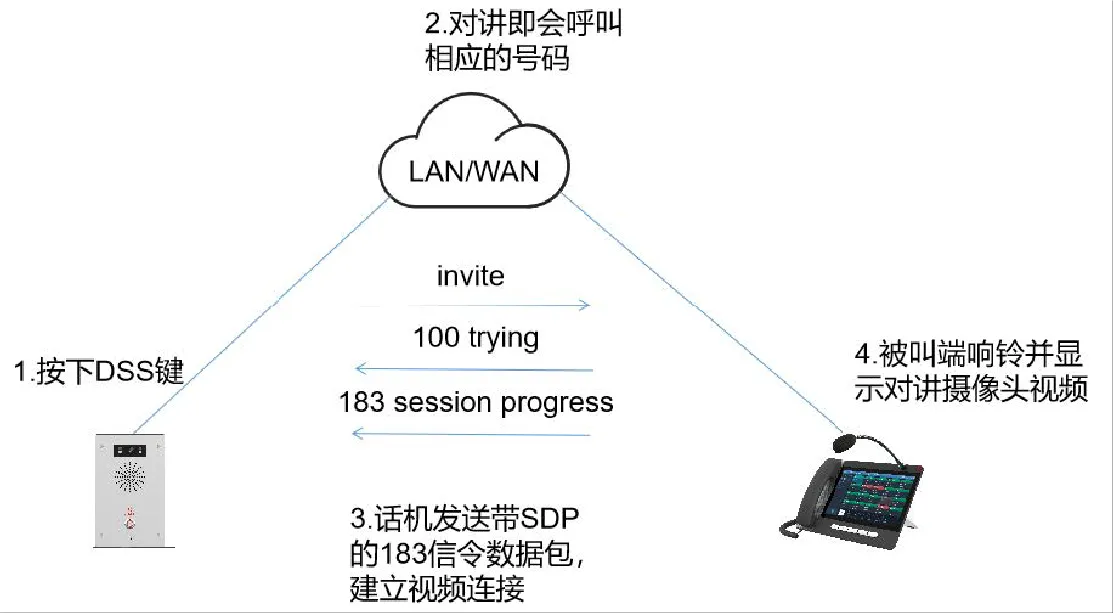
(Video Preview Preview 18x mode)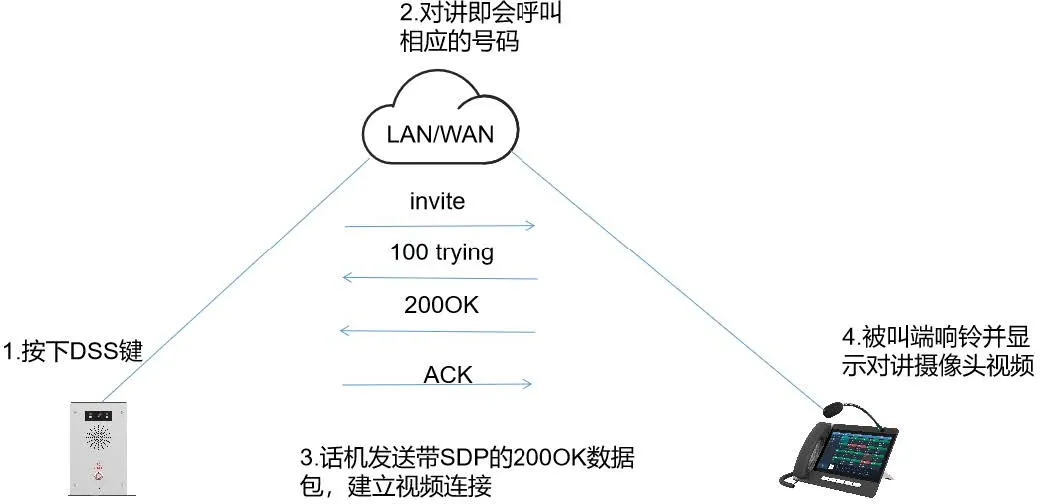
(Video Preview Preview 2xx mode)
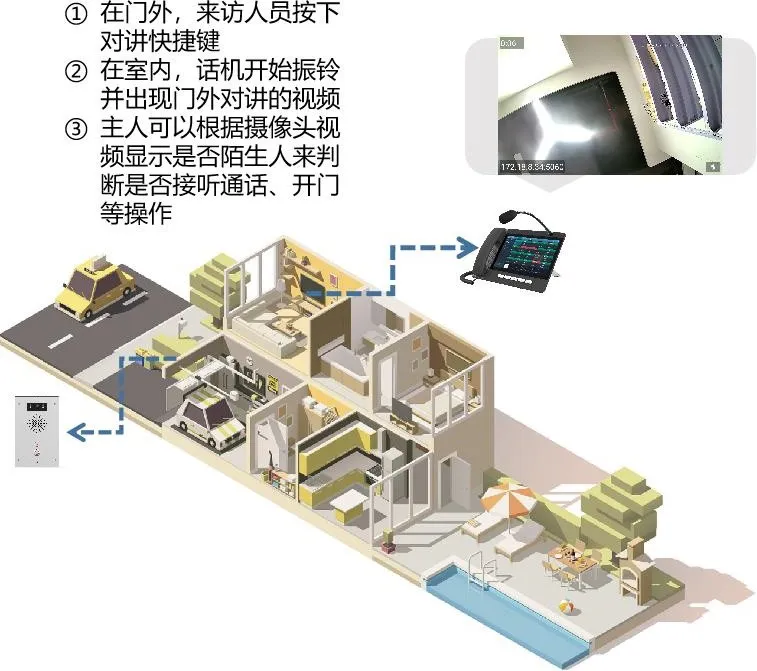
① Before you begin, confirm that the phone is a video phone;
② Prepare one configuration PC and connect it, the phone, and the intercom device to the same local area network, ensuring that the network between the PC and the devices is reachable.
Using devices such as the i16V, IP phone, and PC as examples, the basic network connection is shown below: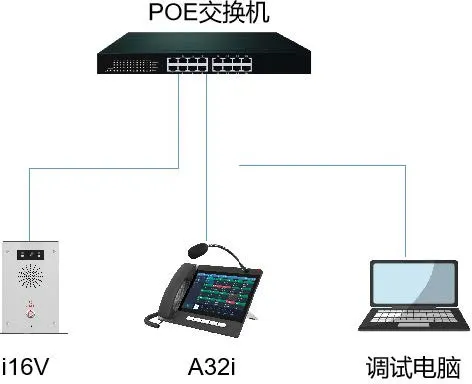
There are two calling methods: point-to-point calling and SIP calling. Before using the video preview function, you need to configure the indoor station or video phone according to the calling method used between the devices. In this section, we use the Bi16V and BA32i as examples to explain the video preview configuration.
Different calling methods require different configuration pages for enabling video preview. In point-to-point calling mode, the setting must be configured under the “Line - Basic Settings” page. The steps are as follows:
1)Log in to the phone web interface;
2)Go to the Line - Basic Settings page;
3)Check Enable Preview. You can also modify the Preview Mode. The default mode is Preview 18x;
4)Click Submit to save the changes;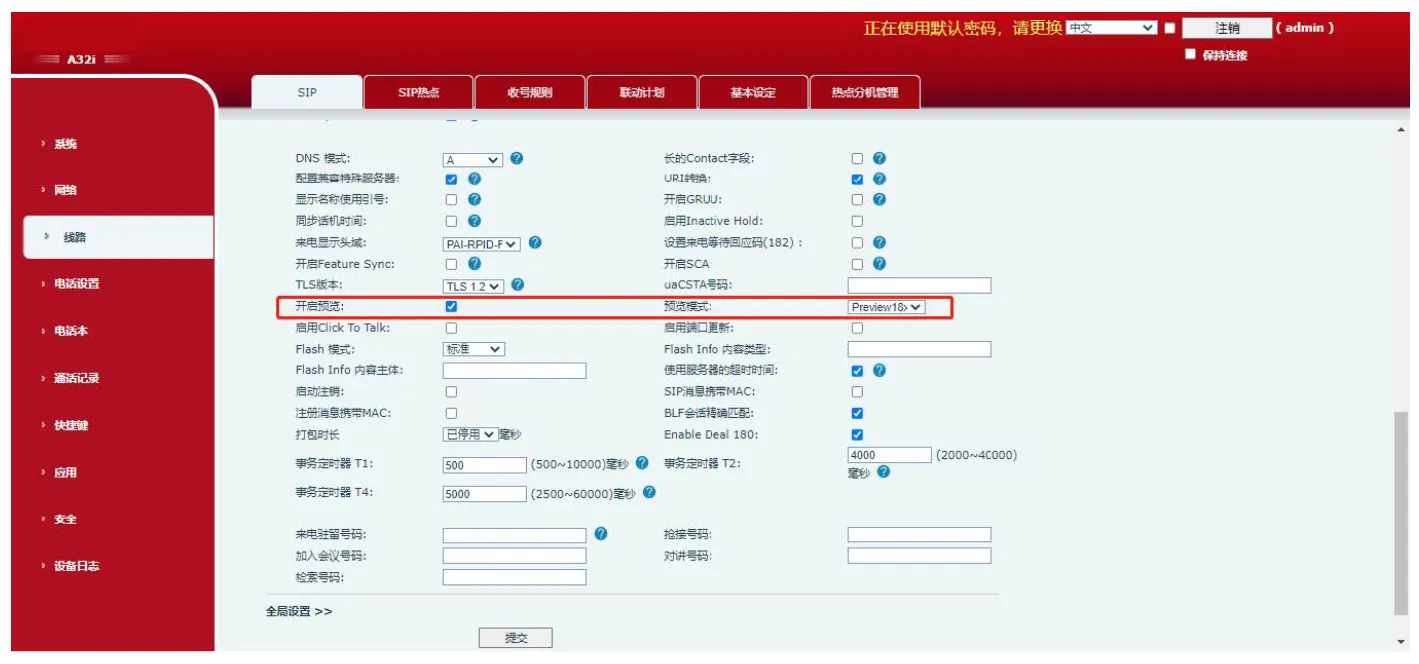
After both the phone and the intercom are registered with SIP accounts on the same server, the video preview function must be enabled under the registered account line. The steps are as follows:
1)Log in to the phone web interface;
2)Go to the Line - SIP - Advanced Settings page;
3)Check Enable Preview. You can also modify the Preview Mode. The default mode is Preview 18x;
4)Click Submit to save the changes;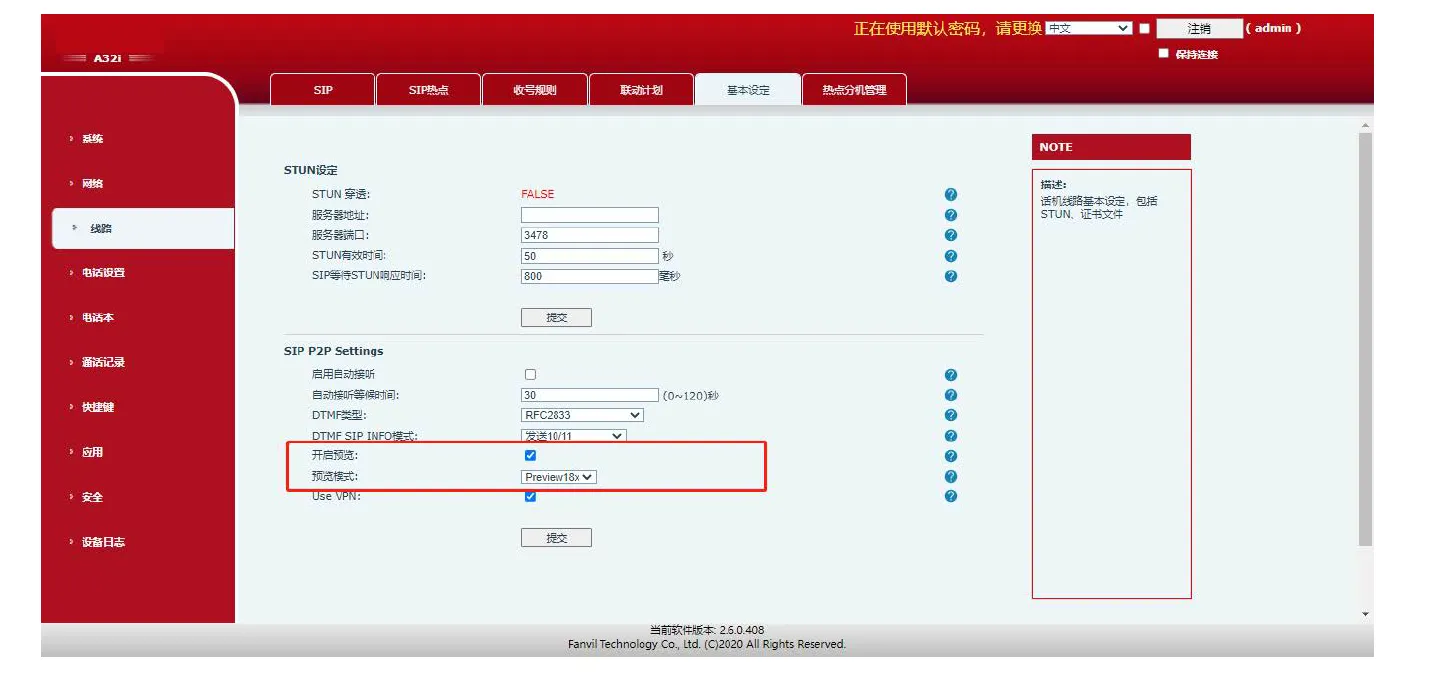
In actual use, users may encounter cases where video preview does not work properly or where enabling video preview causes other issues. Common problems and solutions are as follows:
1)Some SIP servers do not support calls to ring group numbers when video preview is enabled.
For example, when a phone is registered to a SIP account on a Yunyi server and added to a ring group, if video preview is enabled on the phones in that ring group and the intercom calls the ring group number, the phones in the ring group may show no video while ringing and may also hang up automatically. If you need to continue using the ring group, disable video preview. If similar issues occur on servers from other manufacturers, contact technical support or the server vendor’s technical team.
2)3CX servers do not support Preview 18x mode for video preview.
After the device registers a 3CX account and video preview is enabled in Preview 18x mode, the feature may not work if the 3CX server version is too old. In this case, change the preview mode to Preview 2xx or upgrade the 3CX server to version 18.5.28 or later.
3)The Early Media function is not enabled on the server.
Please contact the server vendor to enable Early Media.
