
IntroductionOverviewThe multicast function allows the sender to transmit voice i
The multicast function allows the sender to transmit voice information and other audio content to a configured multicast address. All phones that are listening to that multicast address can receive the transmitted audio. This function works similarly to a paging or broadcast system. With multicast, announcements can be delivered easily and efficiently to every member in the multicast group.
Operating mechanism:
The phone uses a DSS key to configure the multicast sending address, port, and codec.
The multicast listening address and port are configured through the web interface or LCD menu.
When a phone starts a multicast session, all phones listening to that address can receive the multicast audio.
Open the phone web interface and click “Function Key” - “Function Key Settings”. Set one function key type to MCAST Paging, and set the value in the format IP:Port.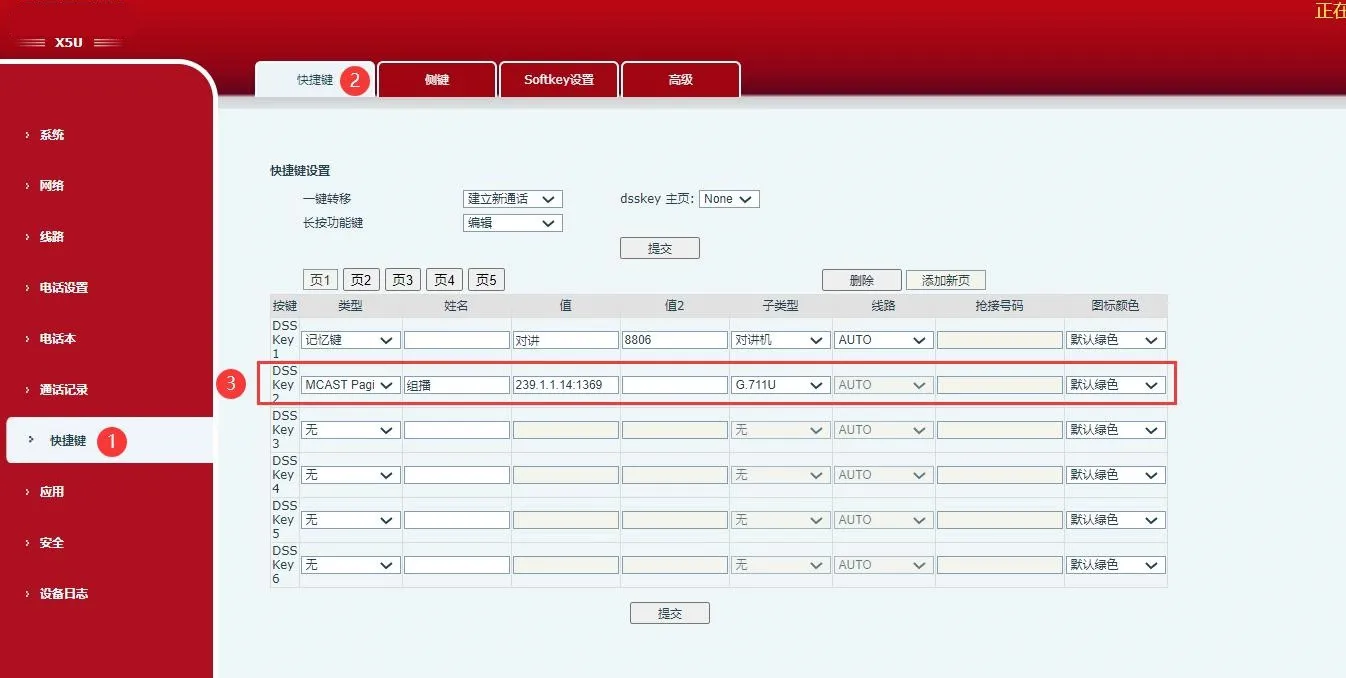
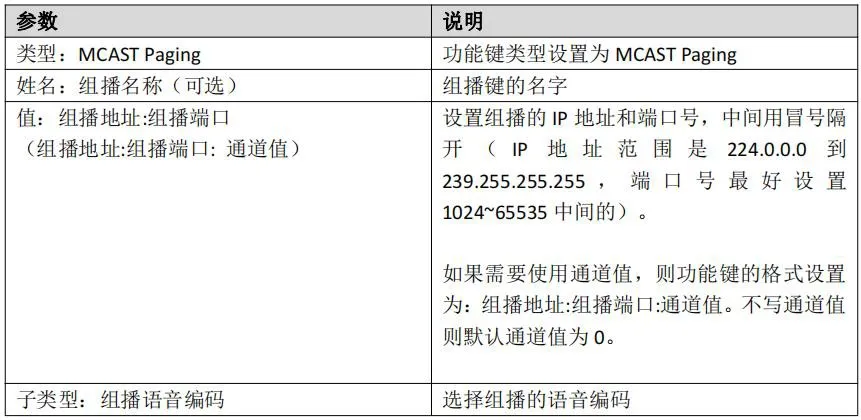
Usage notes: Configure a function key and set its type to MCAST Paging, then define the multicast address and port. In standby mode, press the corresponding function key to start multicast paging.
There are two ways to listen to multicast audio: automatic listening and manual listening.
2.2.1 Automatic Multicast Listening Configuration
Open the phone web interface and click “Phone Settings” - “Multicast”, then configure parameters such as the multicast name and multicast address.
| Parameter | Description |
| Priority |
Sets the priority of normal calls, meaning non-multicast calls. The smaller the number, the higher the priority. For example, if the phone is already in one or more normal non-multicast calls: when the priority is set to Disable, multicast calls of any level will not be answered and will be rejected; when the priority is set to a specific value, only multicast calls with a higher priority than that value can be answered, and other calls will be placed on hold at the same time. |
| Enable Page Priority | Determines whether priority comparison between multicast pages is enabled. The multicast priority is the index/priority shown on the left side of the multicast list. |
| Enable Channel Priority | Channel 24 is the priority channel. This takes effect only after channel priority is enabled. |
| Enable Emergency Priority | Channel 25 is the emergency channel. This takes effect only after emergency priority is enabled. |
| Index / Priority | The numeric value represents the multicast priority. It takes effect after page priority is enabled. The smaller the number, the higher the priority. |
| Name | Sets the name of the multicast being monitored. This name will be displayed on the screen when the multicast is answered. If it is not configured, the screen will display the IP:Port directly. |
| Host:Port | Sets the IP address and port number of the multicast to be monitored, separated by a colon. The IP address range is from 224.0.0.0 to 239.255.255.255, and the recommended port range is 1024 to 65535. |
| Channel | When the channel value is 0, the multicast sends RTP packets; when the channel value is 1-25, it sends paging protocol packets; when the channel value is invalid, it falls back to the default RTP protocol. The default value is 0. |
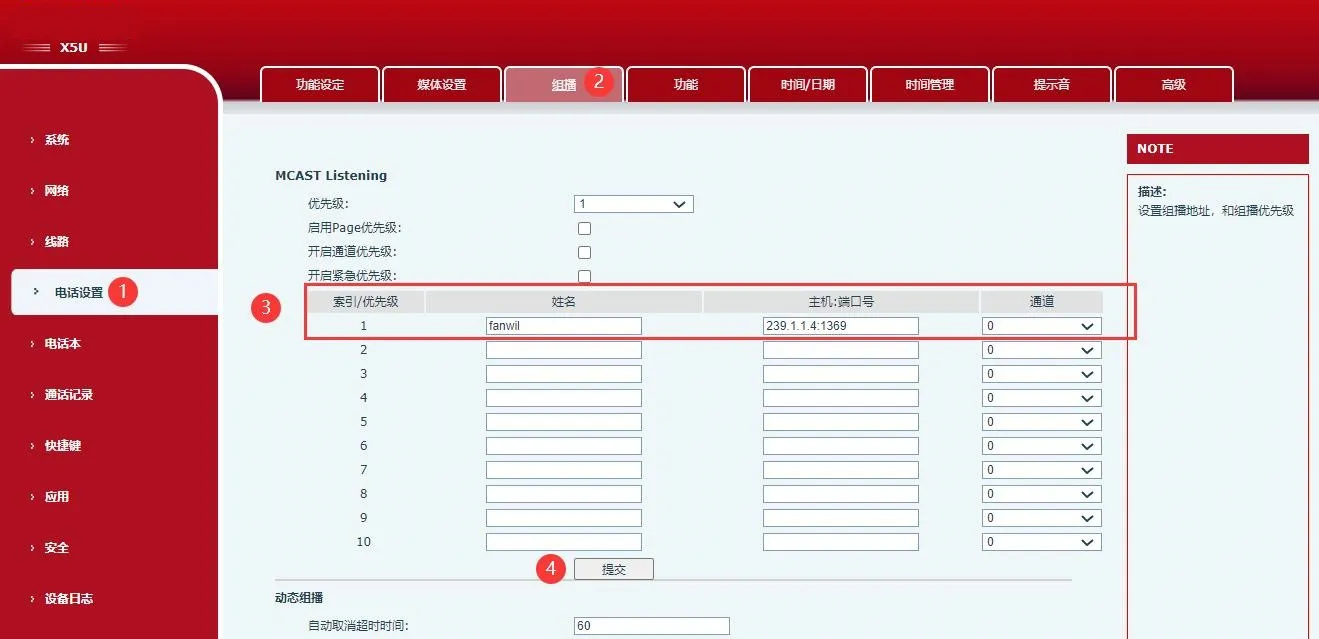
Usage notes: After configuring the multicast listening address, port, and multicast priority, the phone will automatically answer and display the call screen when a multicast session is started on the monitored address.
2.2.2 Manual Multicast Listening
Open the phone web interface and click “Function Key” - “Function Key Settings”. Set one function key type to MCAST Listening, and set the value in the format IP:Port.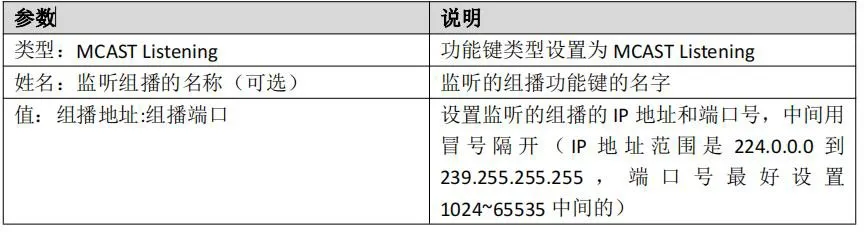
① Configuration: On the function key page, configure a multicast listening function key, then save the multicast address and port settings.
② Operation: In standby mode, press the configured function key.
③ Result: If RTP is present on the configured multicast address, the phone will connect and play the multicast audio, display the multicast screen, and the function key indicator will turn red. If RTP is not present on the configured multicast address, the phone will play a prompt tone after the key is pressed, indicating that the operation is unavailable.
④ Operation: Press the same function key again.
⑤ Result: The phone stops the multicast session, exits the multicast screen, and returns to standby mode.
