IntroductionOverviewProgrammable keys (DSS Keys) are designed to meet users’ cus
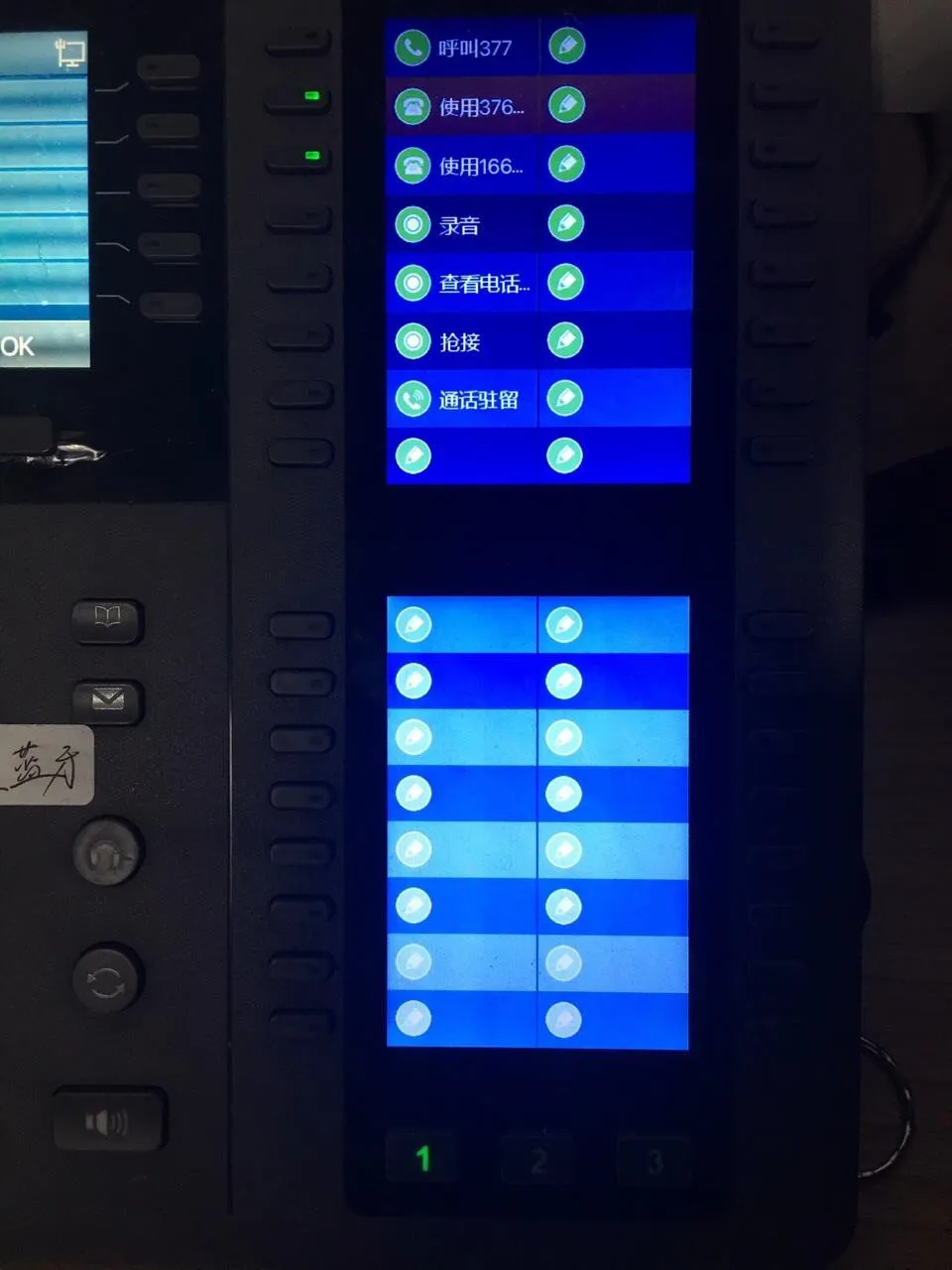
Programmable keys (DSS Keys) are designed to meet users’ customization needs for phone functions. Depending on the model, X Series terminal phones are equipped with different numbers of programmable keys. Some phone models can also be connected to expansion modules, and each key on the expansion module can also be used as a programmable key.
This applies to all models of our phones.
This document is intended for users who need to configure DSS keys.
On X Series phones, when the line key is pressed, if the line is not registered, the phone enters line setting mode. If the line is already registered, the phone enters dialing mode, and a number can be entered to place a call.
Setup instructions: In the red box, select the Line type. The green and yellow boxes are optional. In the blue box, select the corresponding SIP line.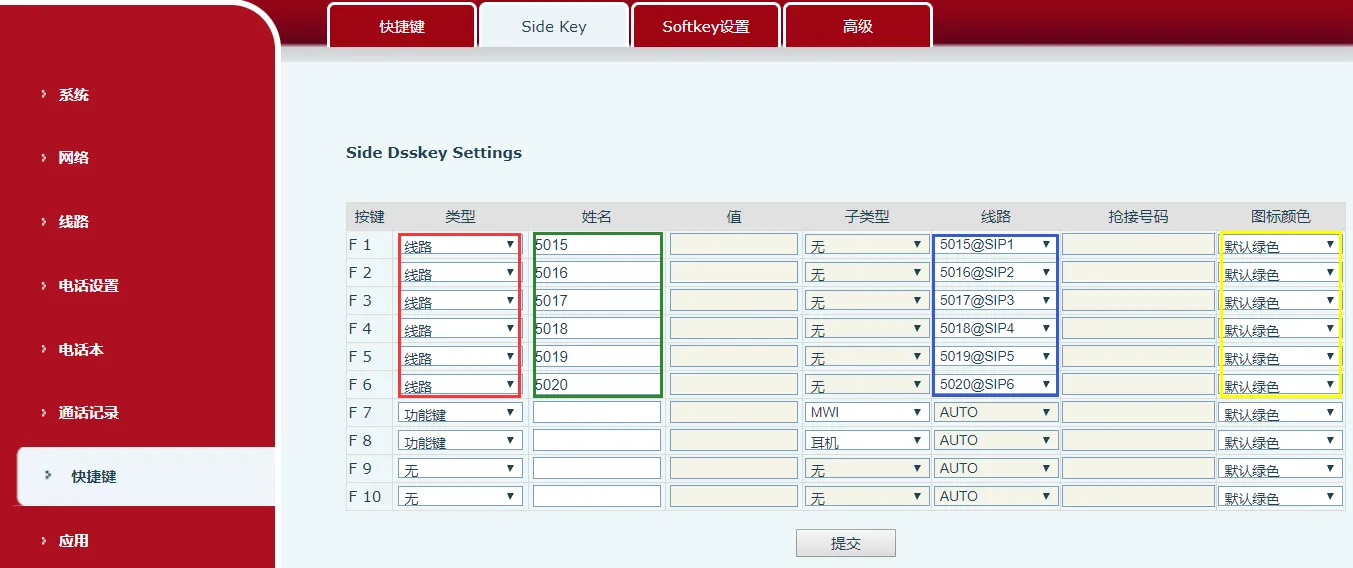
Side screen setup method
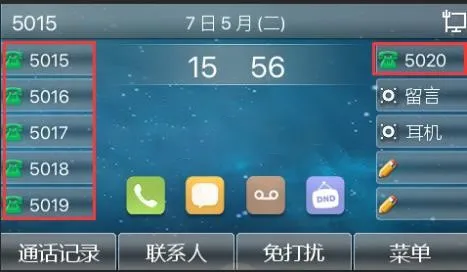
Side screen setup effect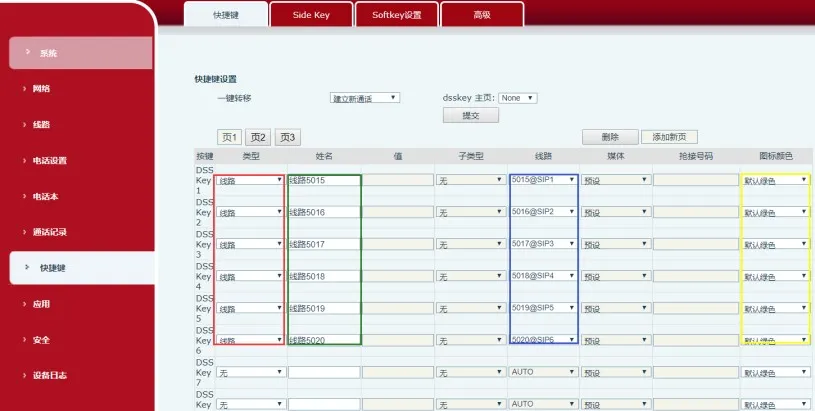
Secondary screen setup method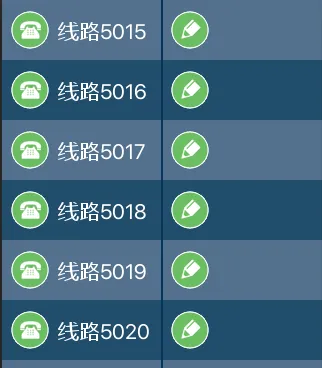
Secondary screen setup effect
Setup instructions: In the red box, select the Memory Key and Speed Dial types. The green box is optional. Blue box 1 is used to set the called number. Blue boxes 2 and 3 are used to select the corresponding SIP line and color based on your requirements.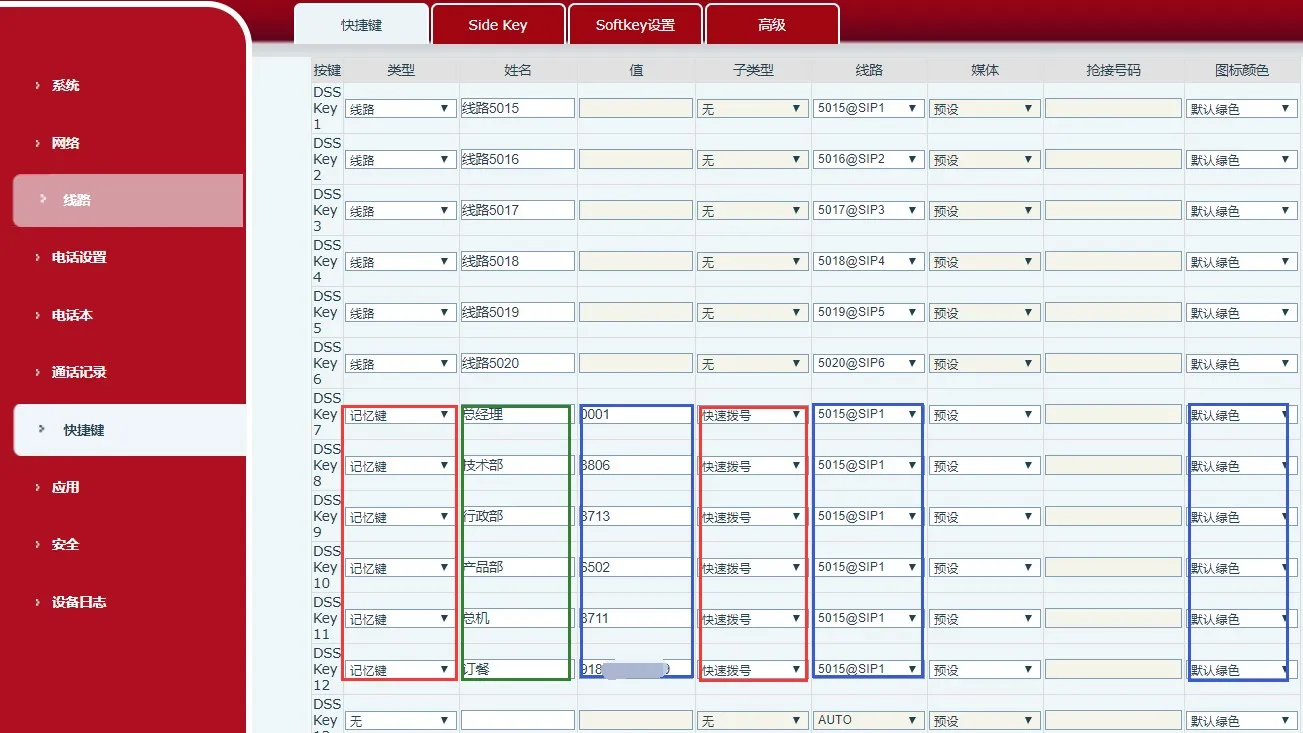
Setup method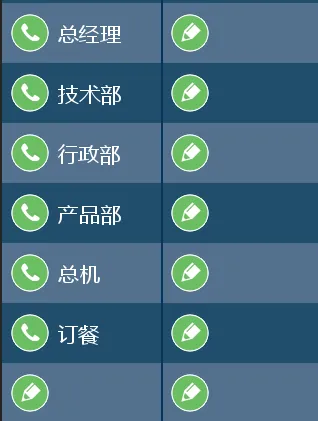
Setup effect
Function description: This feature is useful during a call when it becomes inconvenient to continue the conversation in the current location and the user wants to resume it somewhere else.
Usage method: During a call, press this key. After hearing a Call Park number announced by the server, you can hang up. The server will temporarily hold the call. Then go to another location, pick up another phone, dial the Call Park number announced by the server, and the original call will be resumed.
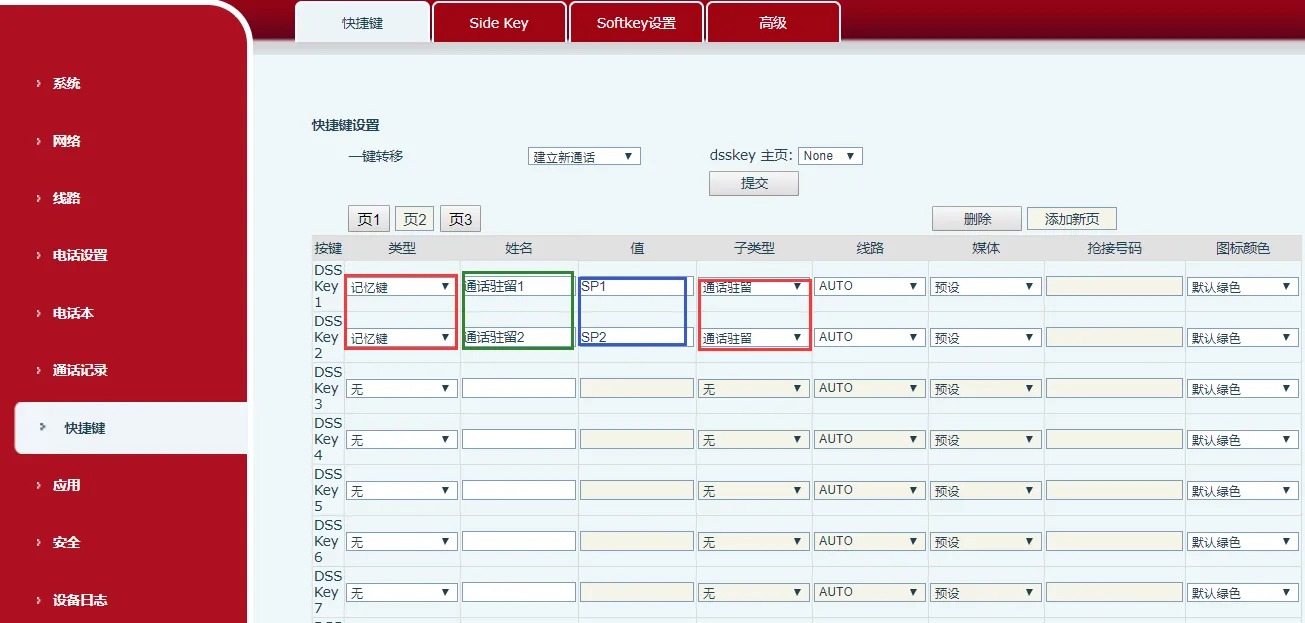
Setup instructions: In the red box, select the Memory Key and Call Park types. The green box is optional. In the blue box, enter the server’s park number.
Usage notes: When phones A and B are on a call, if phone B presses the Call Park key, phone A will hear the parked music. When phone C presses the park key, the call between A and C can proceed normally.
The BLF function can subscribe to the status of the remote phone, including idle, ringing, and in-call states. By configuring three shortcut key indicator colors (red, green, and orange), the phone can display the remote phone’s status and also support operations such as calling the subscribed phone, blind transfer, attended transfer, and conference.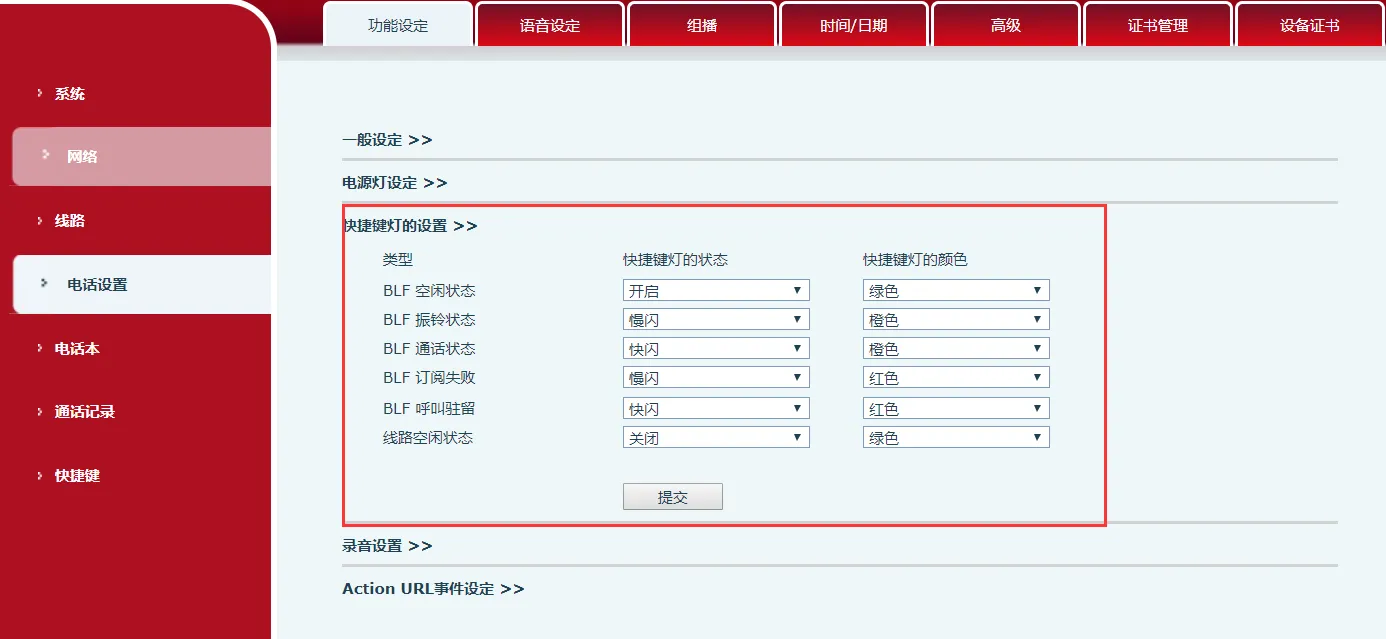
Shortcut key indicator light configuration
BLF Function Configuration on the Phone
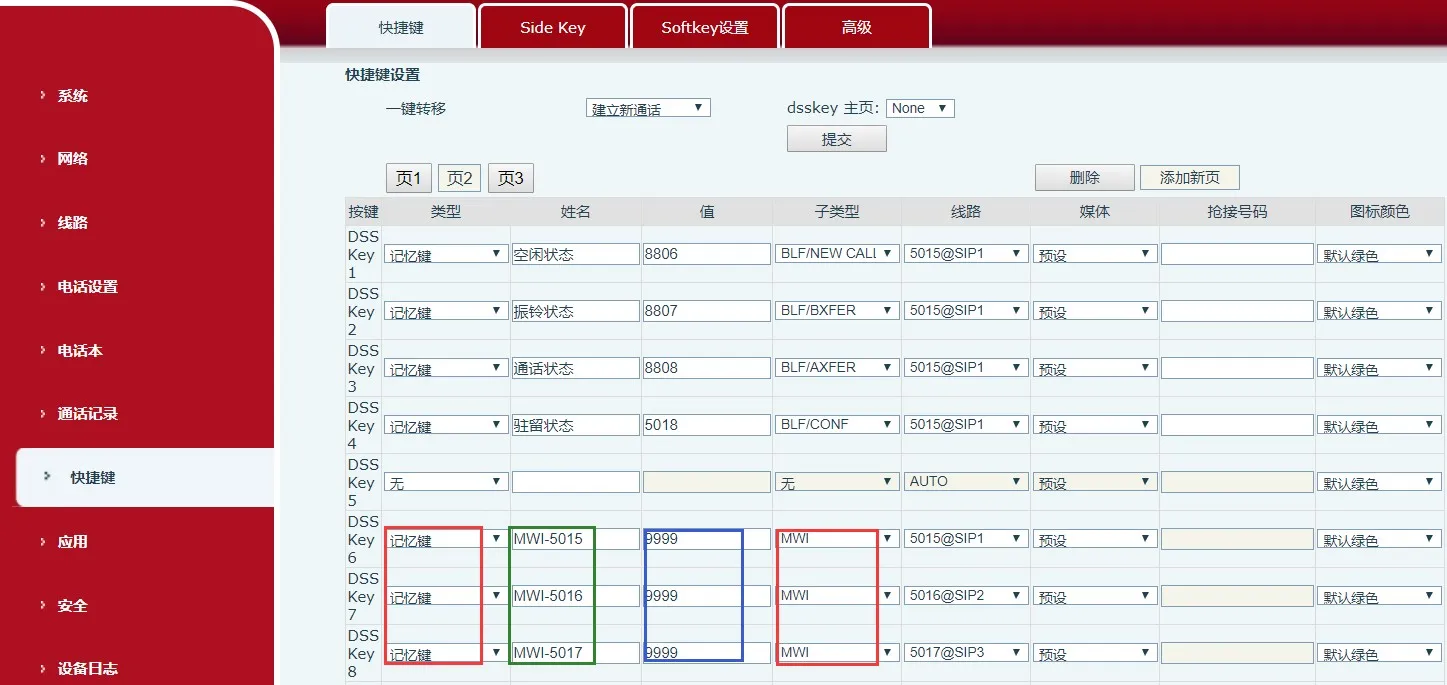
Setup instructions: In the red box, select the Memory Key and BLF types. The green box is optional. In blue box 1, enter the number to subscribe to.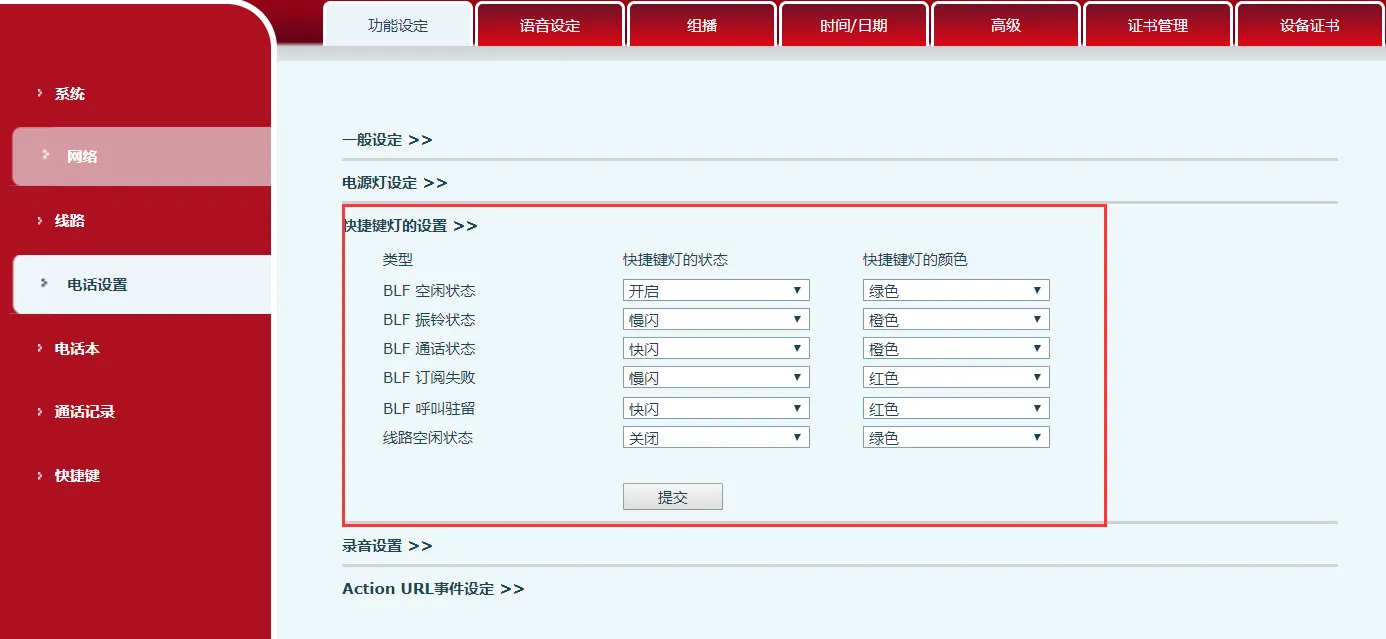
Setup method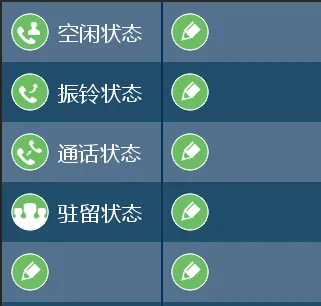
Setup effect
Usage notes: After phone A is configured as described above, when phones B, C, D, and E perform actions such as calling, talking, or parking calls with 8806 / 8807 / 8808 / 5018, phone A can indicate their status through shortcut key indicator colors and flashing patterns.
This key is used to view the Voice Mail information of all SIP lines. When pressed in standby mode, it displays the number of new and old voice messages for each line. It can also be pressed after going off-hook to directly call the voice mailbox of the current line in use (the corresponding SIP line must have an MWI Number configured).
Setup instructions: In the red box, select the Memory Key and MWI types. The green box is optional. In the blue box, enter the server’s voicemail number.
Usage notes: After pressing the MWI key on phone 5015, a voice prompt will be heard. Enter the verification code “4938” to access and read the voice messages.
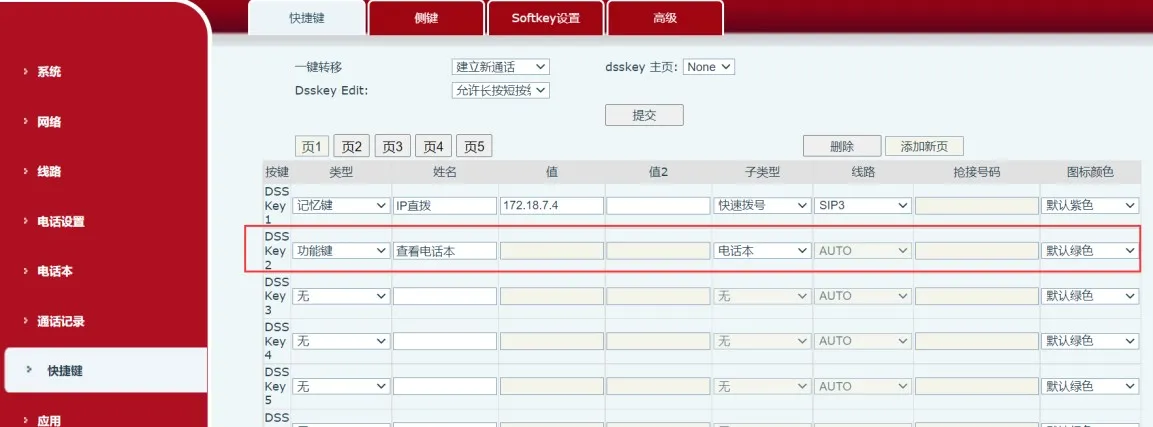
Function description: When another phone is ringing, press this key and then enter the number of the ringing phone to answer the incoming call on behalf of that phone.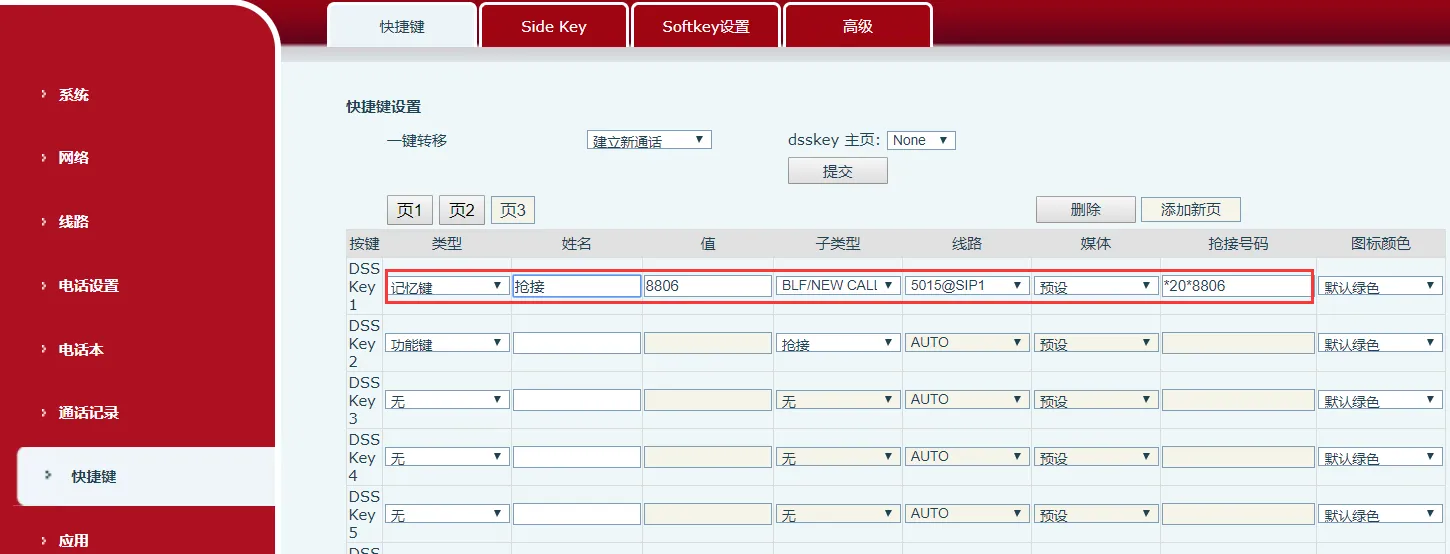
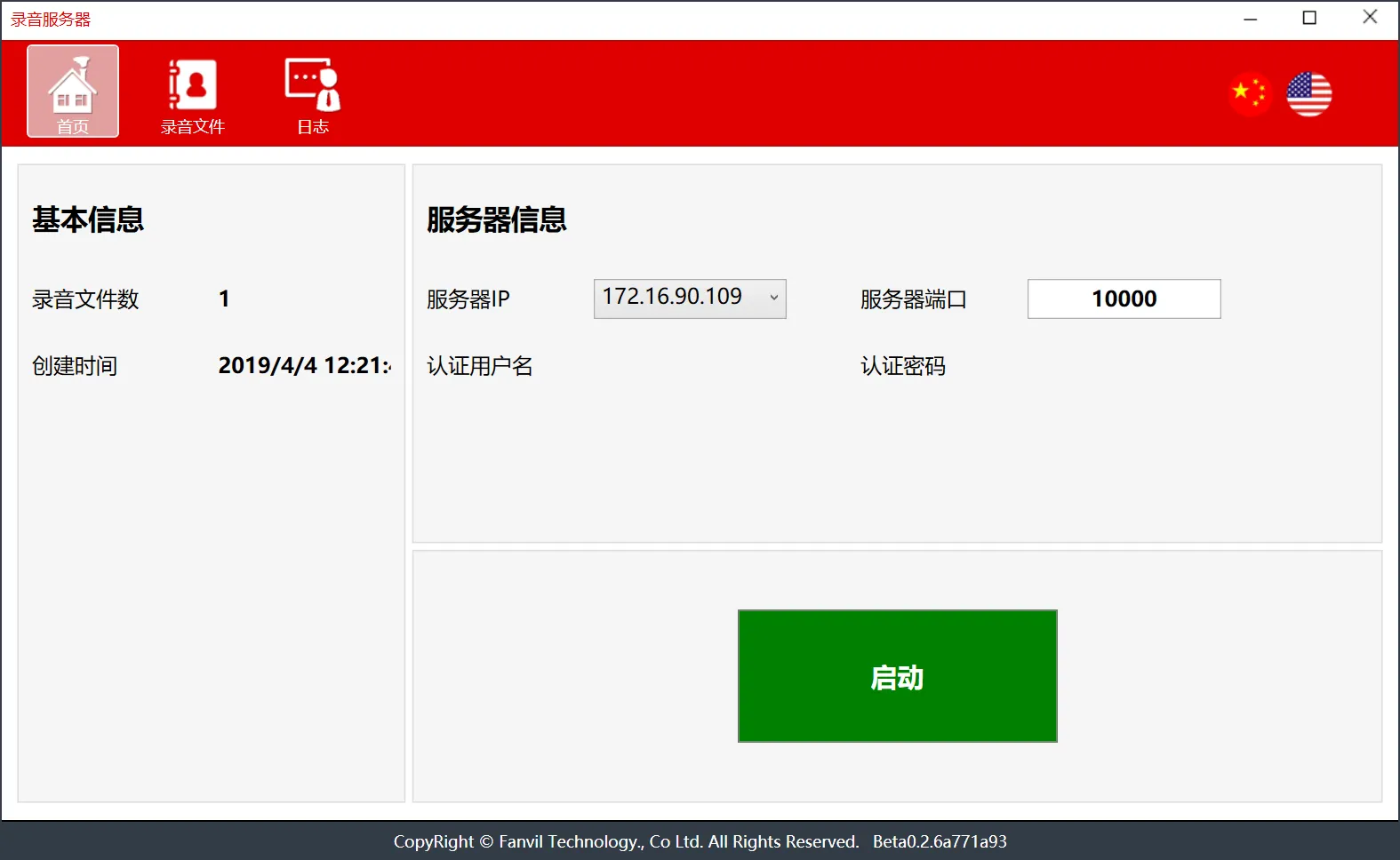
Server-side recording: A recording application must be downloaded and used together with this function.
1. Open the recording software and configure the server address and port.
2. Configure the recording server information on the phone:
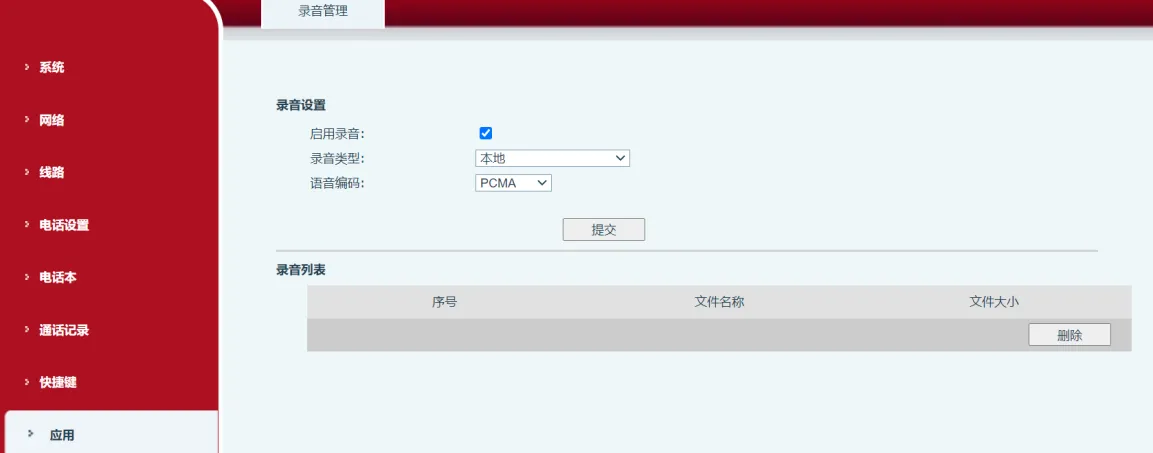
3. Test the call between the phone and 377, then press the recording shortcut key.
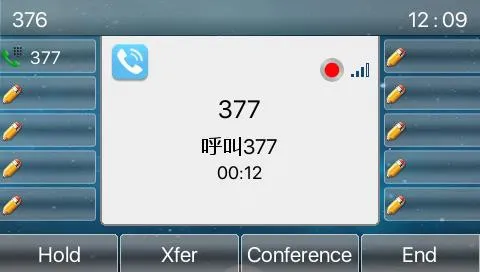
4. If the red light remains on steadily, recording is working normally. After recording is complete, the recorded file can be found in the recording software.
When the phone is in standby mode, press this key to enable the phone lock function. Pressing the key will lock the phone.