
Industrial Phone Audio Self-Test Function Guide: echo test for speaker/mic, 4 test methods (Active URI/HTTP API/Time Plan/SIP Message), troubleshooting.
This document describes the audio self-test (echo self-test) function for industrial intercom and door phone devices. The function tests the speaker and microphone by playing audio through the speaker and capturing it via the microphone, enabling remote diagnostics of audio components.
BHP-SOS12, BHP-SOS11, BHP-SOS16V, BHP-SOS18, Bi20S, Bi30, Bi32V, Bi33V, BHP-SOS10V, BK-DAB-PA3, BK-DAB-PA2S
The device plays a test tone through the speaker, then records via the microphone. It measures the received audio percentage: - Above threshold = Test Success - Below threshold = Test Failure
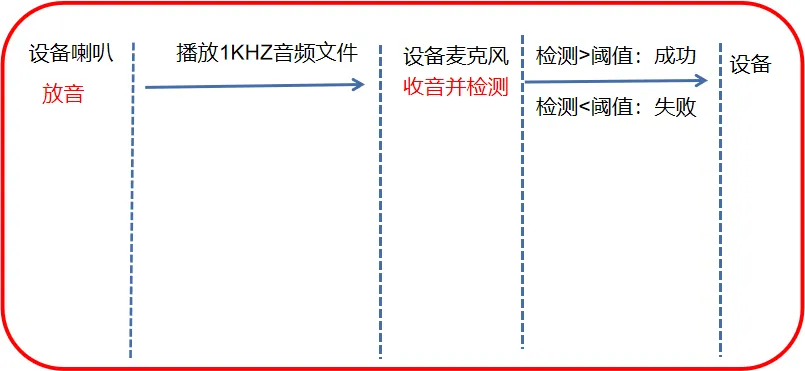
Figure 1 Audio Self-Test Schematic
Used for remote equipment inspection, especially when broadcast audio is missing or interrupted. Reduces on-site maintenance costs and improves efficiency.
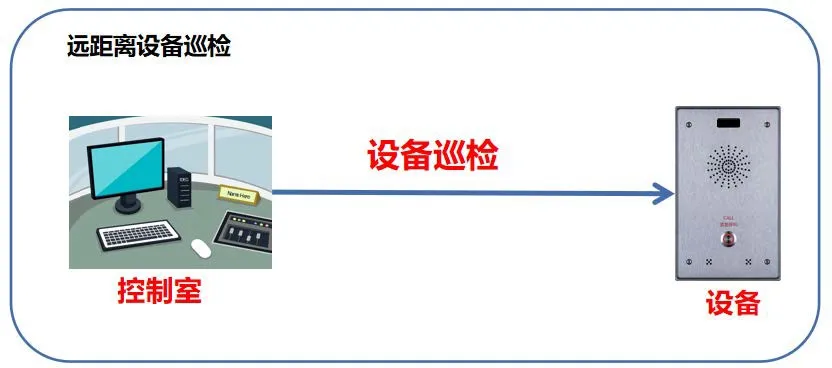
Figure 2 Audio Self-Test Scene
1 industrial intercom (e.g., BHP-SOS12), PoE switch, Keneng server
Configuration PC connected to the same LAN
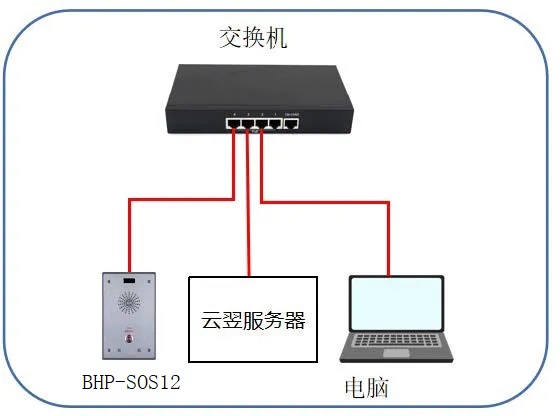
Figure 3 Device & PC Connection Diagram
Four methods are available for echo self-test:
Trigger via HTTP GET request from a remote console.
Format: http://device-ip/cgi-bin/ConfigManApp.com?key=ECHO_TEST
Result:
- Success: Speaker and mic working
- Failure: Speaker/mic disconnected or faulty
Example: http://172.18.8.15/cgi-bin/ConfigManApp.com?key=ECHO_TEST

Figure 4 Active URI Audio Self-Test
XML-based API for third-party integration.
Request URL: http://device-ip/xmlservice (POST)
Request XML:
URI="cmd:echo_test"
Response XML:
URI="cmd:echo_test"
0
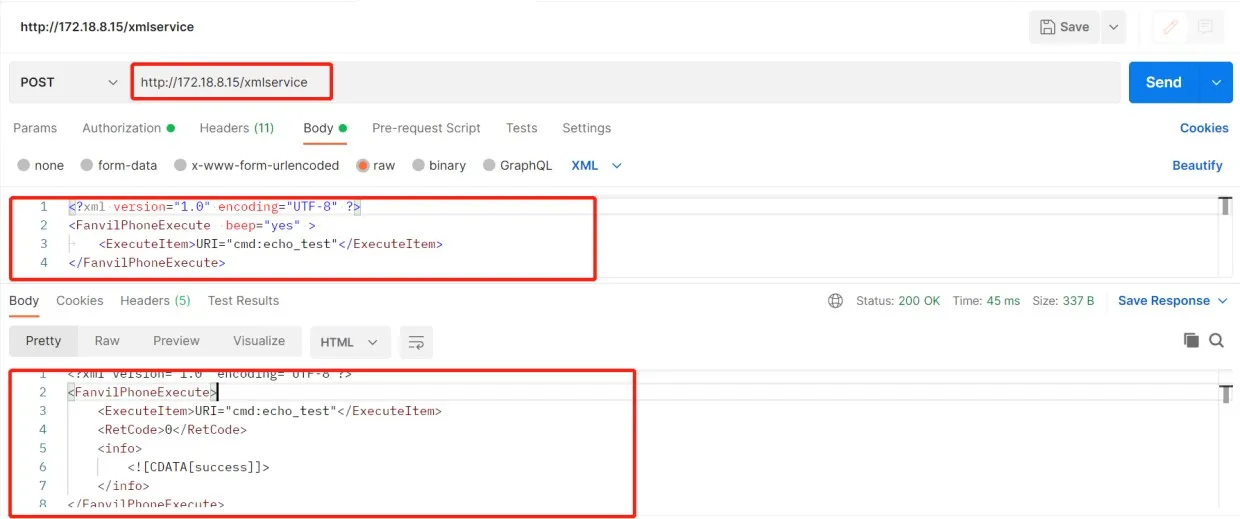
Figure 5 HTTP API Audio Self-Test
Schedule automatic self-test and report results via Action URL.
Log into web UI → Intercom → Time Plan → Time Plan Rule
Action Type: Audio Self-Test
Set execution time
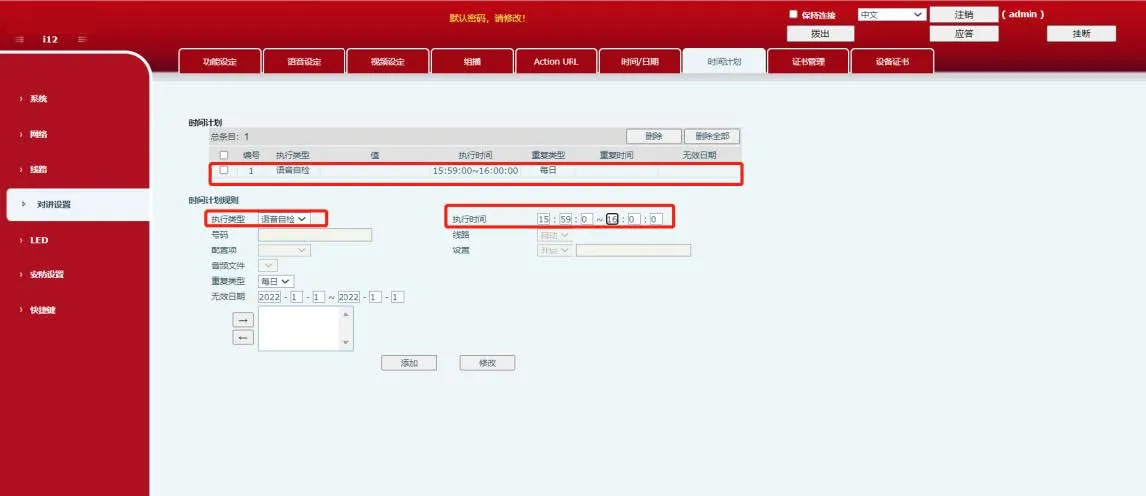
Figure 6 Time Plan Audio Self-Test
Run self-test via SIP server in public network environments.
Device registers SIP account on server
Create self-test task on Keneng server
Run task: view Success/Failure on server
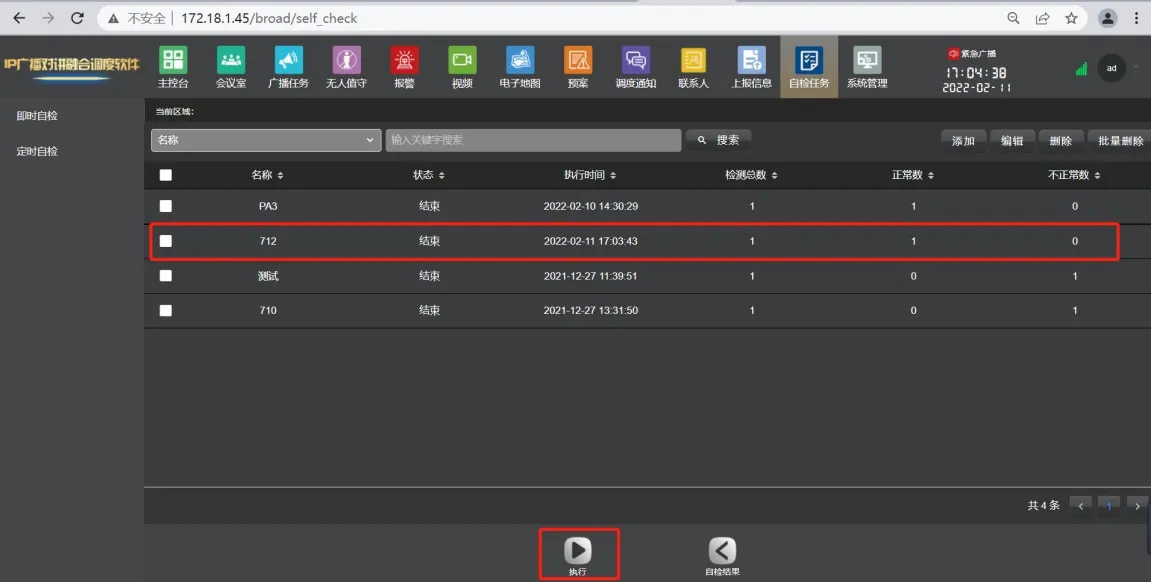
Figure 7 SIP Message Audio Self-Test
Packet Capture Verification:
Web UI → System → Tools → Packet Capture → Start
Run self-test → Stop capture
Open in Wireshark → filter sip
Check MESSAGE body: Success / Fail
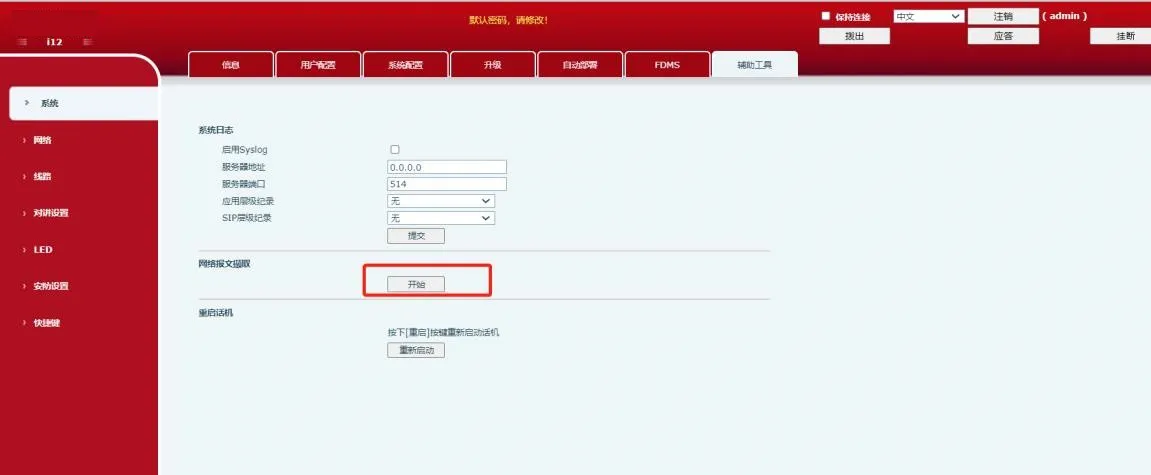
Figure 8 Device Packet Capture
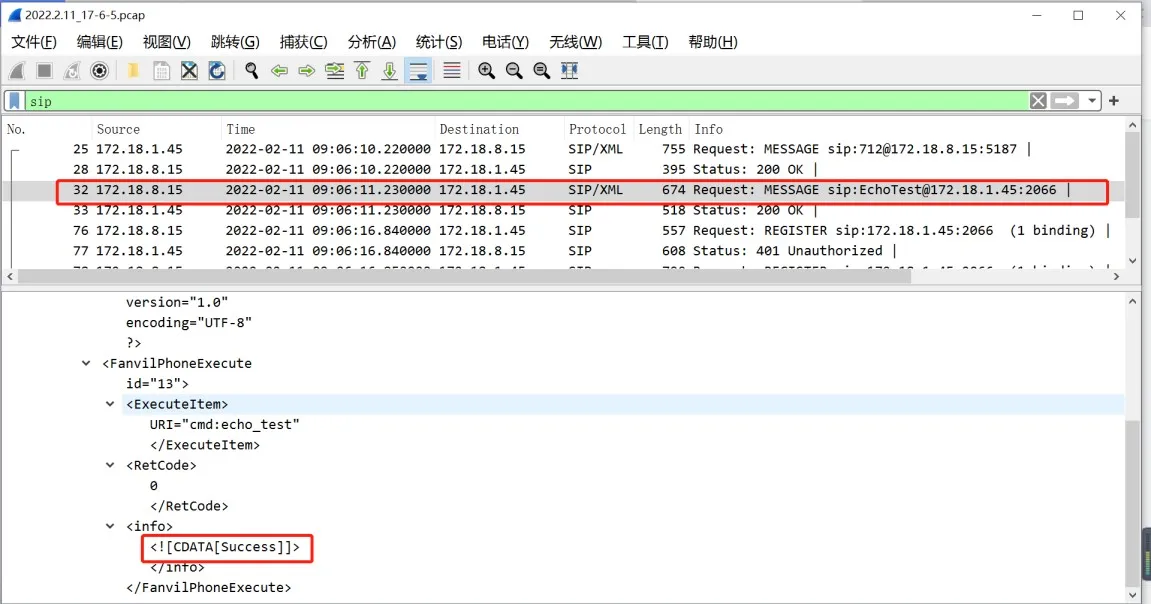
Figure 9 Check Result via Packet Capture
Check Connections
Speaker disconnected = Test fails
Microphone disconnected = Test always fails
Check Components
Verify speaker and microphone are not damaged
Contact support if components are good but test fails
Check Environment
Test uses 1KHz tone
Ambient 1KHz noise may cause false success
Test in quiet environment
