
IntroductionOverviewThis document is intended to guide users on how to edit a lo
This document is intended to guide users on how to edit a local phonebook using WPS or Excel.
All phone models from our company (BX5U is used as the example in this document)
① A phonebook exported from the phone (CSV format).
② WPS or Excel for spreadsheet editing.
③ UltraEdit editing software (available from common download sources).
On the phone LCD screen, tap “Menu” — “Status” to view the phone IP address.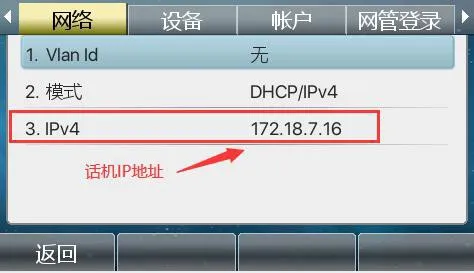
Then log in to the phone WEB interface. Open a browser on the PC and enter the phone IP address in the “Address Bar”.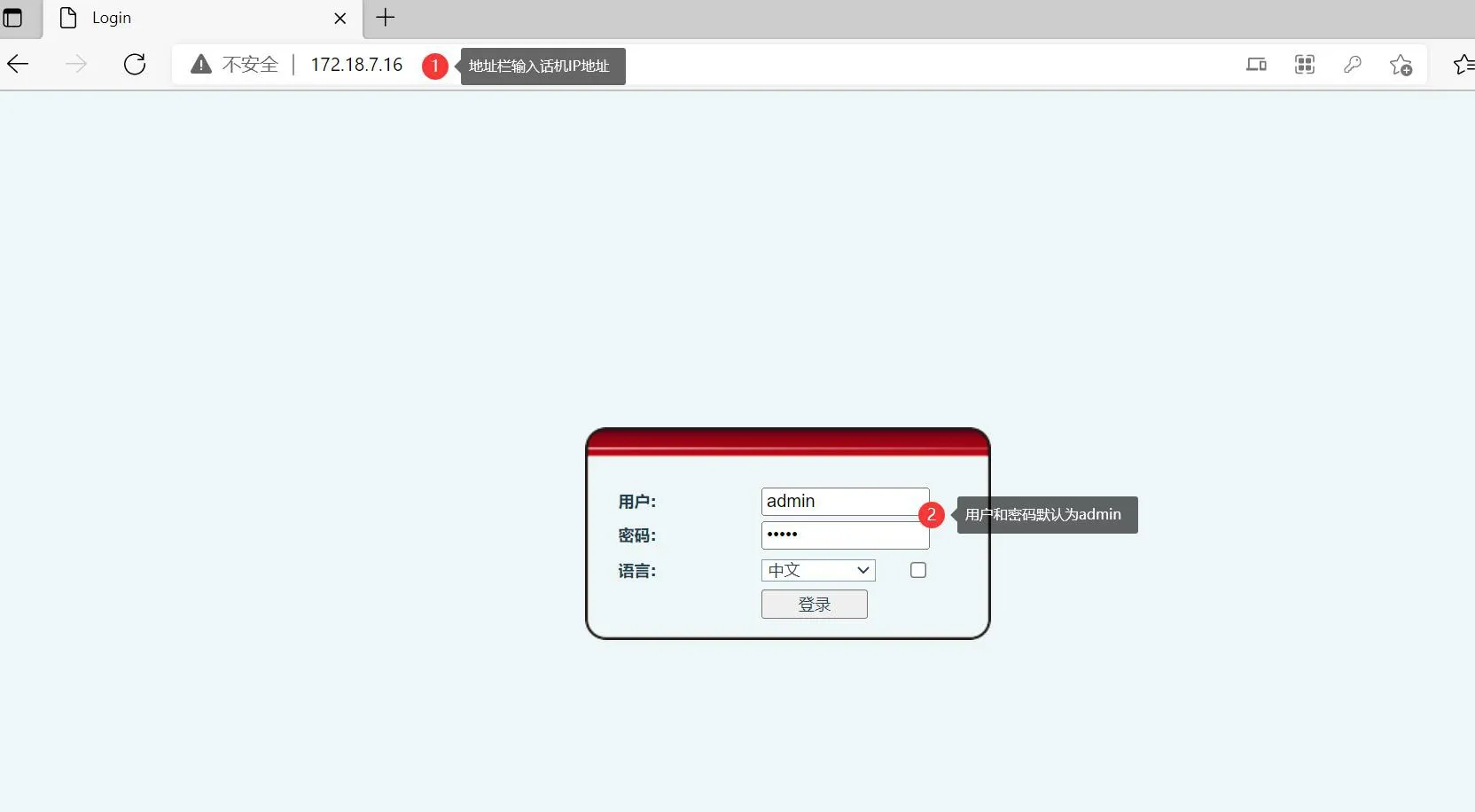
After logging in to the phone web interface, click “Phonebook” - “Contacts” - “Add New Contact”, and first add one contact, as shown in Figure 1 and Figure 2 below.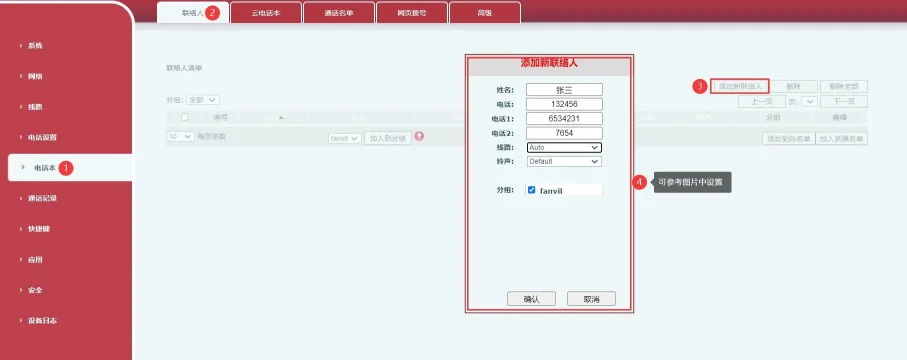
Figure 1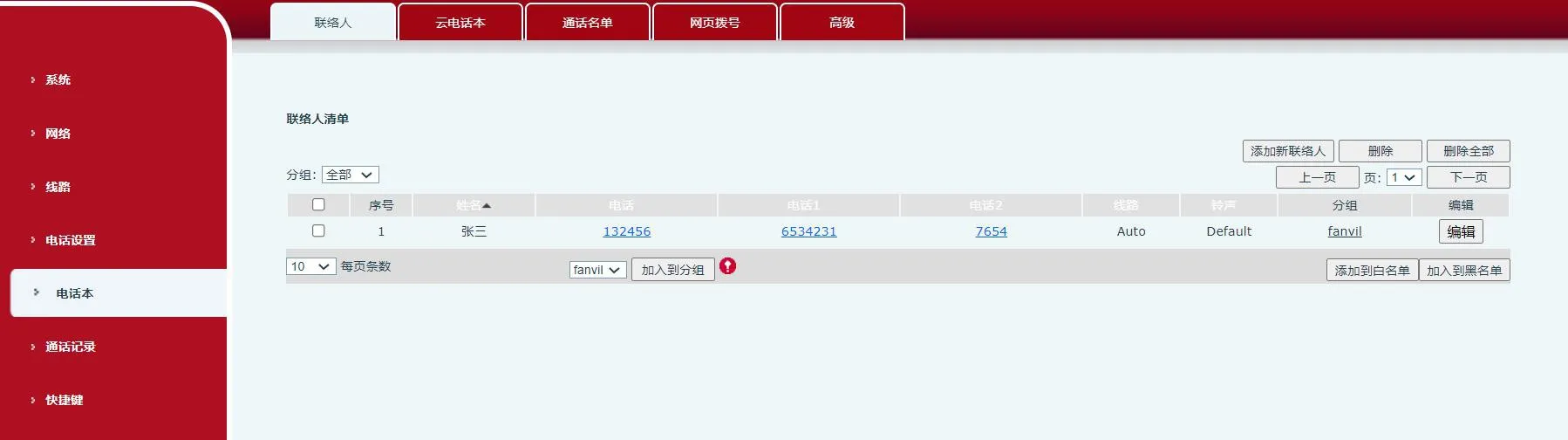
Figure 2
If group information is required in the contacts, add the group information before adding contacts. Click “Phonebook” - “Advanced” - “Group List” - “Add New Contact Group”, then add the group information in the new contact group section, as shown in Figure 3 and Figure 4 below: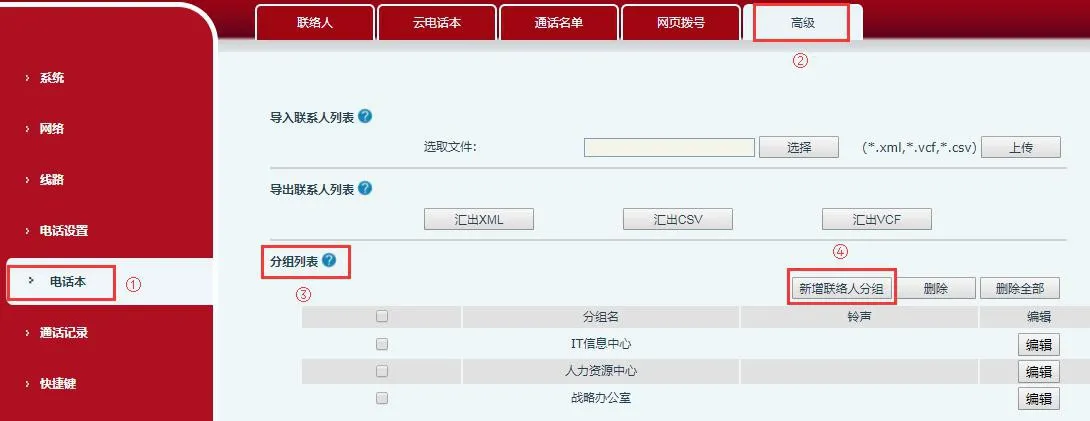
Figure 3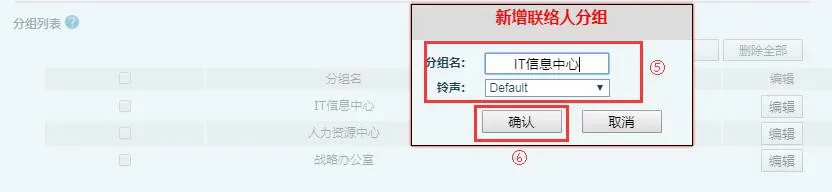
Figure 4
After logging in to the phone web interface, click “Phonebook” - “Advanced”. In the Export Contact List section, click Export CSV to export the contact list in CSV format. The default file name is contact.csv. This gives you a phone contact list template. As long as you add contact information to this file without changing its original format or structure, the updated contacts can be imported back into the phonebook successfully, as shown in Figure 5 below.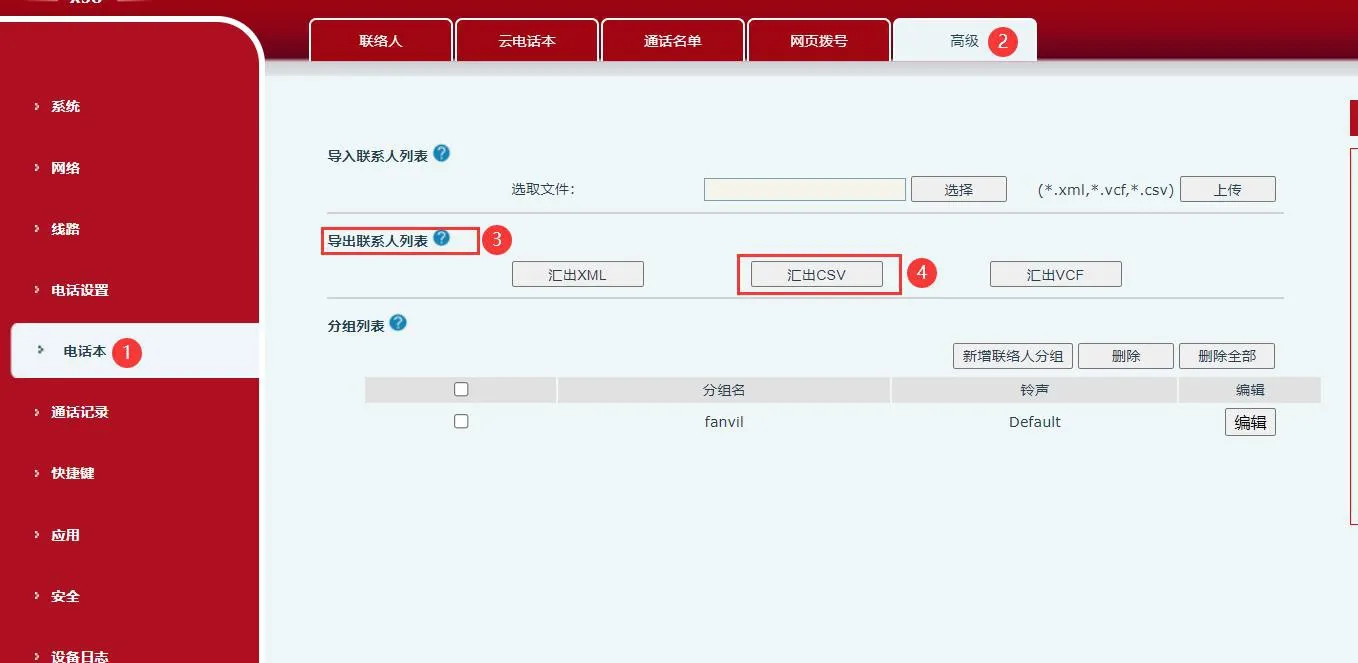
Figure 5
Use a spreadsheet editing tool to edit the contact list. Common options include Excel or WPS. This document uses WPS as the example. First, open the contact.csv file exported in Step 3 with WPS, then enter the new contact information. After the data is entered, it will look like this: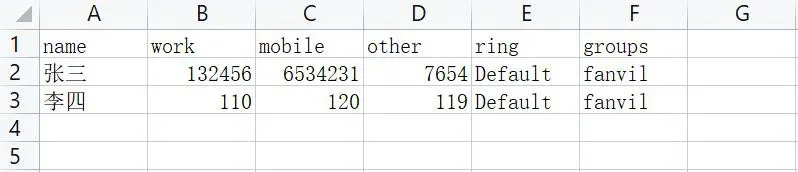
Among the fields:
Enter the contact name in the name column. Enter the contact number in the work column.
Enter other contact numbers in the mobile and other columns.
Enter the ringtone in the ring column. This means if there is an incoming call from this number, the phone will use the selected ringtone. Enter the group name in the groups column. Please note that if you edit the group field, the group must already exist on the phone, such as work, home, and so on.
Save the edited file. A message may appear indicating that the save format contains incompatible content: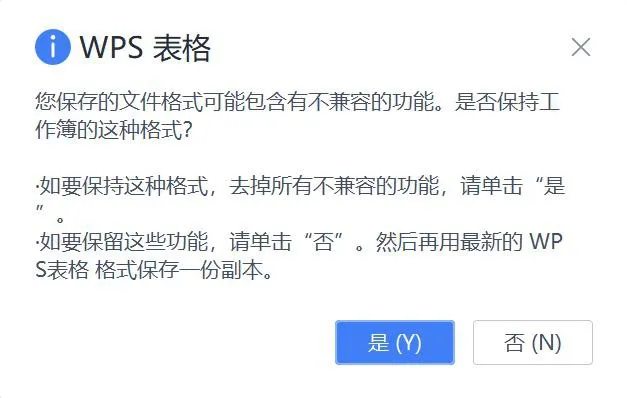
Click “Yes” to continue.
At this point, if you import the modified phonebook directly into the phone, the imported entries may appear as garbled text. This happens because opening the file with WPS or Excel changes its original encoding format. To correct this, use UltraEdit to modify the file format before importing it back into the phone. Open the phonebook file in UltraEdit, then select “File” -- “Save As” from the menu bar, and pay attention to the selected format: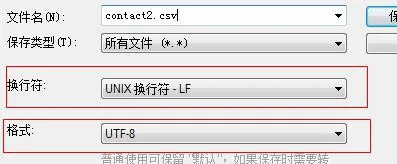
Click Save, then import contact2.csv into the phone through the web interface. The contact list will then display correctly without garbled text.
