
Learn how to configure a SIP ring group on the Becke UC Server so multiple registered IP phones or intercom devices ring at the same time and any one answer can take the call.
A ring group is one of the most practical call-handling functions in a SIP server or IP PBX environment. It allows multiple extensions to share one dialed number, so when a caller dials that number, all assigned devices ring at the same time. As soon as one member answers, the other devices stop ringing automatically. This feature is widely used for service desks, security points, reception areas, workshop call stations, and emergency response positions where more than one endpoint may need to pick up the same call.
In a Becke deployment, a ring group can include one or more registered SIP devices, including IP phones and intercom terminals. The configuration process is simple once the devices have already been added to the server as extensions. This guide uses the Becke UC Server as the example platform and explains the typical setup method in a clear, application-oriented way rather than as a literal menu-by-menu translation.
A ring group creates a shared destination inside the SIP server. Instead of calling an individual extension directly, users dial a single group number. The server then delivers the call to all members assigned to that group according to the selected ringing strategy.
In the example described here, the ringing mode is set to simultaneous ringing. That means every member in the group rings at the same time. If any one device answers the call, the conversation is established on that device and the remaining endpoints stop ringing immediately. This behavior helps reduce missed calls and improves response efficiency in shared-duty environments.
This function is applicable to Becke products that can operate with the Becke SIP/UC server platform. In the original example, the i16SV and A32i are used as demonstration devices, but the same logic can be applied across the wider Becke product range as long as the endpoints support registration to the server as SIP extensions.
Before creating the ring group, prepare a basic test environment that includes one or more Becke endpoints, a PoE switch or DC power source, a Becke SIP server, and a computer for configuration and verification. In the example environment, the Becke UC Server is installed on a computer rather than on a separate dedicated hardware platform.
Becke SIP devices, such as the i16SV and A32i
A PoE switch, or DC power where applicable
A Becke SIP/UC server
A configuration PC connected to the same network
The most important requirement is network connectivity. The computer, server, and endpoints must be able to reach each other on the same connected network so that web configuration, SIP registration, and call testing can be completed without interruption.
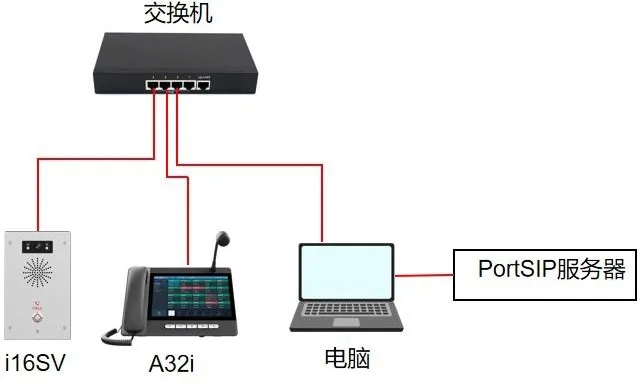
Connect the i16SV and A32i to the switch, then connect the configuration PC to the same switch. The Becke UC Server environment should also be available on the PC or on the same network segment. This creates a small local deployment in which the server can manage the extensions and distribute calls to the defined ring group.
In the original document, this arrangement is illustrated in Figure 1 as the device-to-computer connection diagram. In practical terms, the diagram simply shows that all relevant devices share the same LAN environment and that the server is accessible for web-based setup.
The ring group function belongs to the IP PBX feature set of the server. That means the participating devices must already be registered to the Becke UC Server as extensions before the group can work. Extension registration itself is not covered here, but it should be completed first; otherwise, the desired members will not be available for selection when building the group.
Once the endpoints are online and successfully registered, the ring group can be added from the server web interface.
Log in to the Becke UC Server web interface and navigate to the ring group configuration page under the call management section. From there, click the Add button to create a new ring group entry.
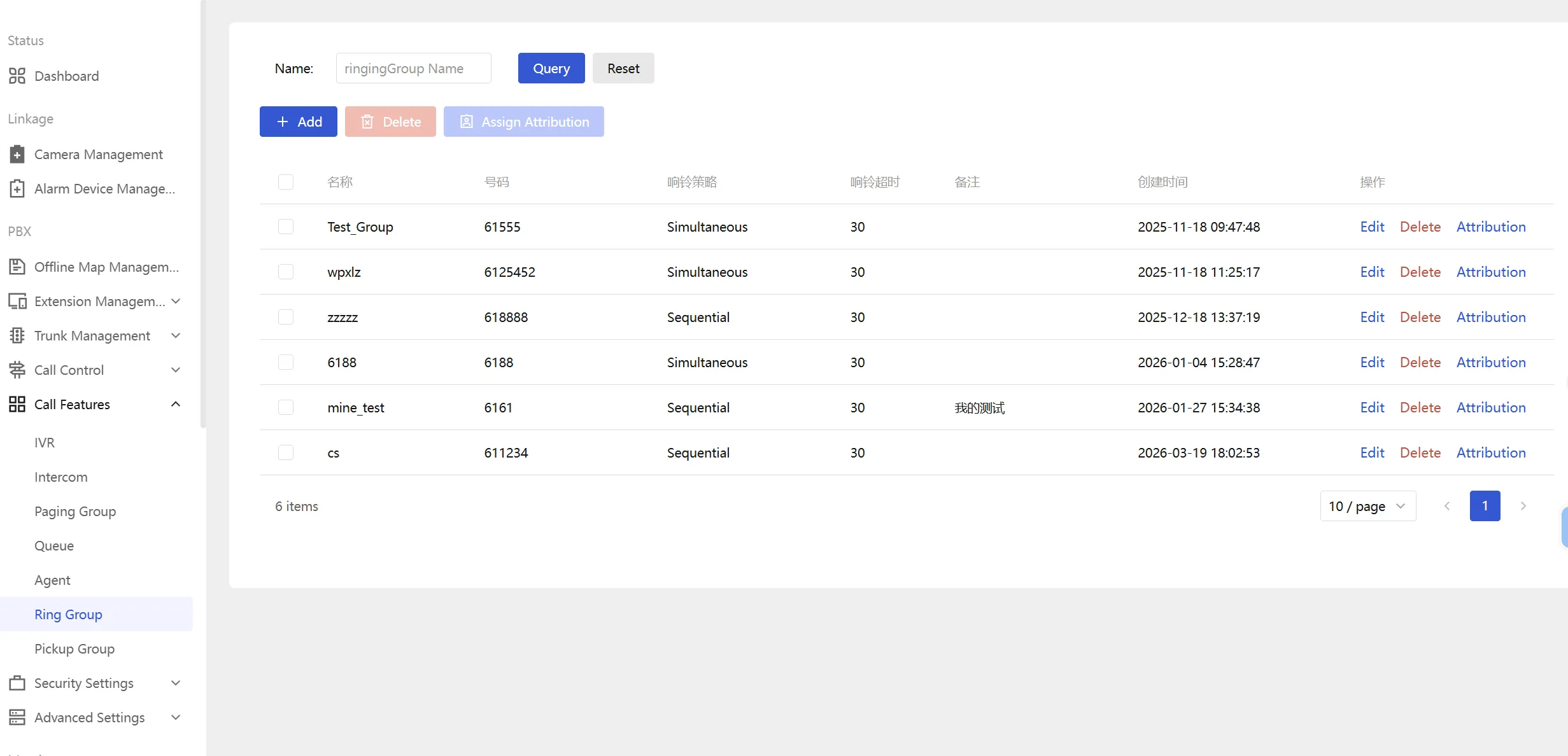
When the add window opens, the main parameters can be edited. Figure 2 in the original guide shows this add-ring-group interface. The key fields are explained below in a more practical way:
Ring Group Number: This is the number users will dial to reach the group. It can be customized to match the numbering plan of the project. In this example, the group number is set to 8888.
Group Name: Enter a descriptive name for the group, such as Reception, Security Desk, Maintenance Team, or Service Hotline.
Ring Strategy: Multiple strategies may be available, but this example uses Simultaneous Ring, meaning all group members ring at the same time when the group number is called.
Ring Duration: Define how long the devices should continue ringing before the call times out or follows any additional call-handling logic configured on the server.
Group Members: Click Add to select the registered Becke devices or extensions that should belong to this ring group.
After entering the required information, save the configuration. The ring group is then available for live call testing.
Best practice: use a group name that clearly reflects the duty role of the members. This makes administration easier when the system includes multiple departments, buildings, or response teams.
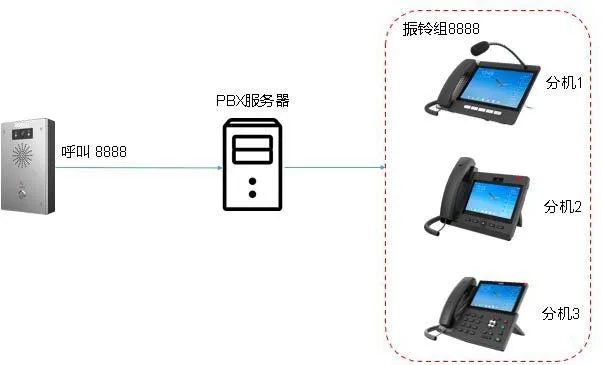
After the ring group is created, a user can dial the assigned group number, such as 8888. The Becke UC Server receives the call and sends ringing to every member included in that group. In the example scenario, both the i16SV and A32i will ring at the same time.
If one member answers, the server immediately connects the call to that device and stops the ringing on the other members. This creates a simple shared-answer model that is ideal for locations where more than one endpoint may be available to respond.
Ring groups are especially useful in environments where calls should not depend on a single extension being available. They can be used in office reception, industrial control rooms, plant maintenance desks, security posts, service counters, and internal help points. The same approach also works well with SIP intercom devices when calls need to be answered by any available staff member rather than by a specific person.
Figure 3 in the source document represents this application effect: once the group number is called, all assigned members are alerted, and the first answering device takes the call while the rest are released from ringing.
When building ring groups in a real project, it is good practice to keep the numbering plan simple and consistent. Group numbers should be easy to remember and should fit logically into the rest of the PBX dial plan. It is also helpful to confirm that all members have completed SIP registration and that audio paths are working correctly before testing the group.
If the deployment includes both IP phones and SIP intercoms, administrators should also verify power supply, network reachability, and server status in advance. A ring group may appear to be a basic feature, but stable performance still depends on correct endpoint registration and clean network connectivity.
The ring group function on the Becke UC Server provides a straightforward and efficient way to distribute incoming calls to multiple devices at once. By grouping Becke IP phones or intercom terminals under one number, the system makes sure calls can be answered faster and with less dependence on a single endpoint. For shared-service positions and collaborative response scenarios, it is one of the most useful core features in a SIP-based communication system.
In the example shown here, the configuration is centered on simultaneous ringing, a custom group number of 8888, and registered Becke devices such as the i16SV and A32i. Once configured correctly, the function is simple to operate and easy to expand as the project grows.
