Learn how to troubleshoot cases where a phone cannot obtain an IP address, including VLAN issues, MAC binding, 802.1X, DHCP failure, network storms, cable faults, and static IP testing.
This document provides troubleshooting guidance and solutions for two common scenarios in which a phone fails to obtain an IP address.
Scenario 1: The phone and the PC are connected through the same network cable to the same port on a switch or router. The PC can obtain an IP address, but the phone cannot.
Scenario 2: The phone and the PC are connected through the same network cable to the same port on a switch or router. Neither the PC nor the phone can obtain an IP address.
This guide applies to all phone models.
This document is intended for maintenance personnel and support staff responsible for daily phone troubleshooting.
Symptom
The phone and the PC are connected through the same network cable to the same port on a switch or router. The PC successfully obtains an IP address, but the phone does not.
Possible Causes
1. VLAN is enabled on the phone, but the network does not use VLAN, or the network uses VLAN and the phone VLAN settings are disabled or incorrect.
2. There is an IP address conflict on the network.
3. The router or switch is bound to the PC MAC address, but not to the phone MAC address.
4. The switch uses 802.1X or another authentication method. The PC has completed authentication, but the phone has not been configured for the required authentication.
Solutions
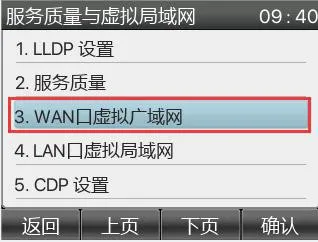
1. Disable VLAN on the phone or configure the correct VLAN settings. It is also recommended to disable LLDP learning and the phone VLAN option. See section 3.1 for the setup method.
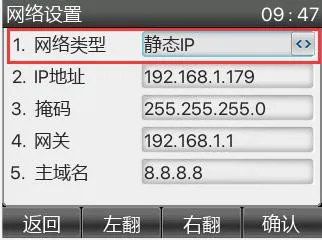
2. Try assigning a static IP address to the phone. See section 3.2 for the setup method.
3. Remove MAC binding on the router or switch, or add the phone MAC address to the allowed device list.
4. Disable 802.1X authentication on the switch, or enable the required authentication method on the phone.
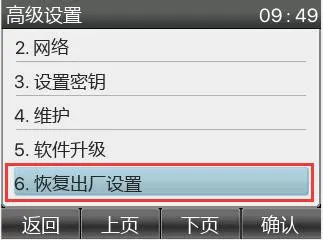
5. Restore the phone to factory settings and test again to rule out configuration issues on the device. See section 3.3.
Symptom
Both the phone and the PC are connected through the same network cable to the same switch, and neither device can obtain an IP address.
Possible Causes
1. There is a network storm in the LAN.
2. DHCP is disabled on the router, or the router itself is malfunctioning.
3. The router DHCP address pool is exhausted.
4. The network cable is faulty.
Solutions
1. Ask the network administrator to check whether a network storm is present. If a lightning icon appears in the upper-right corner of the phone screen, it usually indicates abnormal network traffic or a network storm.
2. Assign a static IP address for testing. See section 3.2 for the setup method.
3. Expand the router address pool. A common approach is to change the subnet mask, for example from 255.255.255.0 to 255.255.0.0.
4. Replace the network cable or move the phone to another network location for testing.
On the phone LCD, go to Menu - Settings - Advanced Settings (password 123 or admin) - Network - QoS and VLAN - WAN Port VLAN - Disable, then click Save at the bottom of the page, as shown below:
On the phone LCD, go to Menu - Settings - Advanced Settings (password 123 or admin) - Network - Network Settings - IPv4, then change the network type to Static IP, enter the correct IP settings, and click Confirm at the bottom of the page, as shown below:
On the phone LCD, go to Menu - Settings - Advanced Settings (password 123 or admin) - Factory Reset, as shown below: