IntroductionOverviewThis document applies to all of our products. If a SIP accou
This document applies to all of our products. If a SIP account shows Trying or Timeout during registration, you can follow the troubleshooting steps in this guide to identify the cause and resolve the issue.
All product models from our company, including both industrial devices and phone products.
① One product device (Bi10 is used as the example below), one PoE switch (or DC power supply), and connect the device to the switch.
② One debugging PC with Wireshark installed, connected to the same switch, and make sure the PC can communicate with the device over the network.
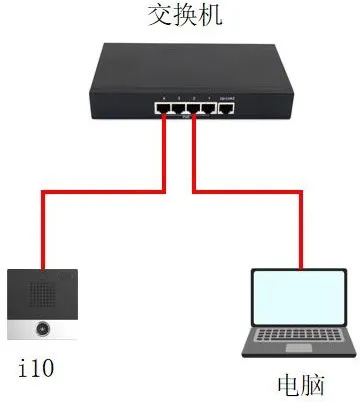
When a SIP account displays Trying or Timeout during registration, this section explains how to troubleshoot the issue. The Bi10 intercom is used here as the example device.
Using a SIP account on a Yeastar server as an example, after the relevant SIP account parameters are configured on the device and the registration is submitted, the web page first shows “Trying”, and after a period of time it changes to “Timeout”.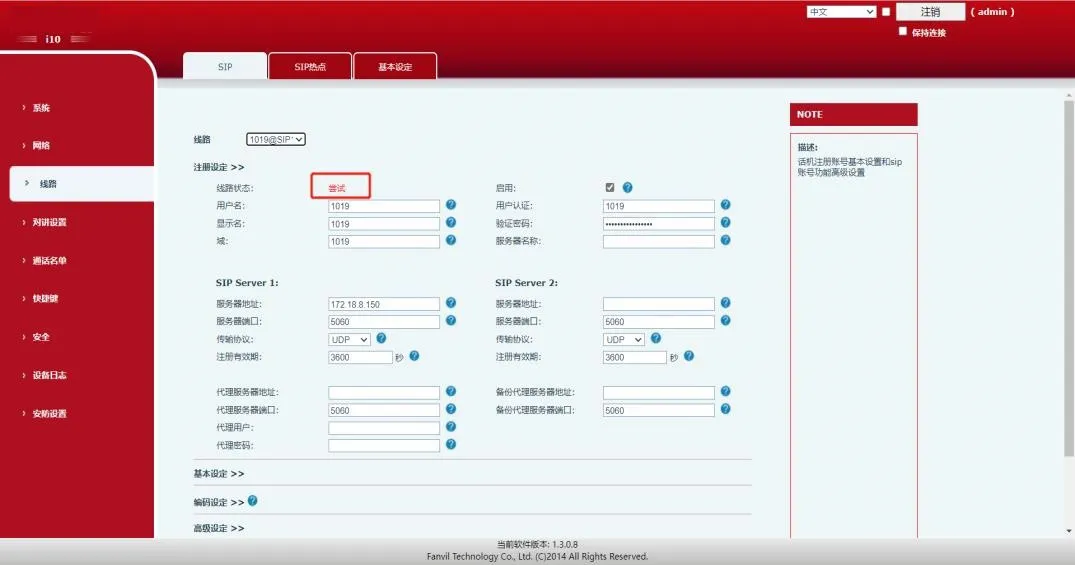
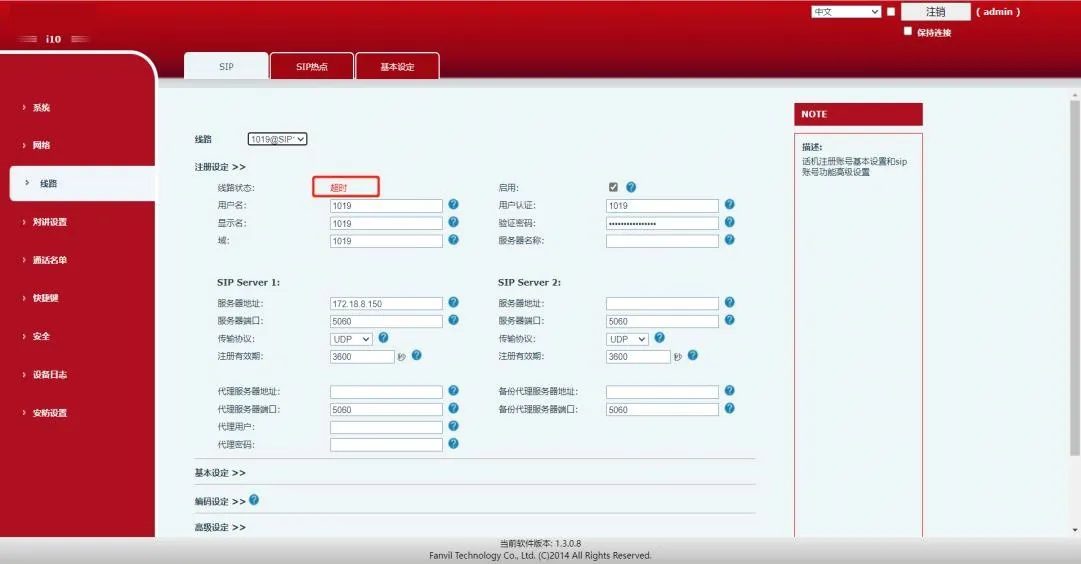
After the device sends the SIP registration request, it does not receive a response from the server, which eventually causes the registration to time out. This situation may be caused by one of the following reasons.
1) Incorrect parameter settings, such as a wrong server address or port, or registration not being allowed on the server side. For example, on a Yeastar server, remote registration may not be enabled.
2) A network issue between the device and the SIP server, such as the device and server not being in the same LAN, or the server being protected by a firewall.
3) The SIP account may have been temporarily blacklisted by the server. For example, if the same account is registered too frequently, a Yeastar server may treat it as suspicious behavior and block that account for a period of time, such as 10 minutes, before allowing registration again.
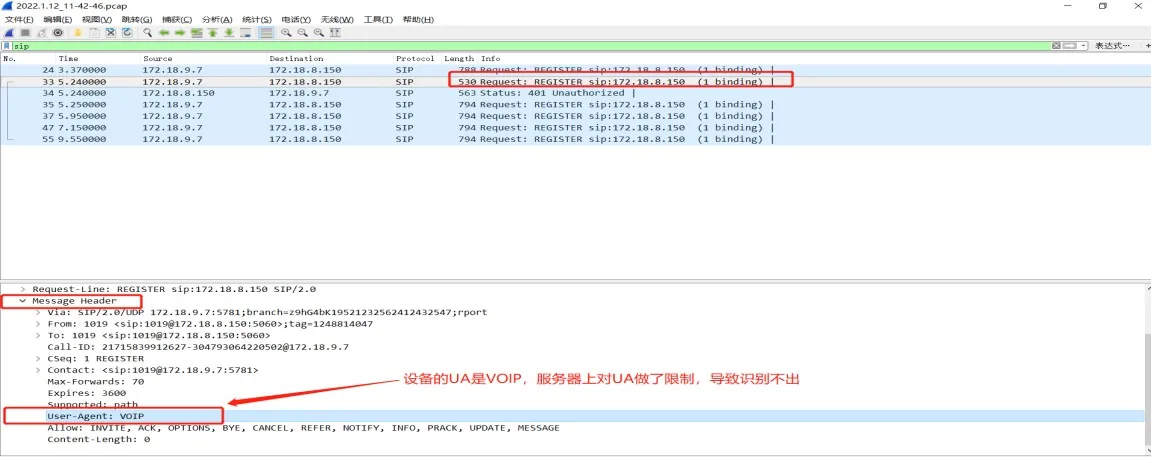
4) The server may restrict certain UA (User Agent) values, which means it only accepts specific user agents and does not recognize others, causing SIP registration to fail.
5) When the device is on a private network and the server is on a public network, the server response packets may not be able to reach the internal device.
Based on the possible causes above, the following methods can be used for troubleshooting and resolution.
1) Check the SIP account settings on the device web interface and compare them with the server-side configuration to make sure that all parameters are correct, as shown below.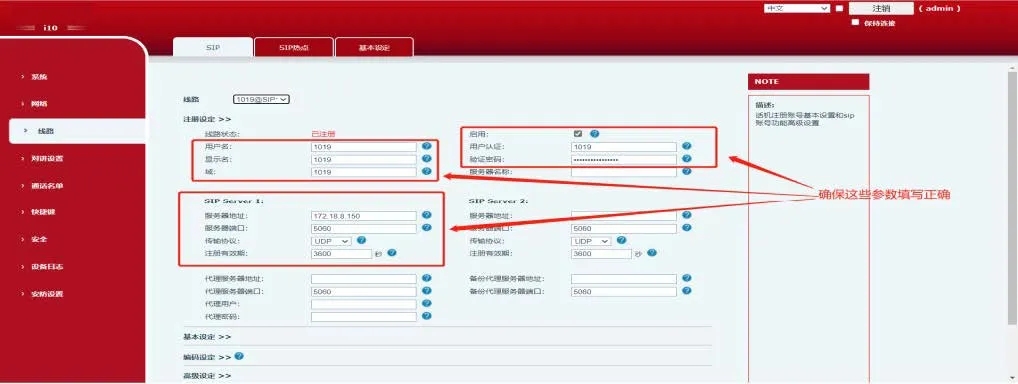
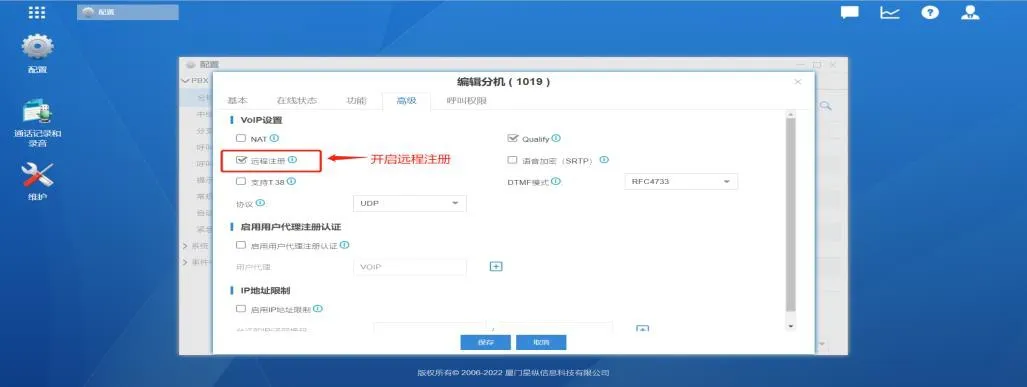
Remote registration must be enabled on the Yeastar server
2) Verify whether the network between the device and the server is working properly. Press “Win+R”, enter cmd to open the command window, and then ping the server address to see whether it is reachable. If the server cannot be reached, consult the server-side technician to check whether firewall rules or other network restrictions are preventing the connection.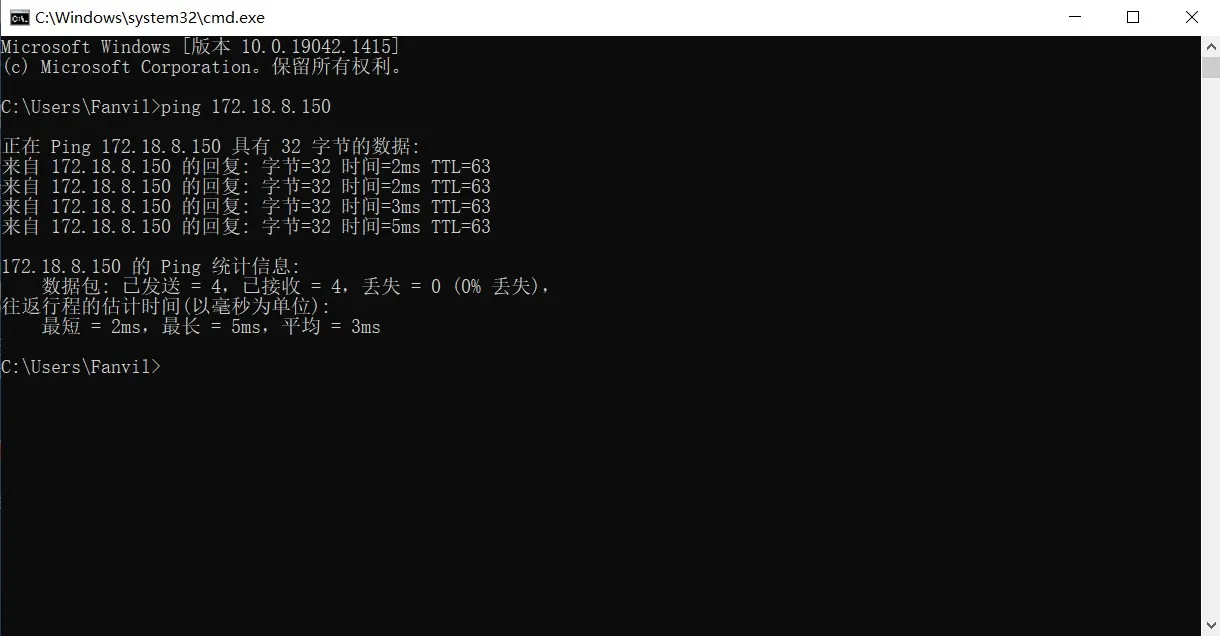 The PC (device) can successfully ping the Yeastar server address
3) Wait for a period of time and then try to register again, or create a new SIP account for testing. Avoid repeatedly registering the same account on multiple devices within a short time.
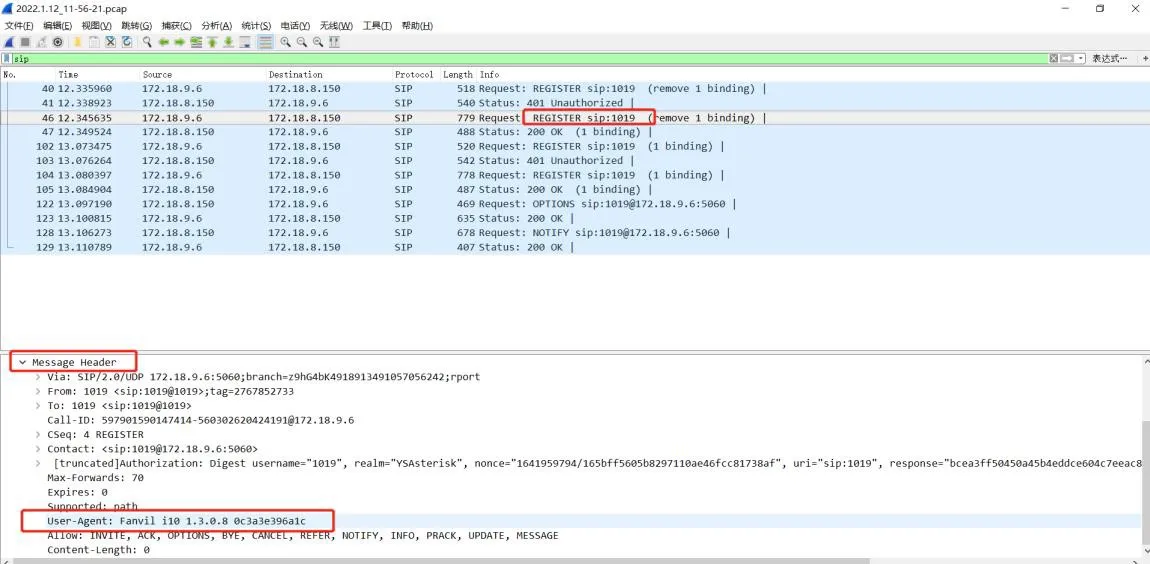
4) In the same environment, try registering the same SIP account on different devices. If one device registers successfully while another times out, capture packets on both devices and compare the results for further analysis. In the example below, the same SIP account is registered on both Bi10 and Bi63. Bi10 registers successfully, while Bi63 times out. After analyzing the packet captures, the conclusion is that the server restricts certain UA (User Agent) values, which causes the SIP registration timeout. The screenshots below show the symptom and the solution.
Bi10 web interface and Wireshark screenshots: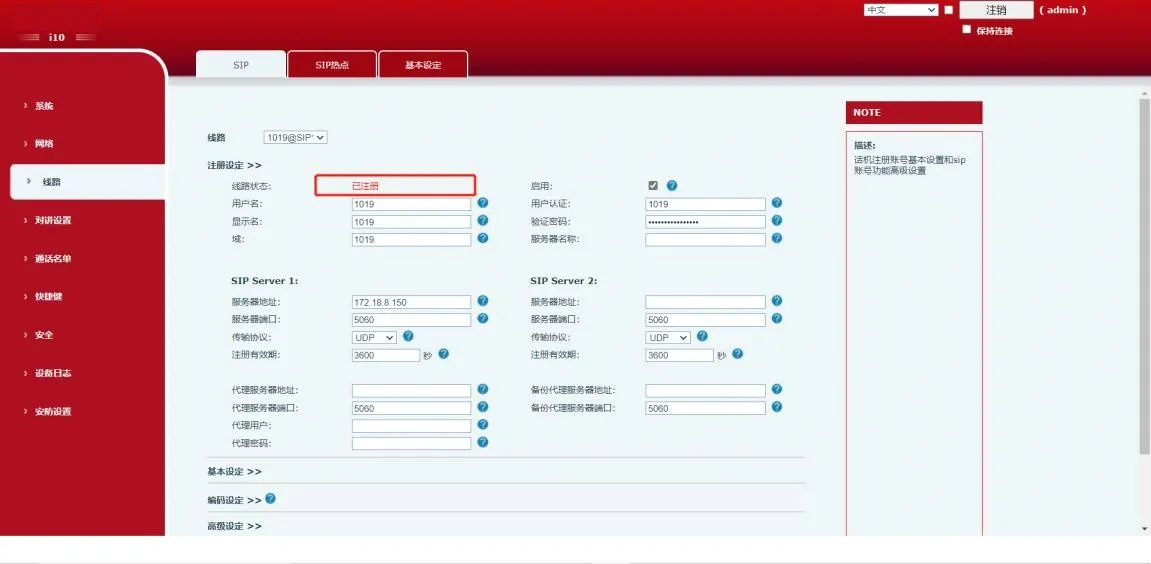
Bi63 web interface and Wireshark screenshots: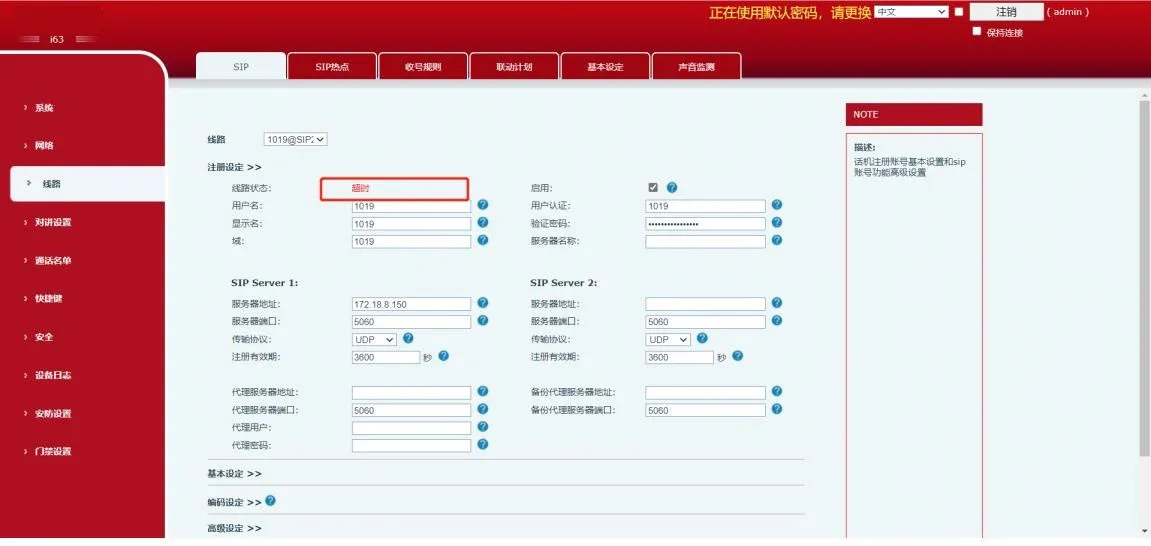
Solution: Change the device user agent in the device web interface to a UA value that can register successfully.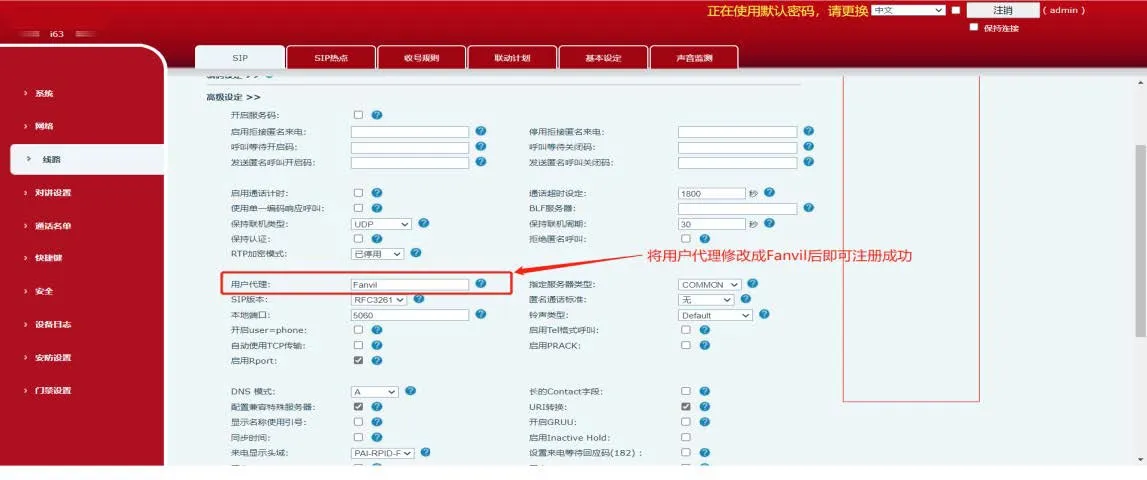
Note: After comparing the packet capture results, you can copy the UA from the device that registered successfully and enter it into the failed device. You can also use MicroSIP to test registration and obtain a working UA, or ask the server-side technician for a supported UA value.
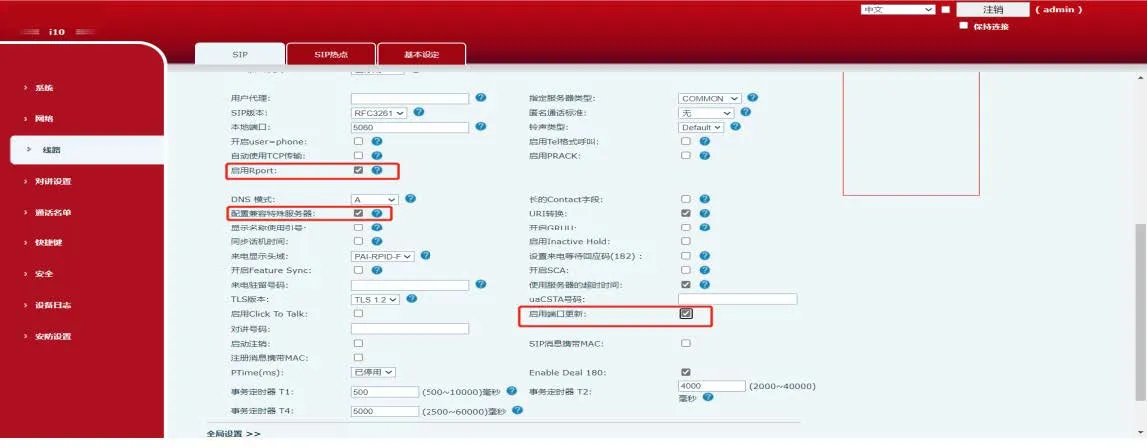
5) If the device is on an internal network and the server is on a public network, enable “Enable Rport”, “Enable Port Update”, and “Compatible with Special Server” on the device, then submit the registration again.