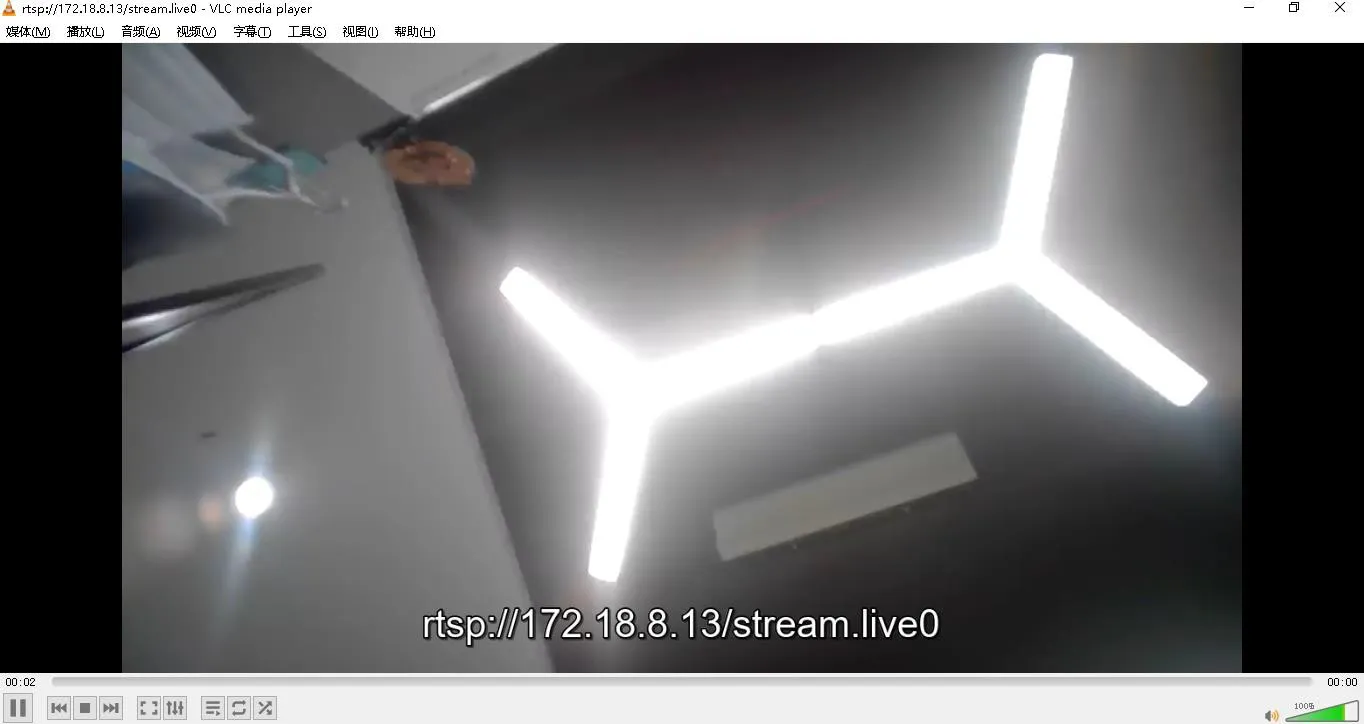
This guide explains how to view live video from SIP intercom and access control devices using VLC Media Player via RTSP protocol. It covers RTSP URL lookup and VLC configuration steps.
Video intercom and access control devices support the RTSP protocol, allowing you to view the camera feed using VLC Media Player. This document describes how to use VLC to watch live video from these devices.
Video Intercom/Access Control: BHP-SOS10, BHP-SOS10V, BHP-SOS16, BHP-SOS16V, i18S, Bi30, Bi31S, Bi32V, Bi33V
1) One video intercom/access control device with normal network connection and startup;
2) One debugging computer on the same LAN as the device;
3) Install VLC Media Player on the computer.
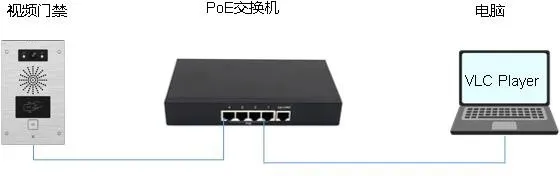
The RTSP URL can be found on the device's WEB interface.
For BHP-SOS10V/BHP-SOS16V: Check in WEB – Intercom Settings – Camera Settings – RTSP Info: RTSP Format:
Main Stream: rtsp://admin:admin@172.18.8.13/stream.live0
Sub Stream: rtsp://admin:admin@172.18.8.13/stream.live1
Where admin:admin is the WEB username/password, stream.live0 = main stream, stream.live1 = sub stream
For BHP-SOS16, Bi18S: Check in WEB – Intercom Settings – Video Settings – RTSP Info: For Bi30, Bi31S, Bi32V, Bi33V: Check in WEB – Access Control Settings – Video Settings – RTSP Info. Format is the same as i16V.
RTSP Format:
Main Stream: rtsp://172.18.8.78/user=admin&password=tlJwpbo6&channel=1&stream=0.sdp?real_stream
Sub Stream: rtsp://172.18.8.78/user=admin&password=tlJwpbo6&channel=1&stream=1.sdp?real_stream
Where 0.sdp = main stream, 1.sdp = sub stream
Open VLC Media Player, click Media – Open Network Stream.... In the "Open Media" window, select Network and enter the RTSP URL: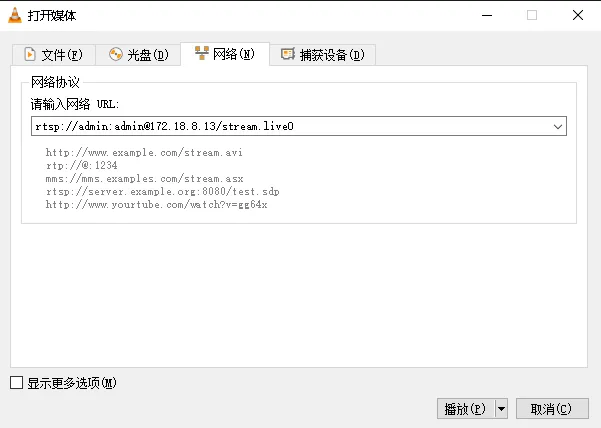 Click Play: