
IntroductionOverviewThis document is intended to help users better understand th
This document is intended to help users better understand the Bluetooth function and use it quickly and correctly.
This document applies to Bluetooth-enabled devices such as X4U, X5U, X6U, X7, X7C, X210, X210i, and X7A.
This document is intended for testers and customers who use our phones.
2.1.1 Bluetooth Settings
First, the phone may require an external Bluetooth adapter. Bluetooth is built in on the X5U, X6U, X7, X7C, X7A, X210, and X210i, so this step can be skipped on those models.
1. Under the default configuration, a pop-up message appears when the Bluetooth adapter is inserted.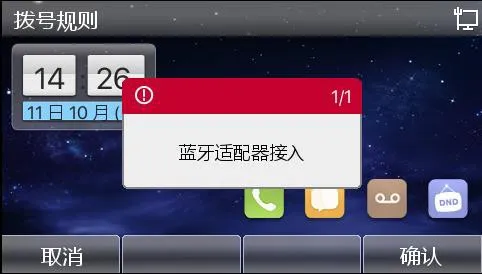
2. A pop-up message also appears when the Bluetooth adapter is removed.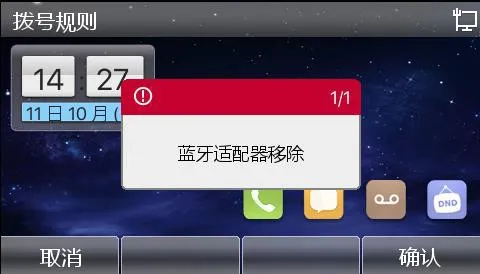
3. On the phone, go to 【Menu】>> 【Basic Settings】 >> 【Bluetooth Settings】, then enable Bluetooth.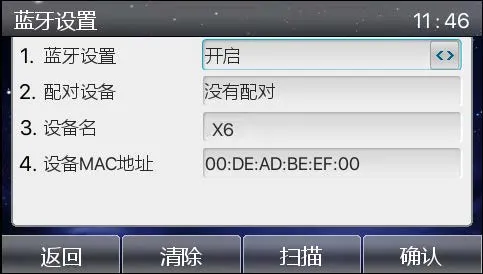
4. Click 【Scan】 to search for all nearby Bluetooth devices with Bluetooth enabled.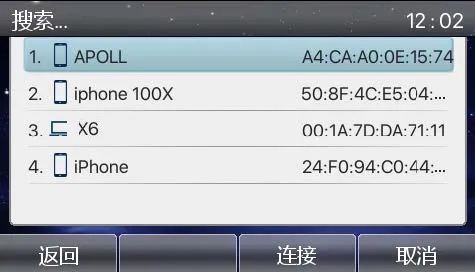
5. Click 【Connect】. A pairing code prompt will appear. This is shown only the first time the device is connected.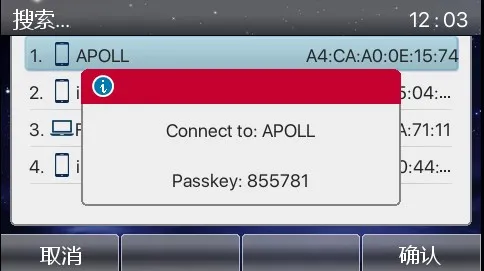
6. At this point, the mobile phone will prompt for pairing. Tap Pair on the mobile phone, then tap 【Confirm】 on the phone to complete pairing. After a successful connection, the phone will immediately ask whether to synchronize the phone contacts.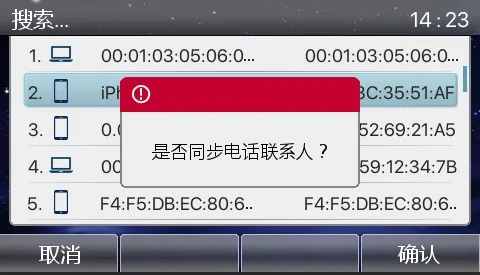
7. The following screen shows a successful connection.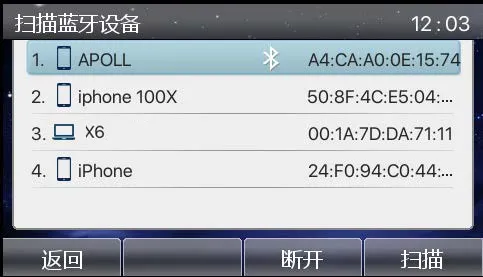
8. After the Bluetooth mobile line is connected successfully, return to the idle screen and a Bluetooth icon will be displayed.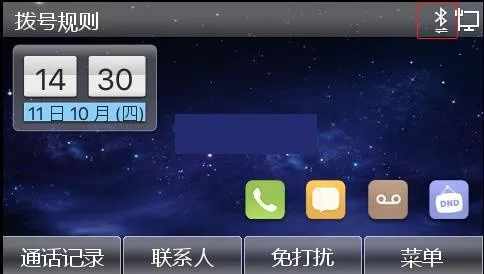
9. Enter the Contacts screen to view the mobile phone contacts.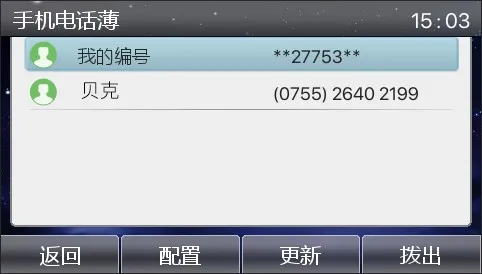
Note: When a device with built-in Bluetooth connects to a mobile phone, it prompts for a PIN code (default: “0000”). Devices that use a Bluetooth dongle negotiate the pairing code with the mobile phone automatically.
2.1.2 Built-in Bluetooth Connection Steps
1. Open Bluetooth settings: Menu>>Basic Settings>>Bluetooth & Wi-Fi, then enable Bluetooth.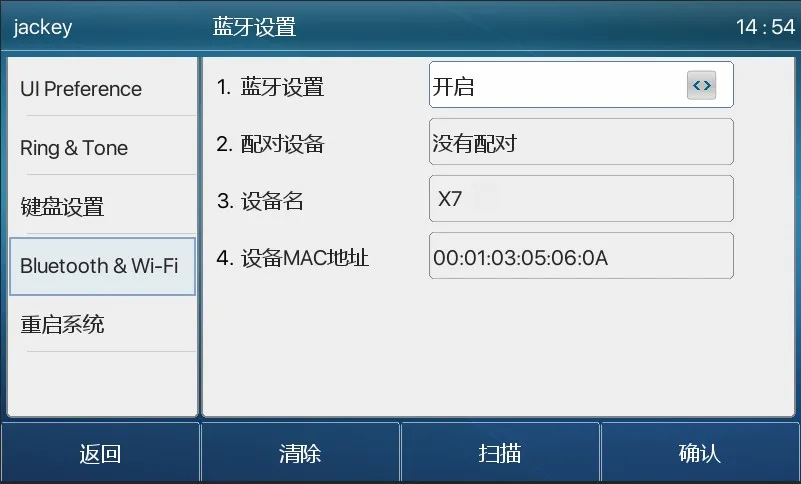
2. Click Scan to search and display the Bluetooth device list.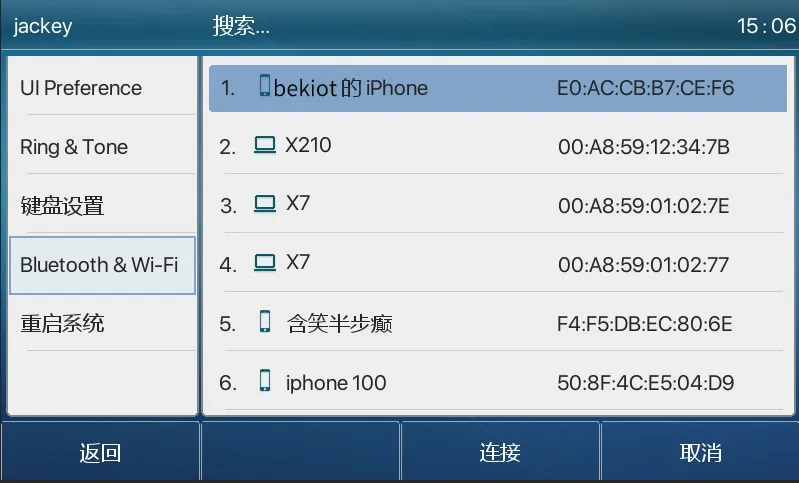
3. Select the device you want to connect to and start pairing. The mobile phone will prompt for a PIN code (default: “0000”).
4. After entering the PIN code, the device will ask whether to synchronize the phone contacts. Click Confirm to synchronize them.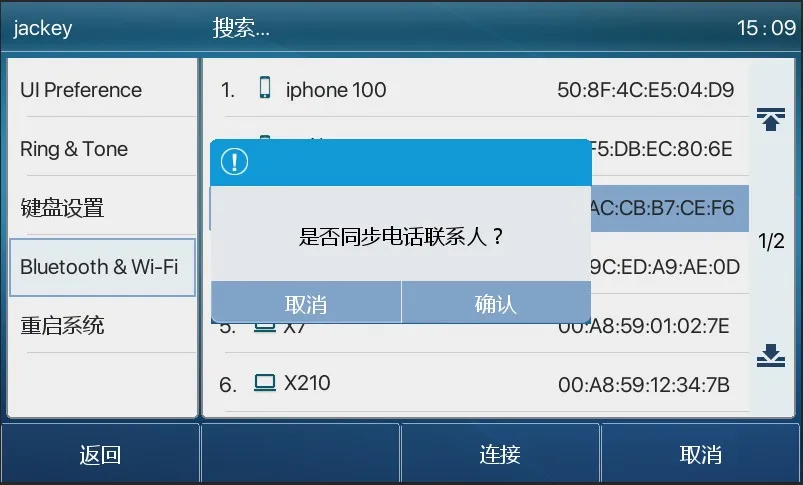
Please note that Android phones will also prompt for permission to access contacts and the phonebook. Once confirmed, the device will synchronize the contacts.
iPhones do not display this permission prompt automatically. To synchronize contacts, you need to enable contact access manually on the phone, as shown below:
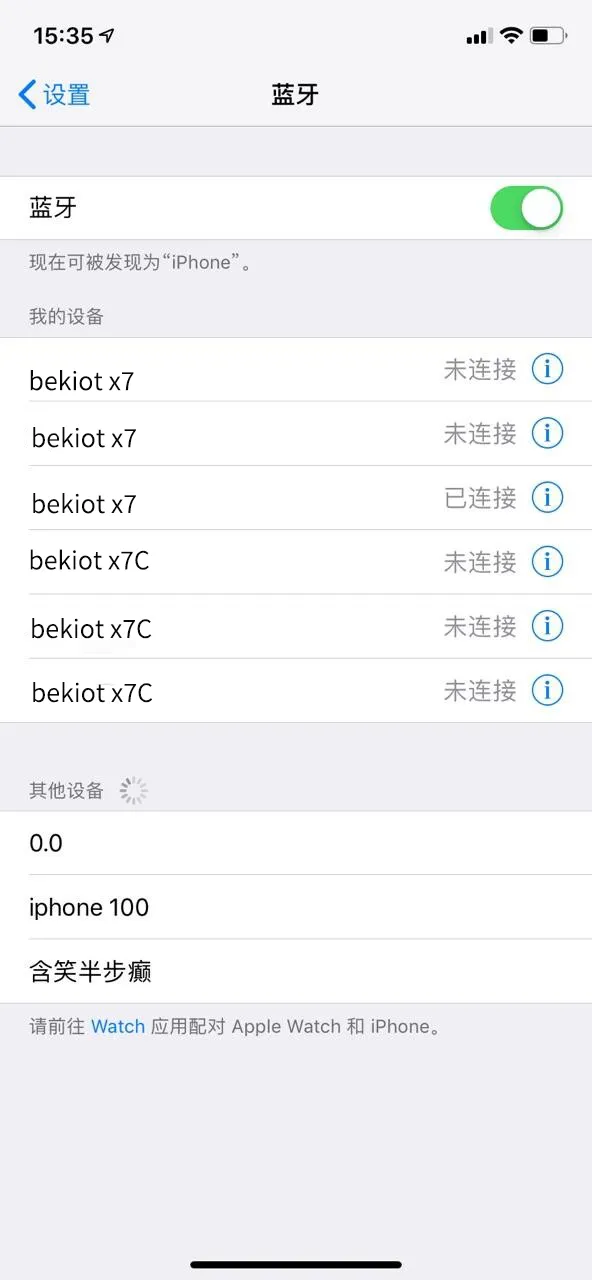
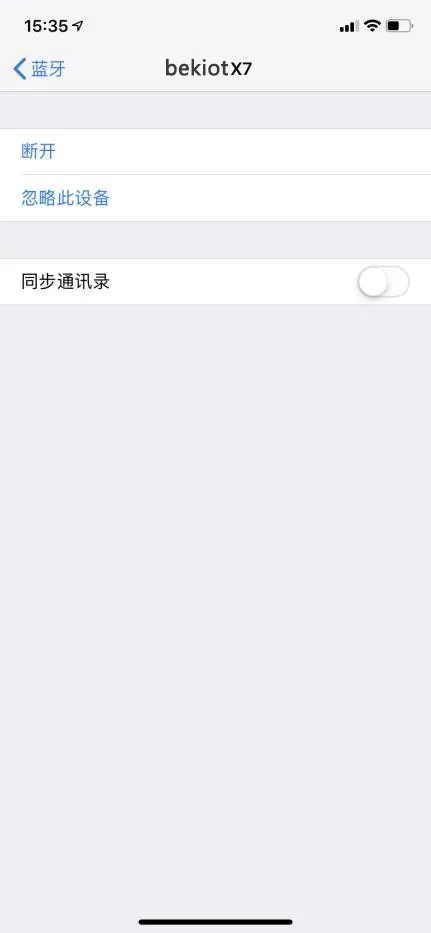
First select the paired device, tap the details icon, and then enable contact synchronization.
5. After the connection is successful, a Bluetooth icon will be displayed on the idle screen.
6. In the contact list, under the mobile phonebook, you can view the synchronized mobile contacts. If the contacts on the mobile phone change after connection, you can click the device update button to synchronize and refresh the phone contacts.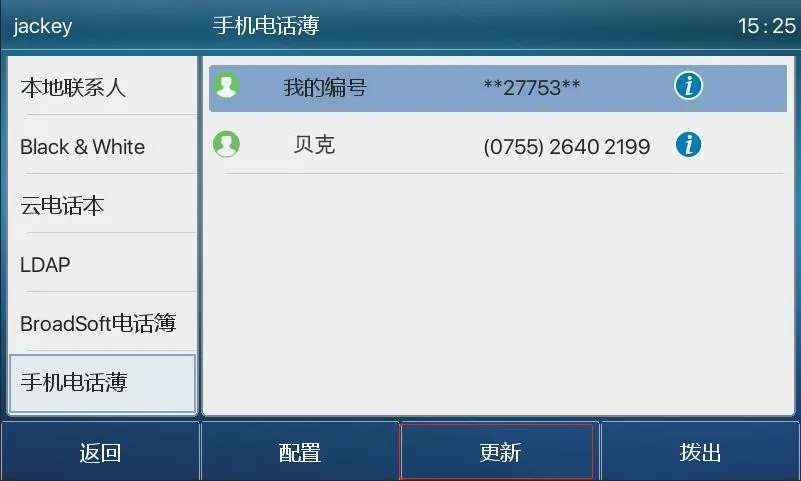
At present, our phones support Bluetooth headset use and Bluetooth mobile line connection to a mobile phone.
2.2.1 Bluetooth Headset
Bluetooth headset usage mainly includes three functions: answering incoming calls, hanging up calls, and Bluetooth redial.
1. Answering Incoming Calls
When the Bluetooth headset is connected to the phone and there is an incoming call, press the headset answer button once to answer the call.
2. Hanging Up Calls
1)When talking through a Bluetooth headset, press the headset button once to hang up the call.
2)When there is an incoming call, double-press the answer button to reject the call.
3)When the phone has dialed a number and the other party is still ringing, press the headset answer button once to cancel the call.
3. Bluetooth Redial
When the Bluetooth headset is connected, double-press the answer button to redial. The number redialed will be the last number dialed from the phone.
Note: Some headset models do not support double-click redial. Please refer to the headset manual to confirm whether this function is supported, or connect the Bluetooth headset to a mobile phone and double-press the answer button to see whether it triggers redial.
2.2.2 Bluetooth Mobile Line
The Bluetooth mobile line can connect to mobile phones running both Android and iOS. It supports making calls, answering calls, using Hold, Resume, and Mute during calls, adjusting volume, entering DTMF during calls, and ending calls. During connection, the phone can also synchronize the mobile contact list.
1. Synchronizing the Phonebook
1)When the mobile phone connects to the device for the first time, it prompts for a PIN code;
2)A pop-up then asks whether to synchronize the phone contacts (Android only);
3)After clicking Confirm, the contacts will be updated in the mobile phonebook under the contact list. For iPhones, contact synchronization must be enabled manually in the Bluetooth settings on the mobile phone side, as shown in the images above.
4)When the Bluetooth connection between the device and the mobile phone is disconnected, the mobile contacts are cleared automatically.
2. Making Calls
1)Configure a line DSS key on the web interface or LCD screen. Select the Line type, switch it to the Bluetooth line (Mobile), and save the setting.
2)Press the configured Mobile line key and enter the mobile number to make an outgoing call.
3)The phone will save the call history of calls made through the connected mobile phone.
3. Answering Calls
1)With the Bluetooth mobile line function, you can answer incoming calls from the mobile phone.
2)You can answer the call either by pressing the answer key or by lifting the handset.
3)After answering, the call can also be switched back to the mobile phone for conversation.
