
This guide explains how to use auto-config to batch generate industrial SIP phone configuration files, covering template_Config.txt editing, table.xls data entry, run.exe execution, out folder checking, and later DHCP 66 batch deployment or web import.
This document explains how to use auto-config to batch generate configuration files for industrial SIP phones.
This document applies to all models of industrial SIP phones from our company.
This document is intended for daily maintenance personnel who troubleshoot industrial SIP phone issues.
Step 1: Extract the auto-config compressed package, enter the \auto mac config folder, and you will see the following files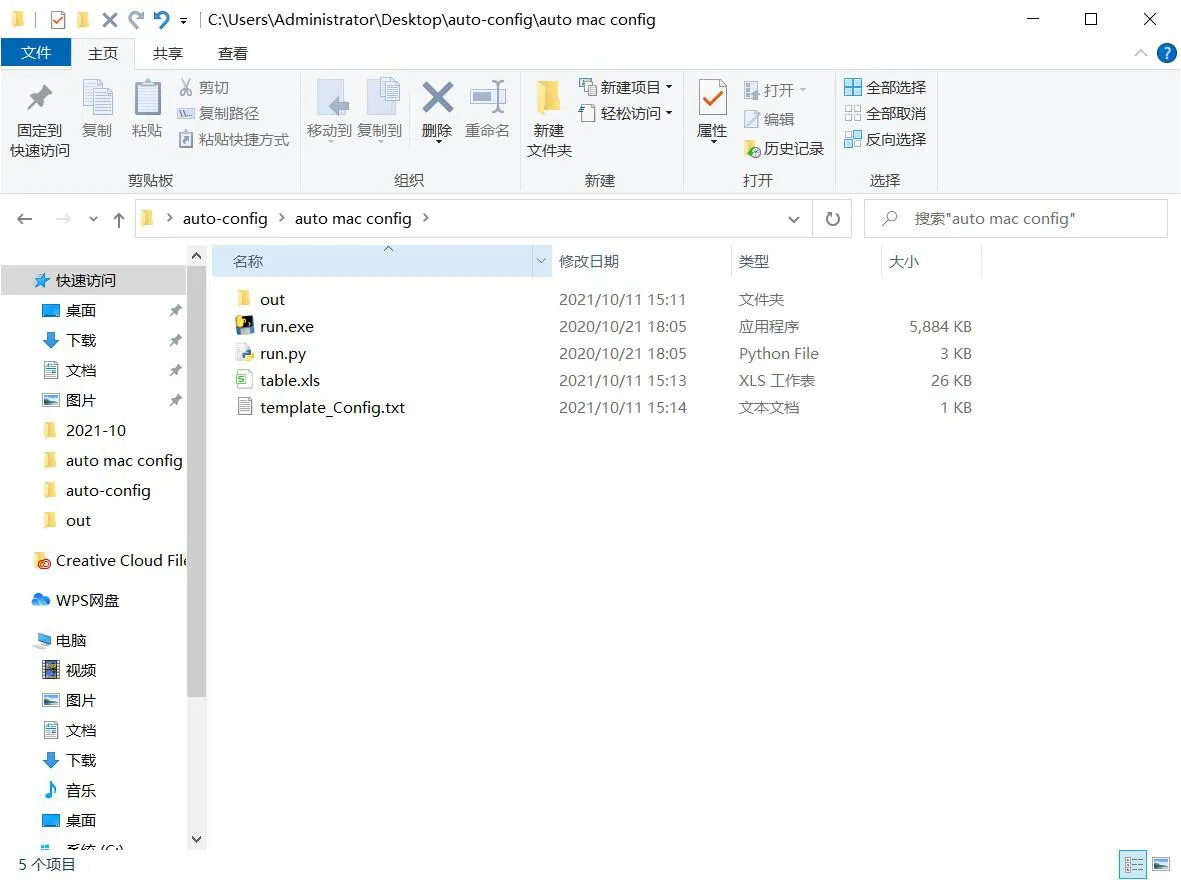
Step 2: Open the file: template_Config.txt. This is the configuration file template. Edit the configuration items that need to be modified into this file, as shown in the example: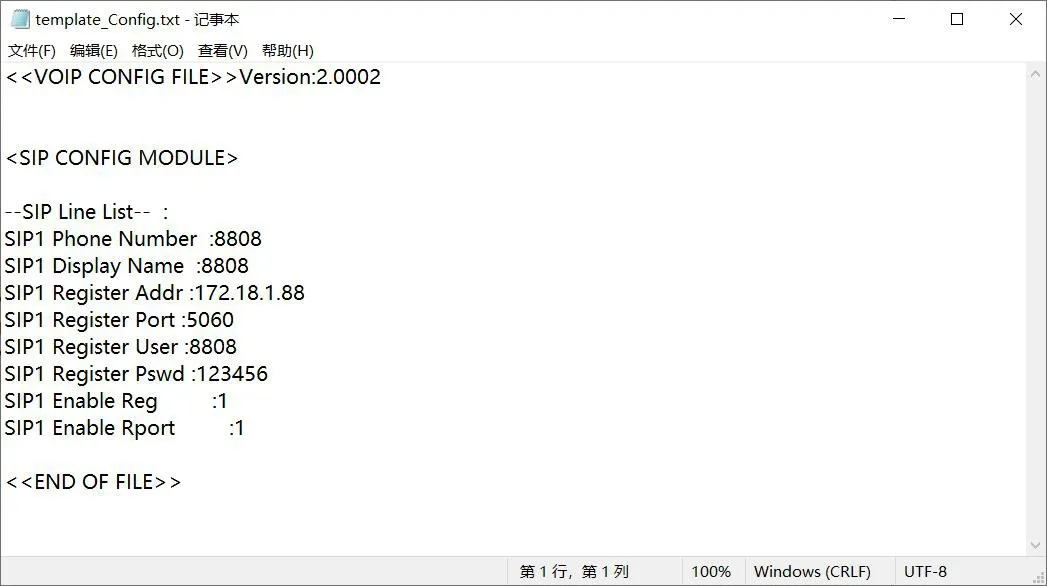
Note: The information after the configuration item is not important and can be entered freely, as long as the configuration item name is correct.
Step 3: Open the file: table.xls. This is the basic table used to batch generate configuration files. Enter the data according to the configuration items in the configuration file template from the previous step, as shown in the example: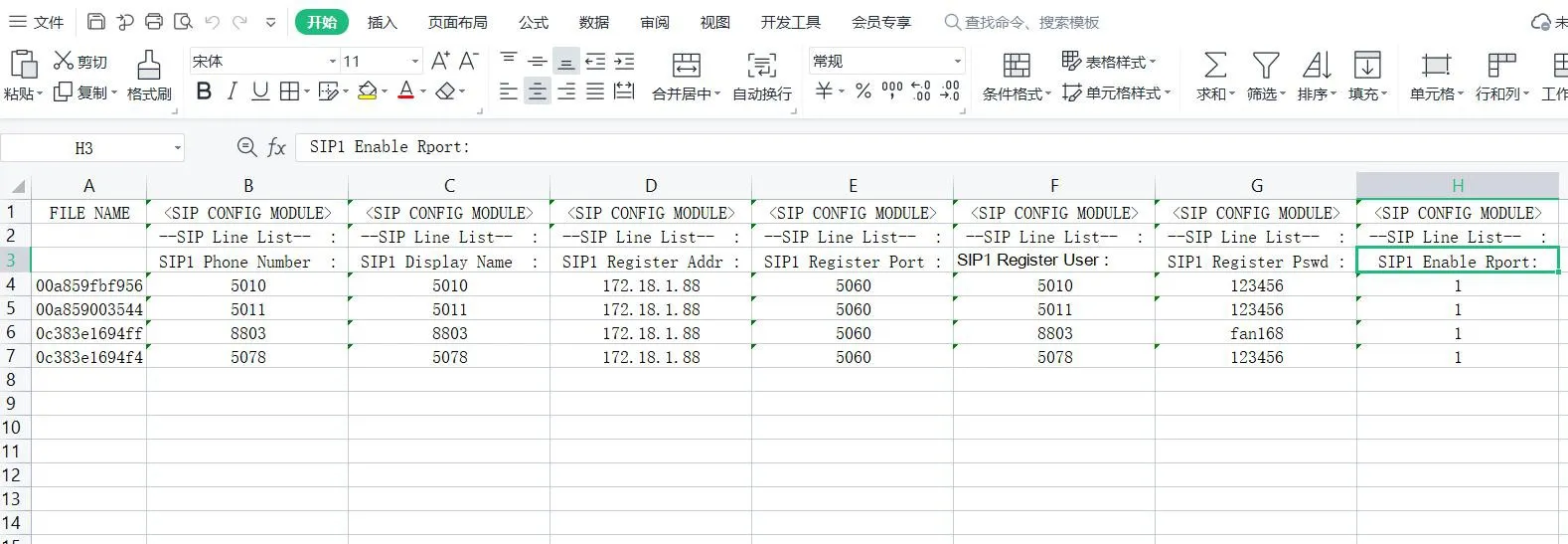
Note: The first row is the MAC address of the industrial SIP phone. The generated files will be named according to the industrial SIP phone MAC address, which is convenient for later automatic deployment.
Step 4: Run run.exe. If you need to generate configuration files for 1190 series products, use run1190.exe.
Step 5: Enter the out folder to view the generated configuration files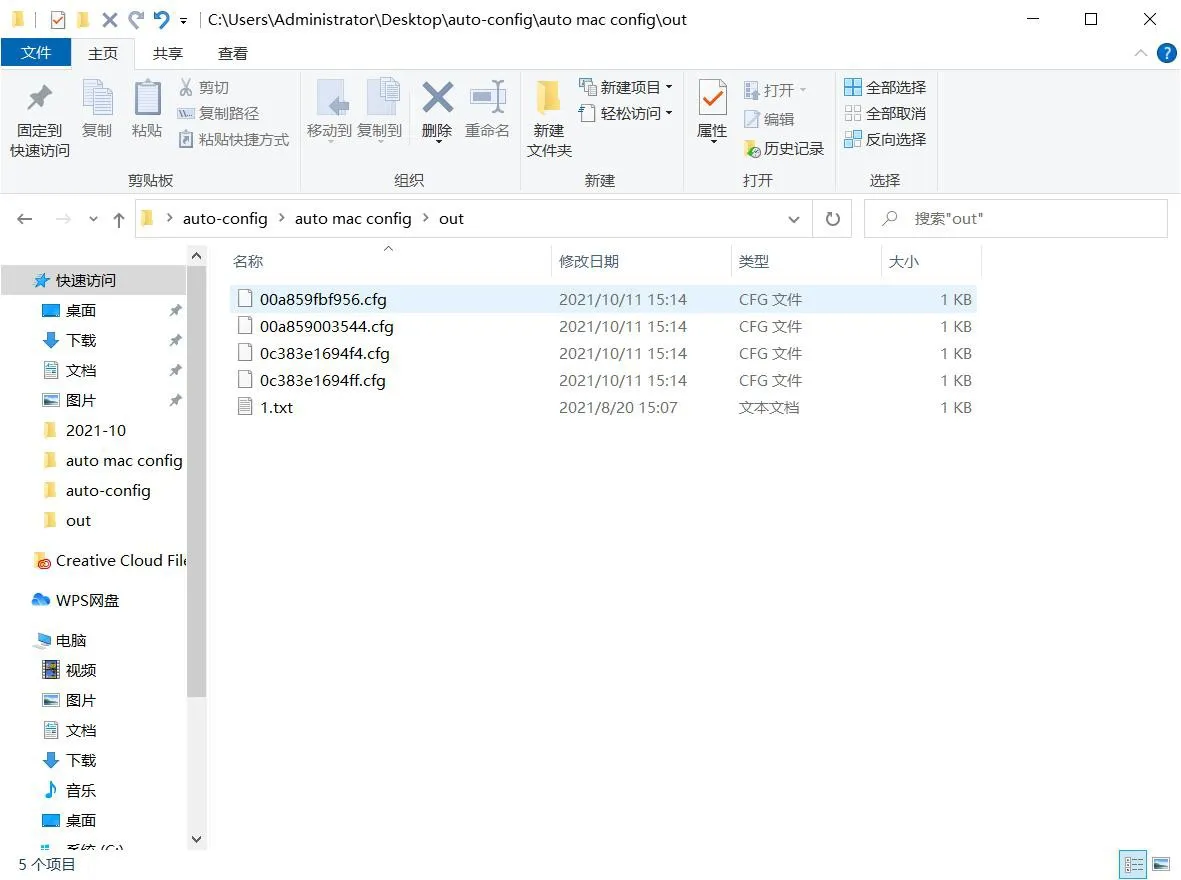
You can open the .cfg file with Notepad to check the configuration file information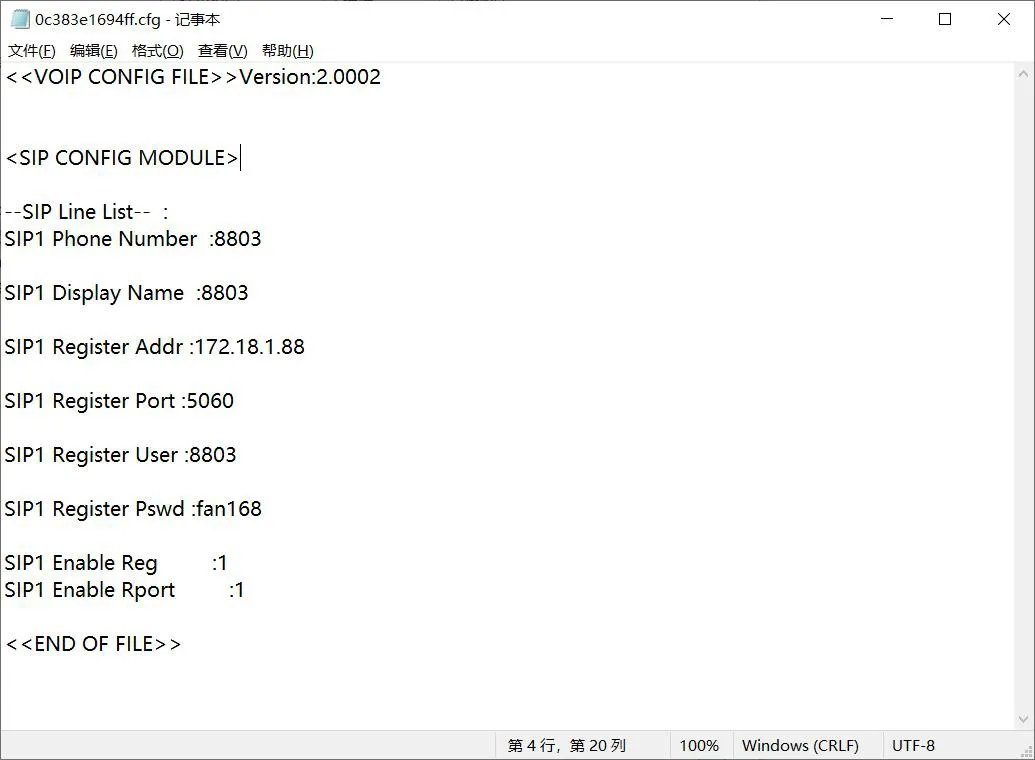
After that, the configuration files can be batch deployed through DHCP 66 or imported through the web page.
