This guide explains how to upload custom WAV audio files and play them on industrial intercom devices via scheduled playback, Active URI, and HTTP API.
Industrial intercom devices may need to play custom audio files in specific scenarios. This document describes how to upload custom audio and play it on industrial devices.
All industrial intercom devices.
① One industrial intercom device (BHP-SOS16V as example), one PoE switch (or DC power supply). Connect the device to the switch.
② One debugging computer connected to the same switch to ensure network connectivity.
Connect the BHP-SOS16V and computer to the same switch. The connection diagram is shown in Figure 1.
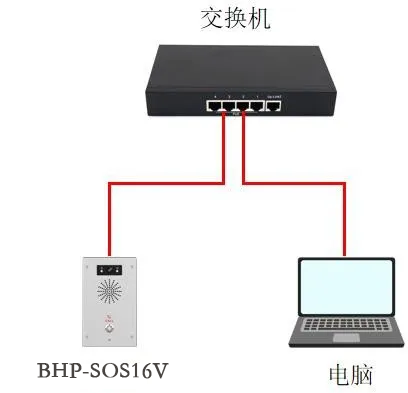
Figure 1 Device and Computer Connection Diagram
To play custom audio, you must first upload the file, then use one of several playback methods. Detailed steps are below.
Audio files can be uploaded via the web UI. Log in to the device (BHP-SOS16V as example), go to System → Upgrade → Ring Tone Upgrade and upload your WAV file.
Format: WAV
Recommended size: ≤ 200 KB
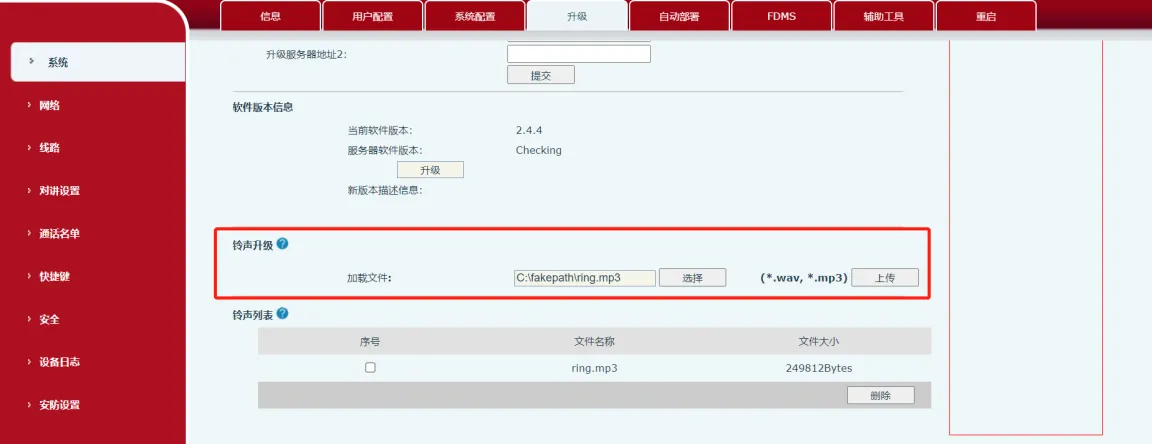
Figure 2 Upload Custom Audio
There are three playback methods. Details are provided below.
NOT supported: BHP-SOS10, BHP-SOS10V, BHP-SOS10D
Steps:
(1) Log in to the device Web UI (default admin/admin).
(2) Go to Intercom Settings → Time Management and configure as shown in Figure 3:
① Name: Custom
② Type: Scheduled Audio Playback
③ Audio Path: Local (or USB/SD if external storage is available)
④ Play Mode: Cycle or Once
⑤ Set repeat cycle and valid time period
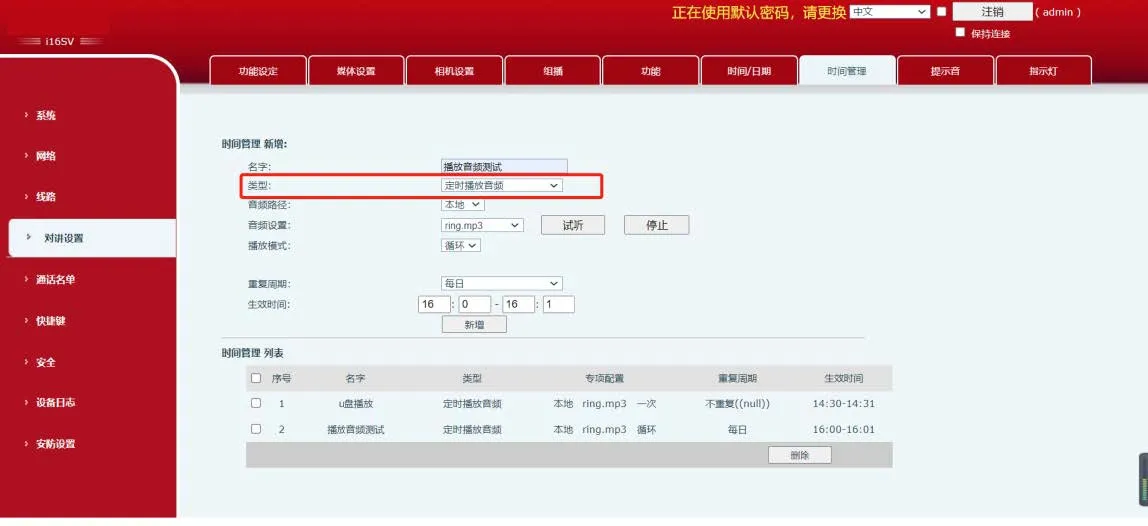
Figure 3 Scheduled Audio Playback
(3) The audio will play automatically during the configured time period.
NOT supported: BHP-SOS10, BHP-SOS10V, BHP-SOS10D, BHP-SOS11, BHP-SOS11V
Format: (1) ActiveURI: http://IP/cgi-bin/audio_play?name=2.wav&path=usb&takelist=xxx&action=start×=1
| Parameter | Value / Description | Note |
| Action | Start, Stop, Pause, Next, Prev | |
| Times | 0=Loop, 1=Once, 2=Twice, N=Repeat N times | |
| Takelist | Schedule task name | |
| Path | USB: Play from USB drive |
(2) Example: http://172.18.8.15/cgi-bin/audio_play?name=2.wav&action=start×=1
Enter the URL in a browser. The device plays audio and returns 200OK, as shown in Figure 4.

Figure 4 Active URI Playback
NOT supported: BHP-SOS10, BHP-SOS10V, BHP-SOS10D, BHP-SOS11, BHP-SOS11V
Request format: (1) Client → Server Request:
(?xml version="1.0" encoding="UTF-8" ?)
(FanvilPhoneExecute beep="yes")
(ExecuteItem)URI="cmd:audio_play" name="xxx.wav" action="start/stop/pause" times="0/1/2/n"(/ExecuteItem)
(/FanvilPhoneExecute)
cmd:audio_play: Play audio command
name: Audio file name
action: start, stop, pause
(2) Server → Client Response:
(?xml version="1.0" encoding="UTF-8"?)
(FanvilPhoneExecute)
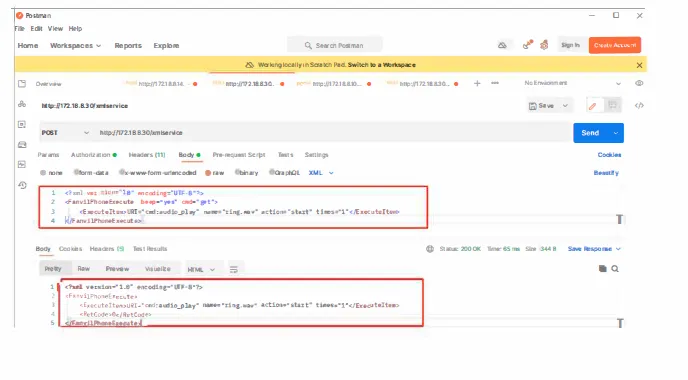
(ExecuteItem)URI="cmd:audio_play" name="ring.wav" action="start" times="1"(/ExecuteItem)
(RetCode>0(3) Example:
Use Postman or ApiPost to send a POST request to:
http://DeviceIP/xmlservice
Click Send to play the audio.