
This guide details how to upgrade Vxworks-based SIP intercom devices in POST mode using FTP and Telnet, including firmware preparation, FTP setup, and full upgrade steps.
This article applies to industrial devices using the VxWorks operating system. The POST mode on SIP phones works like the BIOS on a computer, and the firmware is similar to the computer's operating system. If a computer crashes, you can reinstall the OS. Similarly, if a phone fails to boot normally, you can use POST mode to upgrade and restore the system.
BHP-SOS12, BHP-SOS12V, BHP-SOS18, Bi20S, Bi30S, Bi31S, Bi23S, Bi32V, Bi33V, BK-ROIP-PA2.
Download the latest firmware for your device from: https://www.fanvil.com/Support/download.html If you are unsure which firmware to use or have a customized version, contact technical support.
Note: The firmware file MUST be in .z format. This is NOT a zip file and MUST NOT be unzipped.
FTP Tool: We use wftpd32 (other FTP software is also supported). Download wftpd32: http://download.fanvil.com/HowTo/UpdateInPostMode/wftpd32.rar Run wftpd32 on your PC.
Open Security Settings
Go to menu: Security → User/rights...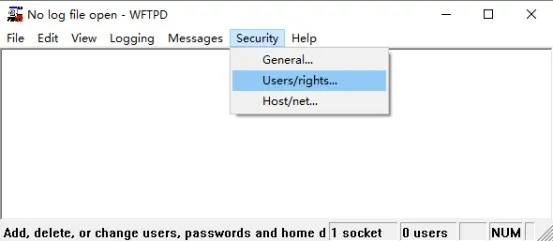
Create a User
Click New User... and set a username and password (remember these for later).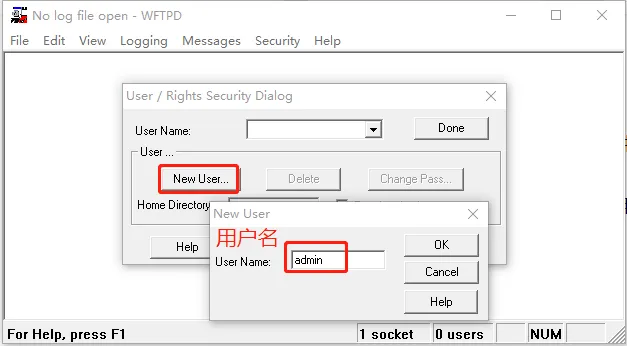
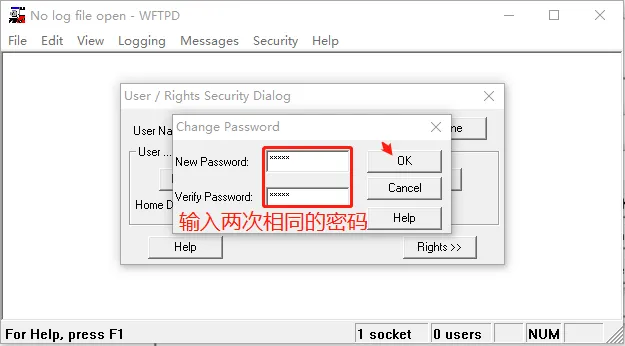
Set Home Directory
Enter the folder path where your .z firmware is stored (do NOT include the filename). Click Done.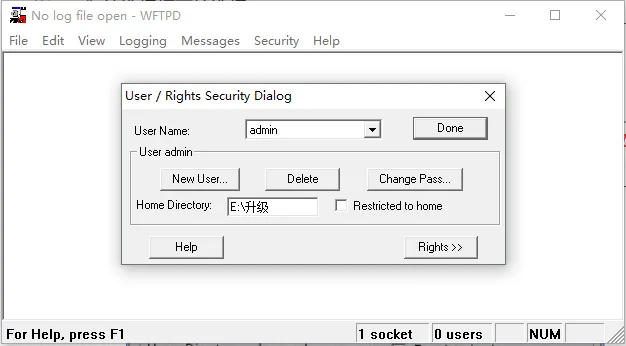
Enable Logging (Optional)
Go to: Logging → Log Options, check Enable Logging.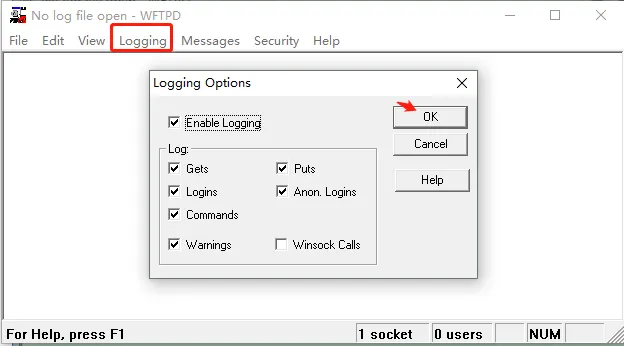
WARNING: DO NOT close the FTP server during the POST upgrade.
Enter POST Mode
Connect PC to the device's WAN port (same LAN). Reboot the device.
- For i12/i16V/i18S/i20S/i30S/i31S/i23S/i32V/i33V: Hold * + # for 10 seconds.
- For PA2: Hold Volume + + Volume – for 10 seconds.
Set PC Static IP
Set your PC IPv4 address to: 192.168.10.2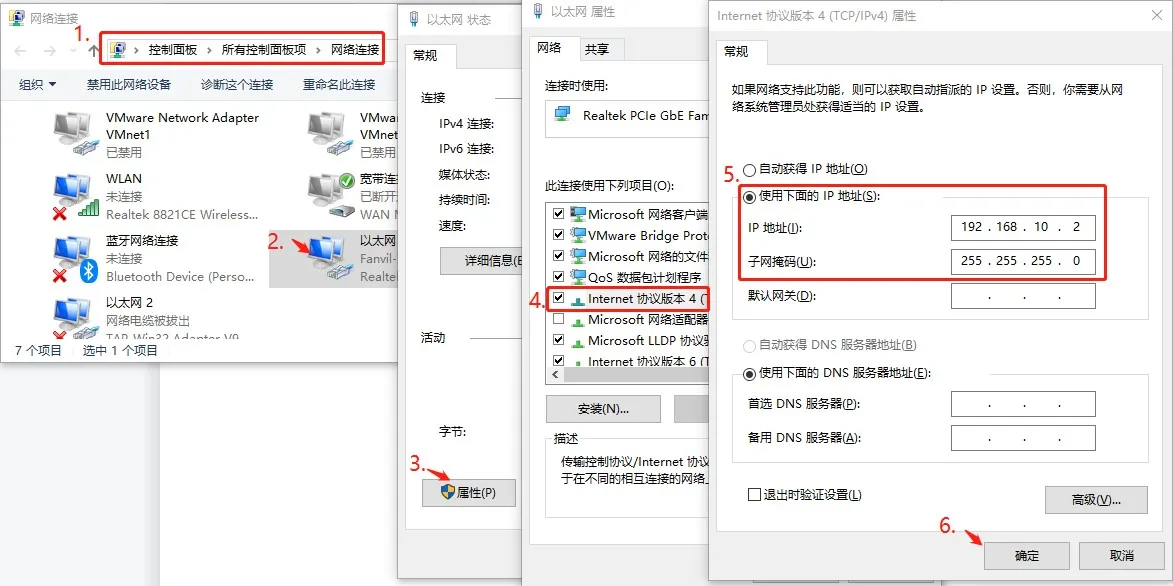
Method 1: PC Directly Connected to WAN Port
Method 2: Same Local Network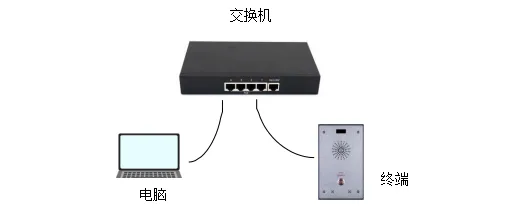
Open Command Prompt
Press Win + R, type cmd, press Enter.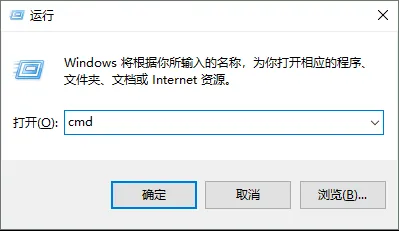
Telnet to the Device
Run command: telnet 192.168.10.1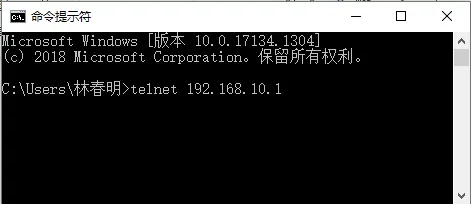
Note: If Telnet is not enabled, install it via Windows Features or use tools like PuTTY/SecureCRT.
Start Upgrade
Enter 2 and press Enter. Input the following info (press Enter after each):
- Input server address: 192.168.10.2
- Input image name: xxx.z (your firmware file)
- Input user name: FTP username
- Input password: FTP password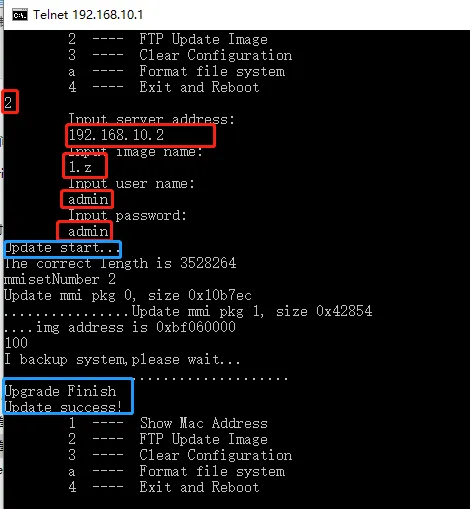
Note: Use only .z files. Show file extensions if needed.
Check FTP Status
The FTP window shows download progress. Success message confirms completion.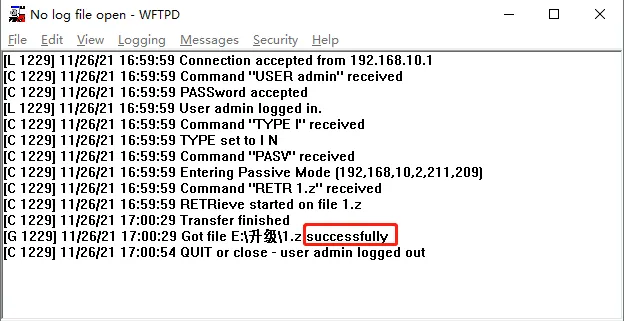
Note: If upgrade fails, disable PC firewall and retry.
After successful upgrade:
In POST mode, enter 3 to clear all configurations (keep power ON).
Enter 4 to reboot the device.
After reboot, log into the web UI to verify firmware version and normal operation. Upgrade is complete.
