IntroductionOverviewTo fix phone bugs or add new features, the device may need t
To fix phone bugs or add new features, the device may need to be upgraded to a newer firmware version.
Applicable products: phones with a USB port
Applicable versions: all firmware versions supported by the corresponding models
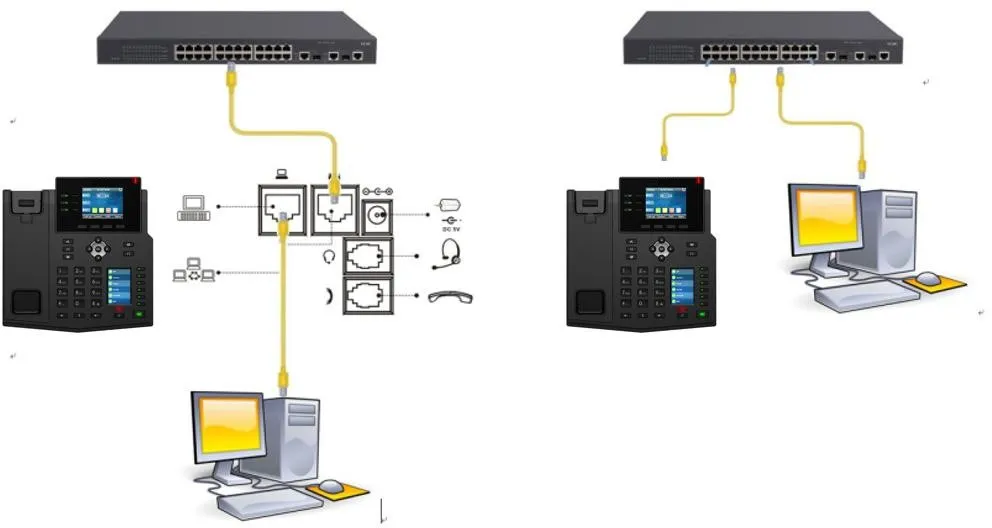
① One BX4U phone connected to a switch and able to obtain an IP address automatically.
② One configuration PC connected to the same switch, with network access to the phone.
Applicable models: BX4U/BX5U/BX6U/BX7c/BX7/BX210/BX210i
Upgrade file format: .z file
2.1.1 Check the Current Hardware Version and Download the Matching Firmware
Tap “Menu” -- “Status” -- “Device” to check the phone hardware version.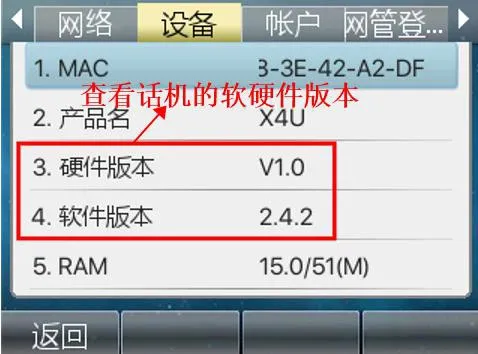
2.1.2 Prepare the USB Drive
Copy the firmware package to the USB drive. The upgrade package must be in .z or .zip format. In addition, the USB drive must be formatted as FAT32.
Insert the USB drive into the USB port of the phone.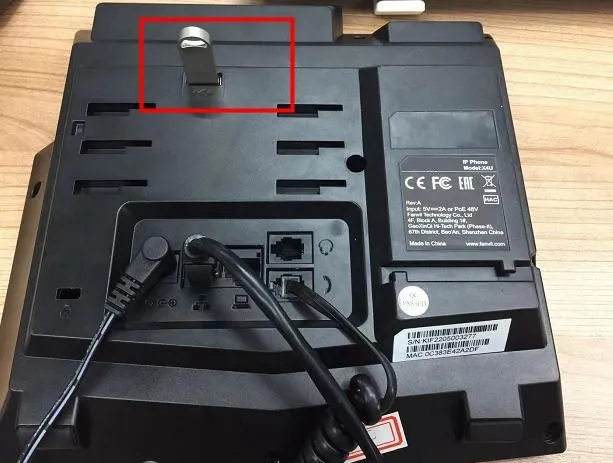
2.1.3 Enter POST Mode and Start the Upgrade
Power on the phone. When the power indicator flashes 3 times, continuously press the # key until POST appears on the screen.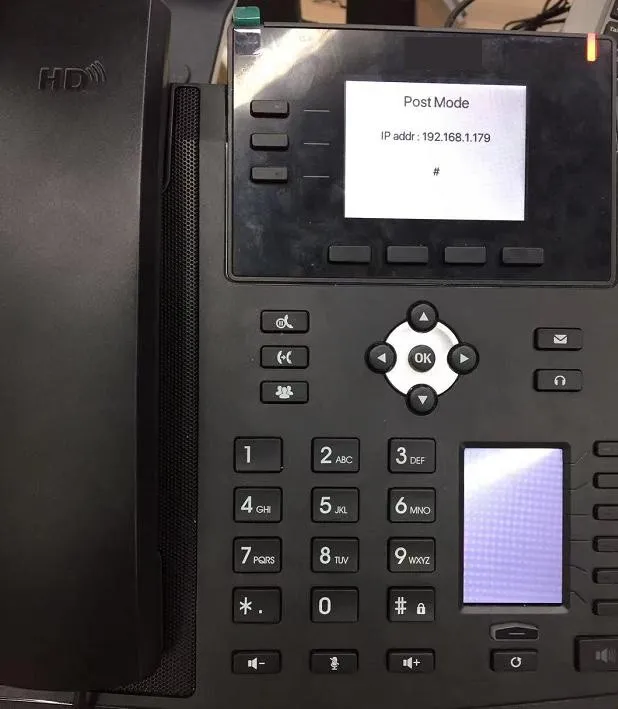
Enter *#167, and the screen will display the upgrade prompt.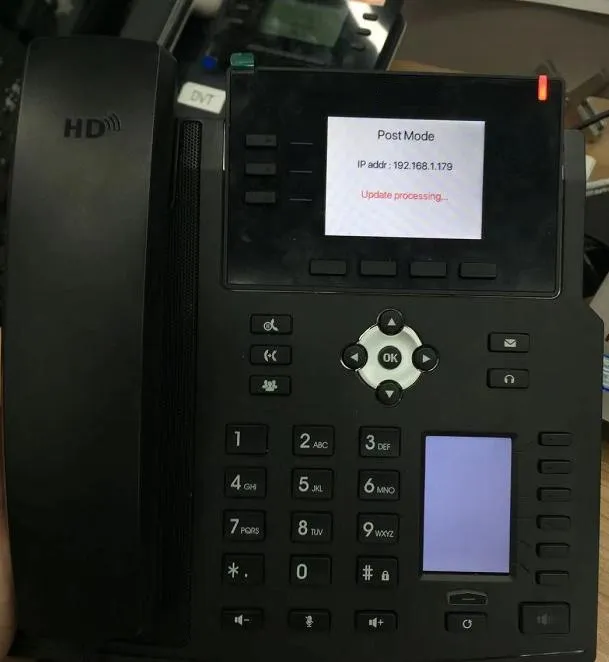
After the upgrade is completed successfully, the screen will display a success message.
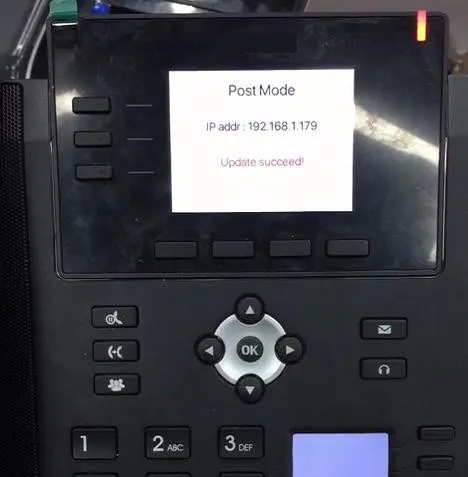
For the X7A, when upgrading via USB drive, the firmware file must be renamed to fv_update.zip before connecting the USB drive to the phone. The phone will automatically detect the upgrade file and prompt for the upgrade. Please note that for Android series phones, the firmware file must be in .zip format, and the USB drive must also be formatted as FAT32.
2.2.1 Download the Firmware File to the USB Drive and Rename It to fv_update.zip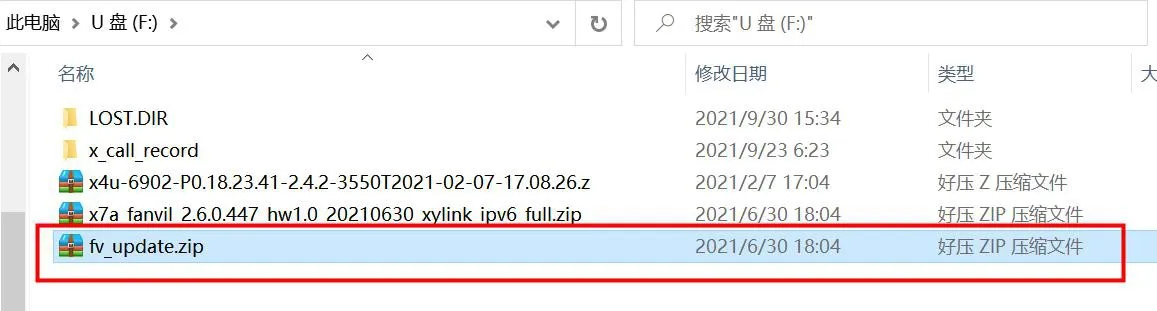
2.2.2 Insert the USB Drive into the Phone USB Port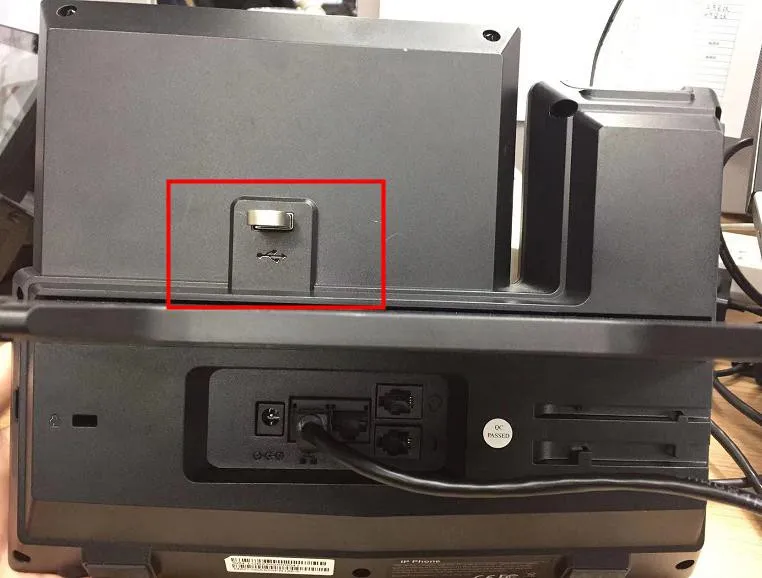
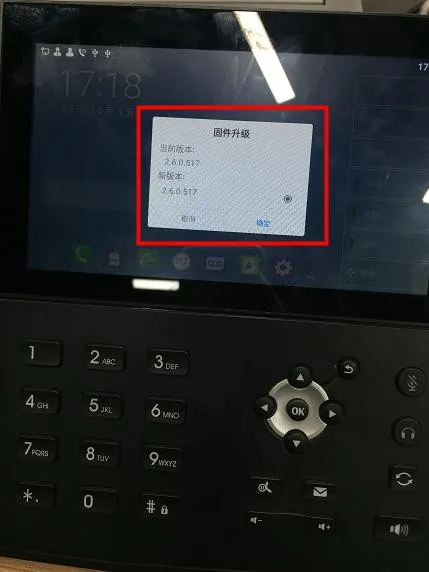
2.2.3 After the USB Drive Is Inserted, the Phone Automatically Detects the Upgrade File and Displays “Loading”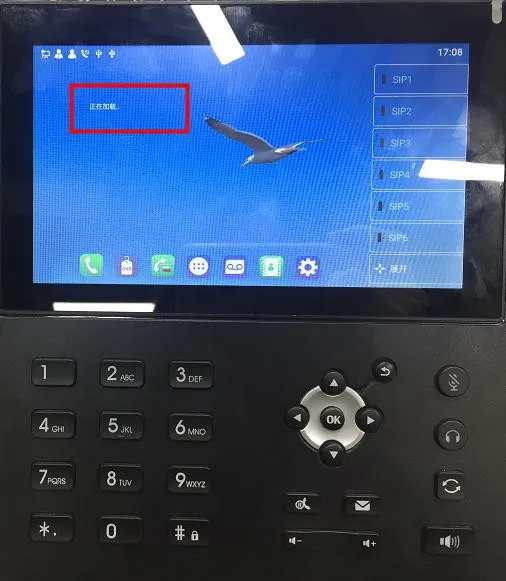
2.2.4 The Phone Detects the Upgrade File and Prompts for Upgrade
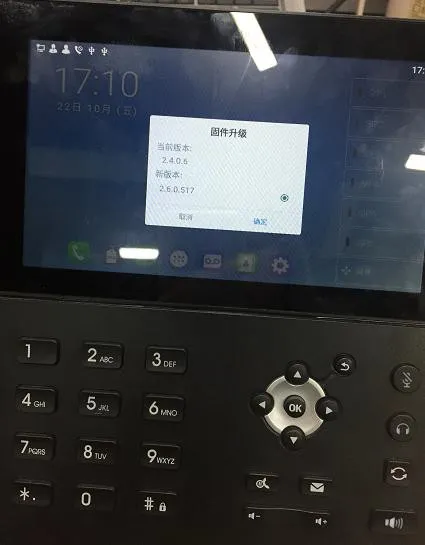
2.2.5 The Phone Starts the Upgrade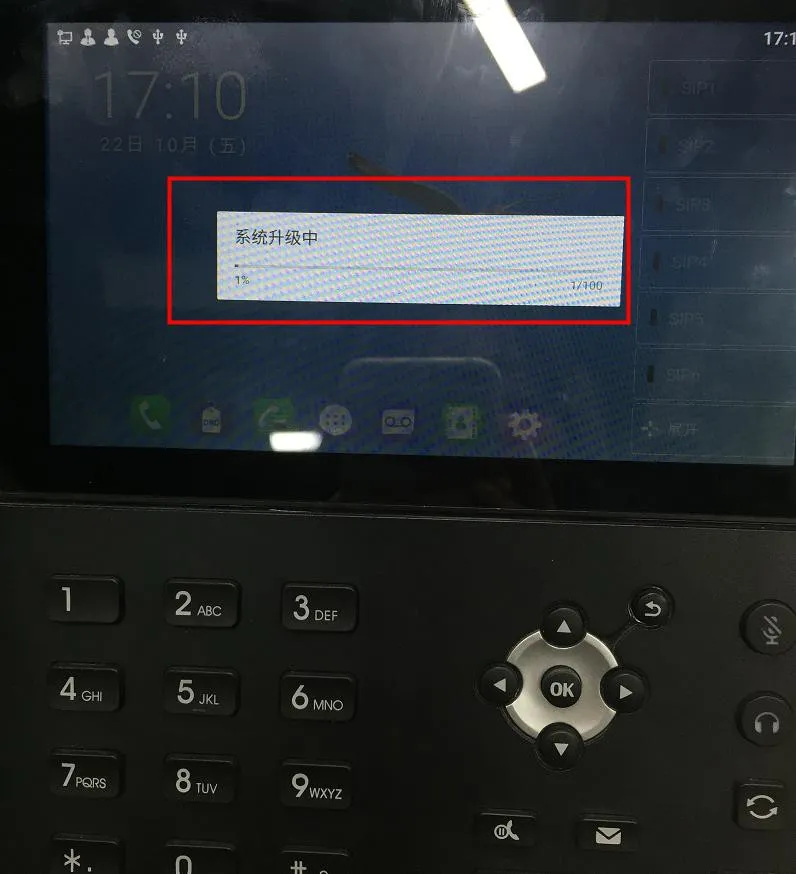
2.2.6 The Phone Displays the Upgrade Complete Message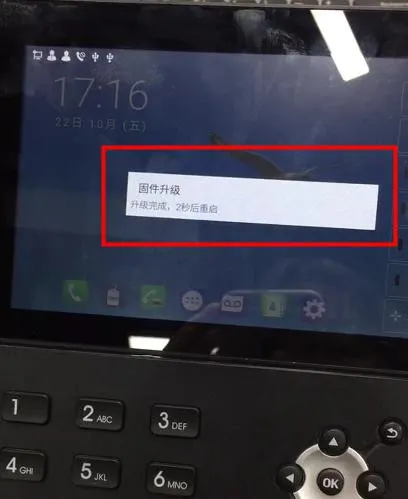
2.2.7 After Restarting, the Current Version Matches the Target Upgrade Version, Which Means the Upgrade Has Taken Effect