
Troubleshoot one-way audio and no-audio issues between intercoms and IP phones with practical checks for call type, handset wiring, intercom mute settings, and packet capture analysis.
When two terminal devices are in a voice call, you may encounter one-way audio or no audio in both directions. One-way audio means both parties can answer the call normally, but only one side can hear the other. No audio in both directions means both parties can answer the call, but neither side can hear any audio from the other end.
This guide applies to all of our products, including both industry devices and IP phone models.
Prepare one PC for troubleshooting and install Wireshark on it. Connect the PC to the same LAN as the devices. Make sure the PC can communicate with the devices and with the SIP server. Also confirm that the devices are powered correctly, connected to the network properly, fully booted, and able to access the local network environment.
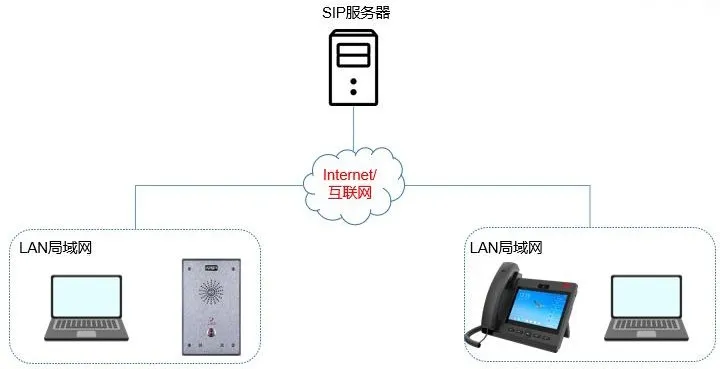
When analyzing an audio issue, the first step is to identify the exact symptom. In most real-world deployments, an industrial intercom or door station is typically calling an IP phone. For that reason, the following sections describe the two ends of the call as the intercom and the phone.
When the issue is that the intercom cannot hear audio from the phone, follow these steps:
1. Confirm which audio path the phone is using: handset, speakerphone, or headset. If only the handset has been tested, switch to speakerphone and check whether audio is still missing. One common cause is that the handset cord has been connected to the headset port by mistake. In that case, the system may still be using the handset audio path, but because the cable is physically connected to the headset jack, the microphone audio is not captured correctly.
2. Check whether the shortcut key configured on the intercom is set to Speed Dial.
When the intercom is calling the phone, the shortcut key on the intercom should be configured as Speed Dial:

Some users may accidentally configure it as Intercom instead.
3. If the intercom still cannot hear the phone regardless of whether the phone is using the handset or speakerphone, follow the packet-capture procedure described in section 2.3. Capture traffic on the intercom, the phone, and the server at the same time, then send the packet captures to technical support for analysis.
1. Confirm whether the issue affects only the handset, or whether both the handset and speakerphone cannot hear audio from the intercom. If only the handset has no audio, check whether the handset cable has been plugged into the headset port by mistake.
2. If the phone is calling the intercom by using a shortcut key, check whether the call type is set to Speed Dial or Intercom. If it is set to Intercom, try changing it to Speed Dial. If the shortcut must remain configured as Intercom, then disable the Enable Intercom Mute option in the intercom settings.
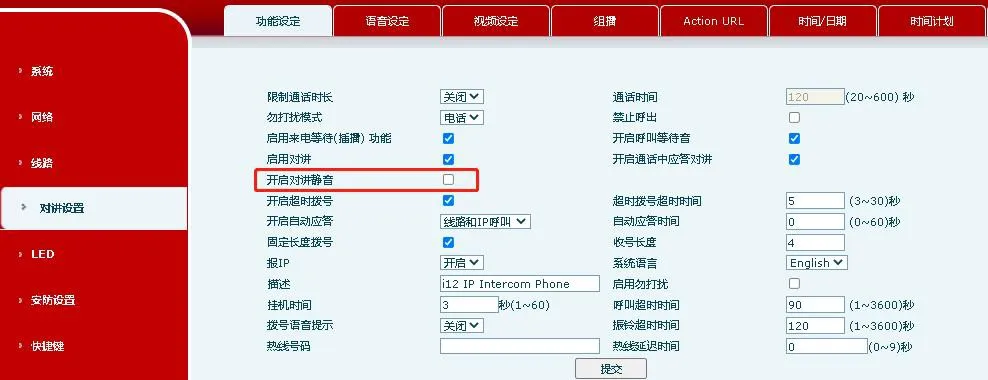
3. Follow the packet-capture procedure described in section 2.3. Capture traffic on the intercom, the phone, and the server at the same time, then send the packet captures to technical support for analysis.
When neither side can hear audio during the call, the possible causes include mismatched audio codecs between the two endpoints or RTP transmission failure caused by network issues. In this case, network packet captures are required for detailed analysis by technical support.
The packet capture procedure is as follows:
1. Log in to the web interface of Device A. Go to System – Tools – Web Capture, then click Start to begin packet capture on Device A.
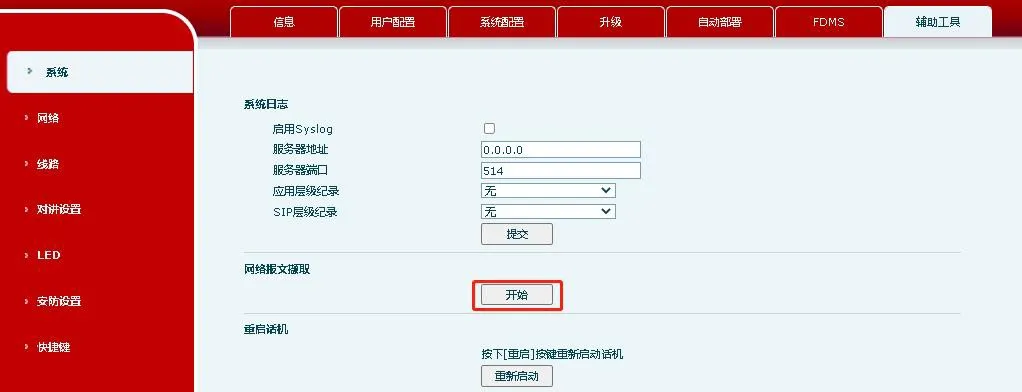
Note: When capturing packets from the device web interface, Chrome is recommended. Other browsers may have compatibility issues.
2. Repeat Step 1 on Device B and start packet capture on Device B as well.
3. Start packet capture on the server side. For this part, consult the server vendor or administrator.
4. Place the call and answer it. After the call is connected, speak from both Device A and Device B, then end the call.
5. Stop packet capture on Device A, Device B, and the server. Then send all three packet capture files to technical support for analysis.
