Troubleshoot cases where a phone answers after ringing but the call does not connect. Learn how SIP signaling over NAT can cause this issue and how enabling Strict Proxy helps restore normal call setup.
This article explains a common issue in which the called phone is answered after ringing, but no audio is established. The called party enters the active call state and the call timer starts, while the calling party continues to hear ringback tone.
This applies to all phone models from our company.
This document is intended for daily maintenance personnel responsible for troubleshooting phone-related issues.
After the called phone is answered, it sends a 200 OK message back to the caller. The phone returns its SIP response to the address carried in the VIA header of the original request. In some deployments, the PBX is located on a private network and exposed to the public network through NAT mapping, but the SIP messages sent by the PBX still contain a private IP address in the VIA field. As a result, when the phone sends its response, the message cannot be delivered correctly to the remote side.
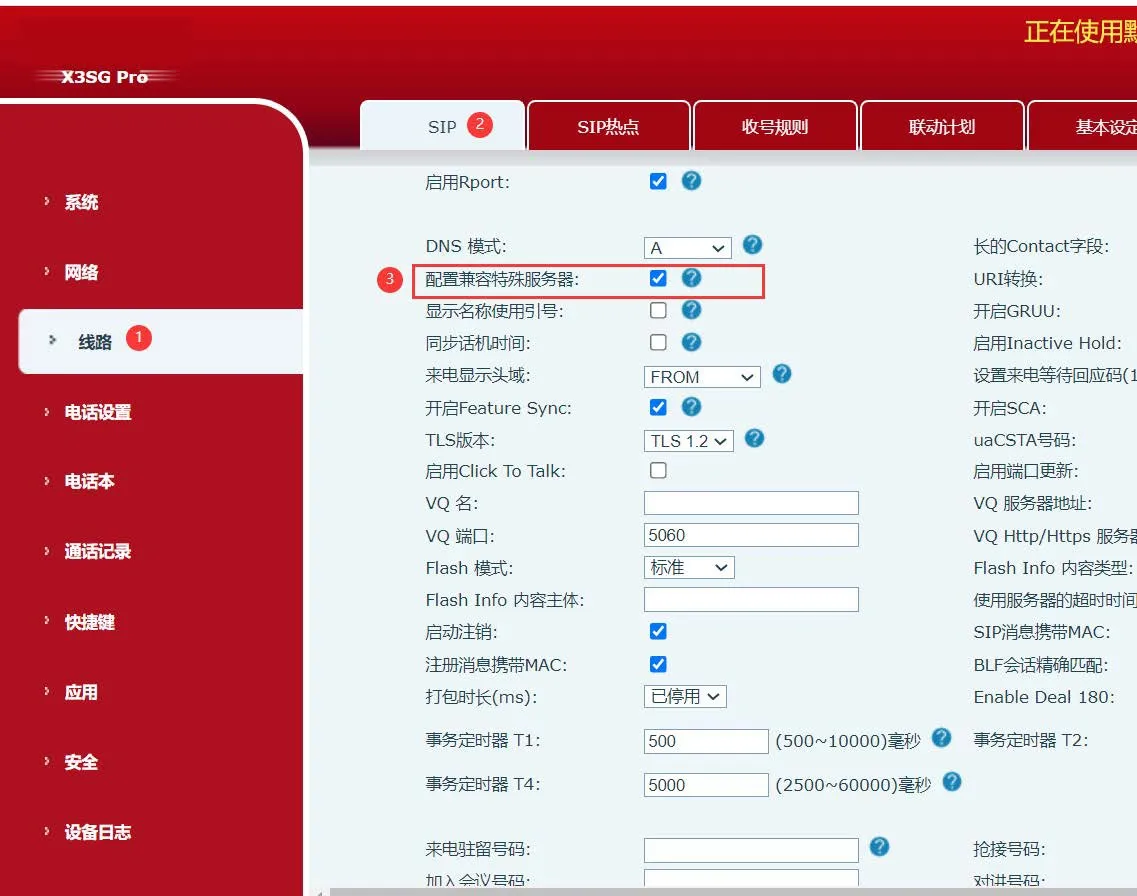
Enable the “Strict Proxy” feature on the phone configuration page (shown in Chinese as “兼容特殊服务器”). After this feature is enabled, the phone will no longer send SIP responses to the address in the VIA header. Instead, it will send the response directly to the address specified in the SIP Contact field.
Below is the method for enabling “Strict Proxy” on the phone. This document uses the X3SG Pro as an example:
Log in to the phone’s web management page, then go to “Line” - “Advanced Settings” - check “Strict Proxy”, and click Submit at the bottom of the page, as shown below.