
This guide provides two methods to factory reset BHP-SOS10 series SIP intercom devices: Web UI reset and POST mode reset. It includes supported models, network connection, IP acquisition, and detailed step-by-step operations.
In some special situations, you need to restore the device to factory default settings. Different products have different reset methods. This document describes how to factory reset BHP-SOS10 series devices.
BHP-SOS10, BHP-SOS10V, BHP-SOS10D.
① One BHP-SOS series device (i10V is used as an example), one PoE switch (or DC power supply). Connect the device to the switch.
② One debugging computer connected to the same switch to ensure network connectivity between the computer and the device.
Connect the BHP-SOS10V to the switch, and connect the computer to the same switch to ensure network communication. The connection diagram is shown in Figure 1.
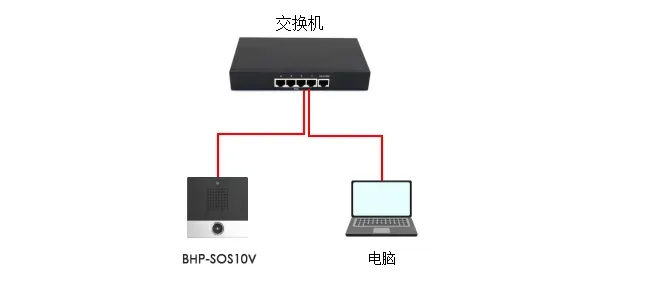
Figure 1 Device and Computer Connection Diagram
The BHP-SOS10 series can be reset via the Web interface or in POST mode. Both methods are described in detail below.
The device can be reset to factory defaults through the Web interface. The detailed steps are as follows:
(1) Device Connection: Connect the BHP-SOS10V to the PoE switch via the WAN port according to Figure 1. Wait for the device to start and enter standby mode.
(2) Obtain IP Address
① For DHCP network environment: Press and hold the key shown in Figure 2 for about 3 seconds (For i10D and i10SD, use the first key). After hearing the prompt tone, press it quickly once, and the device will broadcast the IP address.
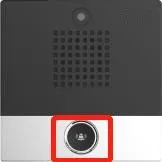
Figure 2 BHP-SOS10V Speed Dial Key Diagram
② For non-DHCP network environment: Press and hold the key shown in Figure 2 for about 3 seconds. After hearing the prompt tone, press it quickly 3 times, and the device will broadcast the IP address.
(3) Log in to Web UI and Reset
Enter the obtained IP address in the browser, log in with the default username and password (both are admin). Go to System --- System Configuration --- Restore Factory Defaults, then select Reset to complete the operation, as shown in Figure 3.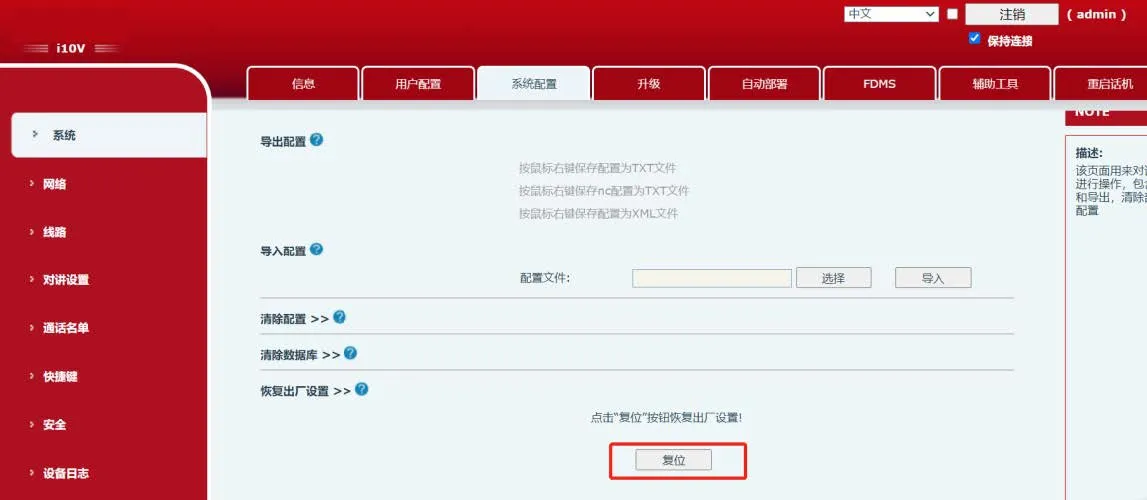
Figure 3 Factory Reset Diagram
In addition to the Web UI, the device can also be reset in POST mode. The steps are as follows:
(1) Device Connection: Connect the device and computer to the same switch according to Figure 1.
(2) Switch the device to POST mode
① Power off the device and restart it. During power-on, when the DSS key indicator flashes rapidly, press the DSS key once (For i10D and i10SD, use the first key). The device will enter POST mode, and the indicator will change from fast flashing to slow flashing.
② If you are unsure about the timing, long press the DSS key during startup until the indicator flashes slowly to enter POST mode.
(3) Perform Factory Reset
When the device is in POST mode, quickly press the DSS key 3 times (For i10D and i10SD, use the first key). The device will restore factory settings and reboot automatically.
