Learn how to export a flash file from a phone in POST mode by configuring an FTP server, assigning a static PC IP, entering POST mode, and running the required export command.
This document explains how to export a flash file while the phone is running in POST mode.
Supported products: all phone models.
Supported firmware: all versions available for the supported models.
1. A POST upgrade server. In this procedure, an FTP server is required.
2. A Telnet tool, such as the built-in Windows Telnet client, PuTTY, or SecureCRT.
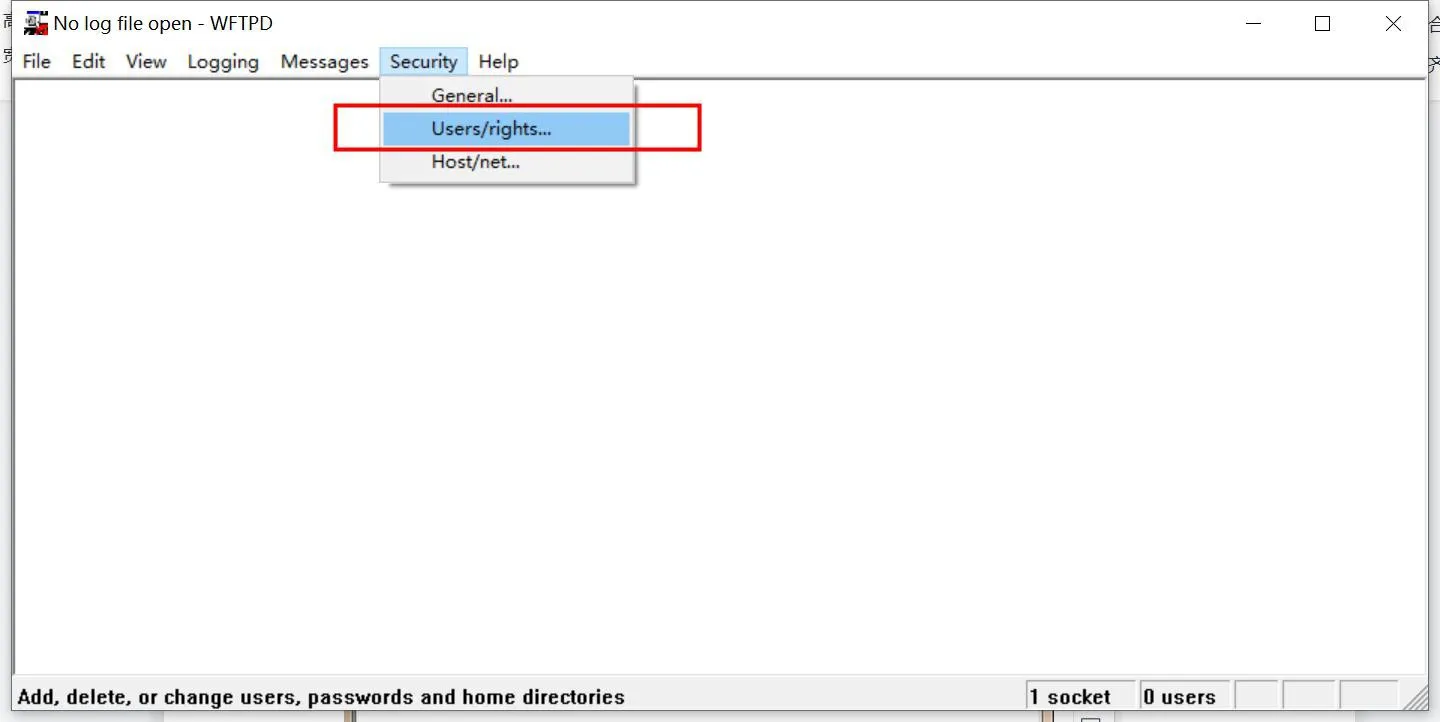
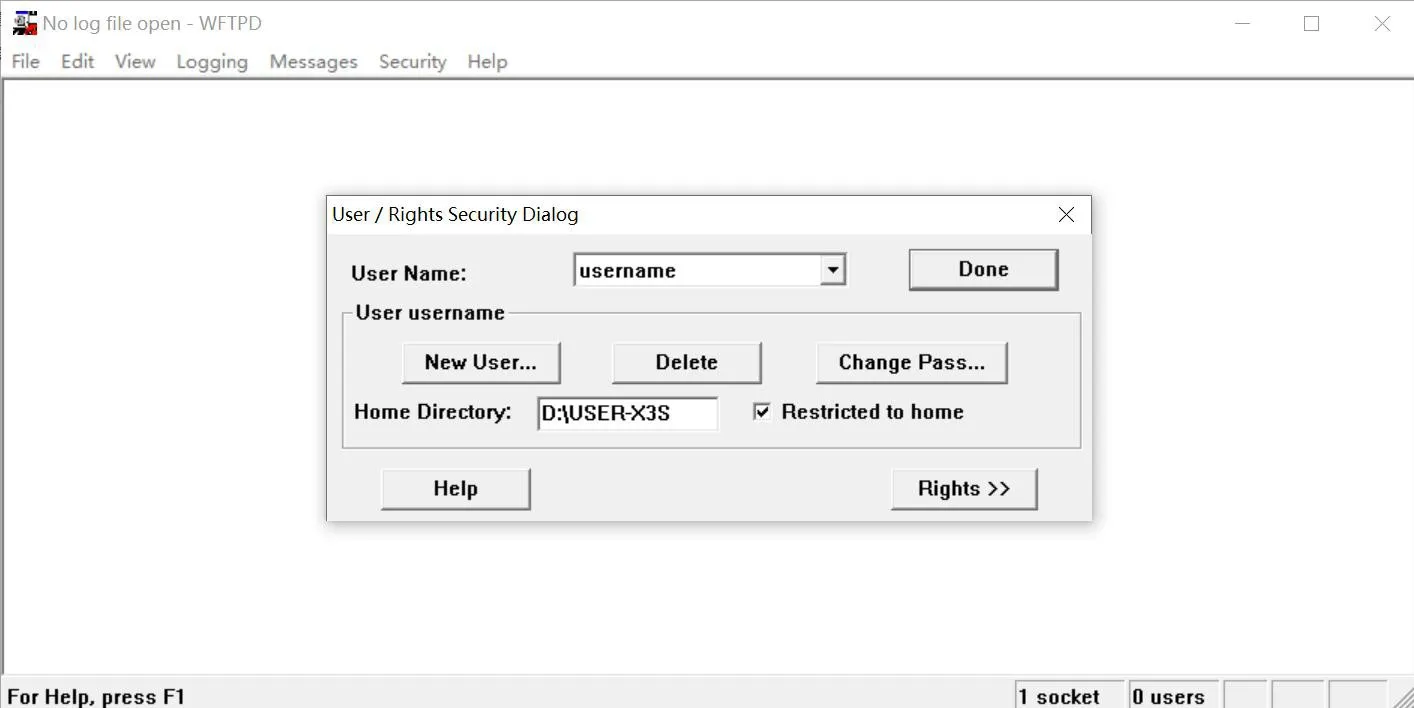
1. Run wftpd32 on the PC. In the menu bar, select Security -> User/Rights...
2. Set the FTP login credentials exactly as required:
Username: username
Password: userpasswd
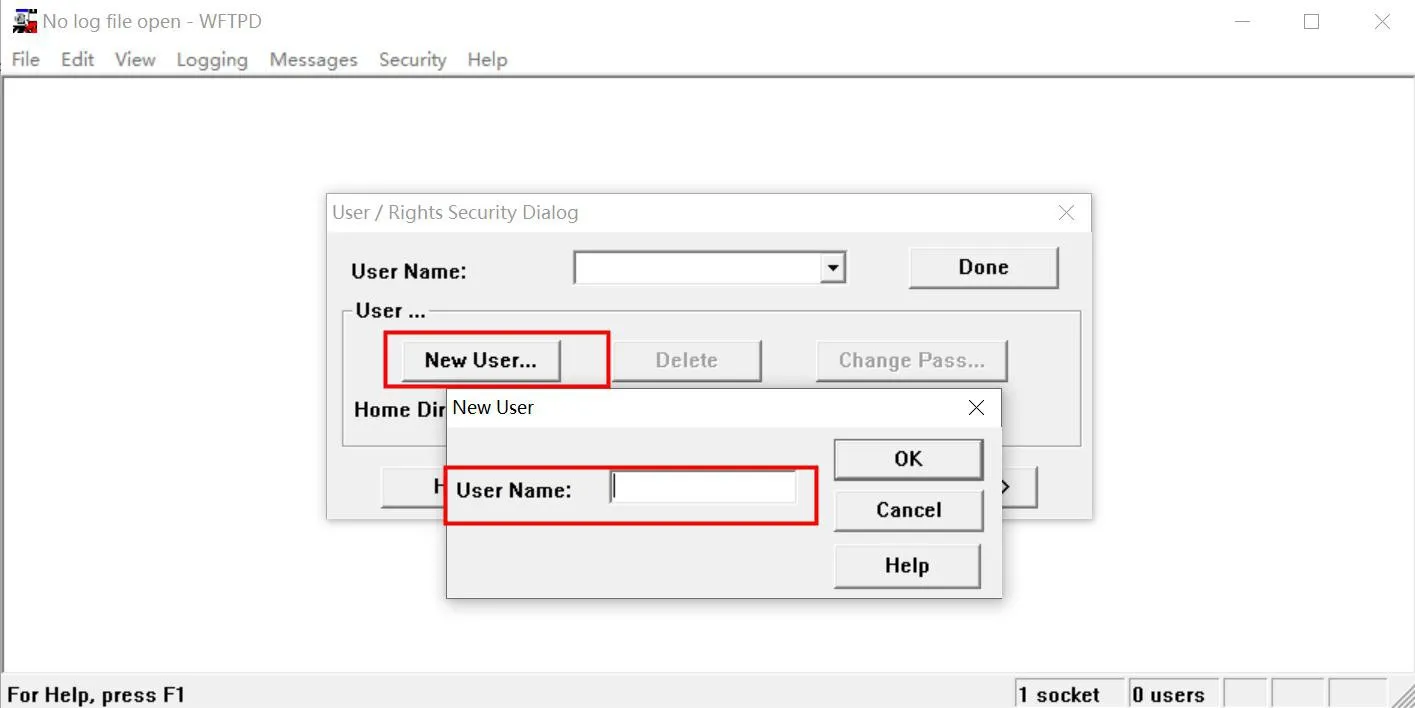
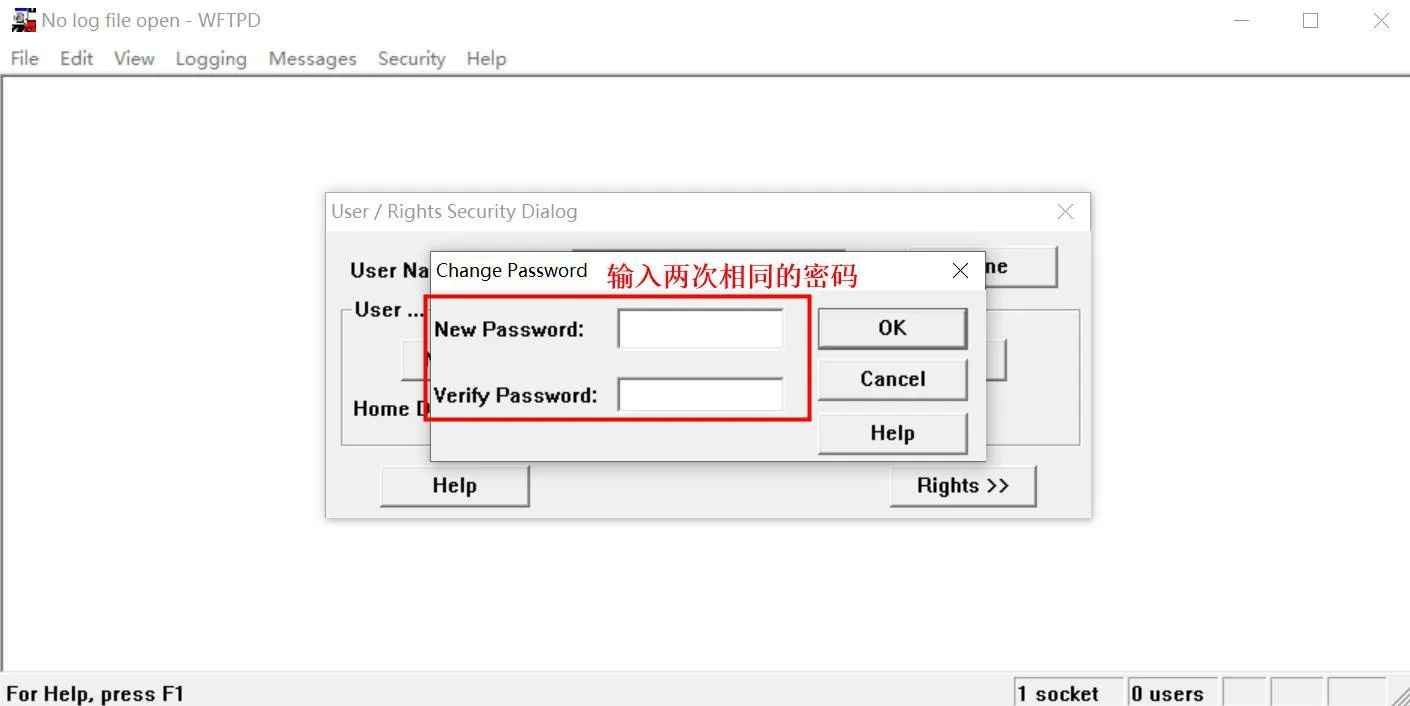
3. Define the file storage path. In Home Directory, enter the folder path where the firmware package or exported file will be stored, for example D:\USER-X3S. Then select Restricted to home and click Done to save the configuration.
4. Enable the log option so you can monitor the export process more easily.
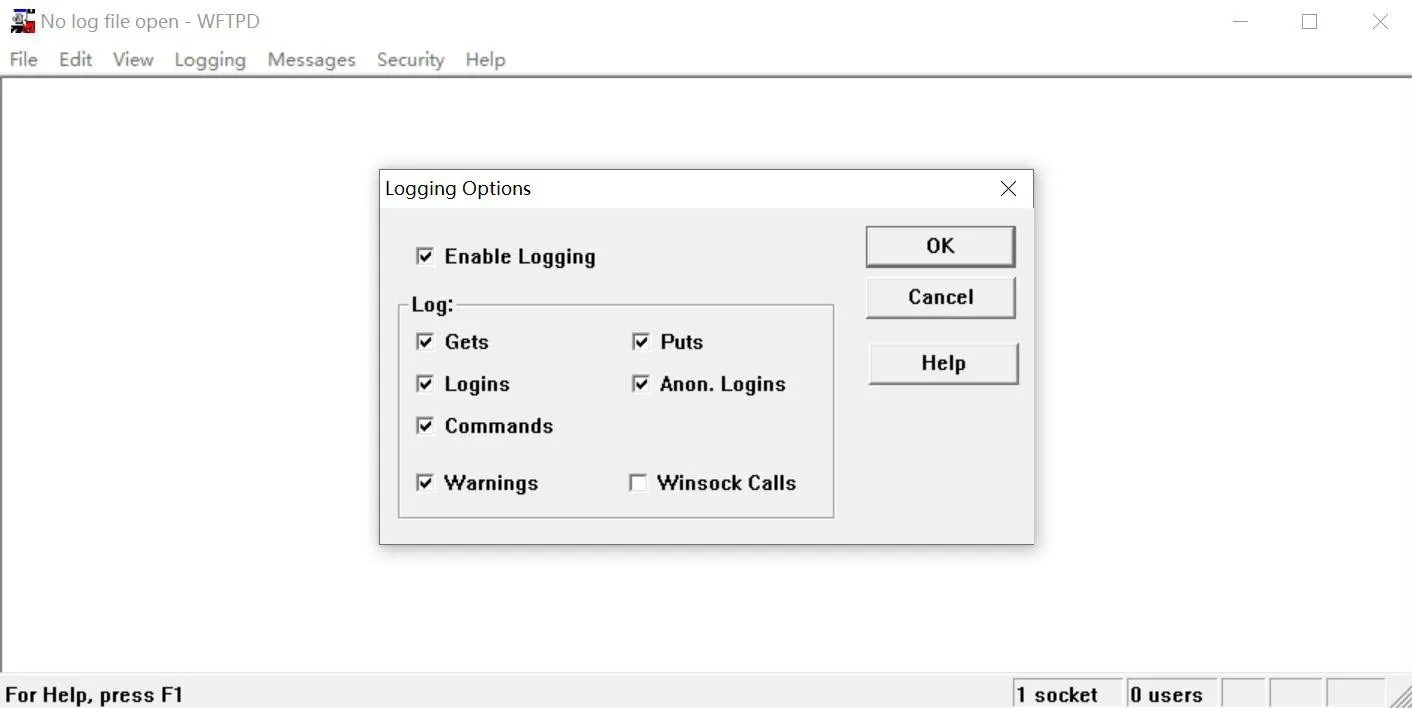
Note: Do not close the FTP server while performing operations in POST mode.
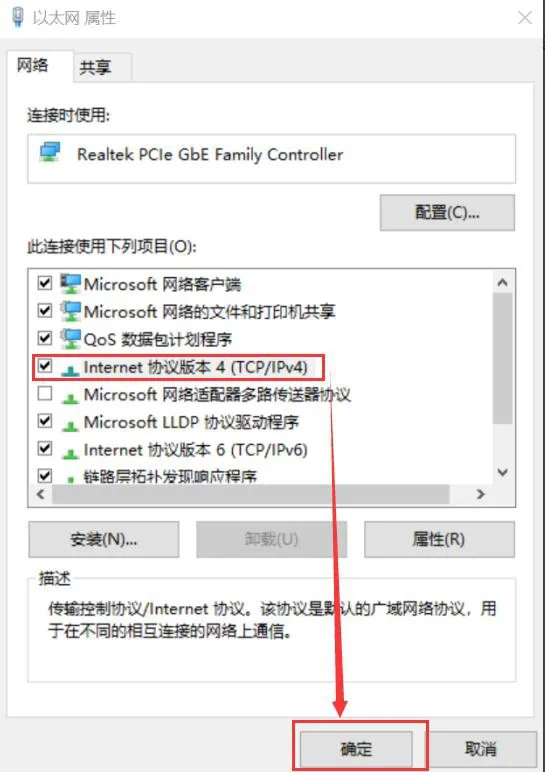
1. Assign a fixed IP configuration to the PC.
Network settings:
IP Address: 192.168.10.99
Subnet Mask: 255.255.255.0
Default Gateway: 192.168.10.1
The example below shows the setup on Windows 10.
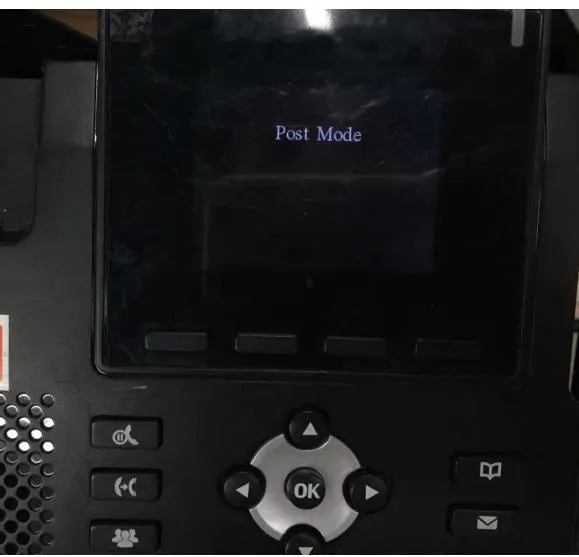
2. Put the phone into POST MODE.
Connect the PC network port directly to the phone internet port with an Ethernet cable. Restart the phone, and during boot-up, press and hold the # key to enter POST MODE. In POST mode, the phone uses the default IP address 192.168.10.1.
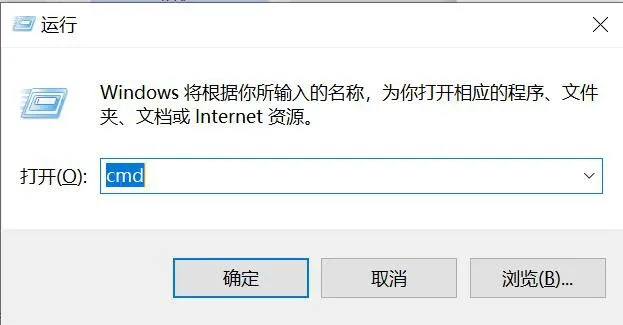
1. On the PC, press Win+R and open cmd.
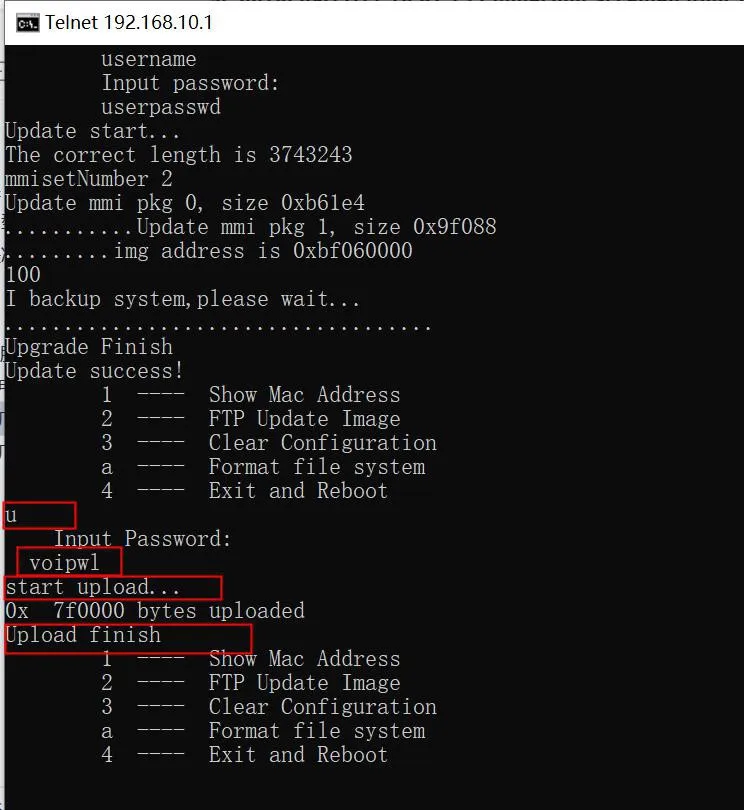
2. Enter the export command to start exporting the flash file.
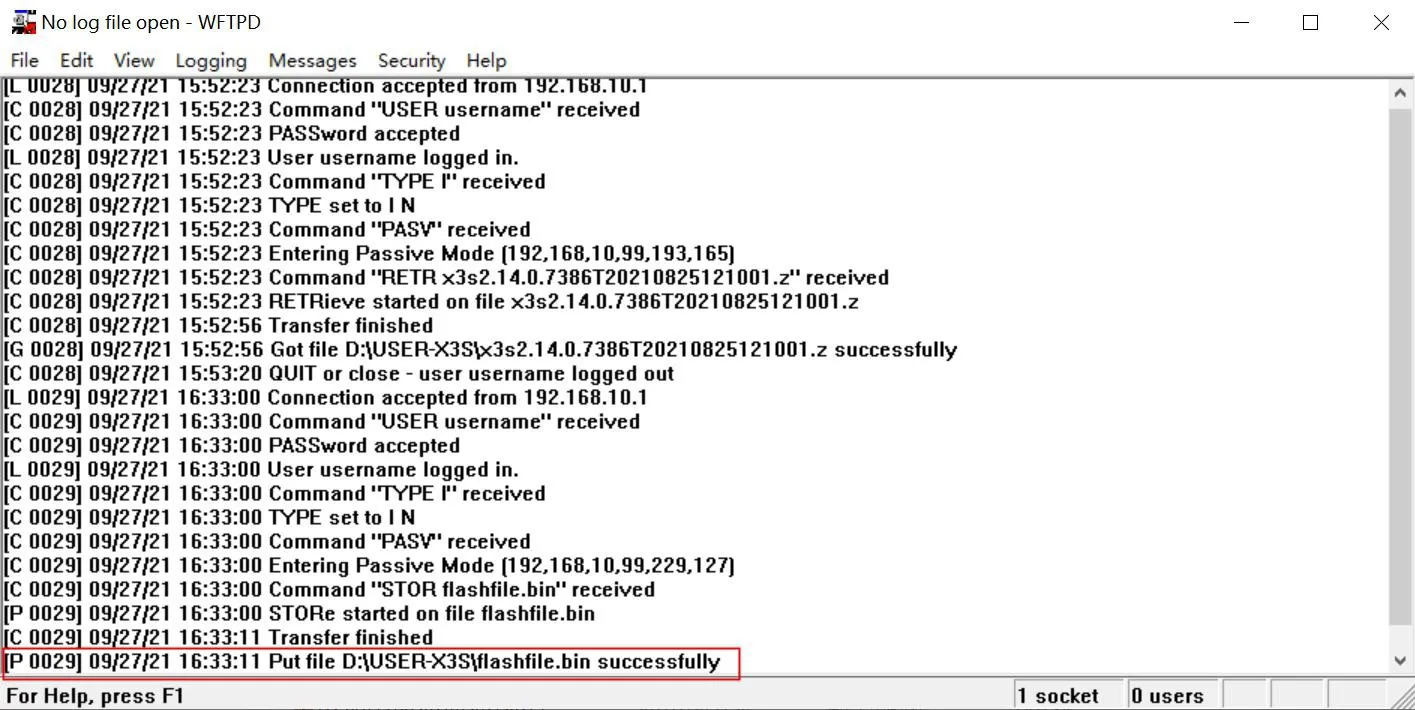
The FTP server window will also display the related export activity during the process.
After that, execute command 4 to restart the phone. Once the reboot is complete, the flash export process is finished.
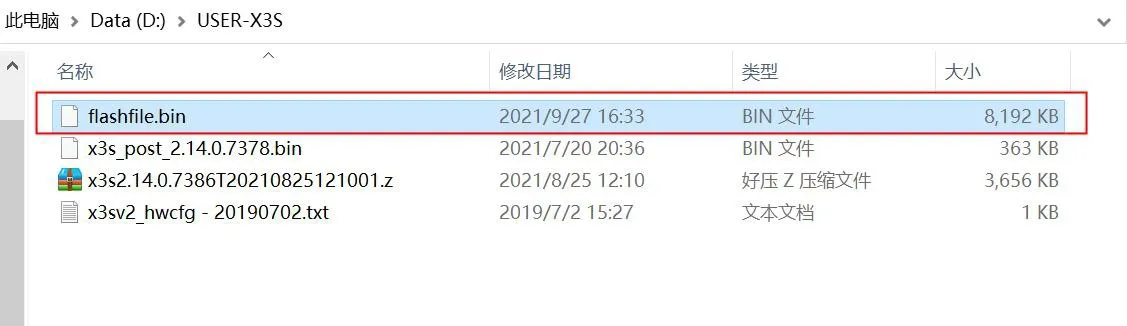
3. The exported flash file will be saved in the directory configured earlier in Step 1, Item 3.