IntroductionOverviewThis guide explains how to connect the phone to a wireless W
This guide explains how to connect the phone to a wireless Wi-Fi network.
This document is intended for users who want to use Wi-Fi on their phones.
BX1W/BX3SW/BX3V/BX4U/BX5U/BX6U/BX7/BX7C/BX7A/BX210/BX210i/BH3W/BH5W/BA32i/BF600/BF600S/BV64/BV67
There are currently two ways to connect a Wi-Fi phone to a wireless network: one is through the built-in Wi-Fi module, and the other is through an external Wi-Fi dongle. First, you need to confirm the phone model, because some models support built-in Wi-Fi while others require an external adapter. Different models use different connection methods.
2.1.1 Connecting Android Phones to Wi-Fi
Applicable models: BX7A/BV67/BA32i (BX7A is used as the example below)
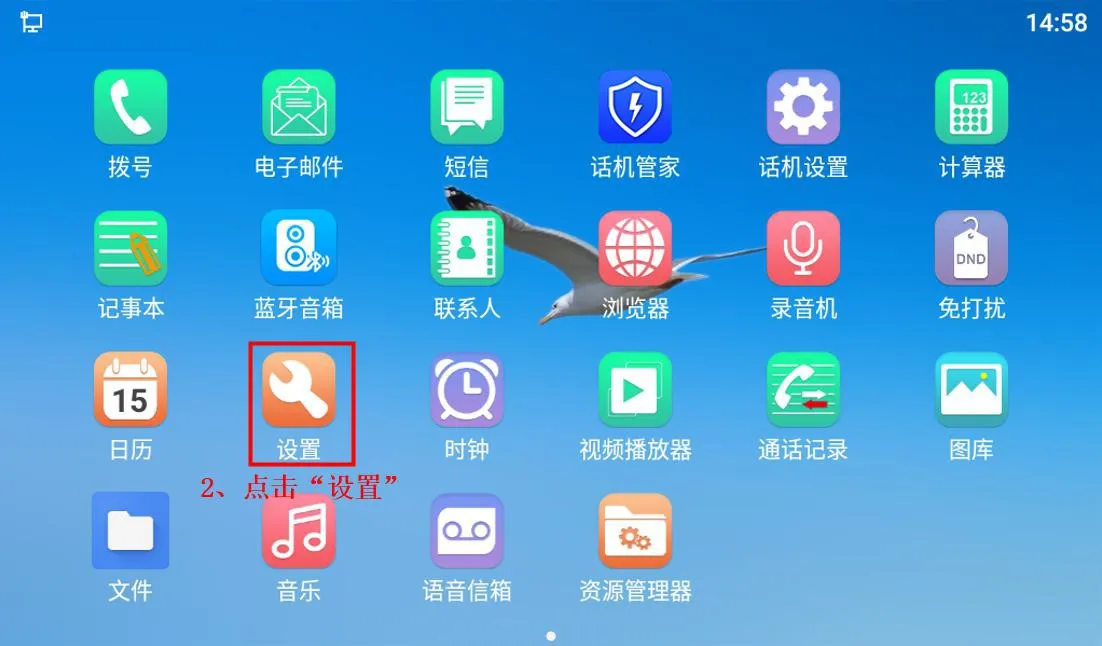
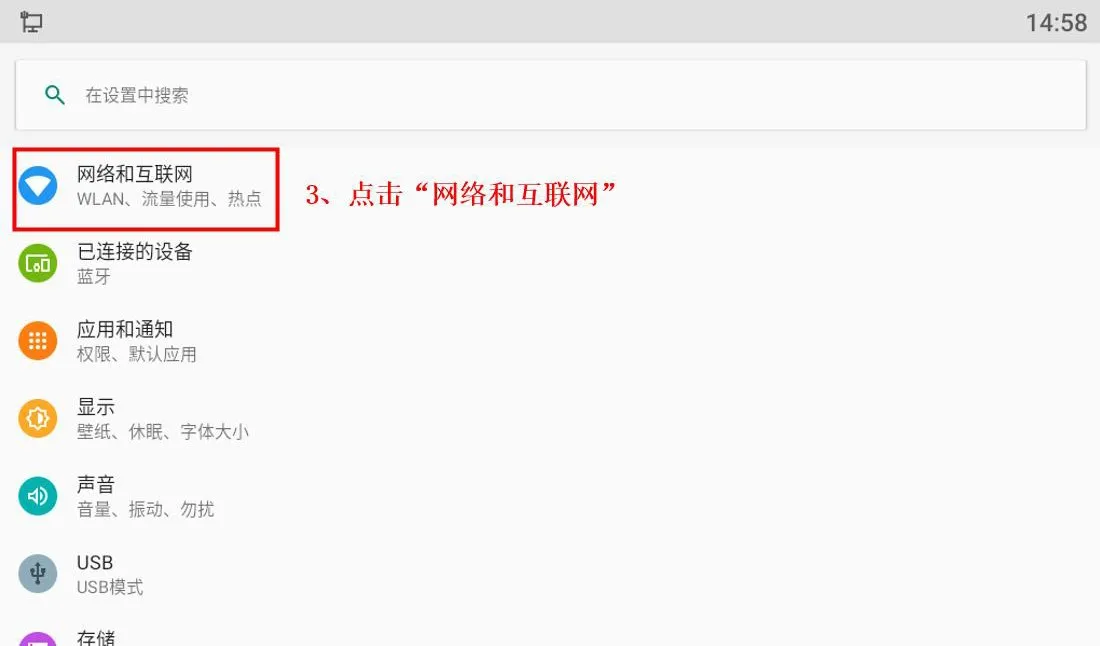
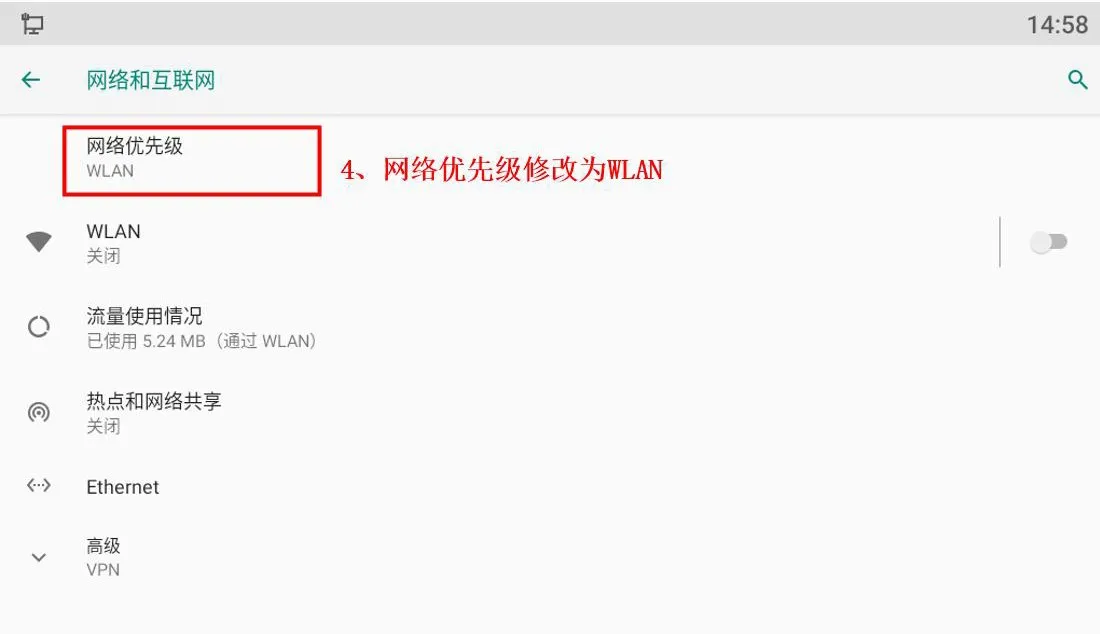
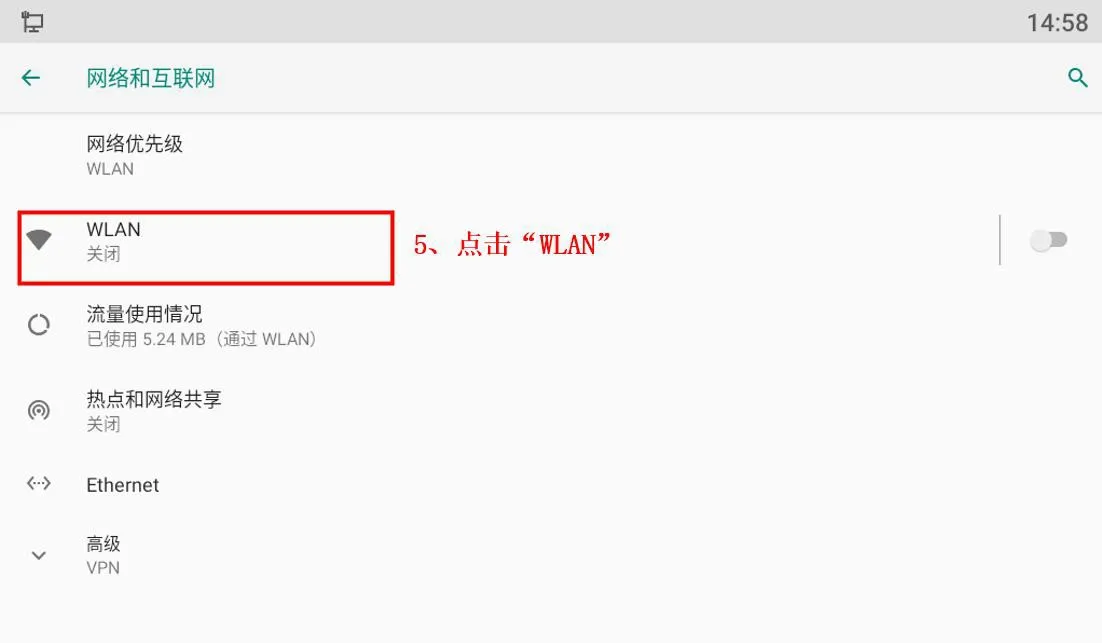
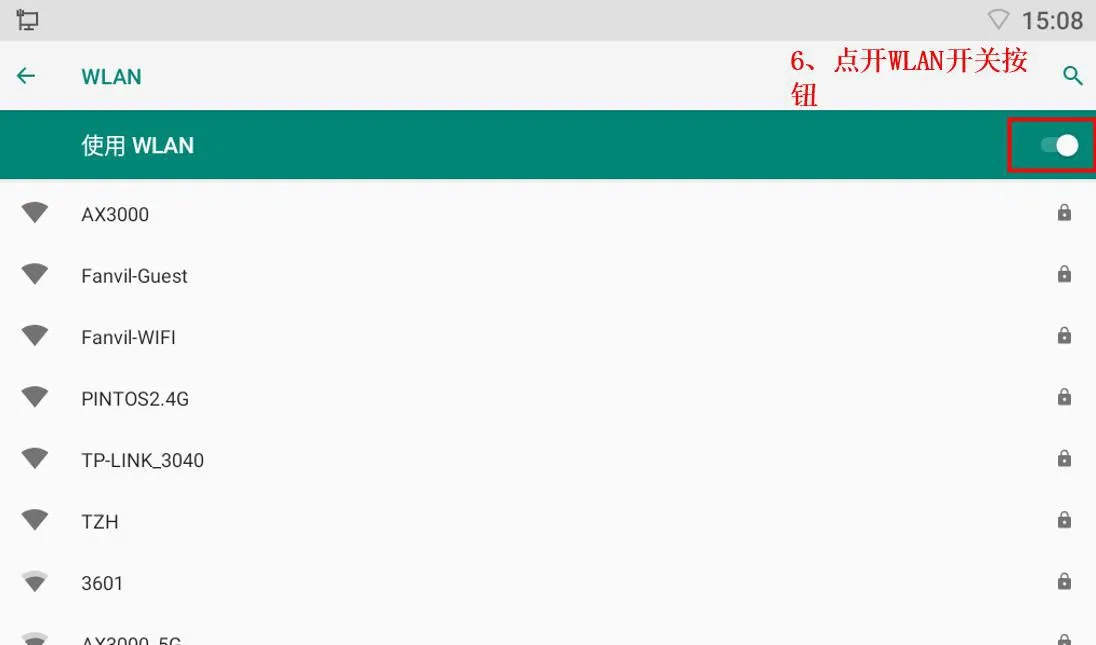
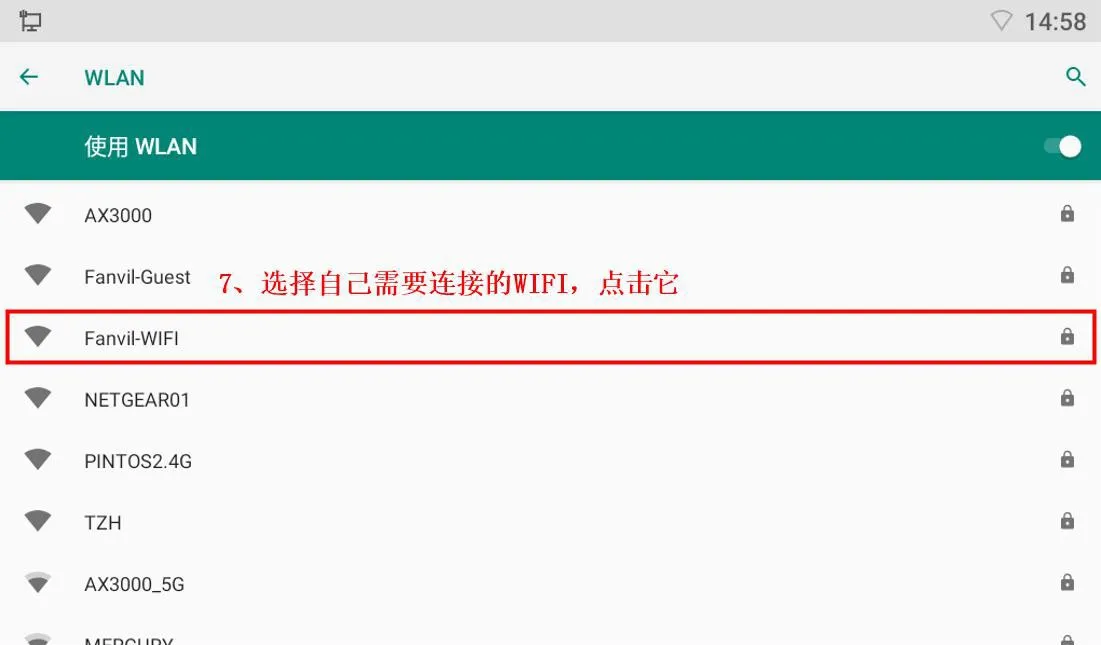
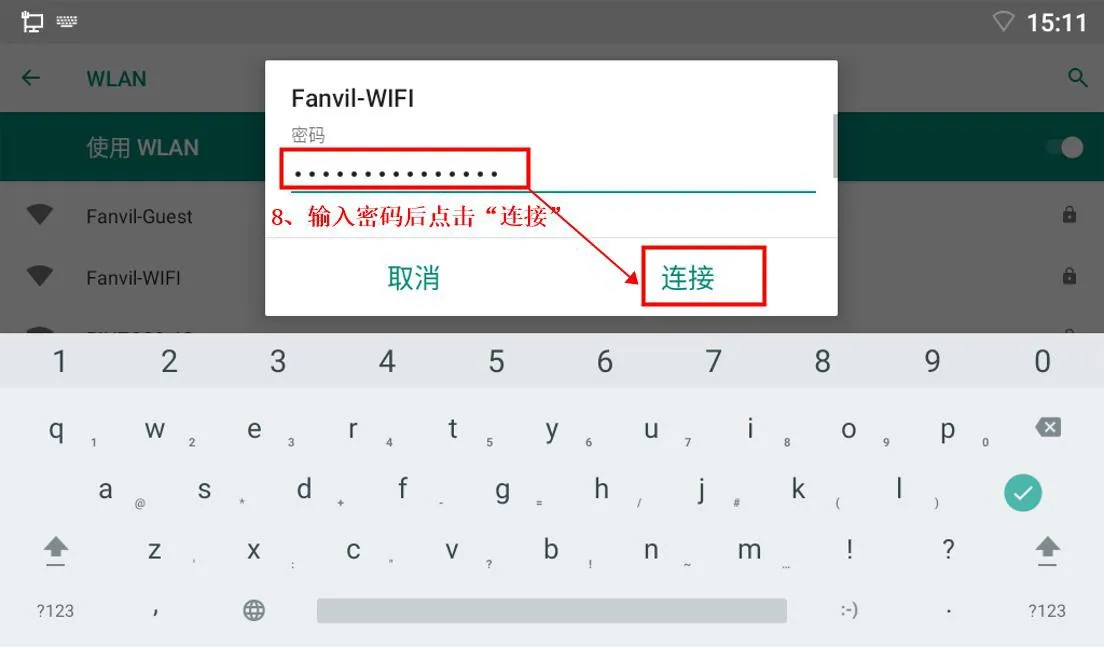
Tap “Menu”, then tap “Settings”, then tap “Network & Internet”. Change the network priority to WLAN, tap “WLAN” to enter the WLAN page, turn on the WLAN switch in the upper-right corner, select the Wi-Fi network you want to connect to, enter the password, and then tap “Connect”.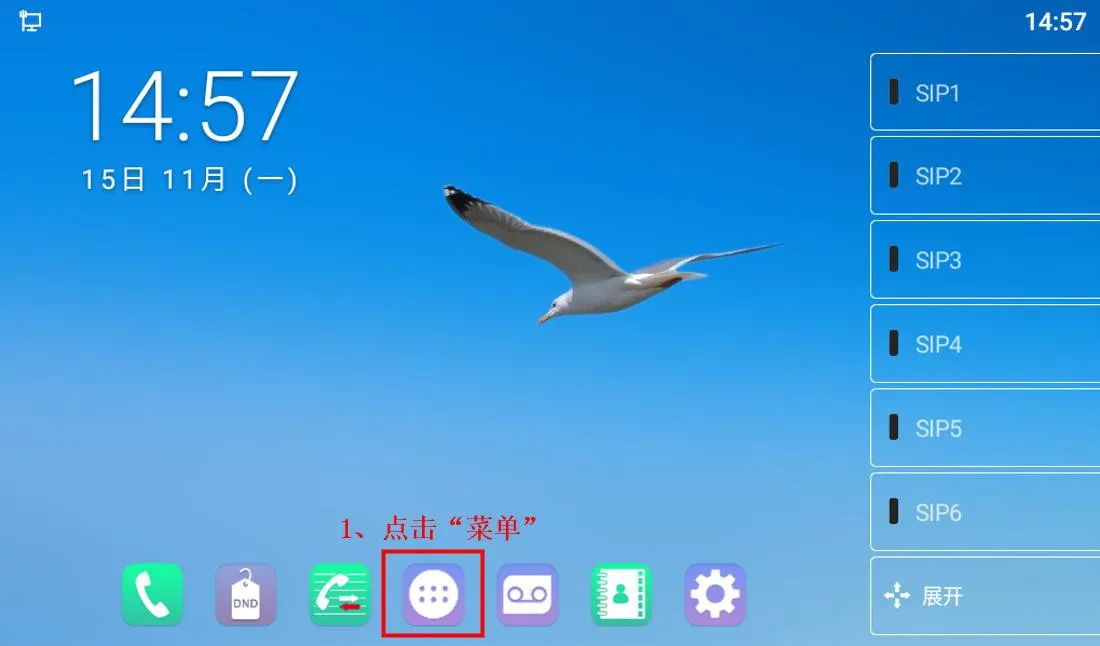
2.1.2 Connecting Non-Android Phones to Wi-Fi
Applicable models: BX1W/BX3SW/BX3V (BX3V is used as the example below)
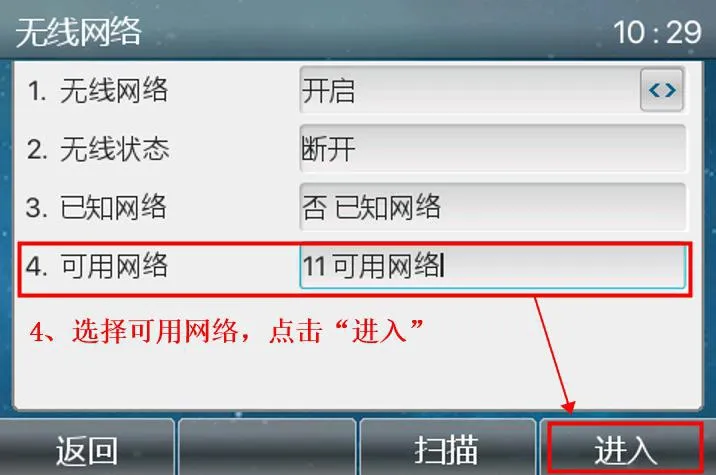
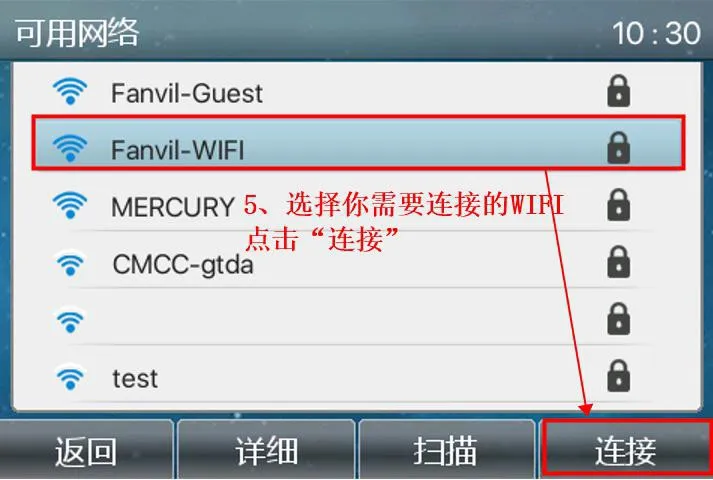
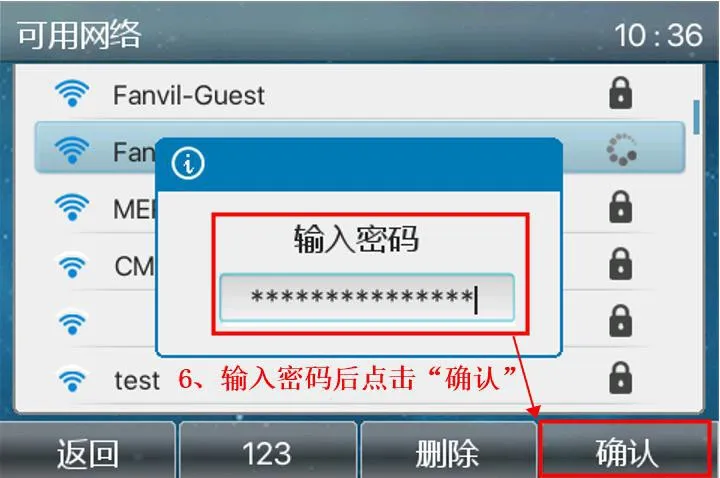
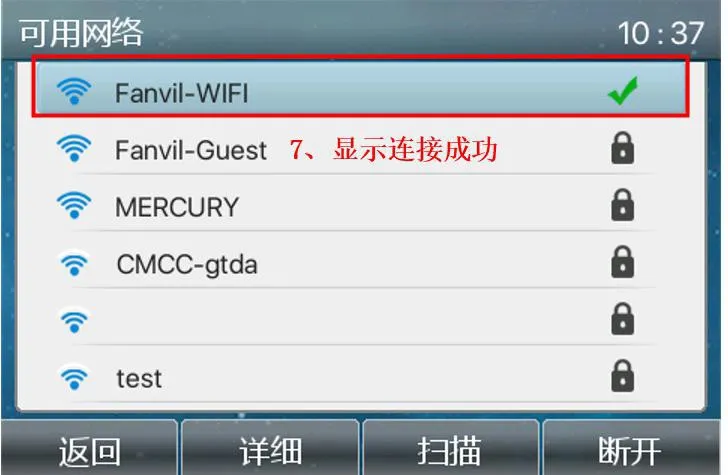
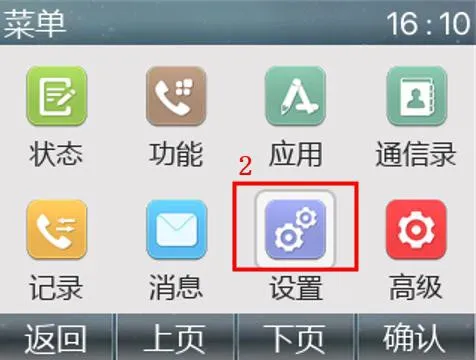
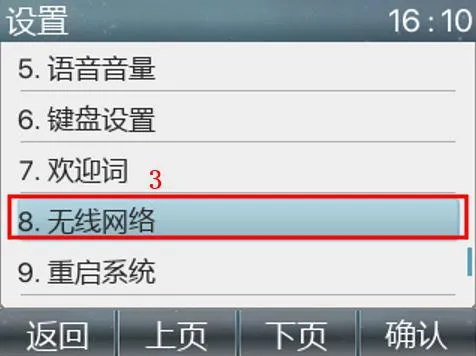
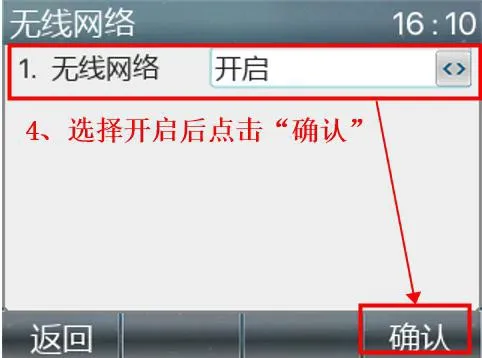
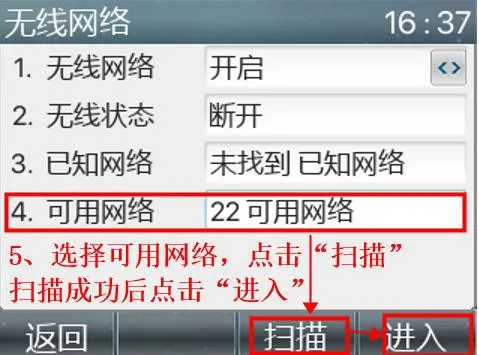
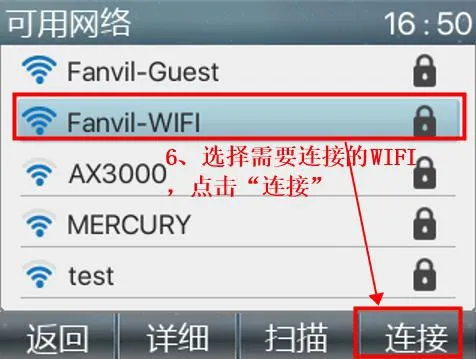
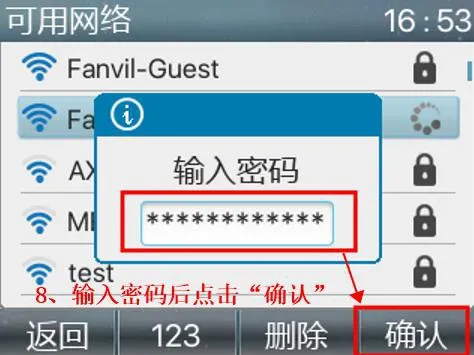
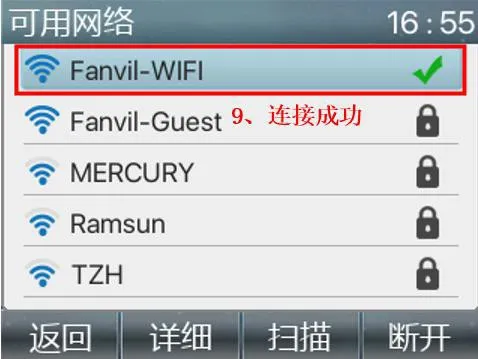
Tap “Menu”---“Settings”---“Wireless Network” to enter the wireless network settings page. Turn on wireless networking and tap “Confirm”. Select Available Networks and tap “Scan”. After the scan is completed, tap “Enter”, choose the Wi-Fi network you want to connect to, tap “Connect”, enter the password, and then tap “Confirm”.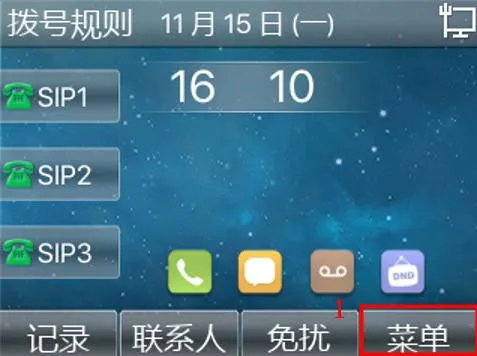
Applicable models: BH3W/BH5W
1、BH3W has no screen, so Wi-Fi must be configured through the web interface. Please refer to the steps below:
Connect the phone to the network cable, then press and hold the # key to hear the IP address announcement. After obtaining the IP address, enter it into a browser to log in to the phone web interface.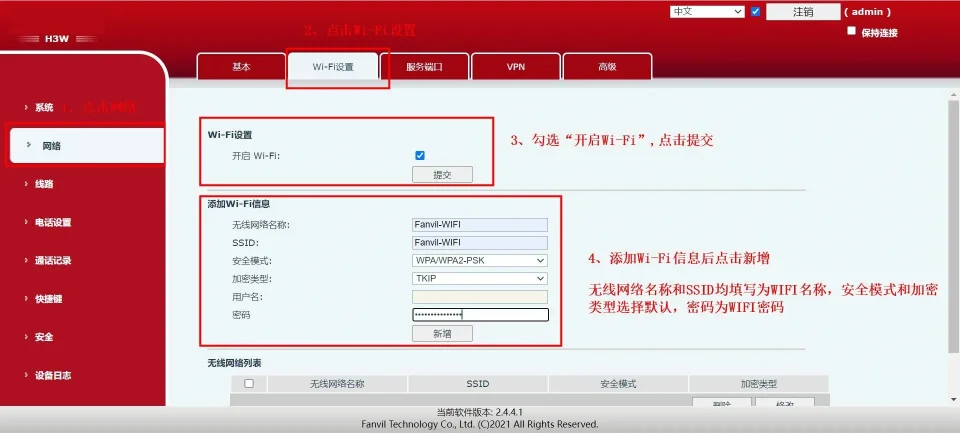
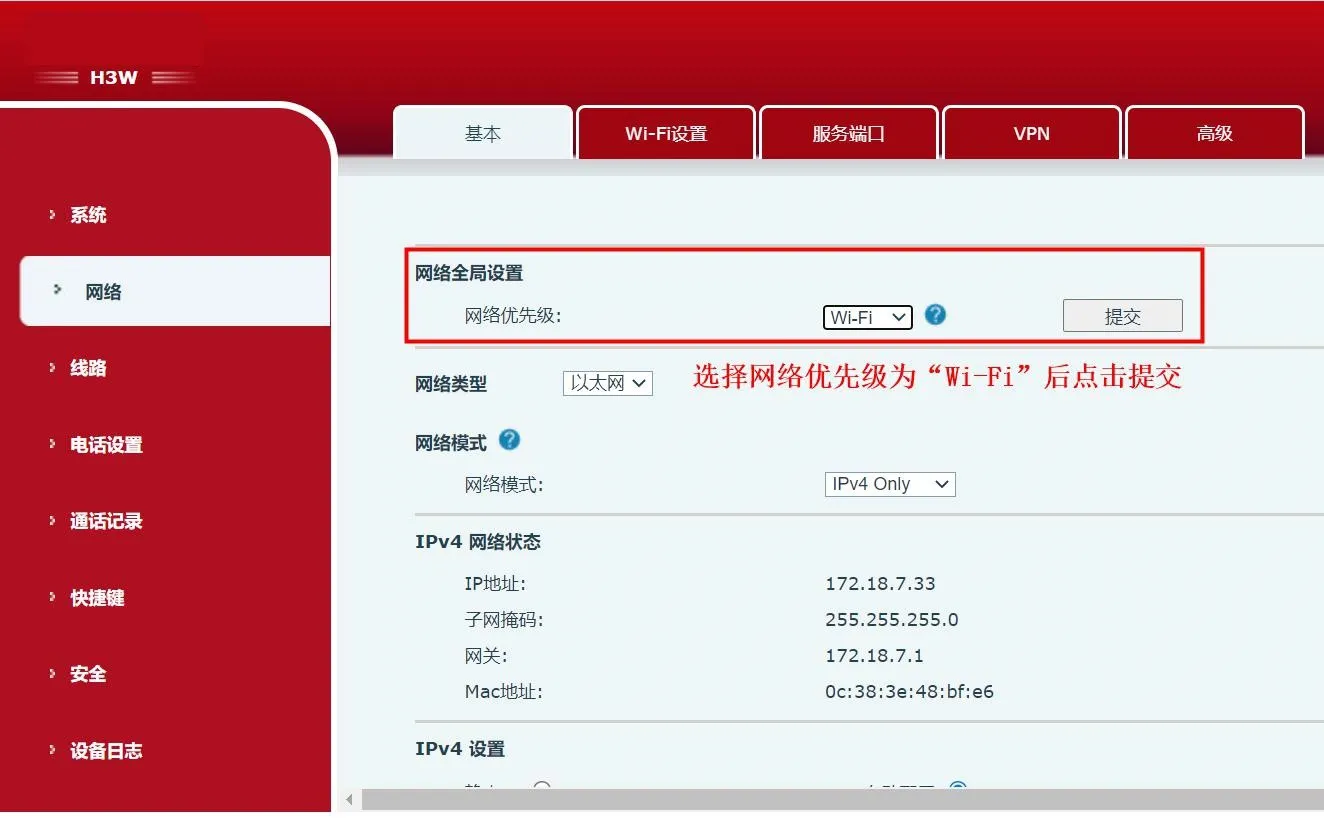
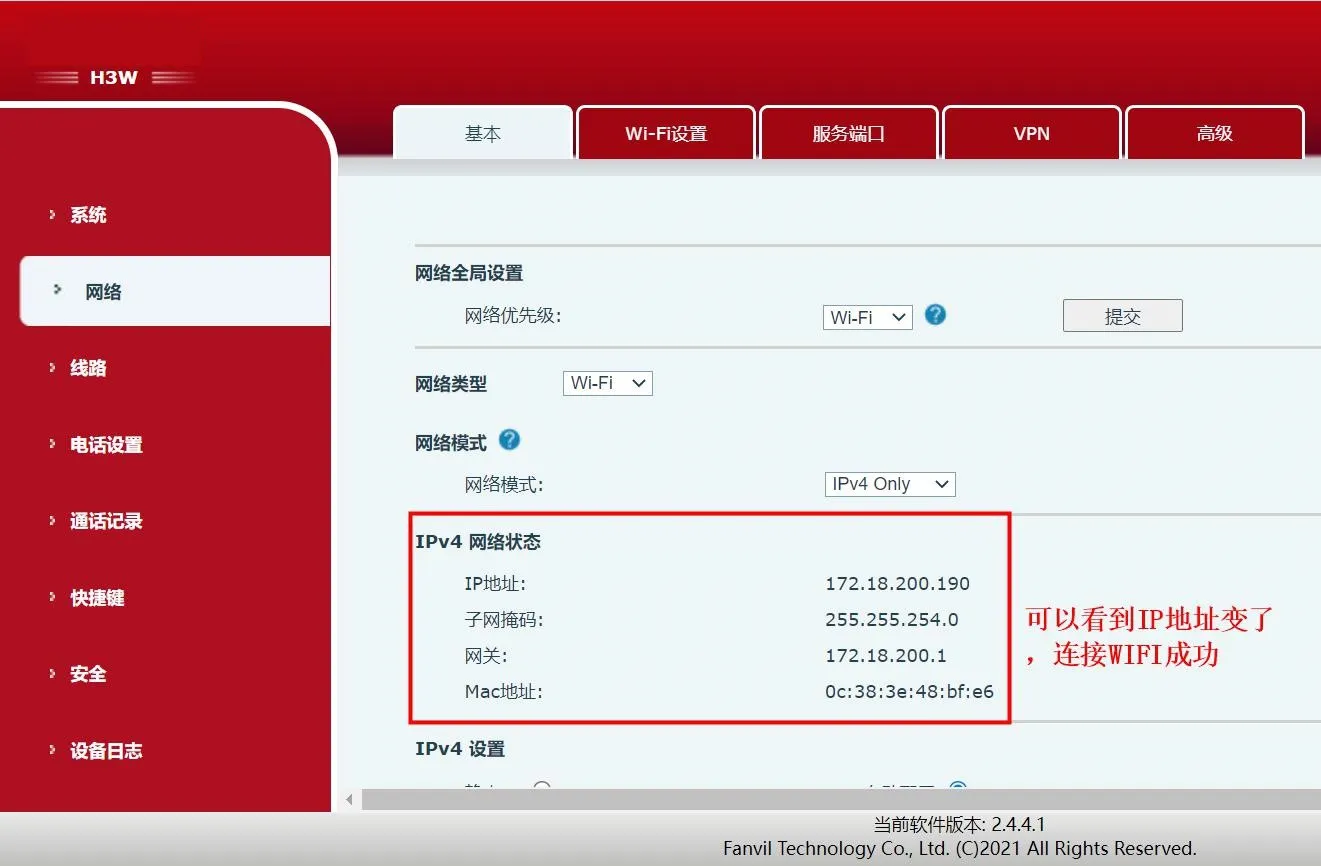
2、BH5W has a screen. Please refer to the steps below.
In standby mode on the BH5W, press #*107 to enter the menu page.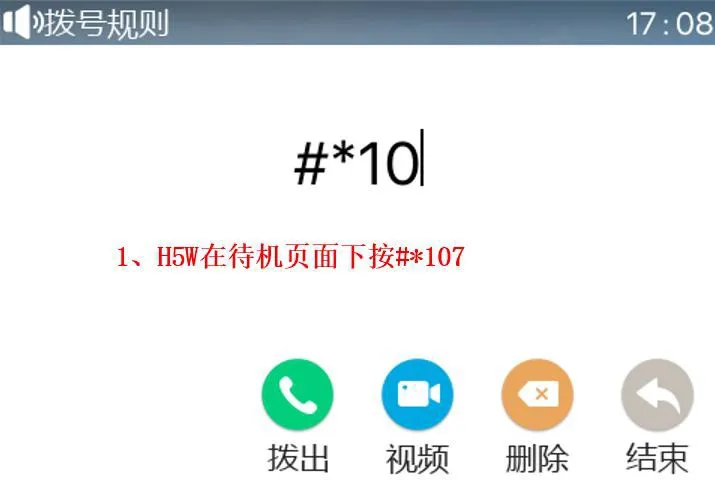
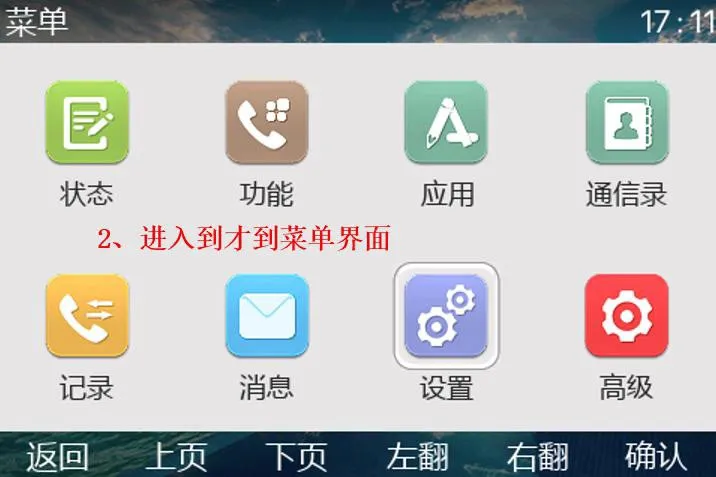
For the remaining steps, please refer to the Wi-Fi connection procedure for the X3V. They are not repeated here.
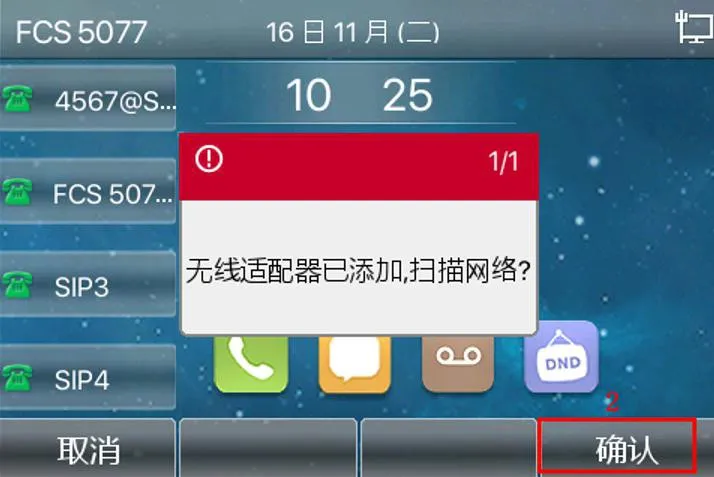
Applicable models: BX4U/BX5U/BX6U/BX7/BX7C/BX7A/BX210/BX210i Insert the Wi-Fi dongle (wireless adapter) into the USB port of the phone.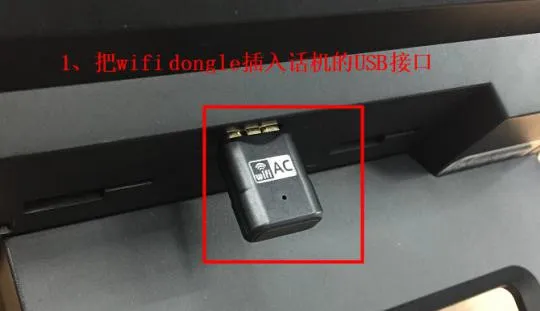
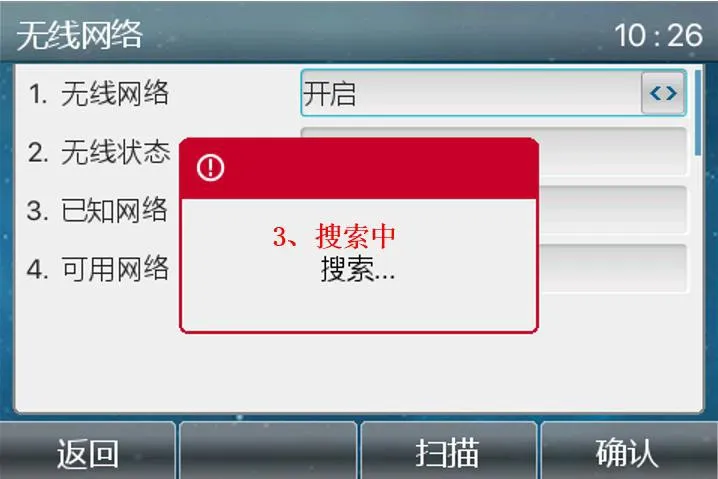
After the dongle is inserted, a pop-up message will appear on the phone screen: “Wireless adapter added. Scan for networks?”. Tap “Confirm” to enter the wireless network settings page. The page will display that it is searching, which means the phone is scanning for available networks. After the scan is complete, choose an available network and tap “Confirm”. Then select the Wi-Fi network you want to connect to, tap “Connect”, enter the password, and tap “Confirm”.