
Learn how to configure device settings through the HTTP API using Postman, including SIP registration, DSS keys, network options, XML request format, and supported parameter retrieval
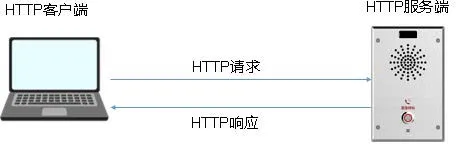
This guide explains how to configure device parameters through the HTTP API, including SIP server settings, SIP account registration details, DSS key parameters, and other device options. The device acts as the HTTP server, while the client sends specific HTTP requests to apply configuration changes, as shown in the diagram below.
In this example, Postman is used to simulate HTTP requests sent to the device.
All currently available phone models from our product line.
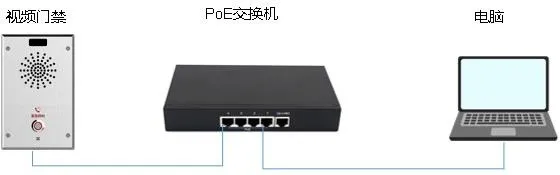
① One BHP-SOS11V intercom device, upgraded to the latest released firmware version and connected to a PoE switch.
② One configuration PC with Postman installed, connected to the same switch, with normal network communication confirmed.
Download Postman from:
https://www.postman.com/downloads/
Then follow the installation instructions to complete the setup.
Click File – New, then select HTTP Request.

In the new request window, select the POST method and enter the device HTTP URL in the following format:
http://ip/xmlservice
Note that the URL is case-sensitive. Replace ip with the actual device IP address, as shown below.
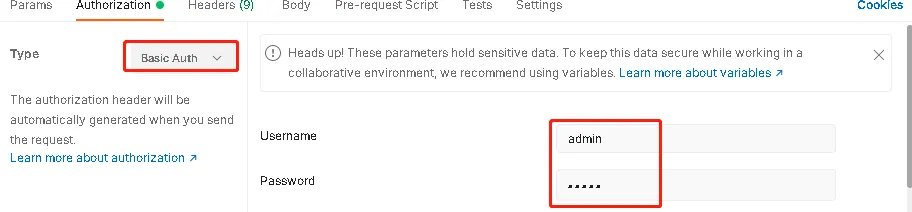
Then configure the required HTTP request parameters:
Authentication method: Basic Auth
Header: Content-Type: xml/text
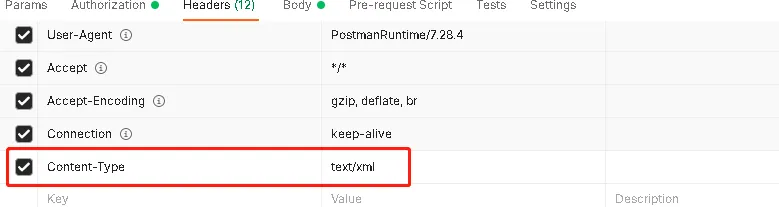
Click Body, select raw, then enter the XML content in the message body. A sample format is shown below.

The structure is as follows:
This is the XML declaration header and is required in every request.
This defines the XML command structure. The cmd attribute can be either get to retrieve current parameters or set to write new parameters.
This specifies the actual configuration item. In this example, the request retrieves SIP line-related parameters from the device.
In real use, the following section must be adjusted according to the actual parameter you want to query or configure:
Different models may support different HTTP API parameters. You can use either of the following methods to obtain the supported parameter list for a specific device.
Method 1: In the device WEB interface, go to System – System Configuration, then export the nc-type configuration file.
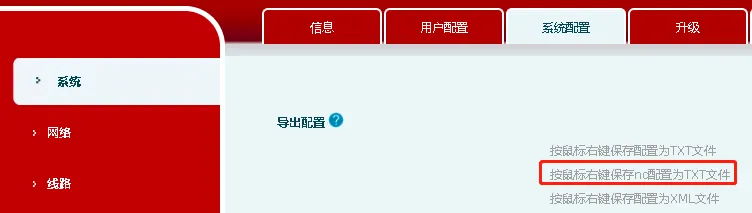
You can right-click to save the file, or left-click to view the configuration directly. Common parameters are listed in the next section.
Method 2: Some models do not provide the nc configuration file link directly in the web interface. In that case, you can enter the corresponding URL in the browser address bar to retrieve the nc configuration file manually.
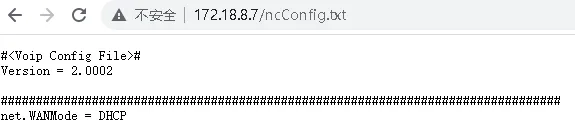
Note: This method may take longer to respond.
This section lists several common parameters for reference. More parameters may be added in future updates.
Example SIP line parameters (from the i30 access control device):
	sip.line.1.PhoneNumber = 112

	sip.line.1.DisplayName = 112

	sip.line.1.SipName =

	sip.line.1.RegAddr = 172.18.1.45

	sip.line.1.RegPort = 2066

	sip.line.1.RegUser = 112

	sip.line.1.RegPswd = abc123

	sip.line.1.RegTTL = 3600

	sip.line.1.RegEnabled = 0
sip.line.1. indicates that these parameters belong to SIP line 1.
PhoneNumber corresponds to the phone number field in the web interface.
DisplayName corresponds to the display name.
RegAddr is the SIP proxy server address.
RegPort is the SIP proxy server port.
RegUser is the authentication username, usually the same as the phone number.
RegPswd is the password.
RegTTL is the registration expiry time, with a default value of 3600 seconds.
RegEnabled defines whether the line is enabled: 0 means disabled, 1 means enabled.
Example DSS key parameters for the i30:
It is recommended to configure the DSS key in the web interface first, then use the HTTP API with the get command to read back the corresponding parameter values and confirm the exact mapping.
Type=1 indicates that the DSS key type is Hotkey for devices such as the i30 or i12. For other models, verify the actual type value using the recommended method above.
Value=125@1/f means:
125 = destination number
@1 = line 1
/f = sub-type: speed dial
Example network parameters for devices such as the i30 and i12:
WANMode indicates the network mode, which can be DHCP or static. This parameter cannot be written directly with the set command. It changes automatically according to the value of dhcp.Enabled.
static.IP is the static IP address. It is effective only when the device is in static mode. In DHCP mode, the get command can still be used to retrieve the current IP address.
static.SubnetMask is the subnet mask.
static.Gateway is the default gateway.
static.PrimaryDNS is the primary DNS server.
static.SecondaryDNS is the secondary DNS server.
dhcp.Enabled defines whether DHCP is enabled: 1 means DHCP mode is active, while 0 means static IP mode is used.
Example volume parameters for the BHP-SOS11V:
phone.volume.HandFreeVol is the speakerphone volume. The range is 1-9, where 9 is the highest volume.
phone.volume.HandFreeRingVol is the ringtone volume for incoming calls. The range is 1-9, where 9 is the highest volume.
phone.volume.HandFreeToneVol is the tone volume for prompt tones such as alerts and notification sounds. The range is 1-9, where 9 is the highest volume.
System information parameters are read-only, which means they can only be queried with the get command.
Example:
This parameter returns all system information. If you only need a specific item, extend the parameter path to the next node level.
For example, to retrieve the device MAC address:
