Learn how to assign a static IP address to a phone from the LCD screen or web interface, with step-by-step instructions for changing network type and entering the required IPv4 settings.
This guide explains how to assign a static IP address to the phone.
This procedure applies to all of our phone models.
This document is intended for users who need to configure a static IP address on the phone.
① One phone connected to a switch and able to obtain an IP address automatically.
② One configuration PC connected to the same switch, with network communication between the PC and the phone confirmed.
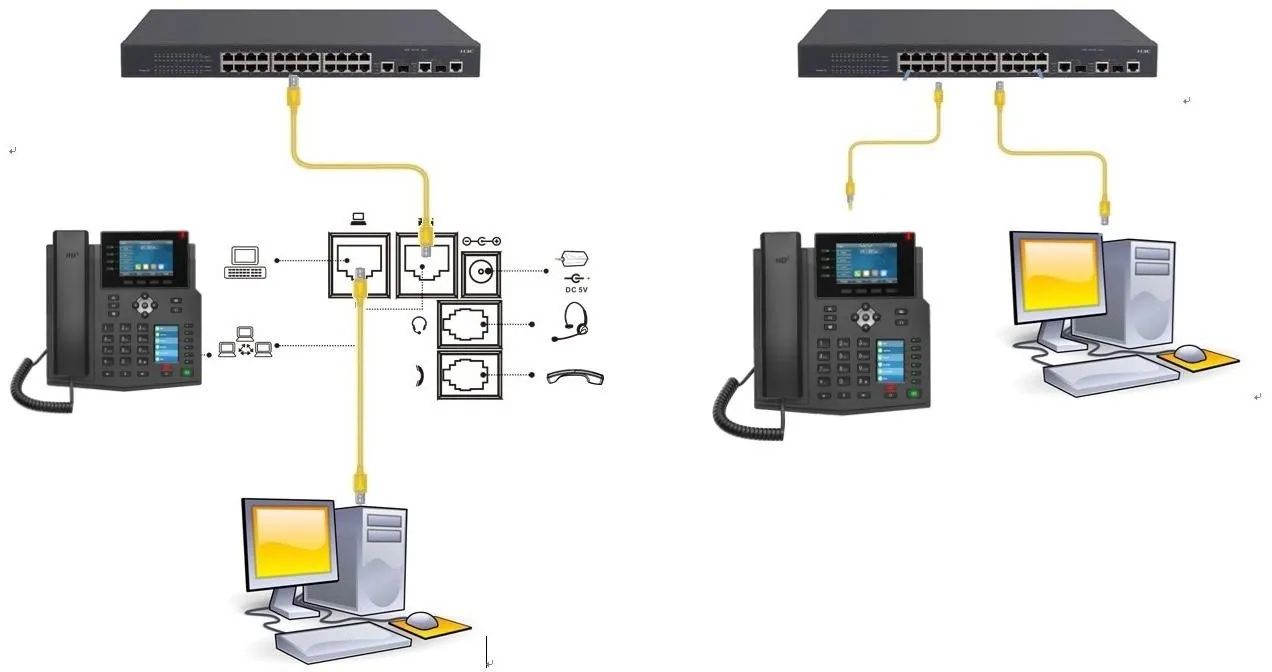
The connection diagram is shown below.
Configure a Static IP from the Phone Screen
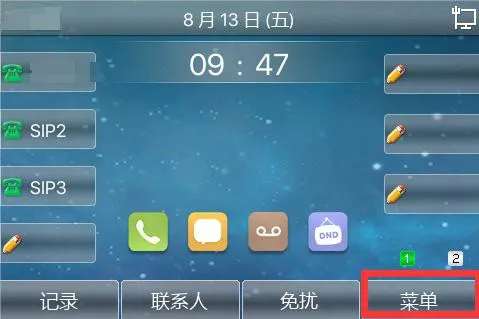
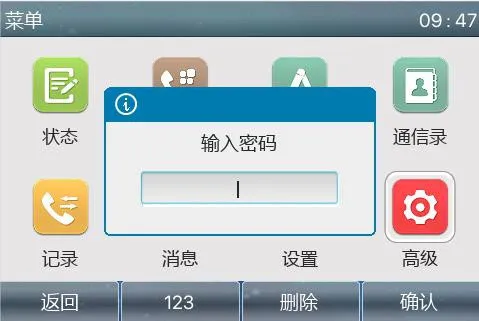
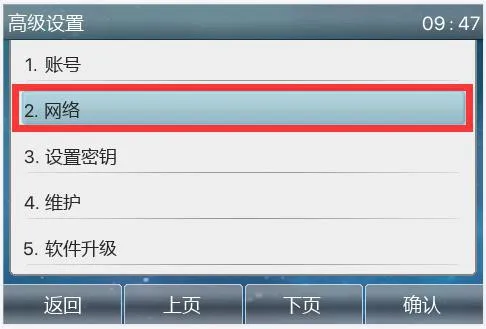
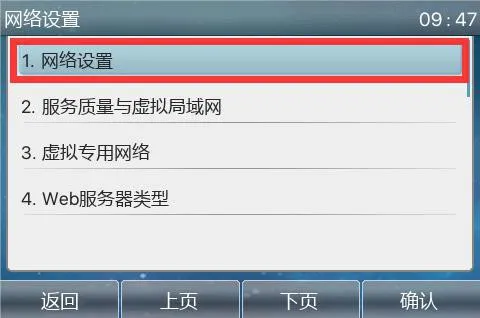
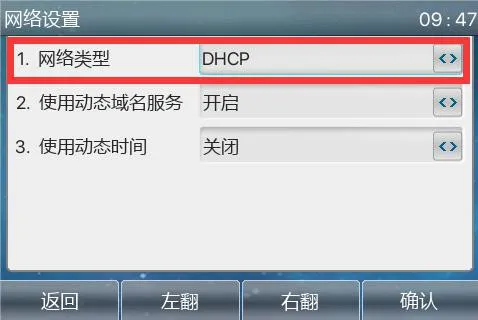
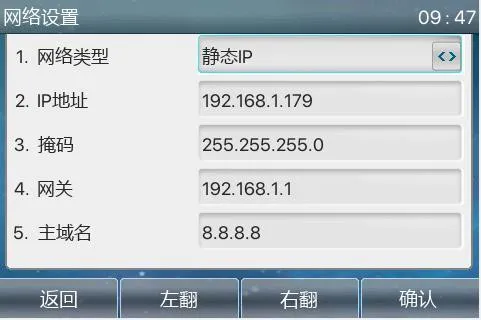
On the LCD screen, go to Menu -- Advanced Settings (default password: 123/admin) -- Network -- Network Settings -- IPv4. Change the network type to Static and save the setting. Then return to the previous menu, select Static Settings, enter the required IP address information, and save again, as shown in Figures 1 to 7 below.

Note: This method does not apply to H2S, H2U, H3, or H5 hotel phone models.
Configure a Static IP from the Phone Web Interface
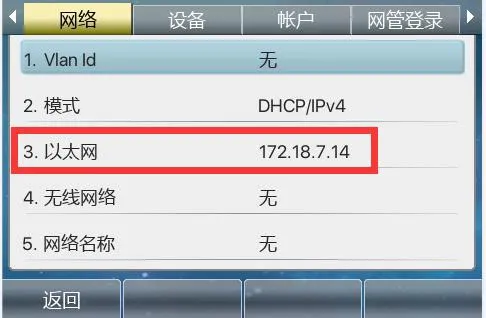
1. On the phone LCD screen, go to Menu -- Status to check the current IP address of the phone.
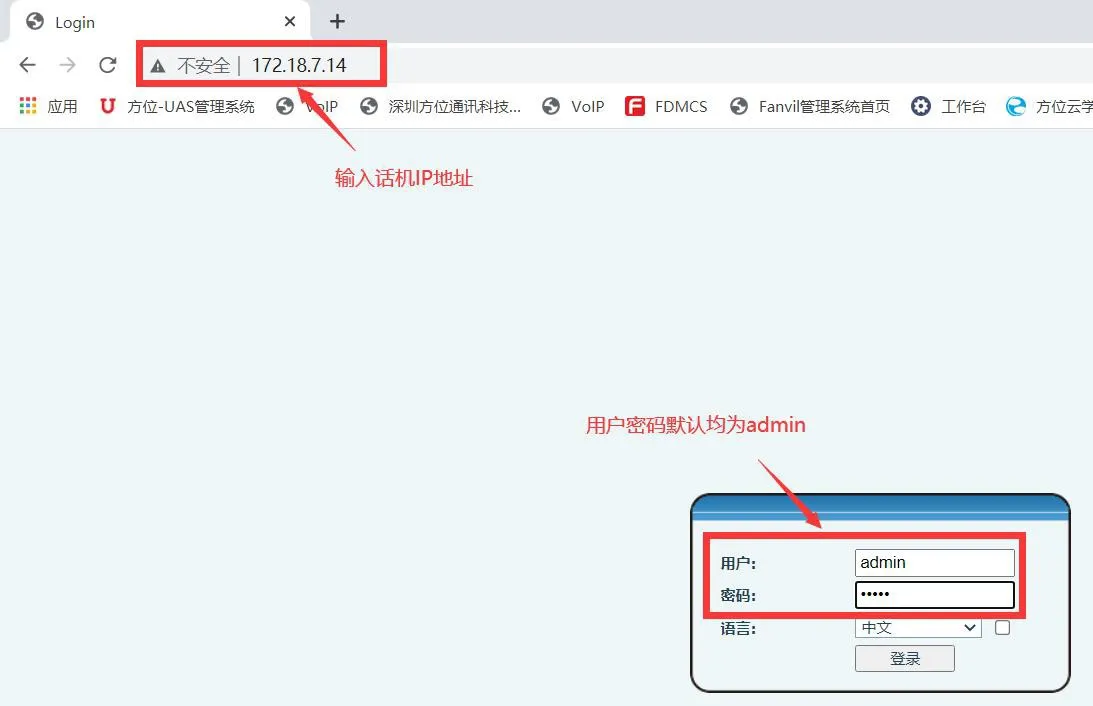
2. Log in to the phone web interface. On the PC, open a browser, preferably Google Chrome, and enter the phone IP address in the address bar.
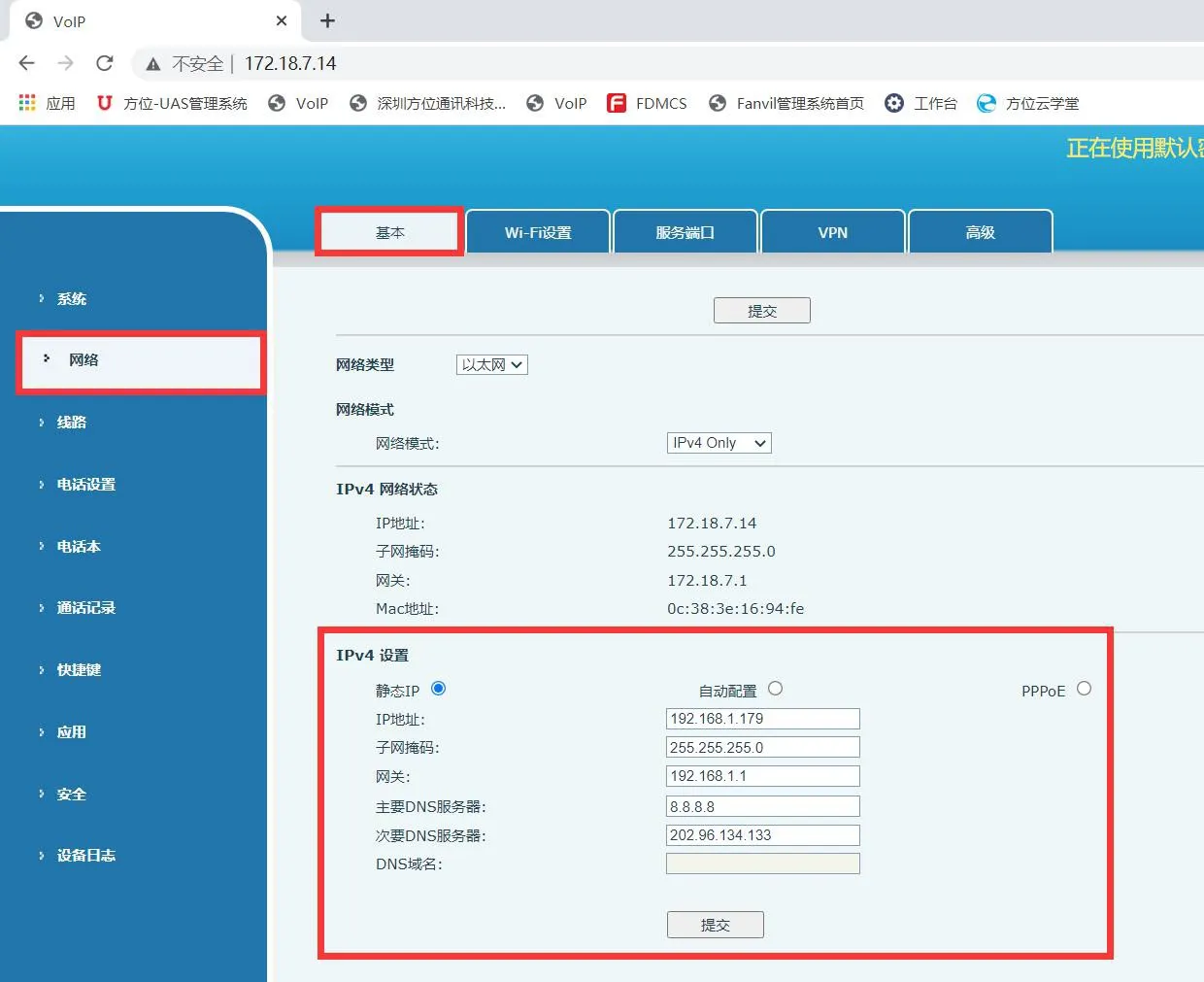
3. Go to Network -- Basic. In the Settings section, choose Static IP, enter the required IP address details, and click submit.