Learn how to capture system logs and network packets from IP phones through the web interface or Wireshark to troubleshoot restarts, freezes, registration issues, audio faults, and other abnormal behavior.
When a phone experiences unexpected restarts, system freezes, software bugs, or other abnormal behavior, system log capture can be used to collect diagnostic data for technical support. These logs help engineers identify, analyze, and resolve the issue more efficiently.
Supported products: all phone models.
Supported firmware: all firmware versions for the supported models.
① Two BX4U phones connected to a switch and able to obtain IP addresses automatically.
② One configuration PC connected to the same switch, with network communication between the PC and the phones confirmed.
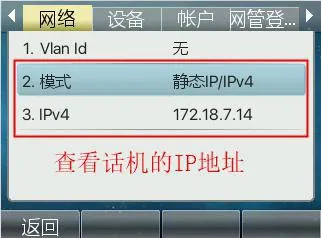
1. Check the phone IP address.
On the phone LCD screen, go to Menu — Status to view the current IP address of the phone.
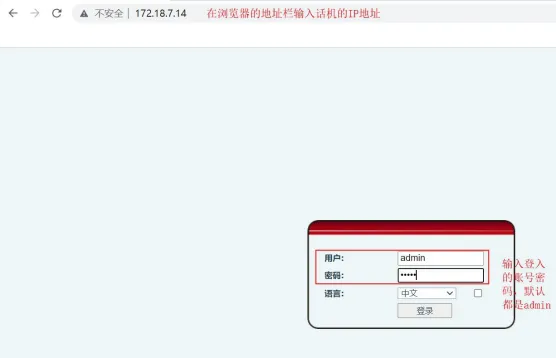
2. Log in to the phone web interface.
3. Start web-based packet capture.
In the web interface, go to System -- Tools -- Network Capture, then click Start.
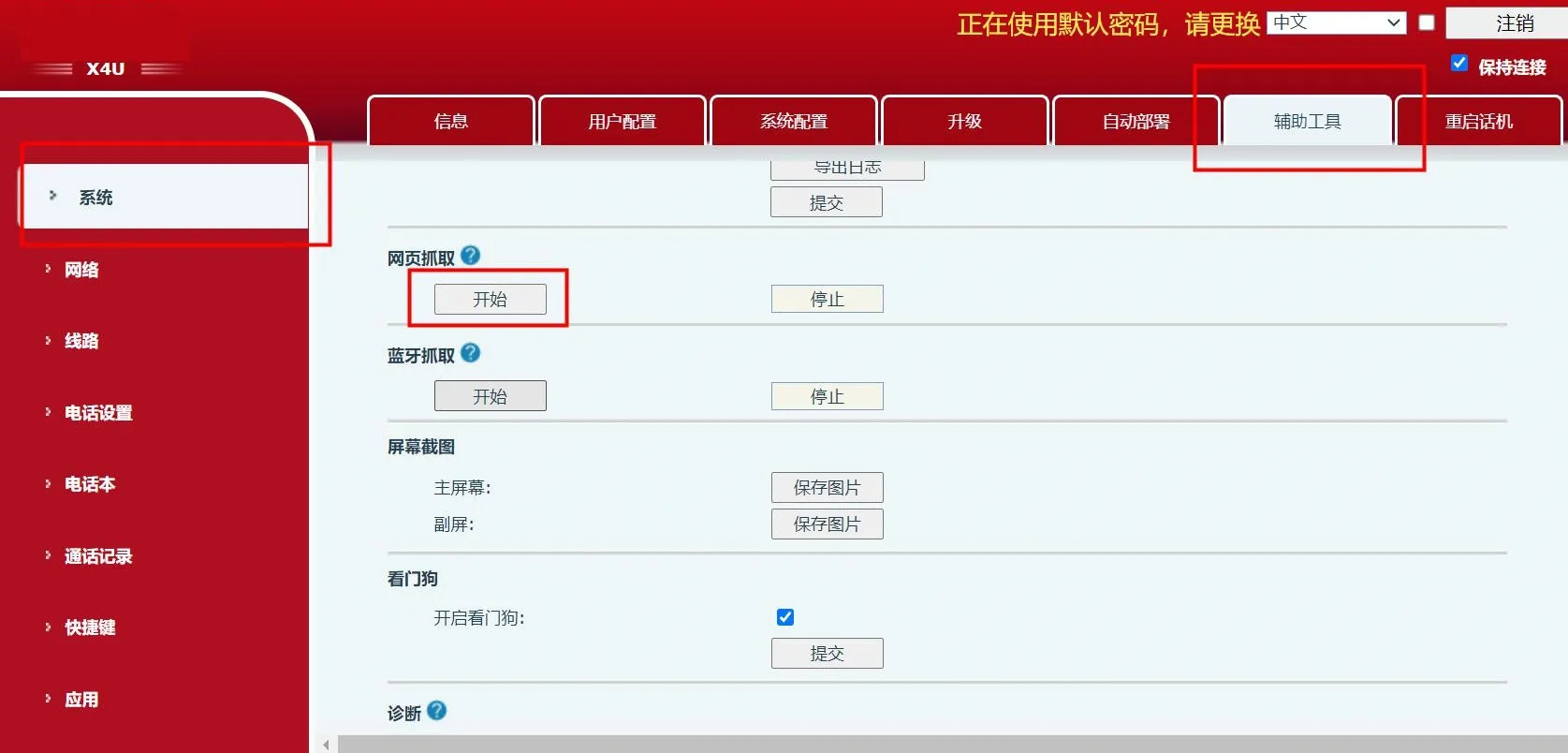
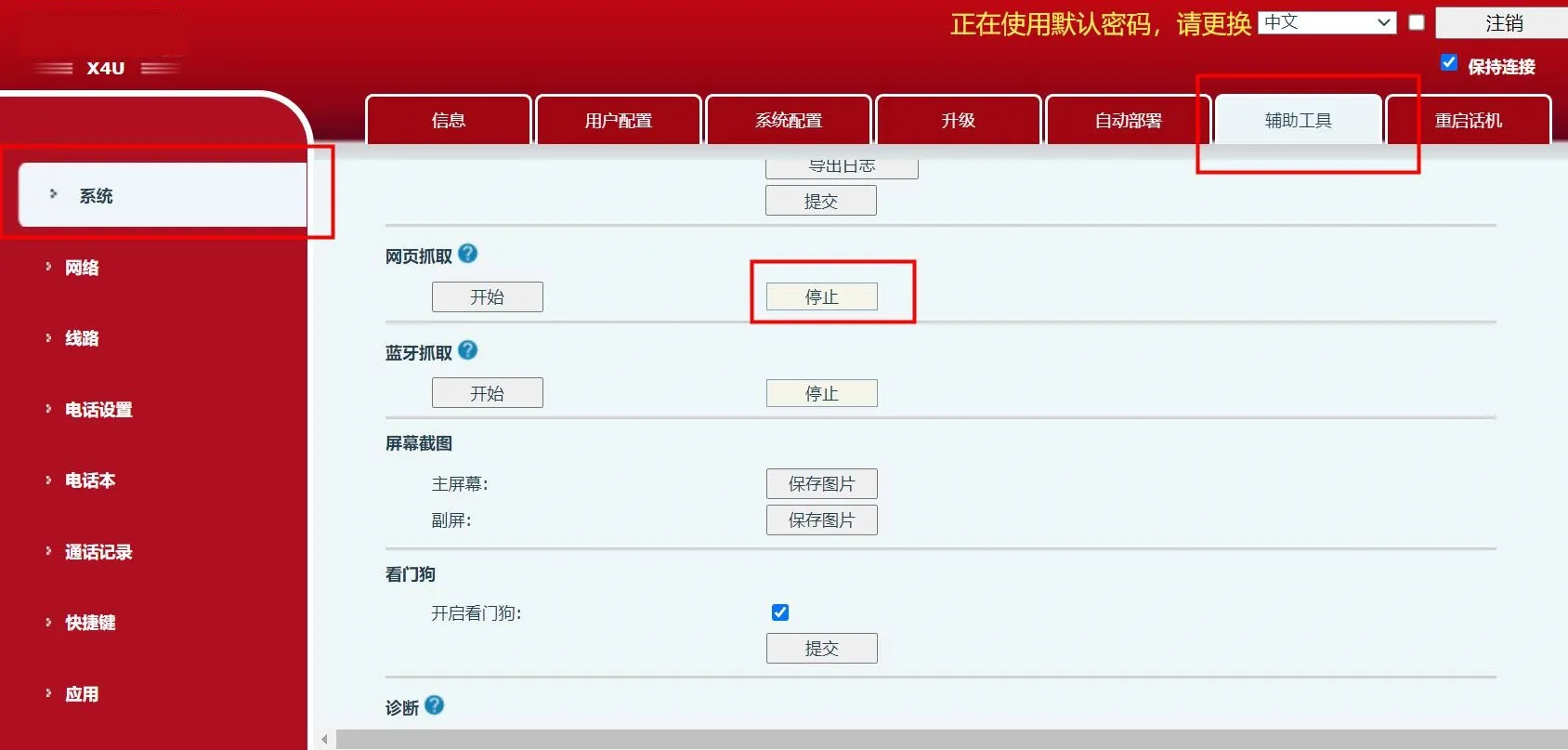
Repeat the action that triggers the issue. For example, if the problem is no audio during a call, place a test call and reproduce the fault. Once the issue appears, click Stop.
Your browser will then display a download prompt and begin saving the capture file.
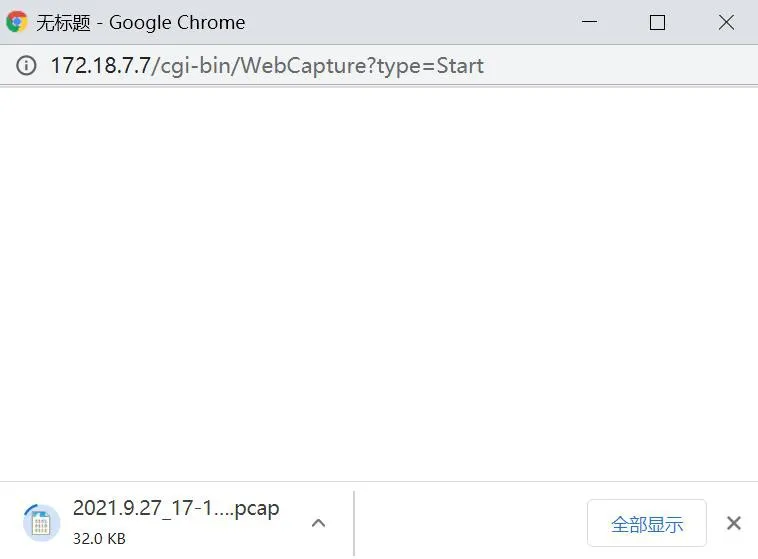
After packet capture is stopped, the file download will complete automatically.
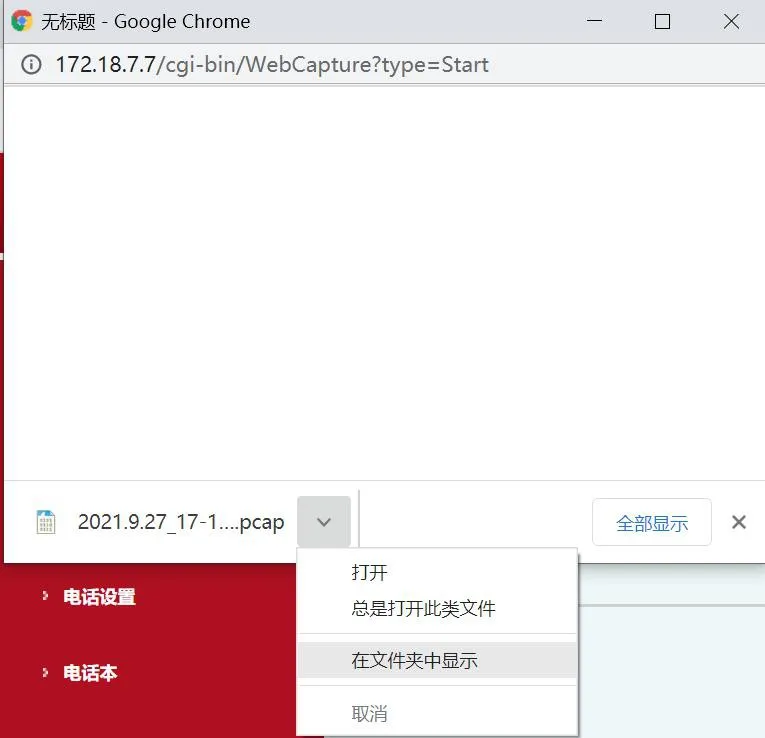
Send the generated pcap file to our technical support team for analysis.
1. Wireshark is a network packet analysis tool installed on a PC. It can be downloaded and installed separately.
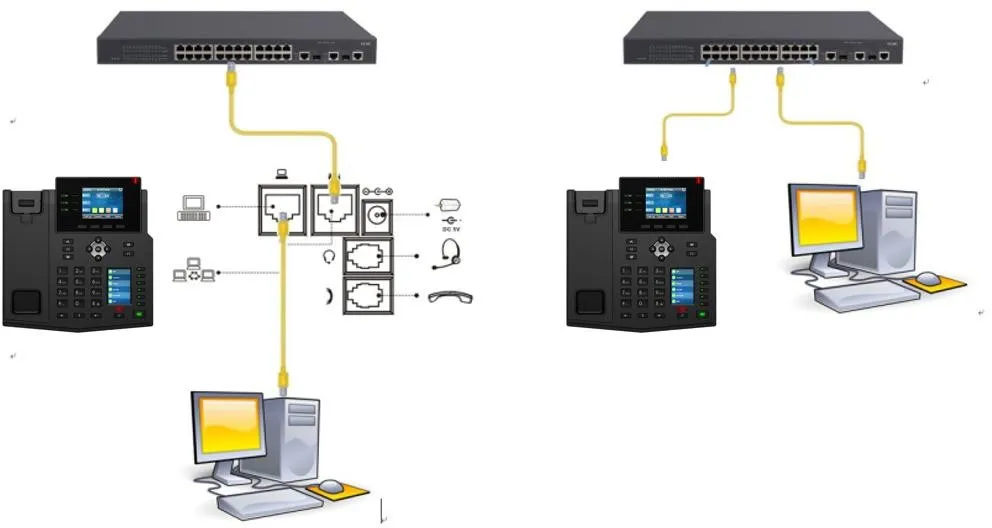
Physical connection examples for PC-based packet capture:
Capture connection method 1 Capture connection method 2
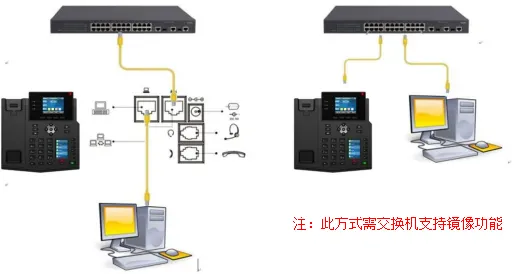
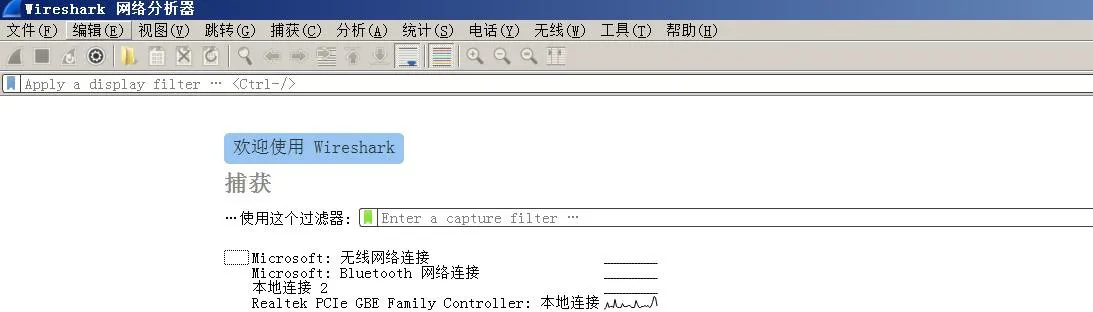
2. Open Wireshark by double-clicking the application. After launch, select the correct network interface.
If you are using a wired connection, choose the local Ethernet adapter. If you are using Wi-Fi, choose the wireless adapter. In the example below, the local Ethernet connection should be selected.
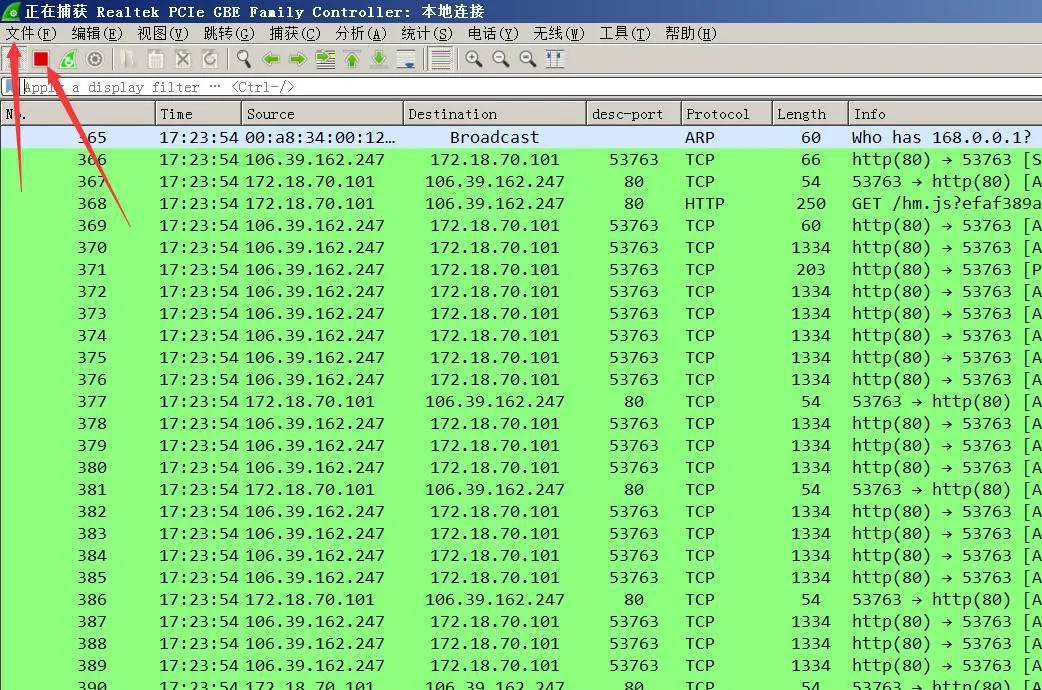
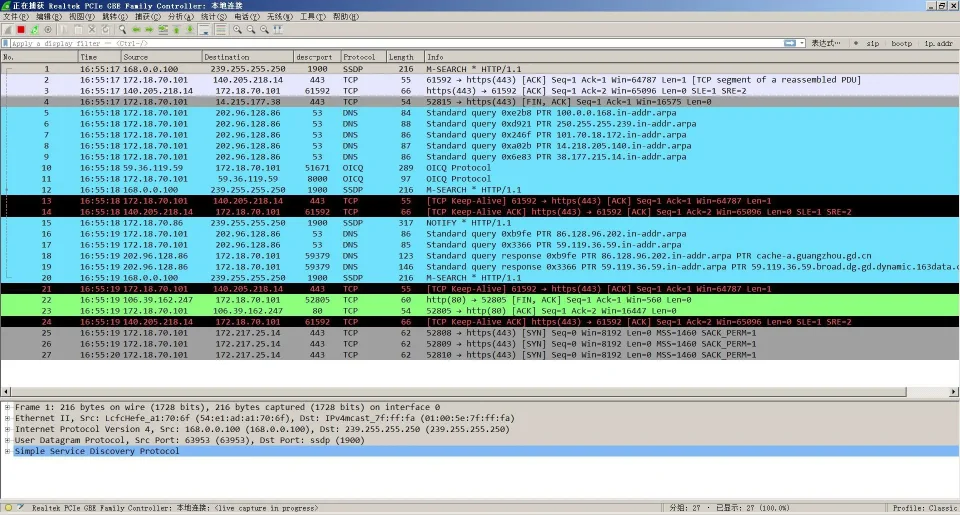
3. Once the interface is selected, Wireshark will immediately begin capturing packets sent from and received by the PC. The screen below indicates that packet capture is already in progress.
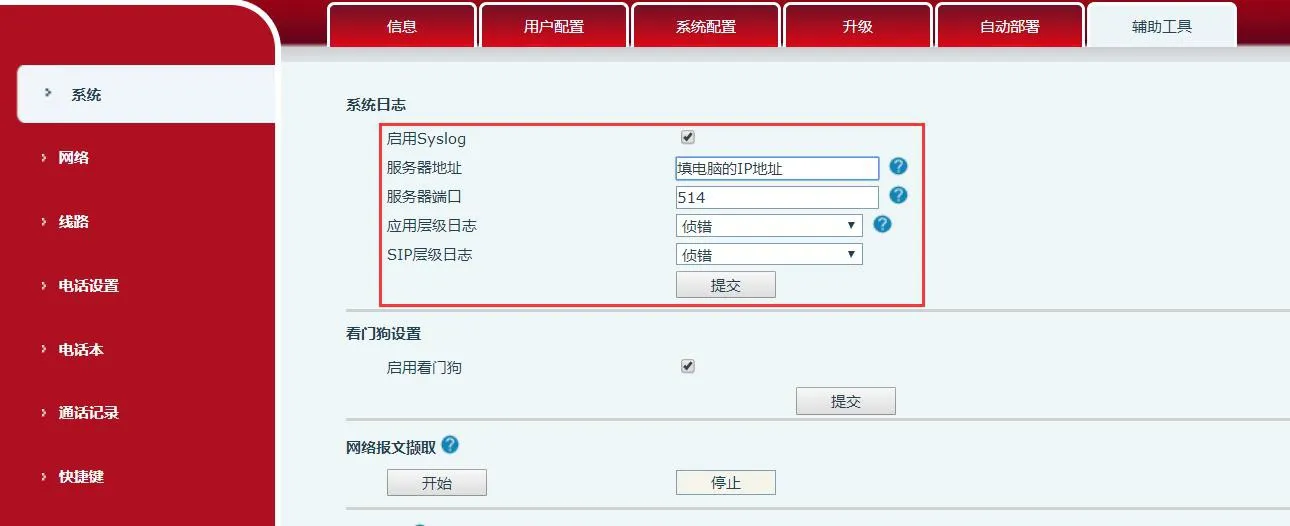
4. Log in to the phone web interface and enable the system log function.
5. Reproduce the issue again.
For example, if the issue is a registration timeout, submit the SIP registration again. If call transfer fails, perform the transfer test again. If the issue is related to call audio, place another test call and reproduce the problem.
6. Stop and save the packet capture after testing is complete.
① Click the red button in the upper-left corner to stop the capture.
② Click File - Save As to save the capture file.
③ Send the saved packet file to our technical support team for analysis.