
Learn how to identify, prevent, and troubleshoot network storm issues on IP phones, including warning icons, cabling mistakes, loop risks, Wireshark analysis, and branch-by-branch fault isolation.
In a network affected by a network storm, internet access on a PC may become very slow, and IP phones may fail to operate normally. When a phone is first connected, it may fail to obtain an IP address. Phones that were previously working may become unresponsive or display a warning icon on the screen.
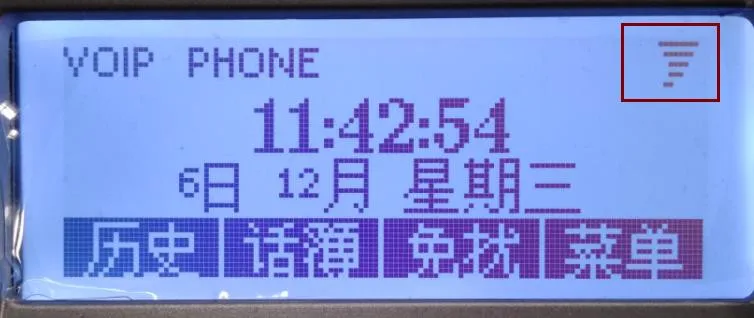
The examples below show the warning symbols that may appear on the phone. In general, the larger the brackets around the lightning symbol, the more severe the network storm is.


In some environments, a PC may still be able to access the network while the phone cannot obtain an IP address or may even freeze. This does not necessarily indicate a fault with the phone. A phone CPU and a PC CPU are designed for different purposes and have different traffic-handling capabilities.
If a network storm warning appears, it should be treated as an alert about the network environment rather than a defect in the phone itself.
On monochrome-screen models, the warning may appear as a tornado-like icon. On very old firmware versions, the phone may show a text-based warning instead. These indicate the same underlying issue.
This guide applies to all of our IP phone models.
This document is intended for users or support personnel who need to troubleshoot network storm conditions or configure a static IP address on the phone.
General background information about network storms can be found at the following link:
https://baike.baidu.com/item/%E7%BD%91%E7%BB%9C%E9%A3%8E%E6%9A%B4/7308277?fr=aladdin
Common phone-side causes of a network storm include the following:
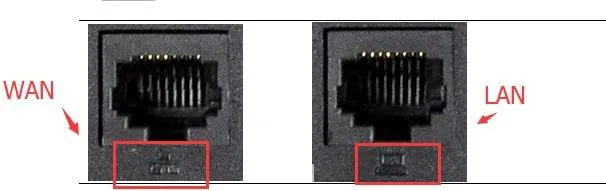
1. A loop is created by the phone’s two Ethernet ports. Since the phone provides dual network ports, some users connect both ports to the upstream switch or router, which can create a loop.
Notes:
(1) The LAN port is a bridged extension of the WAN port. It is intended for situations where only one wall network cable is available at a desk, but both the PC and the phone need network access. In this case, connect the incoming network cable to the WAN port, then connect the LAN port to the PC.
(2) If enough network outlets are available, the PC and the phone should each use their own separate network connection. In that case, the phone LAN port should remain unused.
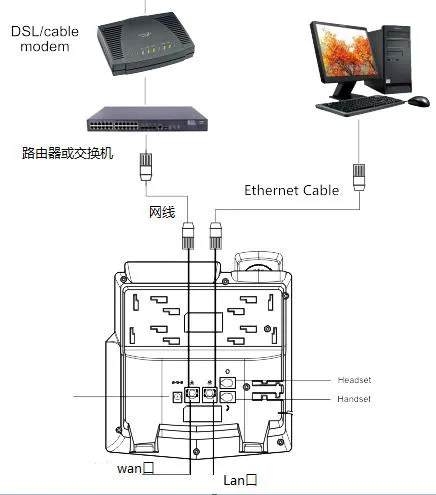
2. The WAN and LAN connections are reversed. When both network ports are used, the WAN port must be connected to the upstream switch or router, while the LAN port should connect only to another local network device, such as a PC.
Note: If the ports are connected incorrectly, the network may not fail immediately. However, problems may appear later during operation. To avoid potential issues, always use the correct port mapping.
To avoid network storm issues caused by incorrect cabling, make sure the phone WAN port is connected to the upstream switch or router. The LAN port should either remain disconnected or be connected only to a downstream terminal device such as a PC.
1. A practical way to investigate network storm conditions is to use Wireshark for live packet capture. You can refer to the following example guide:
https://jingyan.baidu.com/article/60ccbceb65ff2164cbb19777.html
2. Wireshark can be downloaded and installed from common software sources.
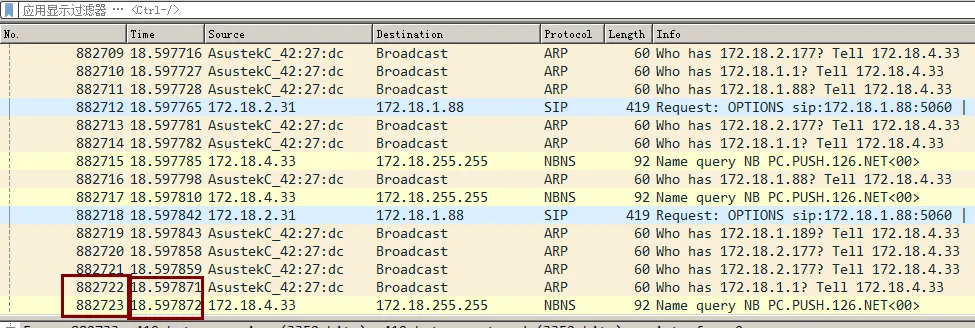
3. During a network storm, the LAN usually contains a very large number of broadcast packets. In Wireshark, this becomes visible immediately. In the example below, more than 882,723 packets are captured in just over 18 seconds, which is equivalent to more than 40,000 packets per second.
4. You may also use the following method, although it is less intuitive than Wireshark packet analysis:
https://jingyan.baidu.com/article/29697b9101f95fab21de3c6c.html
5. The troubleshooting method below is intended for users who have a basic understanding of the network structure. Use the following topology as a reference:
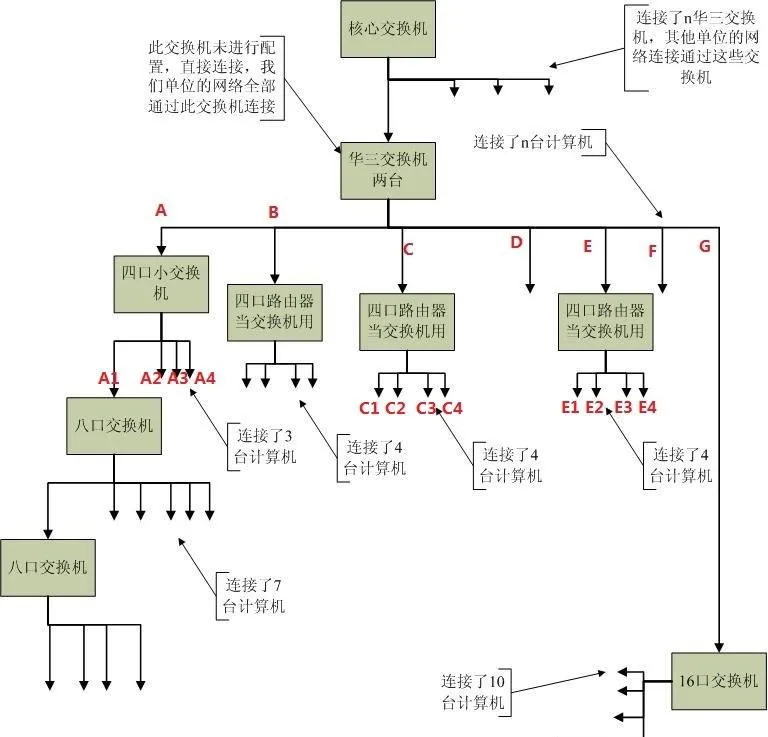
Follow these steps:
① Open Wireshark on a PC, connect the PC to point A, and begin capturing packets.
Result (1): If the PC still shows a network storm at this point, unplug and reconnect lines B, C, D, E, F, and G one by one. After disconnecting each line, wait about 5 seconds before reconnecting it. If the traffic returns to normal after one specific line is unplugged, you can conclude that the abnormal condition is on that branch. Then continue troubleshooting further down that branch using the same method.
Result (2): If the packet traffic looks normal at point A, and the devices under B, C, D, E, F, and G are all working properly, then the issue is likely under branch A. Continue with the next step.
② Keep A connected to the upstream switch, connect the PC to A1, and start packet capture again.
Result (a): If the PC still shows a network storm, unplug and reconnect A2, A3, and A4 one by one. After disconnecting each line, wait about 5 seconds before reconnecting it. If the traffic returns to normal after one specific line is removed, the abnormal condition is on that downstream branch. Continue troubleshooting along that path.
Result (b): If the traffic at A1 looks normal and all devices under B, C, D, E, F, G, A2, A3, and A4 are working correctly, then the problem is likely under A1. Continue isolating the fault in the same step-by-step way.
Note: For example, if Step 1 shows that the storm appears when branch E is connected, then in Step 2 you should continue investigating E1, E2, E3, and E4 under that branch. Adjust the isolation path according to your actual network layout.
