
SIP Phone Configuration File Encryption Guide introduces AES256 encryption via DSC tool on Windows/Linux, secure key setup, and encrypted config usage for bulk provisioning to protect SIP accounts, passwords and sensitive data.
Due to the convenience of batch deployment, an increasing number of customers use this method to deploy IP phones. However, during batch deployment, configuration files are inevitably transmitted over the network. Configuration files contain a large amount of sensitive information, such as SIP accounts and passwords, phone admin passwords, network phonebook account credentials, and more.
To prevent information leakage, we can use an encryption tool to encrypt configuration files. This document mainly covers the following two parts:
How to encrypt configuration files
How to use encrypted configuration files in batch deployment
This document applies to all series of IP phones from our company.
We can use the DSC tool to encrypt configuration files with AES256. The tool can be downloaded from: http://download.fanvil.com/tool/AES%20tool/encryption.7z. The following example explains how to encrypt a configuration file:
After downloading the DSC tool, extract it and place the folder on the F drive.
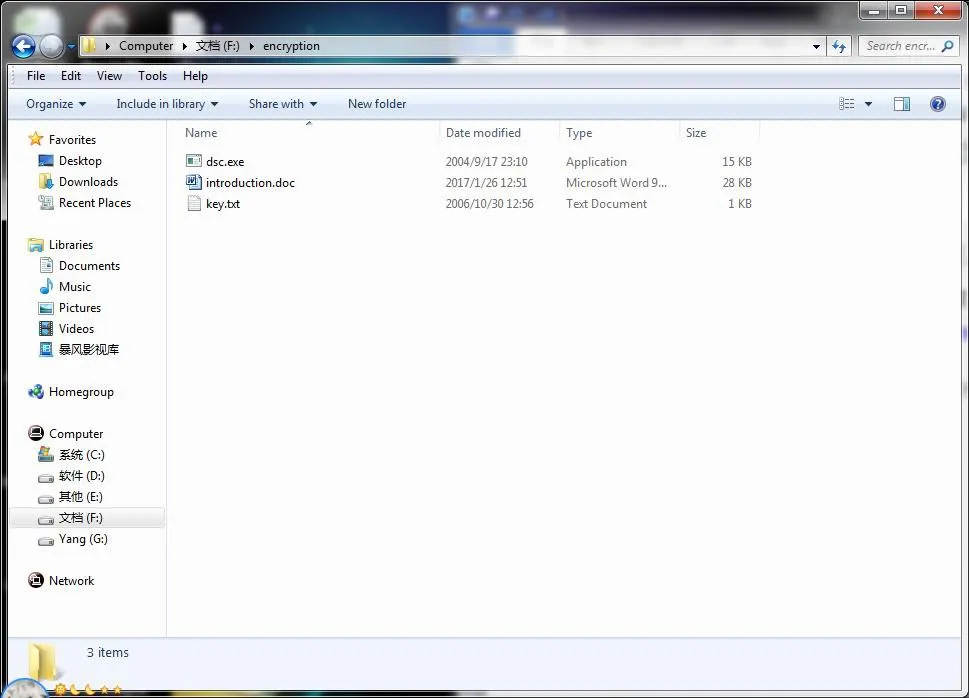
Open key.txt, use the default 64-bit key or enter a new random 64-bit key, then save the file.
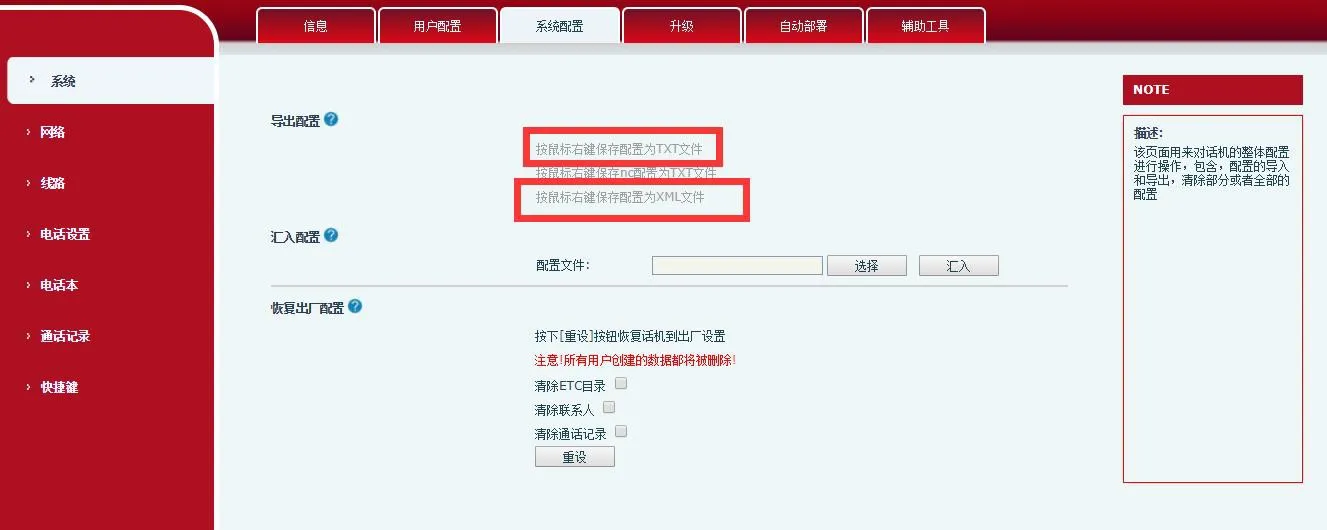
Download the configuration file from the phone's web interface, modify the necessary information, rename the file to config.txt, and place it in the encryption directory on the F drive.
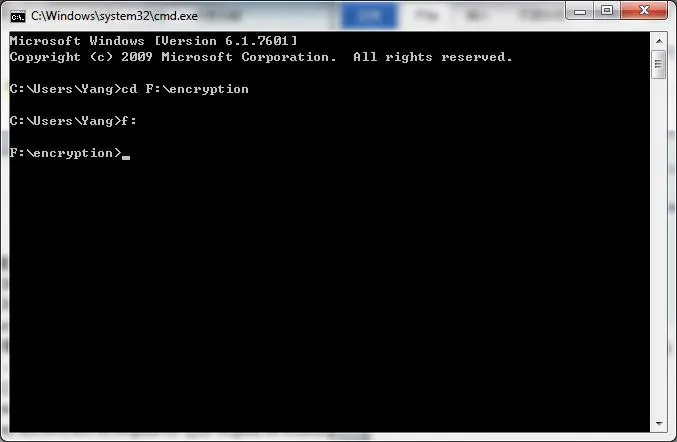
Press Win + R, enter cmd to open the DOS command prompt, then navigate to the encryption directory using the command shown in the image below.
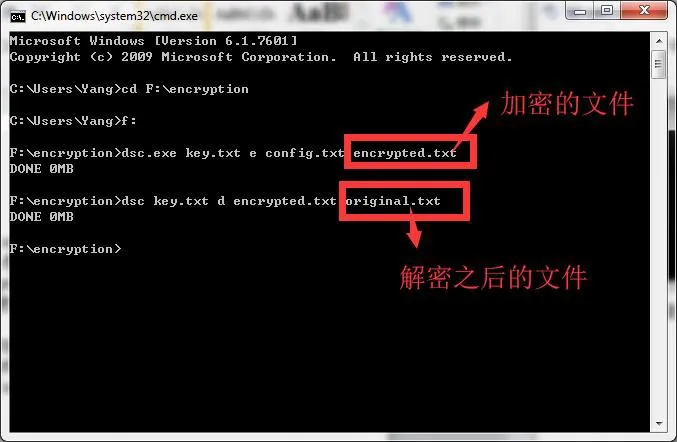
Use the following commands for encryption or decryption:
Encryption Command:
dsc.exe key.txt e config.txt encrypted.txt
- dsc.exe: Tool executable
- key.txt: Key file
- e: Encryption flag
- config.txt: Source configuration file
- encrypted.txt: Output encrypted file (custom name)
Decryption Command:
dsc.exe key.txt d encrypted.txt original.txt
- d: Decryption flag
- encrypted.txt: Encrypted source file
- original.txt: Output decrypted file (custom name)
Download the source code from this link: https://1drv.ms/u/s!AhLXW_VNOC9LgR6TiW5931ydvEP5
Extract the downloaded package on Linux, navigate to the directory, and run the compilation command to generate the DSC tool: gcc dsc.c rijndael-alg-fst.c rijndael-api-fst.c -o dsc
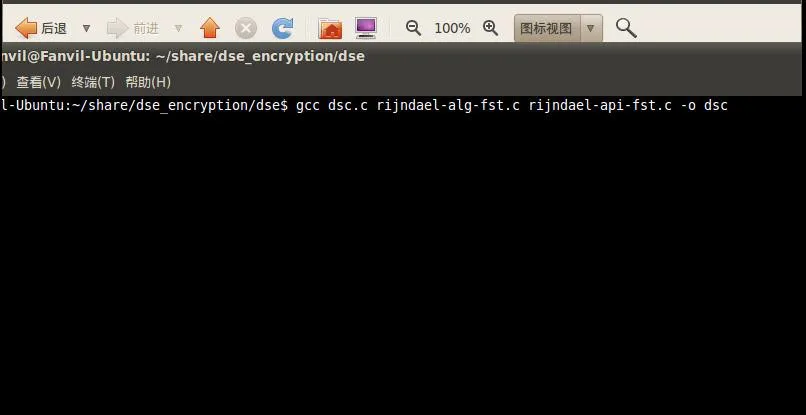
After execution, the dsc tool will be generated in Linux (as shown below).
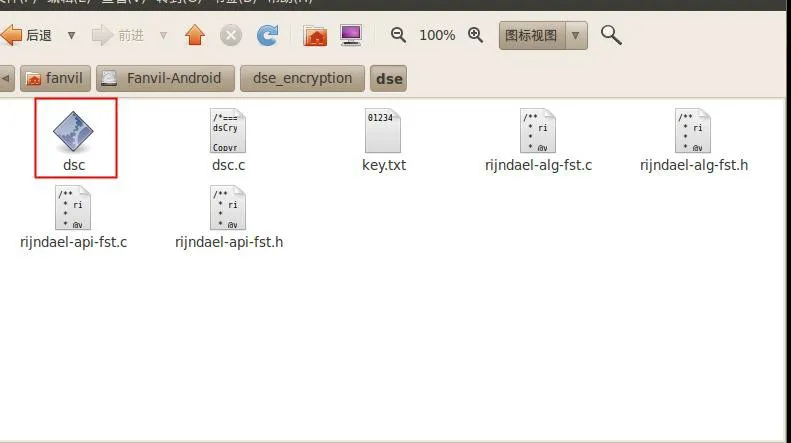
Place the files to be encrypted or decrypted in the same directory as the DSC tool.
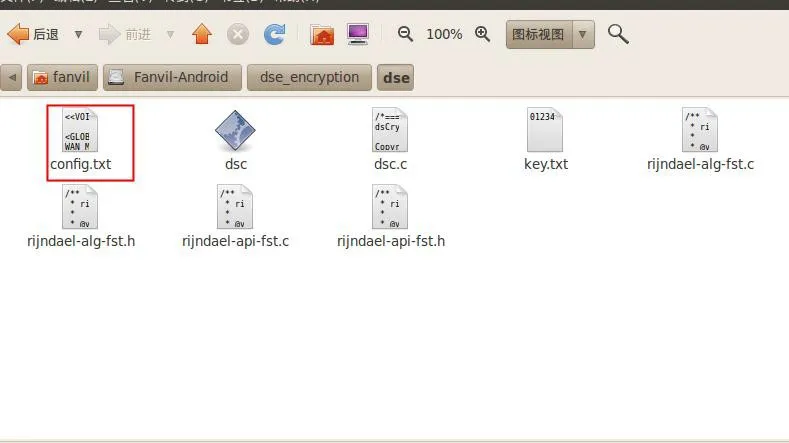
Encryption Command Example:
dsc key.txt e config.txt encryption.enc
- dsc: Tool name
- key.txt: Key file
- e: Encryption
- config.txt: File to encrypt
- encryption.enc: Encrypted output file
Decryption Command Example:
dsc key.txt d encrypted.txt config_after.txt
- d: Decryption
- encrypted.txt: File to decrypt
- config_after.txt: Decrypted output file
To deploy phones using encrypted configuration files, you must configure the encryption key on the phone's web interface as shown below:
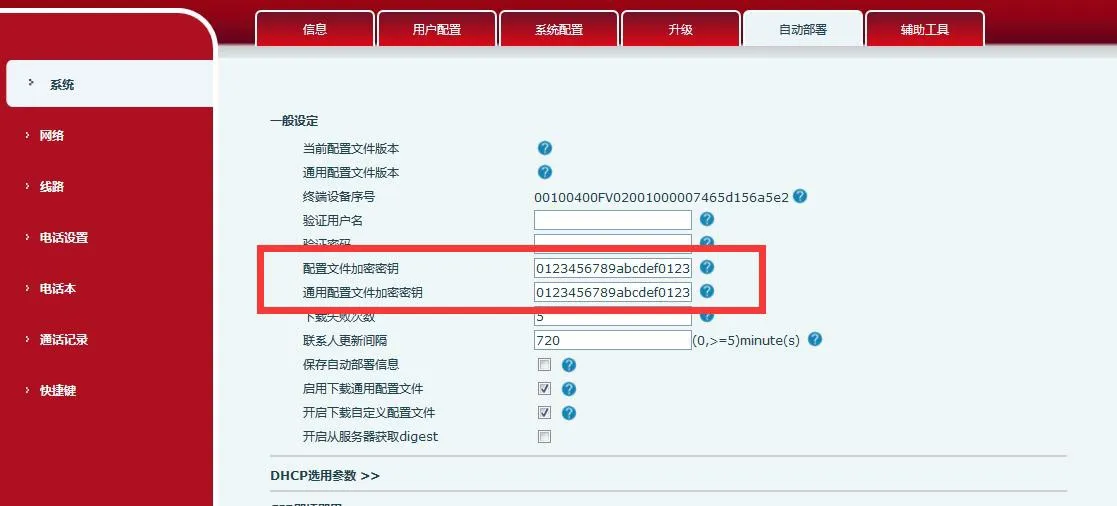
Finally, place the encrypted configuration file (generated in Section 2) on the provisioning server, and configure the correct server settings on the IP phones. For details, refer to the document Auto Provisioning Mechanism, Environment Setup, and Configuration File Guide.
